
Topic
This article discusses setting up and using Kiosk Mode on Android Devices in NinjaOne MDM.
Environment
NinjaOne MDM
Description
The multi-app kiosk launcher lets technicians lock down a device to run a specific set of apps so the device can function as a single-purpose kiosk (such as information terminals, point-of-sale pads, or digital signs).
Enabling kiosk options
In the Android Mobile Policy's Applications page, click the Managed Apps tab and enable the slider for Native multi-app kiosk launcher.
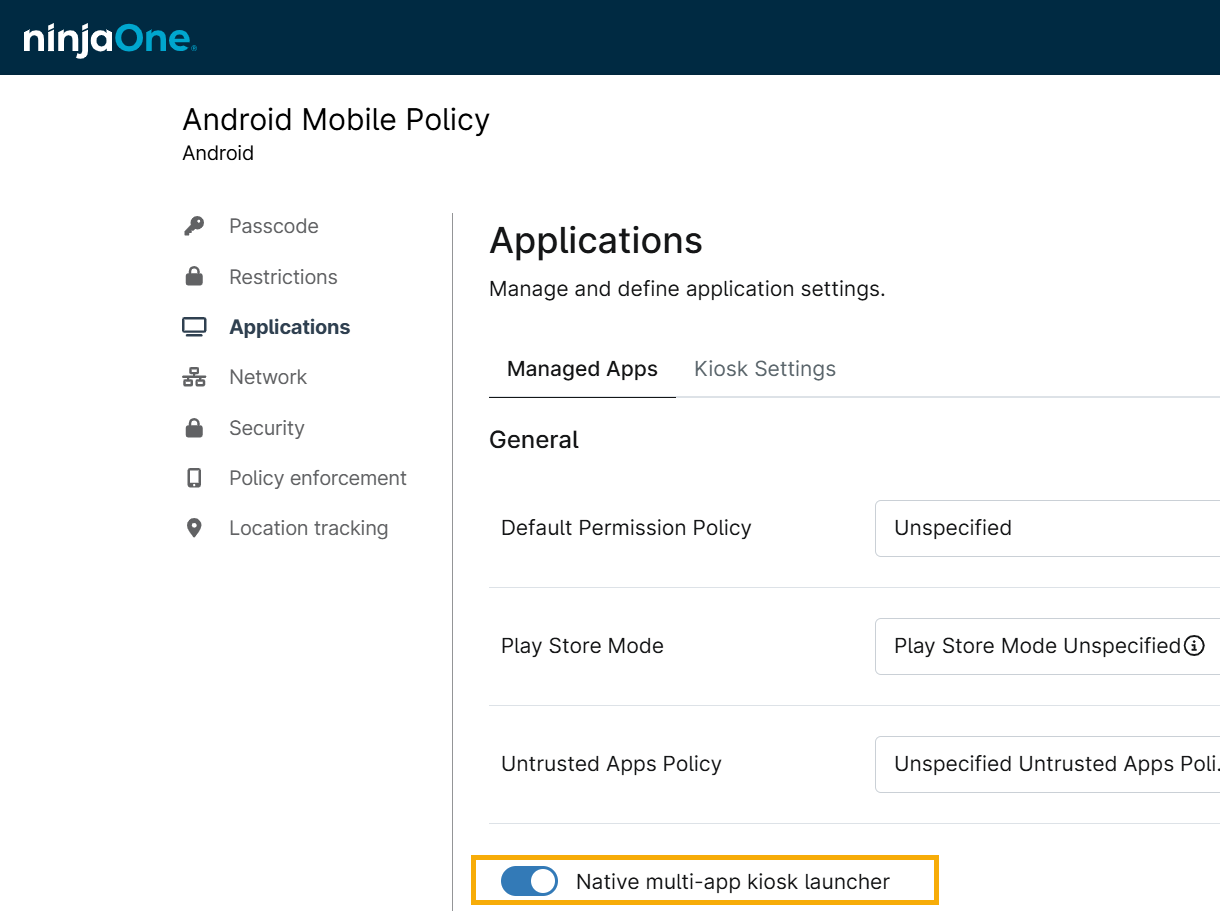
Figure 1: The Kiosk launcher toggle switch (click to enlarge)
Selecting native kiosk settings
In the Android Mobile Policy's Applications page, click the Kiosk Settings tab, then choose the desired functionality from the drop-down menus under Kiosk mode settings.

Figure 2: Native Kiosk mode settings (click to enlarge)
Kiosk mode settings explained
| Setting | Definition or Purpose |
|---|---|
| Power button | Allow or block the long-press button behavior in kiosk mode. |
| System error warnings | Enable or hide system error warnings. Unresponsive apps will automatically close. |
| System navigation | Enable or block navigation buttons such as Home or Overview. |
| Status bar | You can enable or disable system info and notifications in kiosk mode. The system navigation setting will affect your ability to enable this setting. |
| Device settings | Allow or block a user's access to the device's settings app in kiosk mode. |
Additional Resources
For further information about adding and managing Android applications, refer to NinjaOne MDM: Getting Started with Android Device Management.