
Topic
Track a device from the point of purchase to the day you decommission it, including its core asset information, custom fields, and related activities.
Environment
NinjaOne IT Asset Management (ITAM)
Description
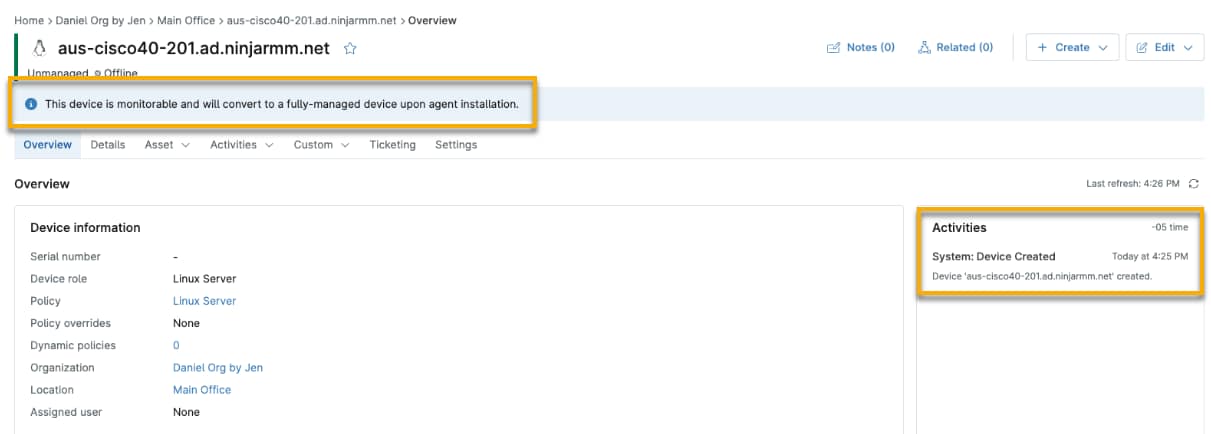
When you install the NinjaOne agent on a device, NinjaOne uses the system serial number or basic input/output system (BIOS) serial number, organization, and device name to match data to an existing provisioning device. NinjaOne will automatically convert a device between unmanaged and managed states depending on its current status and add an entry to the Activities feed.
Index
Select a category to learn more:
- Compatibility and Prerequisites
- About Lifecycle States
- Track Your Devices
- Configure Settings for the Device
- Decommission a Device in NinjaOne
- Use NinjaOne Billing with Unmanaged, Staged, and Decommissioned Devices
- Search for Staged and Decommissioned Devices in NinjaOne
- Additional Resources
Compatibility and Prerequisites
Currently, NinjaOne IT Asset Management only supports lifecycle tracking for the following operating systems (OS):
- Microsoft Windows
- Apple macOS (not including mobile device management [MDM])
- Linux
A system administrator in NinjaOne must grant technicians access to this feature. Activate the following permissions in their account or role:
- System: Device Administration must be set to Allowed. Technicians with this permission can configure health statuses and custom fields.
- Devices: Decommission Devices can be set to Allowed (optional). Technicians with this permission will be able to decommission devices, including uninstalling agents, stopping monitoring, and hiding devices from default views.
About Lifecycle States
The following sections outline the various states for a device in NinjaOne and how NinjaOne determines the state.
For the purpose of this article, an entry point sets the device's state, and an exit point explains why the device's state changed.
- Staged: This is a preliminary, unmonitored state that provides only the data necessary to find a match during discovery.
- Decommissioned: This state preserves the device's currently collected data, but the device is not monitored. Decommissioned NMS devices will contain a list of all nodes that they are responsible for monitoring. Devices moved to a decommissioned state will no longer be monitored by the delegate.
Unmanaged Device Lifecycle
- Entry point: Created manually, through API or Discovered Devices, or imported via comma-separated values (CSV).
- Exit point: Decommissioned or deleted.
- Agent behavior: Cannot be matched to a provisioned device and cannot install the remote monitoring and management (RMM) agent.
Unmanaged (Staged) Device Lifecycle
- Entry point: Created manually, through API or Discovered Devices, or imported via CSV.
- Exit point: Managed, decommissioned or deleted.
- Agent behavior: Agent installed and matched to provisioning device. The agent will be uninstalled if you delete the device.
Managed Device Lifecycle
- Entry point:
- A device with a managed class type is created in NinjaOne via one of our existing mechanisms (agent installation, MDM enrollment, NMS or VM monitoring, cloud monitors).
- A provisioning device is matched to a new device with the RMM agent installed, and NinjaOne updates the state to be managed. NinjaOne only supports matching to devices in the following states:
- Unmanaged (monitorable): staged.
- Unmanaged (monitorable): end of lifecycle (obsolete).
- Decommissioned (staged).
- Managed (if existing deduplication logic does not find a match).
- Exit point: Decommissioned, deleted, or unmanaged.
- Agent behavior:
- Agents can connect and send data to devices.
- Installation will trigger a match or create a new device if unable to find the provisioning device.
- The existing deduplication logic will match this device during reinstallation.
Decommissioned Device Lifecycle
- Entry point: The node is decommissioned in NinjaOne or marked as decommissioned in the public API.
- Exit point: Deleted in NinjaOne or via public API, or set to unmanaged.
- Agent behavior: The agent is uninstalled after connecting with a decommissioned device.
Track Your Devices
Before you can track the device in NinjaOne, you must add it. To learn how, refer to

Decommission a Device in NinjaOne
Decommissioning a device in NinjaOne removes the agent software. No automations will run against the device even though it is still present in the platform.
To decommission a device, open the device dashboard and click Edit. Select Decommission device.

Decommission an MDM Device
To move an MDM device to a decommissioned state, use the following actions based on OS:
| Operating System | Enrollment Type | Action |
|---|---|---|
| Apple | Personally owned | Unenroll |
| Apple | Company owned | Erase |
| Android | Personally or company owned | Erase |
To learn how to perform these actions, refer to NinjaOne Mobile Device Management (MDM): Unenroll, Erase, or Delete a Device.
Restore a Decommissioned Device
Use the following steps to return a decommissioned device to a pending or approved monitored device.
- Ensure your device meets the following requirements:
- The device already exists as a decommissioned device.
- The device belongs to the same organization and location.
- The organization's configured approval settings support recommissioning the device.
- The recommissioned device can perform the same actions as a normal, approved device.
- The NinjaOne ITAM feature is activated.
- Follow the instructions at NinjaOne IT Asset Management (ITAM): Add an Unmanaged Device in NinjaOne.
Use NinjaOne Billing with Unmanaged, Staged, and Decommissioned Devices
You can use NinjaOne Billing with unmanaged, staged, and decommissioned devices. NinjaOne will allow the following behavior:
- Staged and decommissioned devices will be excluded from role selection by default.
- Staged and decommissioned devices will be included in a selected group if activated in the saved filter.
- Unmanaged devices will continue to work as expected and will be included based on role or group selection.
Search for Staged and Decommissioned Devices in NinjaOne
You can use the Devices search page in NinjaOne to find staged and decommissioned devices.
From the Devices search page, click More filters and select Lifecycle State. In the new drop-down menu, select the lifecycle state for the device you want to find.
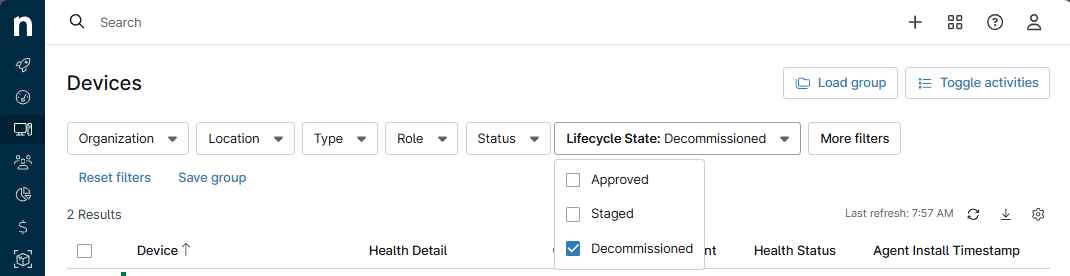
You can take the following actions on staged and decommissioned devices from the Devices search page:
- Create a ticket.
- Edit the policy, organization, assigned user, tags, or asset status.
- Delete the device.
Additional Resources
Refer to NinjaOne ITAM: Resource Catalog to learn more about asset management in NinjaOne.
To learn more about NinjaOne Billing, refer to NinjaOne Billing: Getting Started with Professional Services Automation (PSA).