
Topic
This article explains how to change the policy that controls device settings and rules from the device dashboard in NinjaOne.
Environment
NinjaOne Endpoint Management
Description
Policy settings apply to any devices assigned to that policy, regardless of the organization to which they belong. Any changes you make to the settings affect only that device and none of the others associated with that policy.
There may be times when you wish to apply a different policy to a device than the policy assigned by the organization's defaults. There are multiple ways to do this in NinjaOne.
Select a category to learn more:
- Important Considerations
- Change or Edit the Policy from the Device Dashboard
- Change the Policy from the Devices Search Page (Bulk)
- Revert a Policy Override
- Discover Which Devices Have Policy Overrides
- Additional Resources
Important Considerations
Consider the following notes:
- Any changes to the default policies assigned at the organization level will no longer affect the overridden device. However, you can always re-establish the link between the device and the organization's default policy settings by re-applying the policy with the asterisk next to it, per the steps in this guide.
- Changing the policy for a device may discard any pending or failed operating system (OS) patches; you will receive a notification if this is applicable to the device in question.
- Approving or rejecting a patch at the device level will create a patch policy override because the patch decision only affects a single device in the policy. Patches approved or rejected at the policy level (which affect all devices) will not create an override.
- When selecting a new policy from the drop-down menu, you will only be given options for policies of the same device class. For example, if the device in question is a Windows server, you can only select another Windows server policy.
Change or Edit the Policy from the Device Dashboard
To change the policy used for the device from the device dashboard, perform the following steps.
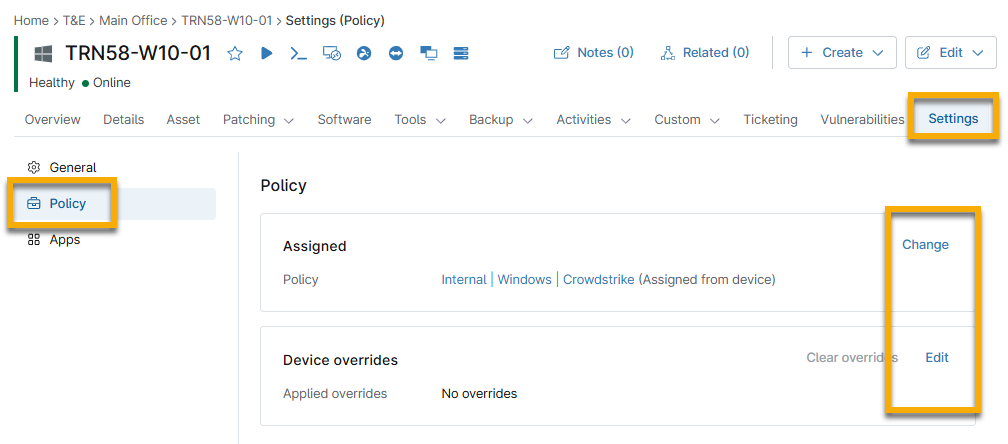
- Navigate to a device dashboard and open the Settings tab. Then, click Policy.
- Click Change or Edit depending on your desired outcome:
- Change: Assign the device to a different policy.
- Edit: Change the policy settings for this device.
Change the Policy from the Devices Search Page (in Bulk)
Changing a policy from the Devices search page allows you to target multiple devices at once.
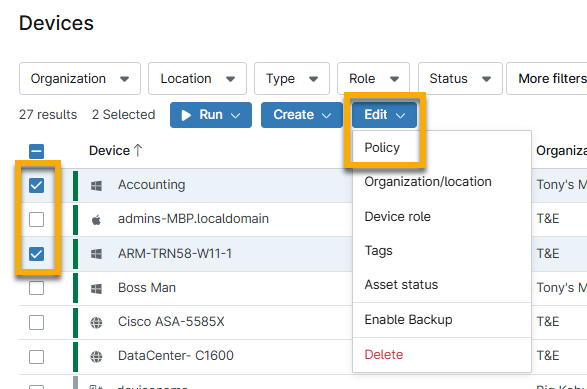
- Navigate to the Devices tab in the left navigation pane.
- Select one or more checkboxes next to the Device column.
- Click Edit → Policy.
- Select a new policy from the Policy drop-down and click Update.
- NinjaOne will alert you if any changes will affect the device, such as the backup configuration. Click Proceed to confirm.
Revert a Policy Override
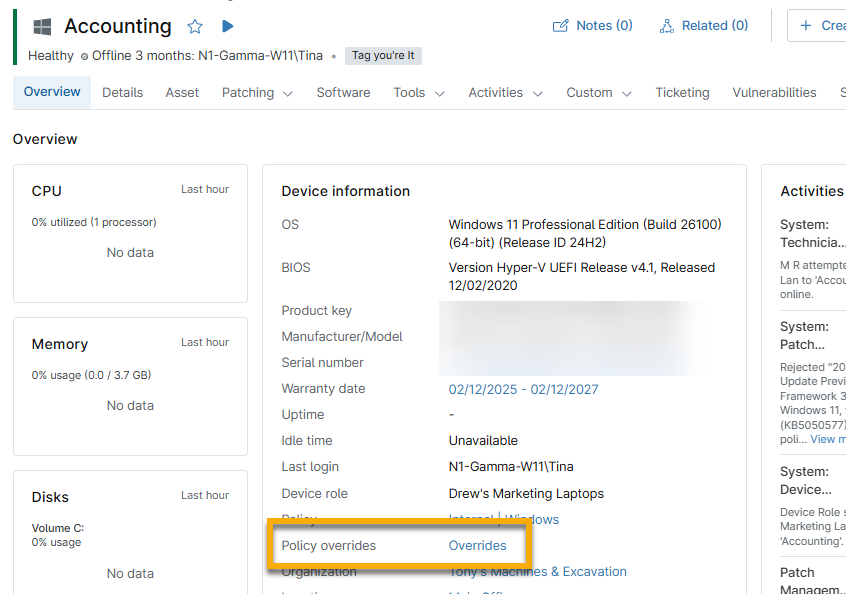
Once you have added a device-level policy override for a device, you will be able to access and edit the overrides directly from the device Overview tab under the General section. Click the hyperlink illustrated in Figure 3 to navigate to the policy configuration page.
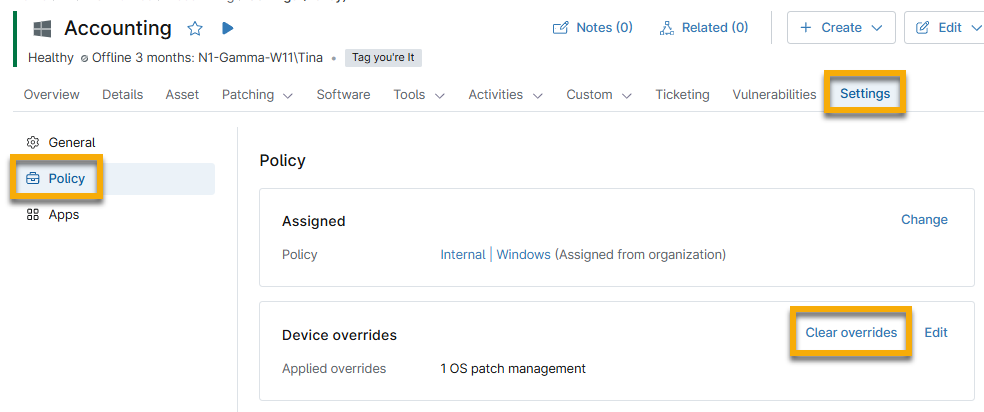
If necessary, open the Settings → Policy tab on the device dashboard and then click Clear overrides to revert the policy settings to the assigned policy's settings.
Discover Which Devices Have Policy Overrides
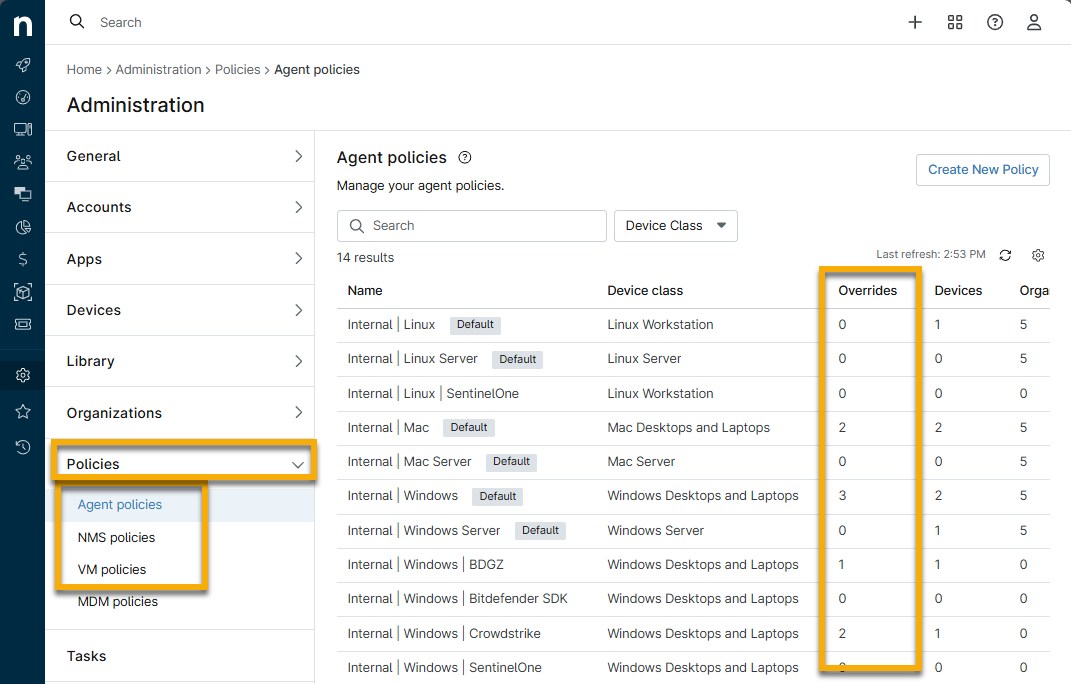
From the Administration → Policies page, you can view how many devices with a certain policy have been overridden. Click the number in the Overrides column to view the device name or access its device dashboard.
Additional Resources
Refer to Device Enrollment and Management: Resource Catalog to learn more about device management in NinjaOne.