
Topic
This article explains how the update will transition all MDM profile management in the NinjaOne policy from Apple's traditional MDM commands to their new Declarative Device Management (DDM) protocol.
To learn more about Apple DDM, refer to Intro to declarative device management and Apple devices - Apple Support (external link).
Environment
- NinjaOne Mobile Device Management (MDM)
- Apple iOS 26+
- Apple iPadOS 26+
- Apple macOS 26+
Description
Managing apps with Declarative Device Management (DDM) only applies to apps assigned to supported devices using App and Book tokens. This is an update to Apple’s existing MDM protocol. The core requirements (Advanced Push Notification services certificates, Automated Device Enrollment profiles, and content tokens) remain unchanged. However, NinjaOne is implementing some fundamental changes in how our MDM tool issues commands to managed devices.
You should be aware of the following behavioral changes for devices that support DDM:
- For any DDM-enabled Apple device enrolled in NinjaOne MDM: When you sync a policy following the update, all existing MDM payloads will transition from a traditional MDM payload to a payload deployed and managed via DDM. For most configurations, users will notice no impact. For certain configurations that define a user account, it’s possible that users may be prompted to re-enter their credentials, similar to what would happen if you were to initiate a Resync Policy command today. A policy sync can occur when:
- A technician updates and saves a policy.
- A technician performs the Resync Policy device action.
- You enroll a device in NinjaOne MDM.
- Technicians familiar with viewing installed MDM profiles locally on managed devices will see that these appear in the Configurations section on an iOS or iPadOS device and in the Device Declarations section of the Enrollment Profile on a macOS device. This information indicates that each profile is now managed through the DDM protocol.
- The Resync Policy device action will behave differently for any MDM profile managed via DDM. For DDM-enabled devices, NinjaOne will re-sync the DDM manifest. In most cases, the device will already have the latest manifest and requires no action on your part. However, if the manifest contains any configuration changes from the previously defined configuration on the device, only the changed configurations will be deployed to the device.
Index
Select a topic to continue:
Dashboard System Details
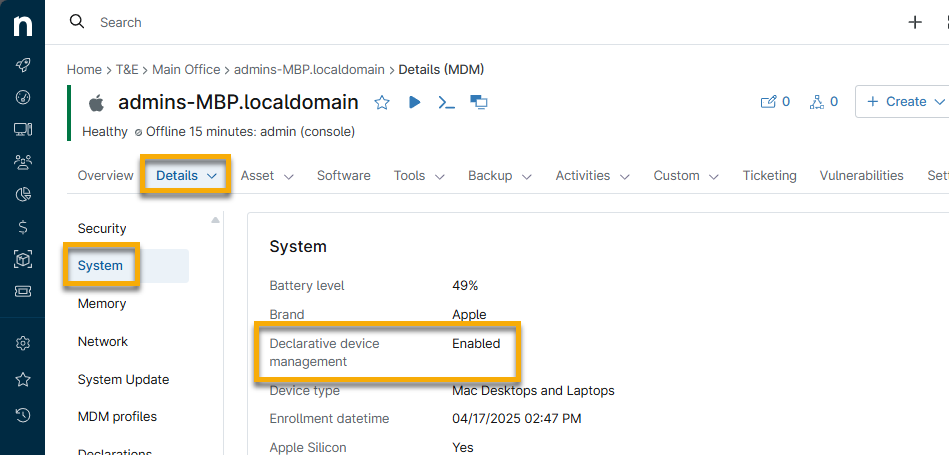
NinjaOne currently monitors whether DDM is active for any enrolled device in the System section of the Device Dashboard → Details → MDM page. NinjaOne will automatically activate DDM for any eligible device upon enrollment.
Installing Apps and Books Apps
If you do not set up your Apps and Books token, there will be no content in the Apps and Books tab. To learn how to do this, refer to NinjaOne MDM: Apple Apps and Books.
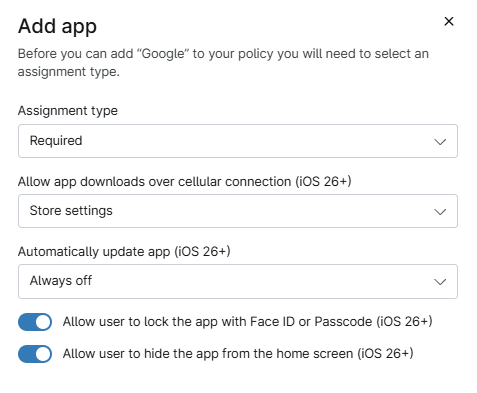
NinjaOne supports DDM for app management on OS 26.0 and above. Devices that are not enabled for DDM or are not on OS 26+ will use the legacy method of installing apps, InstallApplication, and will not be able to leverage auto-updating functionality present in the Add app screens recorded below.
- In the MDM Apple policy, open the Applications section. Click Add and select Apps.
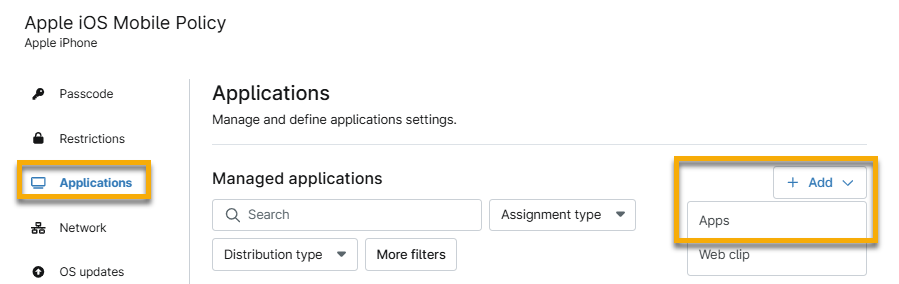
- The Add Apps dialog will have the Apps and Books section open by default. From here, you can move your mouse cursor over the app and click the actions menu to install the app, view organizations assigned to the policy, or view app information in the Apple App Store.

- Select the app to configure the installation options.
- Select either Required or Blocked from the Assignment type drop-down, depending on whether you want the user to have access to the app. If you select Required, you can manage additional permissions for the app and user interaction. You must activate the Allow user to lock the app with Face ID or Passcode toggle if you want to use the Allow user to hide the app from the home screen permission.
- Click Add.
Additional Resources
Learn more about managing your devices through NinjaOne MDM with our NinjaOne MDM: Resource Catalog.