
Topic
This article explains the purpose of the Asset tab on the organization, device, and end user dashboards and how to interact with it.
Environment
NinjaOne Endpoint Management
Description
To display this tab, you must enable the NinjaOne IT Asset Management (ITAM) application. To learn how, refer to Getting Started with NinjaOne IT Asset Management.
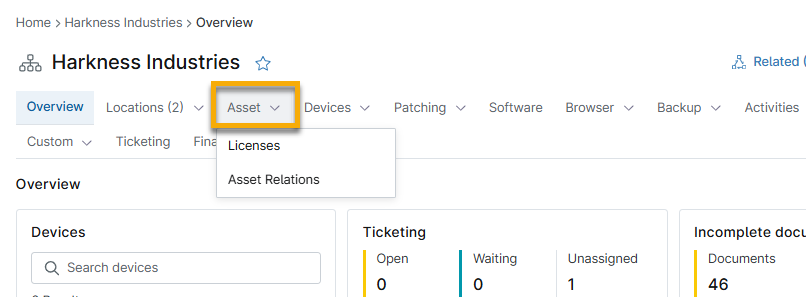
This tab expands to show two sections on the organization's and End users dashboards and three sections on the device dashboard; select a topic to learn more:
Fields
This tab only displays on the device dashboard. From here, you can add basic information about the asset, such as name, current status, purchase information, expected end-of-life date, and serial number. Click the edit icon to update the data.

Refer to NinjaOne ITAM: Getting Started to learn how to configure automatic generation, ID assignment, and other settings.
Licenses
If you create a software license on the License management dashboard, it will display in this section if you have limited the License scope to the organization. To learn how to create a software license in NinjaOne, refer to NinjaOne Asset Management: Software Licenses.
Adding a software license from the organization dashboard automatically limits the scope to the selected organization.
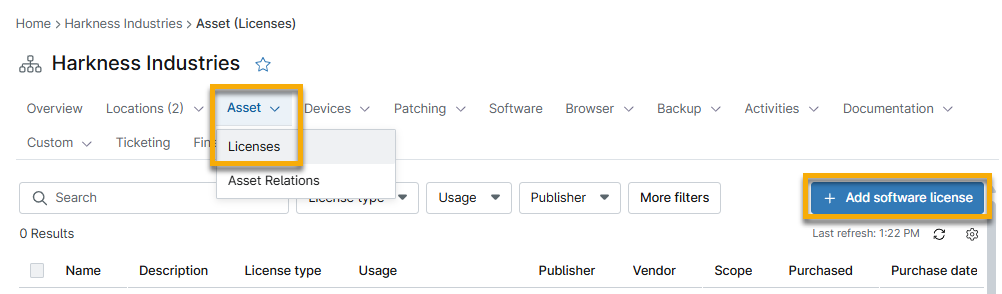
Click the software license name to open the detail page, where you can edit settings and license quantity.
You can filter the table by license type (device, user, or custom), usage (below, equal, or above the total number of licenses for that asset), publisher name, and more.

Asset Relations
The Asset → Asset Relations tab on the organization and device dashboards allows you to associate entities with the organization and define the relationship between the organization and the entity.
To learn more, refer to NinjaOne IT Asset Management (ITAM): Manage Asset Relationships.
Additional Resources
Refer to the following resources to learn more about related topics: