
Topic
This article explains how to create device notes and use the Related Items tool in NinjaOne.
Environment
NinjaOne Documentation
Description
The device notes feature allows users to create multiple notes on each device to record and track different topics related to a specific device.
Related items enable technicians to map devices, fields, organizations, and other objects in a relational manner to a device.
- Permission Requirements
- How to Create a Device Note
- How to Edit or Delete a Device Note
- How to Use Related Items
- Additional Resources
Permission Requirements
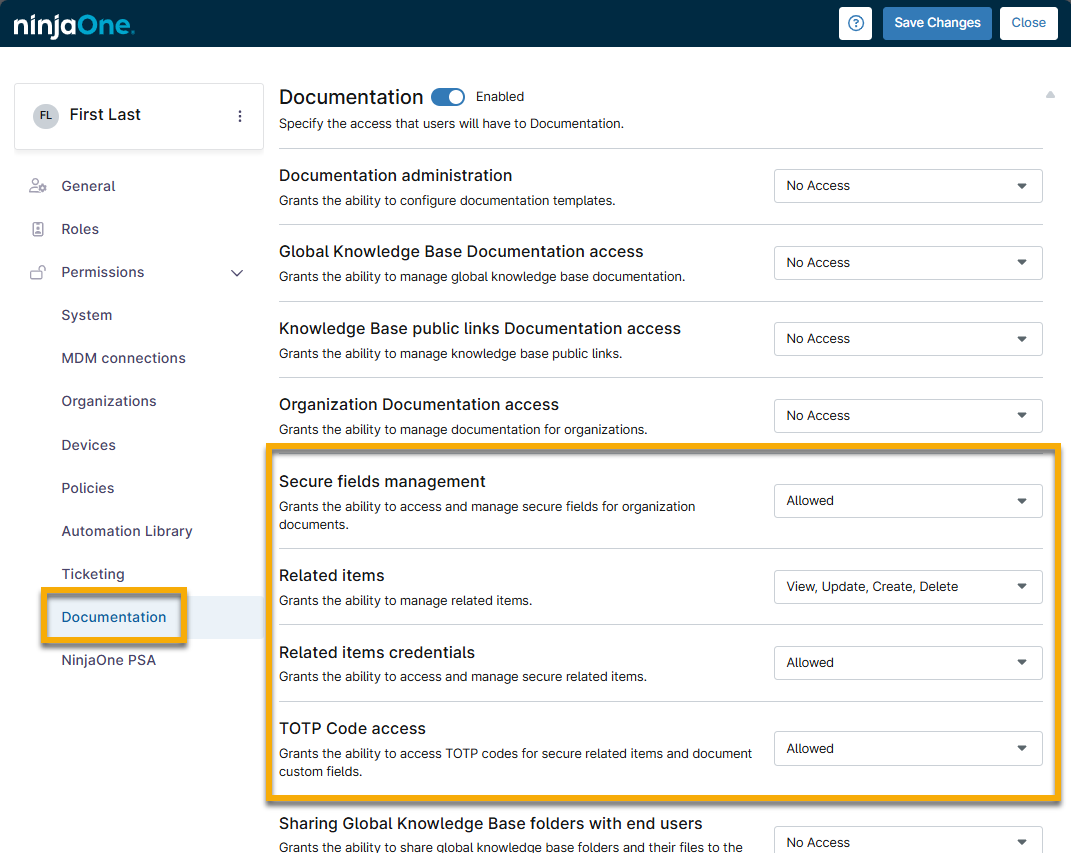
You must configure the appropriate permissions to allow technicians to view or manage related items.
In Permissions → Documentation on the account or role configuration page, enable access for the following:
- Secure fields management
- Related items
- Related items credentials
- TOTP Code access
How to Create a Device Note
To create a new device note, perform the following steps:
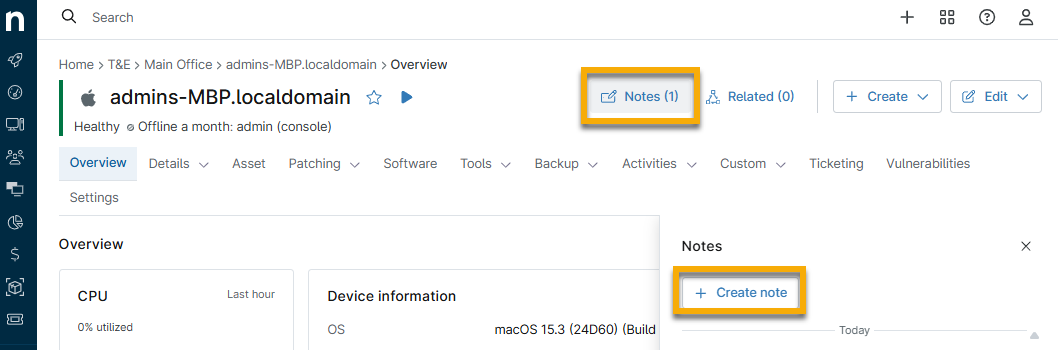
- Navigate to a device dashboard. Click Notes at the top of the page.
- Click Create note when the Notes section opens on the right side of the page.
- Type your note into the available modal and then click Create to save.
How to Edit or Delete a Device Note
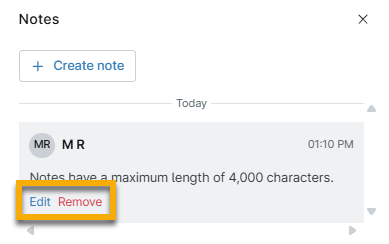
When you edit a note, it will update with the time the note was updated and the name of the user who performed the edits.
From the device's Notes tab, move your cursor over the note to see the Edit and Delete buttons.
Device searches include notes as part of the search. Technicians can include or exclude words within a search query by using "contains" or "does not contain." The search will return all devices meeting the search criteria and display the most recent note.
It is not possible to view the device notes version history.
How to Use Related Items
The Related Items feature is available in several places within the NinjaOne console:
- Device dashboard:
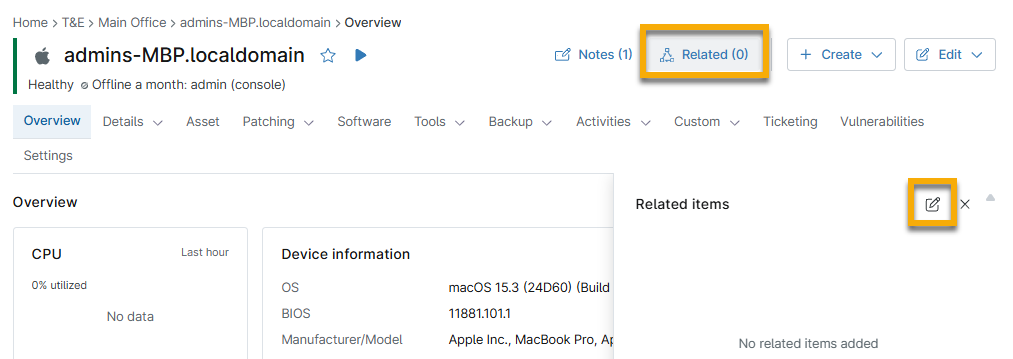
- Click Related at the top of the page. When the Related items section displays, click the pencil icon to add a related item.
- Organization dashboard:
- Click Related at the top of the page. When the Related items section displays, click the pencil icon to add a related item.
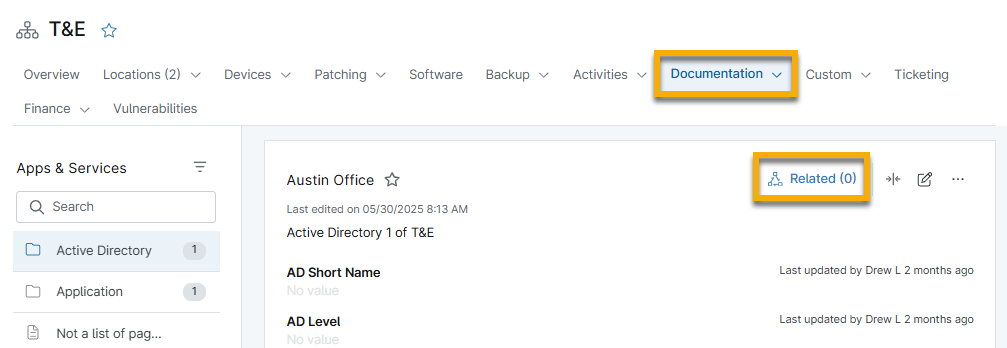
- System dashboard:
- Open a document in the Knowledge Base and click the icon in the top right corner to add.

Any additions or changes to related items will be tracked as entries in the Activity Feed.
Related Item Field Descriptions
Refer to the table below for a breakdown of each related item. Note that some options may not be available depending on which dashboard you are adding the Related Item.
| Related Item | Description |
|---|---|
| Attachment | Upload a document or image from your computer. Supports uploading any of the following file types: xml, html, pdf, log, csv, txt, zip, rar, tar, cab, jpeg, jpg, png, dot, wbk, doc, docx, rtf, xls, xlsx, ods, ppt, pptx, pps, ppsx, sldx, vsd, vsdx. The file can be a maximum of 20 megabytes in size. |
| End User | Select an end user from the provided drop-list to associate with the document. |
| Device | Select one or more devices in your NinjaOne environment from the provided drop-list to link or associate with the document. |
| Organization | Select one or more organizations in your NinjaOne environment from the provided drop-list to link or associate with the document. |
| Location | Select a location from the provided drop-list to associate with the document. All locations for all organizations are available as options. |
| Apps & Services document | Select an organization from the provided drop-down list and then select an organization-specific document to add it to the dashboard. |
| Articles | Select either a global or organization-specific document to associate with the document. |
| Checklist | Select an organization from the provided drop-list and then select an organization-specific checklist to associate with the document. |
| Technician | Select a technician from the provided drop-list to associate with the document. |
| Secure | Add a unique username and password, as well as a related URL and any additional notes. See TOTP Codes for more information about technician access to these secure fields. Important Note: NinjaOne implements the encryption technology of a cluster of Hardware Security Modules (HSM) in each of our environments. These HSM clusters are used to generate unique data encryption keys (DK) for each account, which are then used to encrypt and decrypt all secure notes, secure fields, and credentials. Additionally, system administrators are required to re-authenticate with MFA in order to access data from Secure items. |
| Contact | Select a contact from the provided drop-list to associate with the document. You can add new contacts from Administration > Accounts > Contacts. |
| Credential | Choose one or more credentials from those in the credential store for the device's organization. |
How to Edit or Delete Related Items
Click the pencil icon to edit the related items.
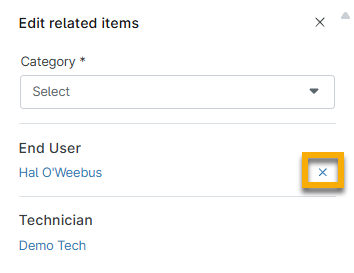
Click the related item to edit it. Move your cursor over the item you want to delete and then click the X.
Additional Resources
Refer to the following resources to learn more about using dashboards in NinjaOne:
- Manage Devices and Run Actions from the Device Dashboard
- NinjaOne Platform: Navigating the System and Organization Dashboard