
Topic
This guide provides instructions for setting up the Autotask integration with NinjaOne.
Environment
- NinjaOne Integrations
- Autotask PSA
Description
Before you can configure and map Autotask settings to NinjaOne, you must first activate the integration. Refer to Enable the Autotask Integration in NinjaOne for more information.
The configuration settings for Autotask in NinjaOne enable organization, device, and product mapping while syncing tickets, alerts, and key device actions.
Select a category to learn more:
- Configuring Autotask Settings in NinjaOne
- Viewing Configuration Sync Logs
- Setting up Ticket Templates
- Additional Resources
Configuring Autotask Settings in NinjaOne
From the Autotask configuration screen, navigate to Administration → Apps. In the Settings section, click Edit.
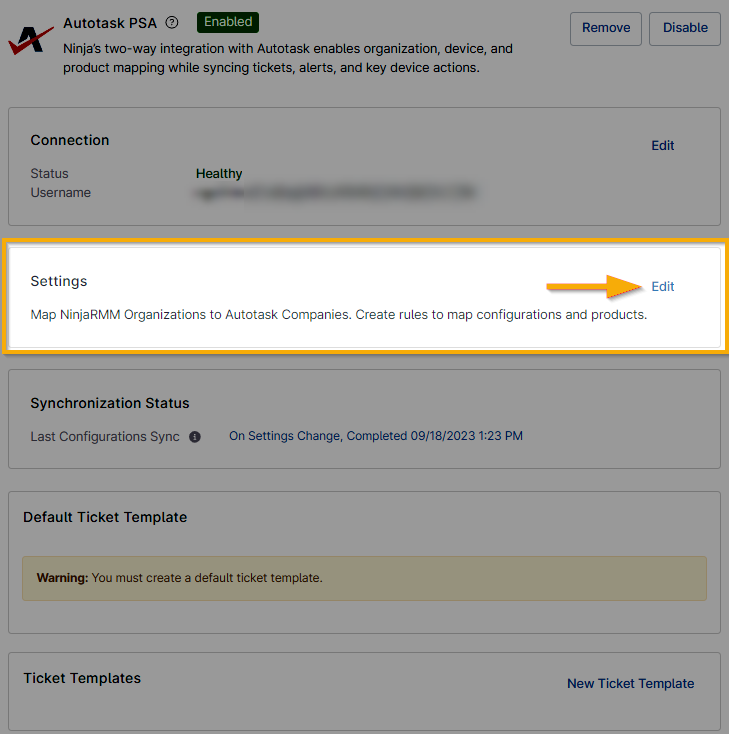
Figure 1: Settings → Edit (click to enlarge)
Mapping Autotask Companies to NinjaOne Organizations
The Accounts tab is open by default. From here, you can sync your Autotask companies to NinjaOne organizations.
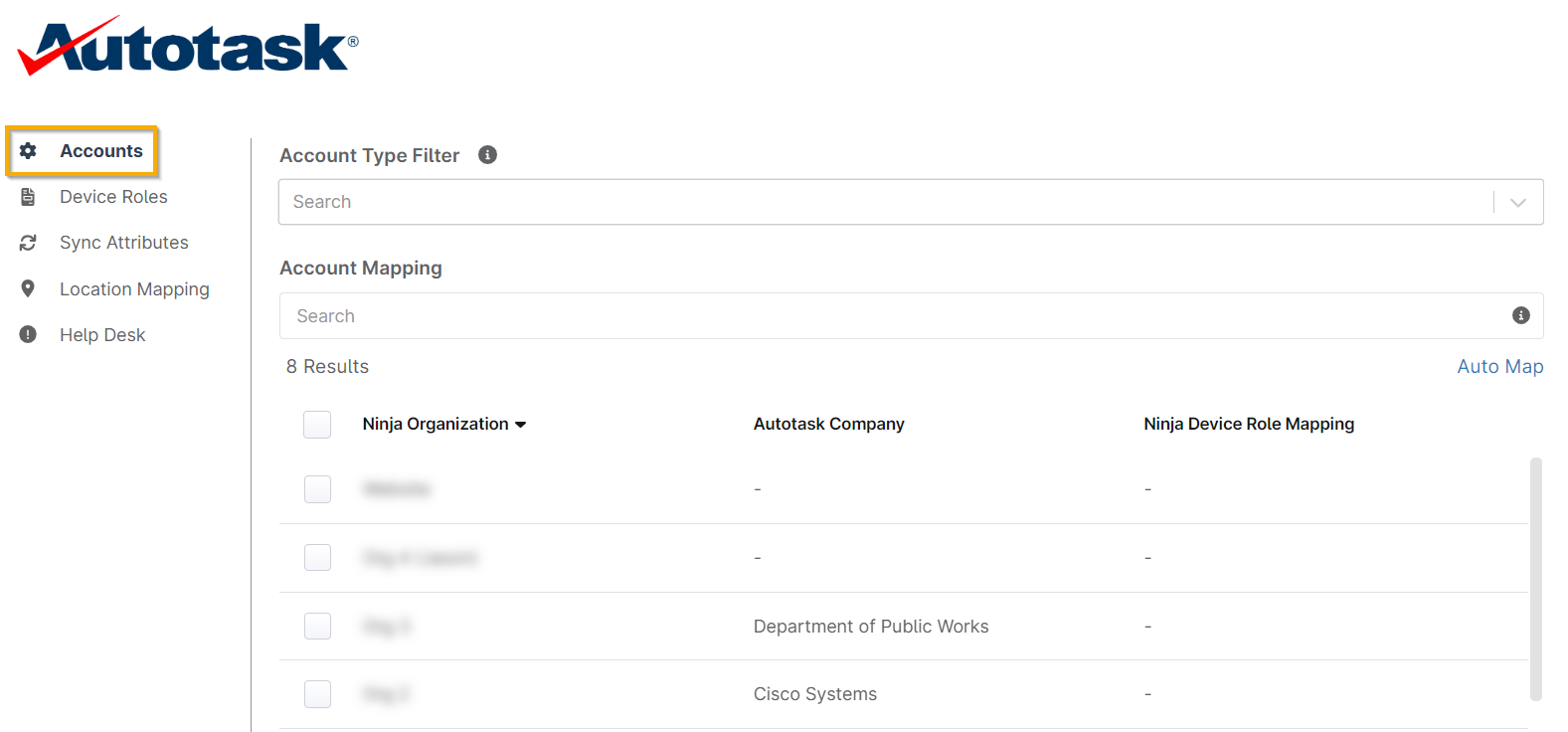
Figure 2: Accounts (click to enlarge)
- Account Type Filter allows you to select specific account types to limit the accounts available for mapping.
- Account Mapping is the process of mapping NinjaOne organizations to Autotask companies. You can either select Auto Map, which will automatically perform mappings if there are identical Organization/Company names, or you can click each organization to map to the respective account in Autotask. You can also choose the device role mapping to assign to this organization. To learn more about Device Roles for Autotask mapping, continue to the section below.
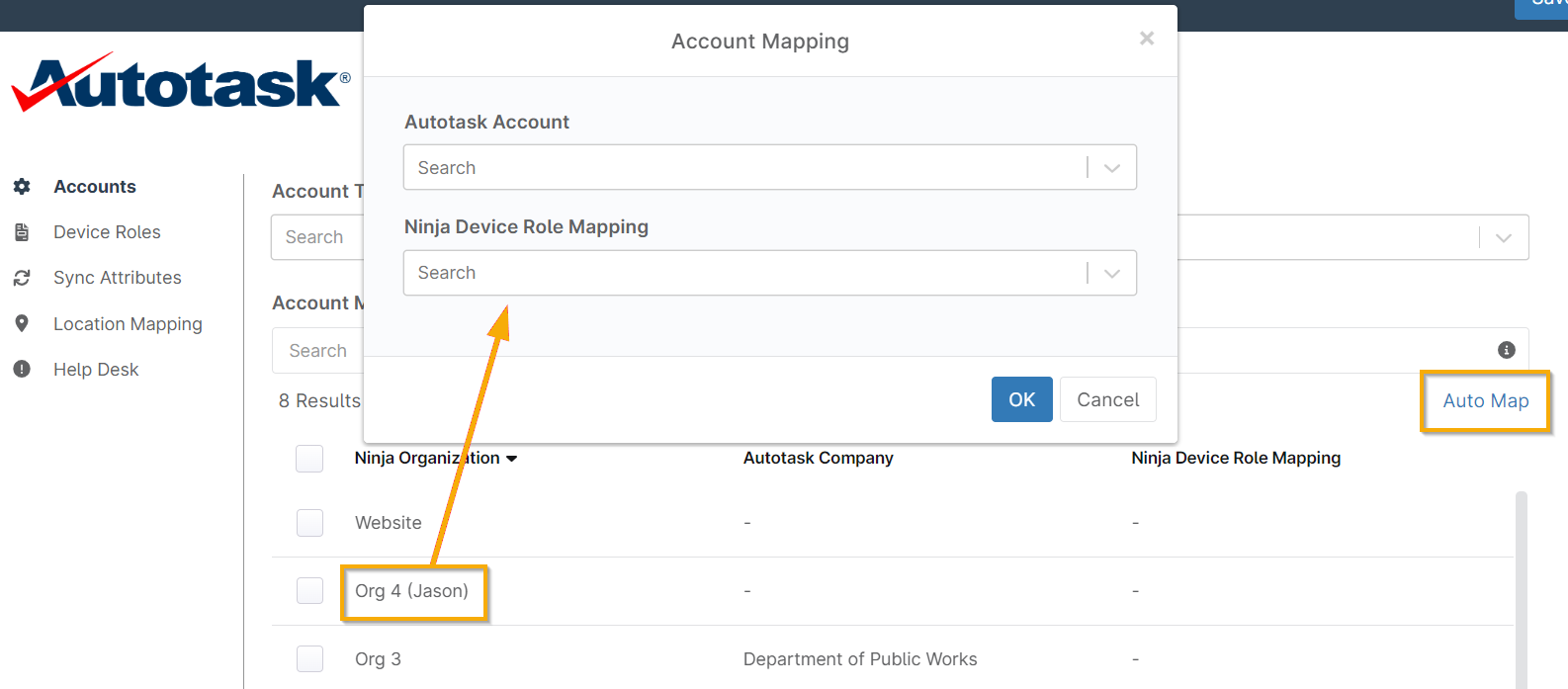
Figure 3: Account Mapping (click to enlarge)
Creating Device Role Mappings
- Within the Autotask settings editor at Administration → Apps → Autotask → Settings → Edit, navigate to the Device Roles section. From here, you can map Autotask configurations to NinjaOne device roles.
- Click Add to create a new mapping.
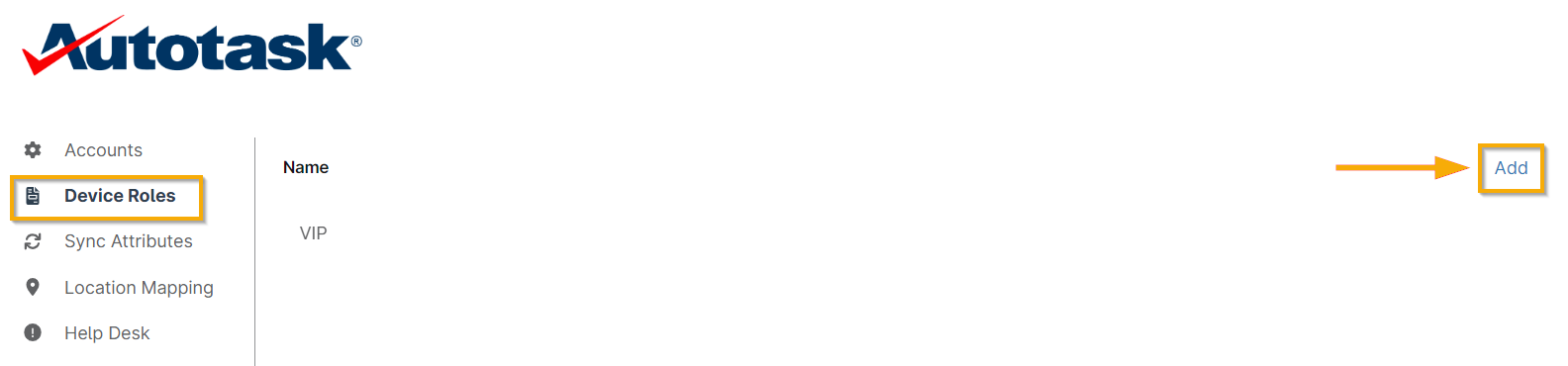
Figure 4 Device Roles → Add (click to enlarge)
The NinjaOne Device Role Mapping editor displays in a dialog window.
- Click Add in the dialog to configure a mapping for a device role.
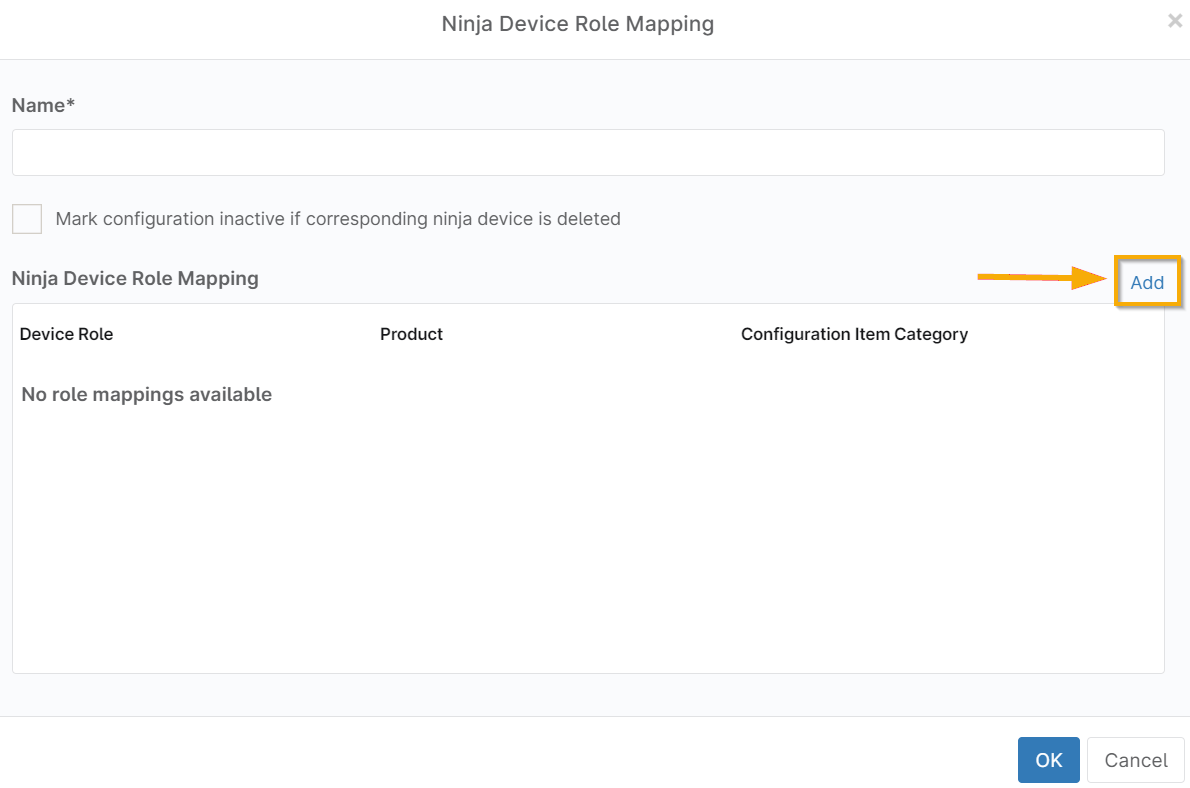
Figure 5: Ninja Device Role Mapping → Add (click to enlarge)
- Select the device role, Autotask configuration type, and Autotask product for the new mapping. Click OK to save.

Figure 6: Edit Mapping (click to enlarge)
- Check the box below the Name field to have Autotask automatically set the device status to inactive if the device is ever deleted from NinjaOne.

Figure 7: Mark configuration inactive... (click to enlarge)
Repeat Steps 3 and 4 as necessary for additional device roles.
Important Note: You must add multiple lines in a single device role configuration for multiple device types to be synced.
Enabling Sync Attributes
To enable and configure the attributes that sync between Autotask and NinjaOne, perform the following steps:
- Within the Autotask settings editor, open the Sync Attributes section.
- Select any attributes that should be synced over to Autotask.
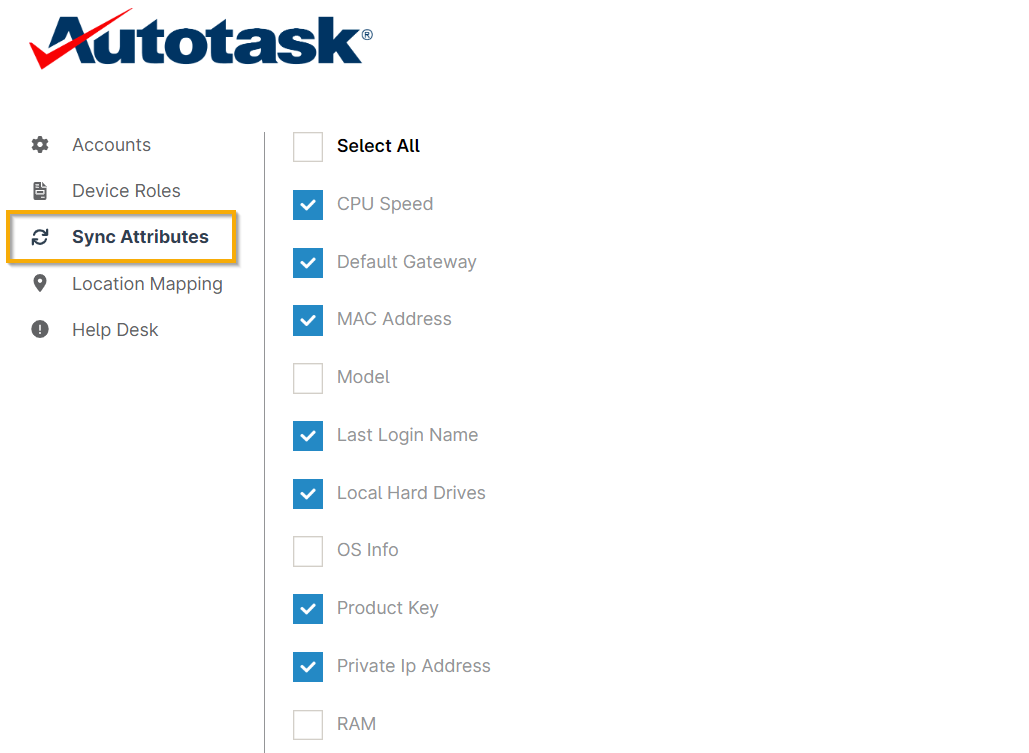
Figure 8: Sync Attributes (click to enlarge)
Mapping NinjaOne Locations to Autotask Locations
To map NinjaOne organizations and locations to Autotask companies, perform the following steps:
- Within the Autotask settings, select the Location Mapping tab.

Figure 9: Location Mapping (click to enlarge)
- Click each NinjaOne location to map it to an Autotask location. The company listed will reflect the configured account mapping.
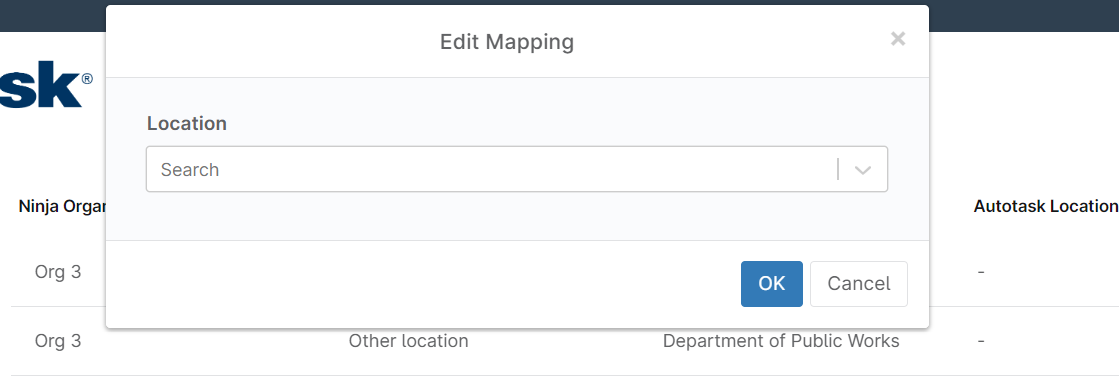
Figure 10: Edit Mapping (click to enlarge)
Configuring Help Request Form Settings
From the Autotask settings, select the Help Desk tab.
There are two configuration options for ticket creation from the systray icon's Help Request Form. Specifically, you can choose whether to create a contact for email addresses that do not already exist in Autotask and whether to embed any images within the request.
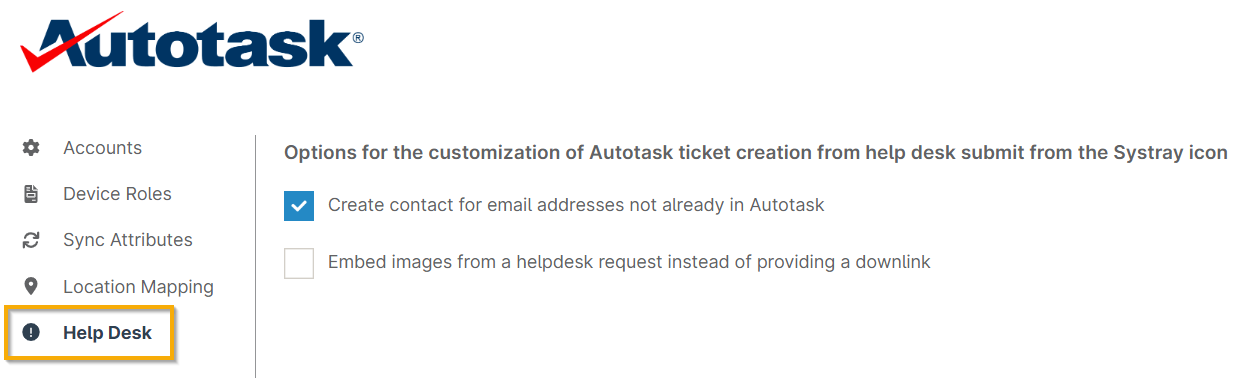
Figure 11: Help Desk (click to enlarge)
Viewing Configuration Sync Logs
From Administration → Apps → Autotask PSA, the Synchronization Status will list the last occurrence of a Configurations sync as a hyperlink. To view the sync logs, click the link text.
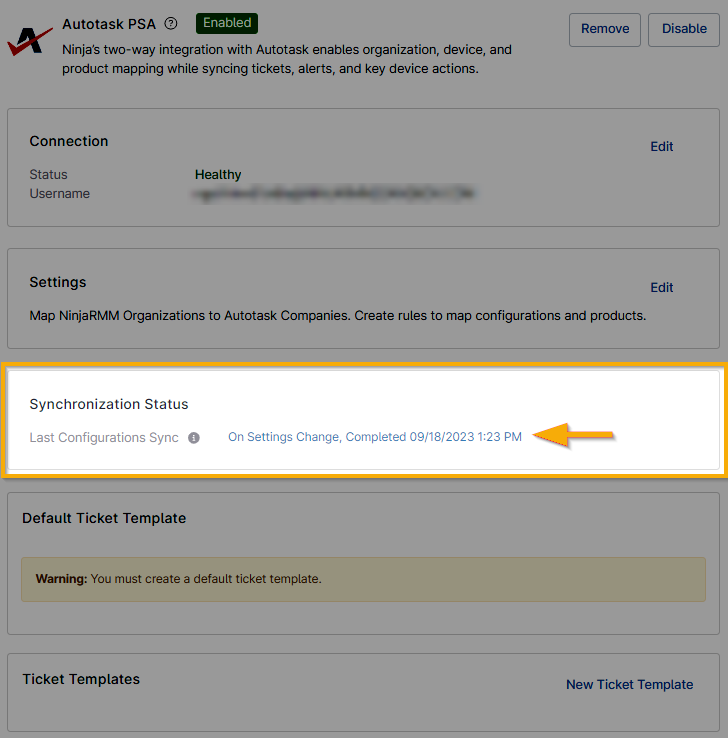
Figure 12: Synchronization Status (click to enlarge)
Sync logs carry a status of Informational, Warning, or Error and include a Message field detailing the actions that occur during each sync. The Autotask integration generates logs for the following conditions:
- Full sync: If the integration configuration changes, a full sync will occur, resulting in log activity reflecting the changes across all clients.
- By client: When a client's mapping changes, a log entry will be generated. The following actions trigger client-level log activity:
- Changes to company mapping
- Changes to device role mapping
- Modifications to the device role mapping used by the client
- By node: When a user or agent updates a recognized device, an activity log will be generated for that device.
You can export sync logs to a CSV file by clicking the Export link on the Configuration Synchronization Logs screen.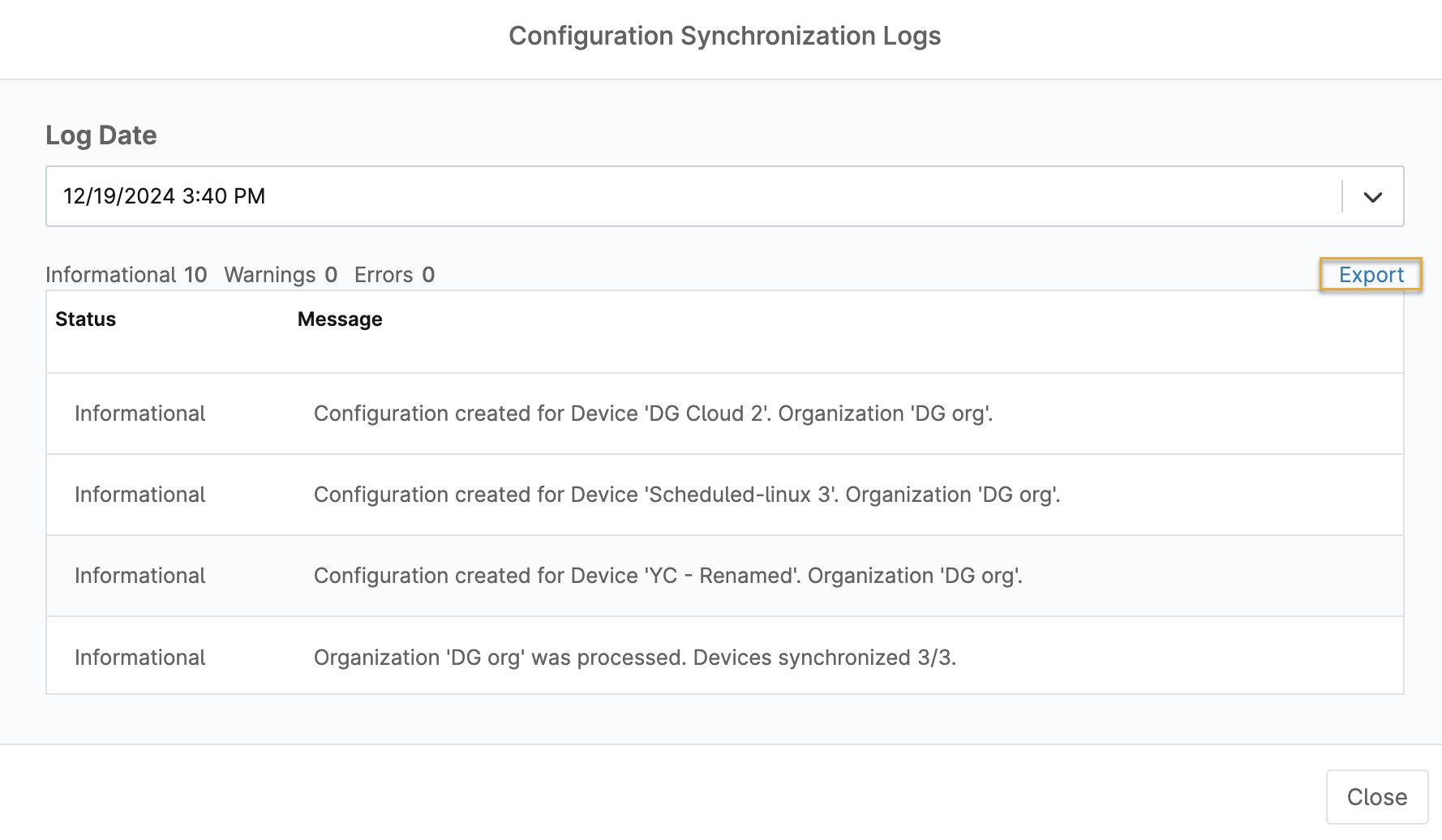
Figure 13: Configure Synchronization Logs → Export (click to enlarge)
Setting up Ticket Templates
To create a template for your tickets, perform the following steps:
- From the Autotask configuration screen, navigate to Administration → Apps → Autotask. Next to the Ticket Templates heading, click New Ticket Template.
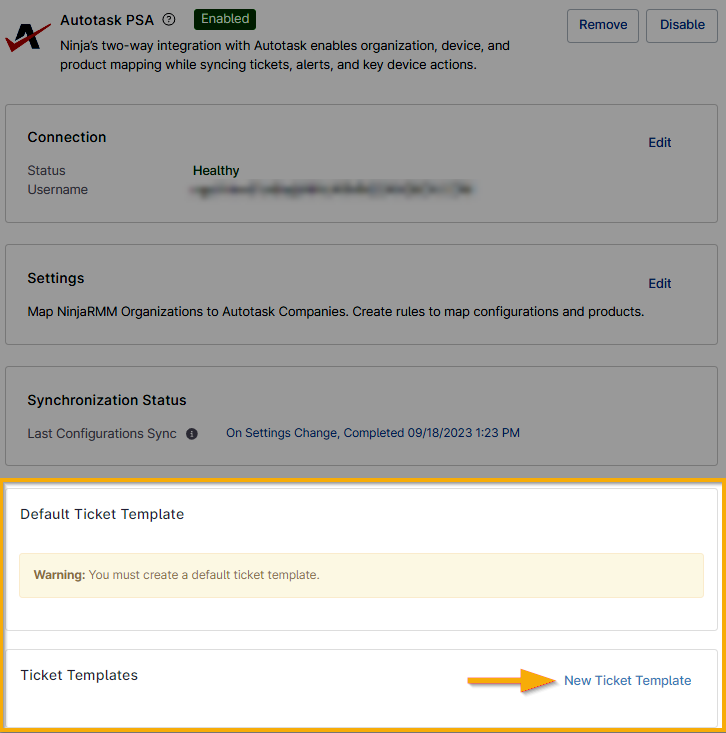
Figure 14: Ticket Templates → New Ticket Template (click to enlarge)
- Fill out the desired fields.
- At the bottom of the ticket template form, select how you want tickets to be handled if the condition that generated the ticket is reset. You can also select additional options if the condition is re-triggered.
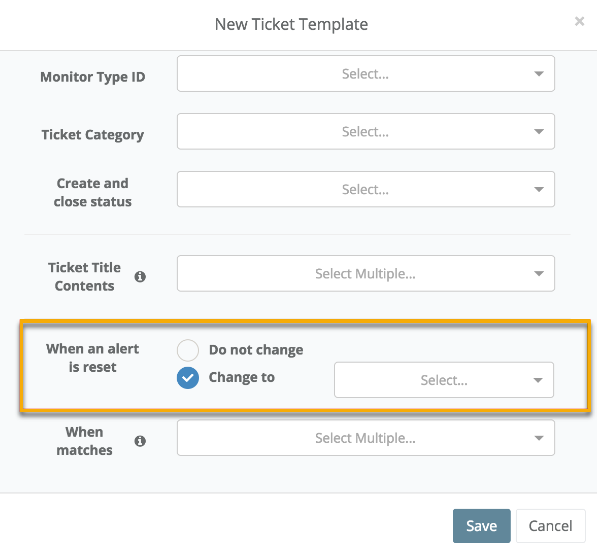
Figure 15: When an alert is reset → Change to (click to enlarge)
- If you select Change to for the condition reset, you should see two additional drop-down menus. The drop-down to the right indicates the status the new ticket will change to if the current status matches the selection from the When matches drop-down. If nothing is selected from the When matches drop-down, then any status will initiate the Change to status upon condition reset.
- For example, when matches are set to New and Change to is set to In Progress. The alert is reset, and the current ticket status is New, so it will automatically update to In Progress.
When a condition is triggered again, you can either create a new ticket or append the re-trigger to the existing open ticket.
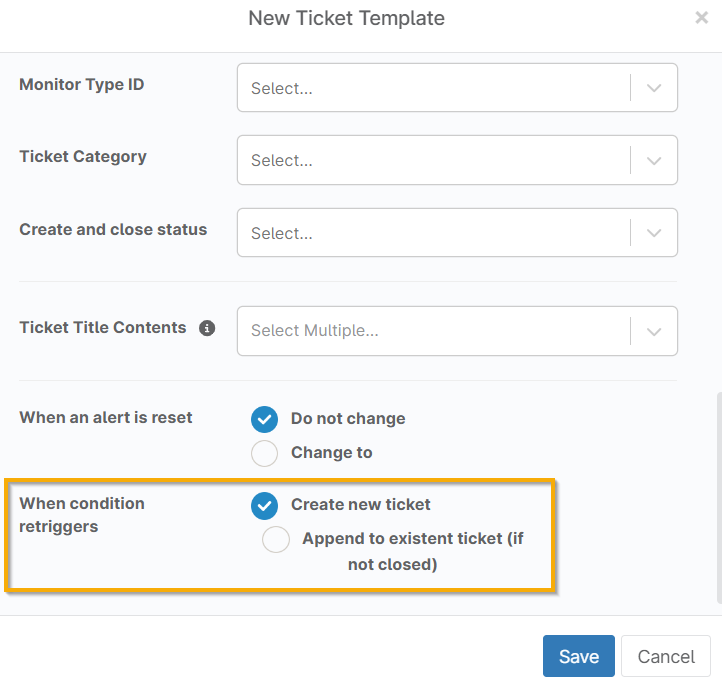
Figure 16: When condition re-triggers → Create new ticket (click to enlarge)
If you choose to append the condition to an existing ticket, you will be required to fill out additional fields to configure the related ticket.
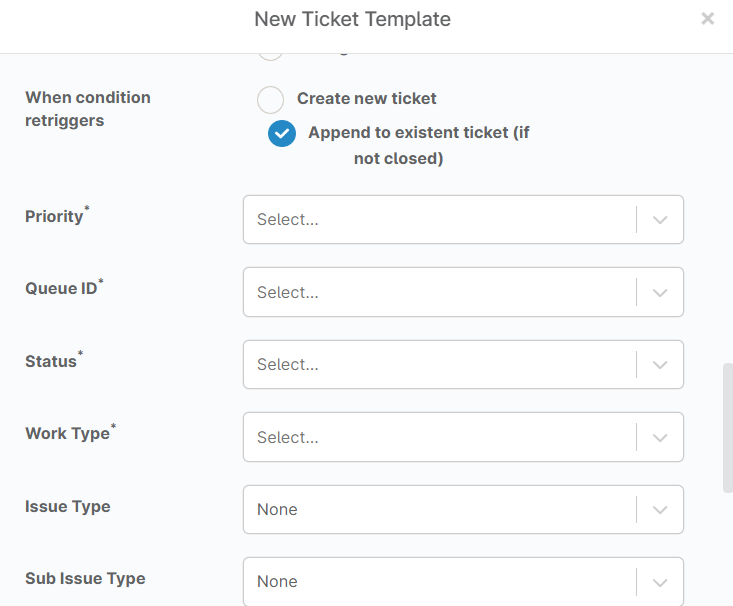
Figure 17: Append to existing ticket (click to enlarge)
Additionally, if you'd like to have NinjaOne conditions reset when the associated Autotask ticket is closed, create a new extension from the Autotask end:
- Open the top left drop-down menu, select Admin, and then click Extensions & Integrations.
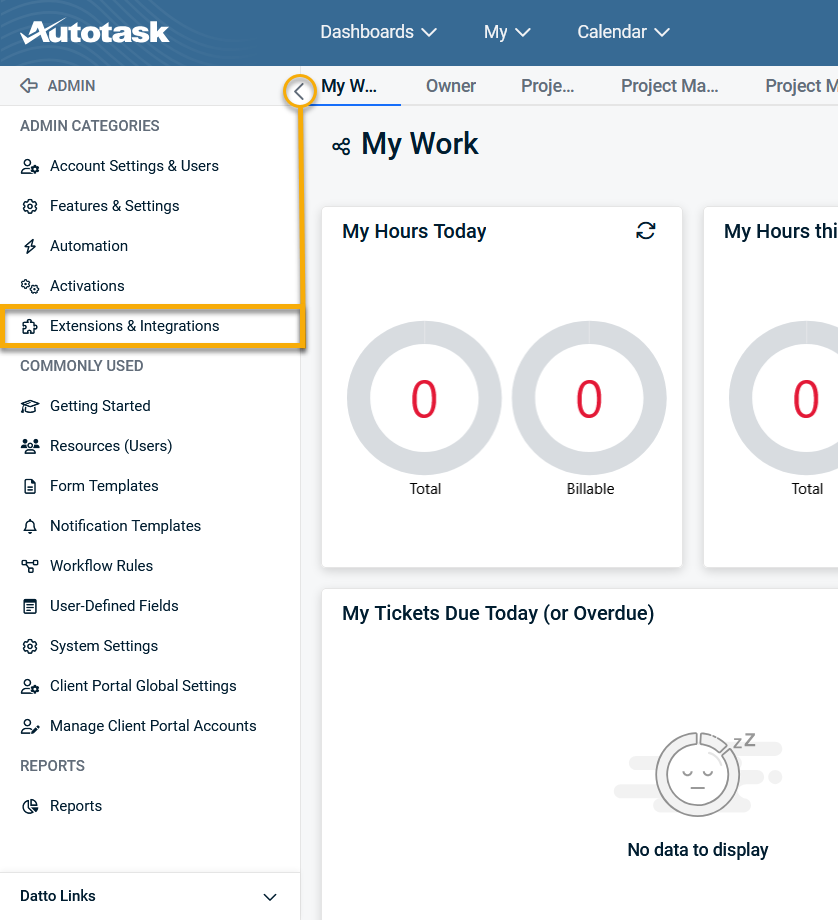
Figure 18: Admin → Extensions & Integrations (click to enlarge)
- Open the Other Extensions & Tools drop-down and click Extension Callout (Tickets).
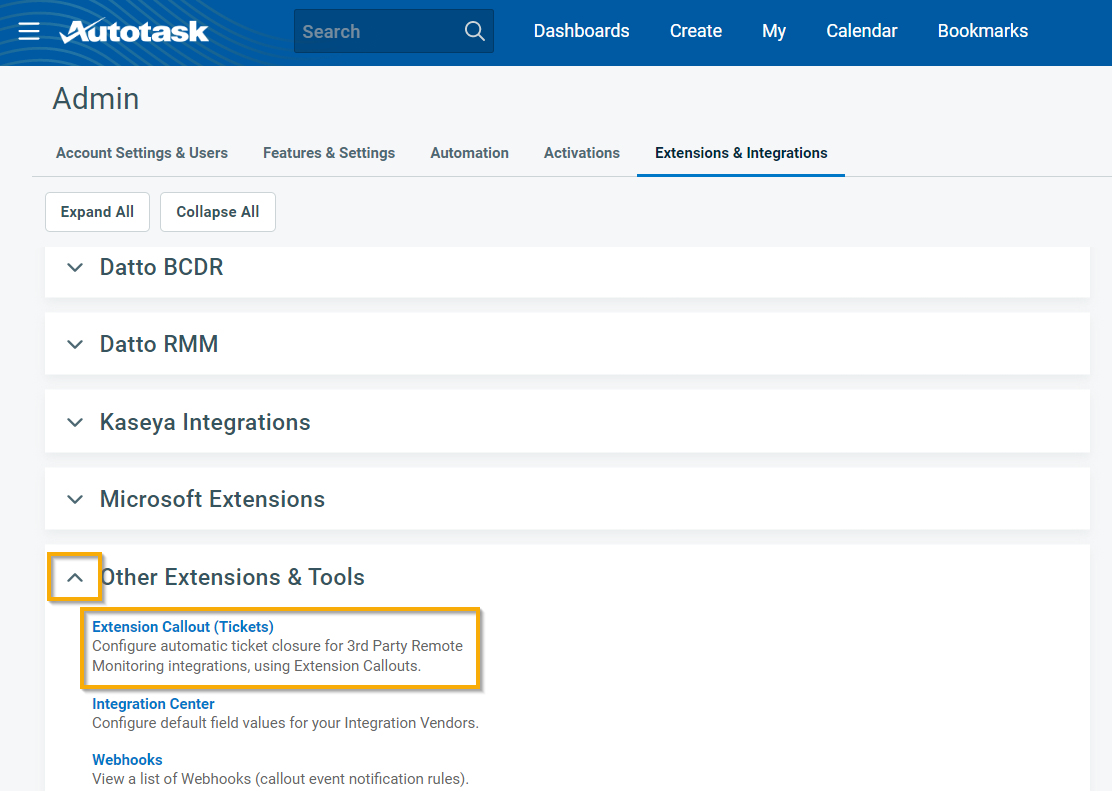
Figure 19: Other Extensions & Tools → Extension Callout (Tickets) (click to enlarge)
- Click the New Extension Callout button and set up the new extension per the screenshot below, using one of the following URLs (depending on the NinjaOne instance you use):
- US2: https://webhook-us2.us2.ninjarmm.com/webhook/autotask/callback
- NA: https://webhook.ninjarmm.com/webhook/autotask/callback
- EU: https://webhook-eu.ninjarmm.com/webhook/autotask/callback
- OC: https://webhook-oc.ninjarmm.com/webhook/autotask/callback
- CA: https://webhook-ca.ninjarmm.com/webhook/autotask/callback
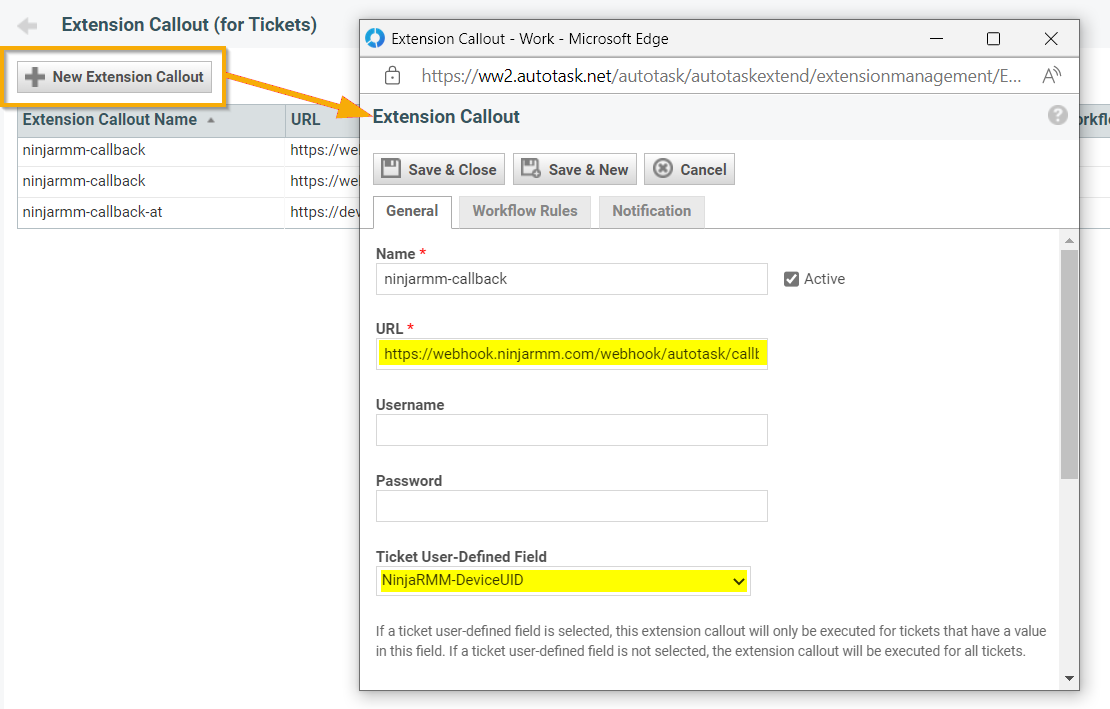
Figure 20: New Extension Callout → Extension Callout (click to enlarge)
- Next, create a new workflow. You can do so by going back to the Admin page and opening the Automation tab, then by expanding the Workflow Rules drop-down and clicking Workflow Rules.
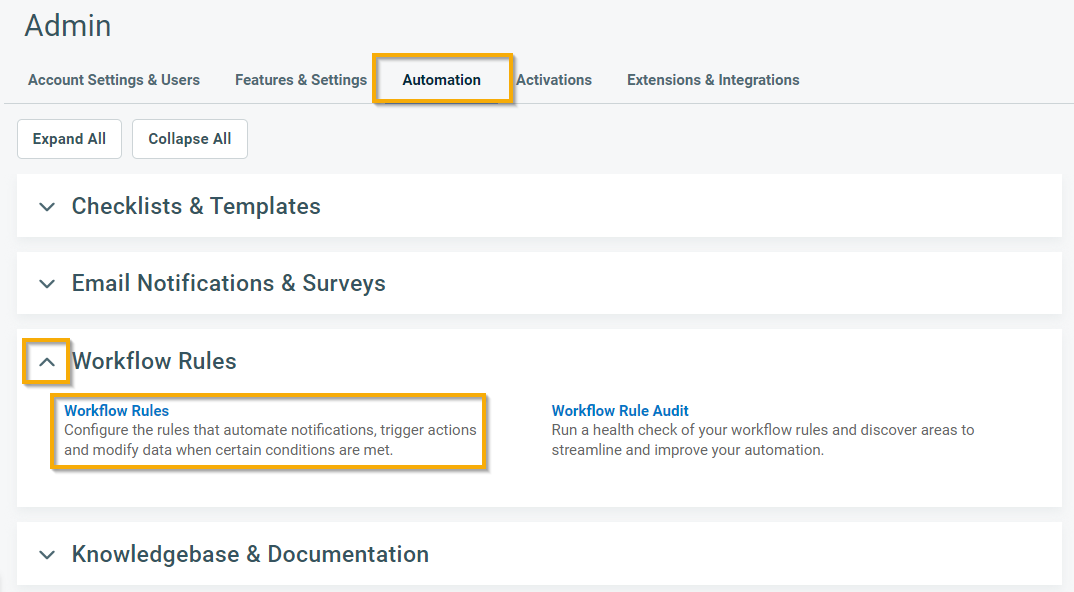
Figure 21: Workflow Rules (click to enlarge)
- The Service Desk tab should be open by default; click New to create a new workflow.
- Configure the workflow as shown in the screenshot below.
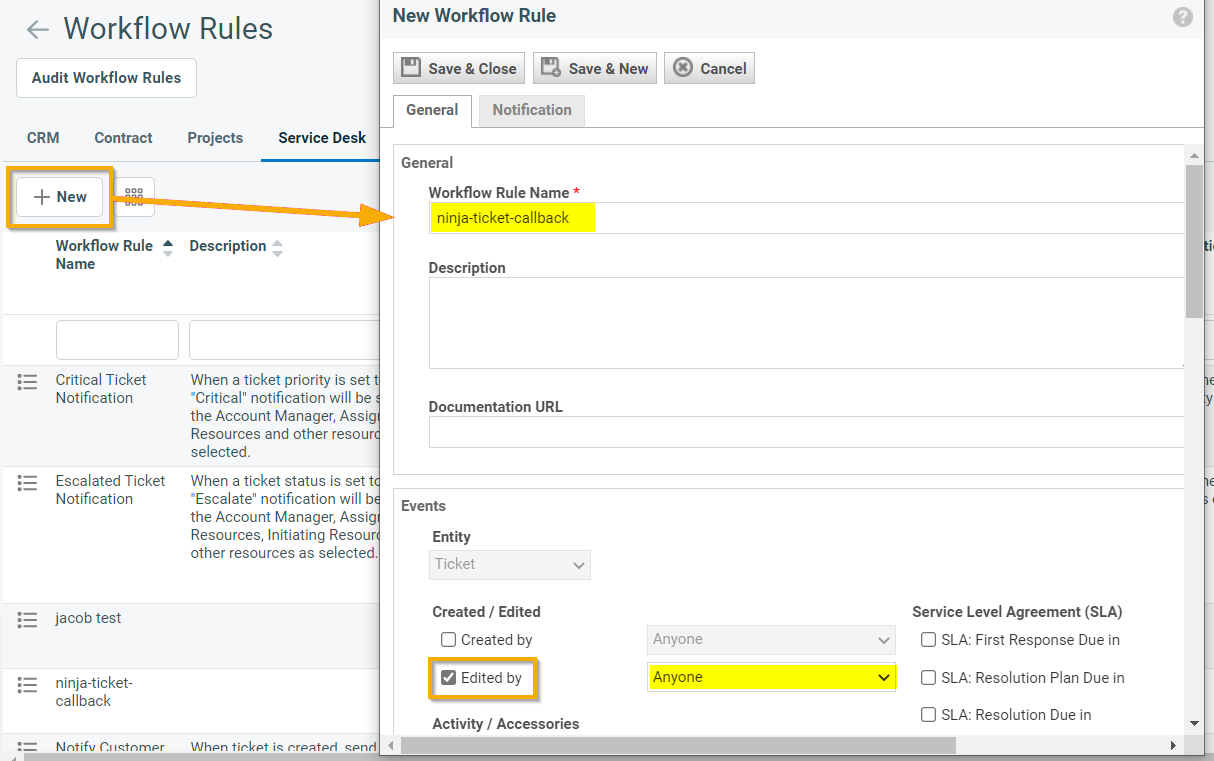
Figure 22: New → Workflow Rule Name (click to enlarge)
- Scroll to the bottom of the New Workflow Rule dialog window until you see the Actions section. Create an action in the workflow that references the extension you created.

Figure 23: Actions (click to enlarge)
Additional Resources
For a list of frequently asked questions about our Autotask integration, review NinjaOne Integration with Autotask: Frequently Asked Questions (FAQ).