
Topic
This article provides recommended troubleshooting steps in case you encounter an issue with our Bitdefender integration.
Environment
Issues
- Bitdefender Brute Force Removal for failed installations
- Bitdefender download failed — Problem downloading installation package
- Exclusions not working
- Bitdefender download failed — Can't open downloaded file
Bitdefender Brute Force Removal for failed installations:
Problem
Unable to uninstall Bitdefender from NinjaOne.
Solution
Try to adjust registry settings to remove Bitdefender.
- Make sure that Bitdefender is disabled in policy (use policy override if you want only this machine).
- Run the following script in PowerShell with admin rights:
- stop-service -name "NinjaRMMAgent"
- Stop-Process -Name NinjaRMMProxyProcess64 -Force
- Set-ItemProperty "HKLM:SOFTWAREWOW6432NodeNinjaRMM LLCNinjaRMMAgentAgent" -Name BitDefenderInstalledByNinja -Value true
- Set-ItemProperty "HKLM:SOFTWAREWOW6432NodeNinjaRMM LLCNinjaRMMAgentAgent" -Name BitDefenderInstallFailed -Value false
- Set-ItemProperty "HKLM:SOFTWAREWOW6432NodeNinjaRMM LLCNinjaRMMAgentAgent" -Name BitDefenderInstallationStatus -Value INSTALLED
- Set-ItemProperty "HKLM:SOFTWAREWOW6432NodeNinjaRMM LLCNinjaRMMAgentAgent" -Name BitdefenderLicenseSentToServer -Value false
- Set-ItemProperty "HKLM:SOFTWAREWOW6432NodeNinjaRMM LLCNinjaRMMAgentAgent" -Name BitDefenderActivationStatus -Value ACTIVATED
- start-service -name "NinjaRMMAgent"
- Wait a few minutes. Agent should remove the existing Bitdefender installation.
- Once successfully removed, you can re-enable Bitdefender in policy if you wish to reinstall.
If that fails, attempt ninja-specific uninstall tool 7.9.11.412.exe or greater that is included below.
Exclusions not working:
Problem
Exclusions configured at the policy level are not being respected during scans.
Cause
This may be caused by an issue with the syntax for the exclusion(s) in question.
Solution
Please see this Bitdefender documentation for detailed information about how to format exclusions.
Bitdefender download failed — Problem downloading installation package:
Problem
Bitdefender fails to install with activity feed entries indicating that the download failed:
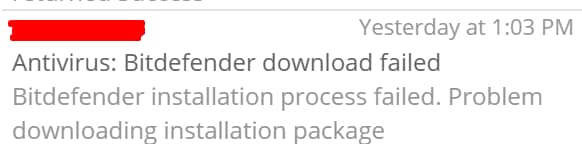

Cause
The Bitdefender deployment requires the download of the Bitdefender client and a proxy process that is needed to facilitate communications between Ninja and Bitdefender. When either the Bitdefender installation files or this proxy process fails to download, the Bitdefender installation will fail.
Solution
If installation attempts continually result in DOWNLOAD FAILED or Bitdefender inactive, you can try the following:
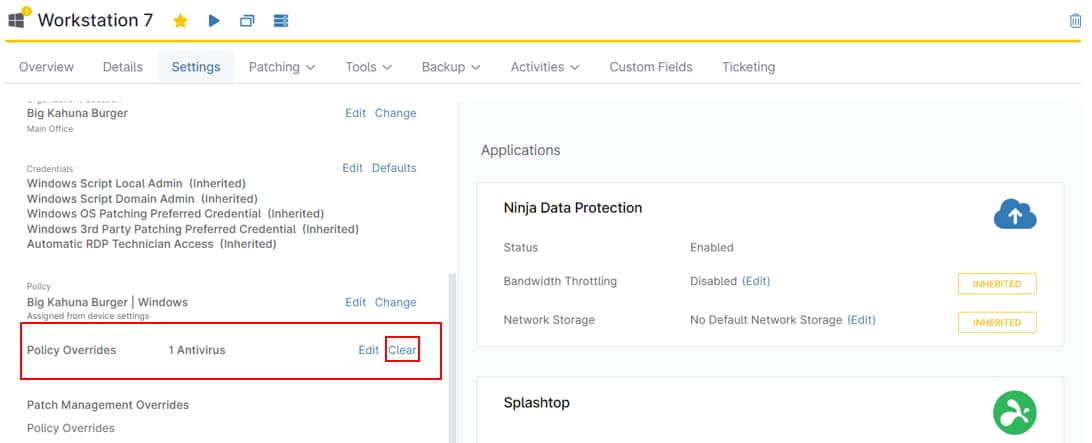
- Navigate to the Device > Settings page. Click 'Edit' to the right of 'Policy Overrides'.
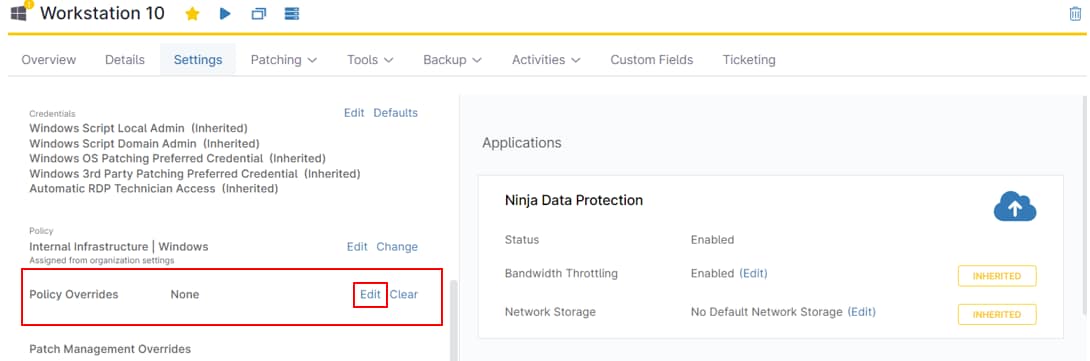
- Navigate to the Antivirus tab. For 'Choose Your Antivirus', select 'Disabled'.
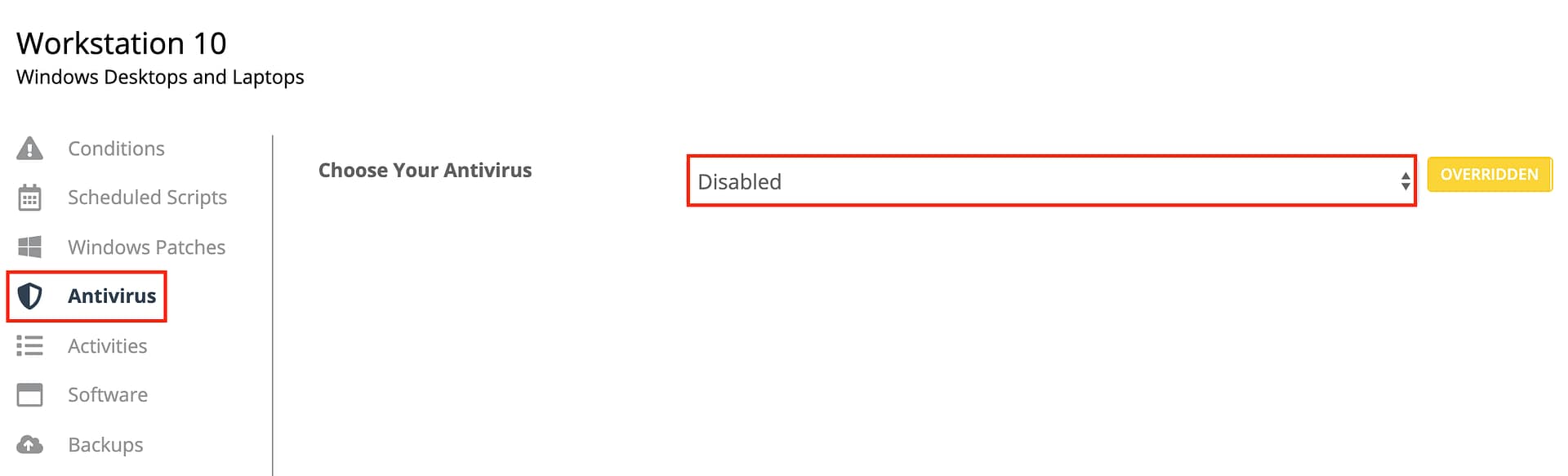
This will stop NinjaOne from re-attempting to install and will uninstall any Bitdefender components. The file Ninja is failing to download and install properly can be downloaded manually here:
https://resources.ninjarmm.com/Bitdefender/NinjaRMMProxyProcess64.cab
Inside the CAB file, NinjaRMMProxyProcess64.exe needs to be placed in the NinjaRMM installation directory of the agent machine. The directory is named according to the organization and location it belongs to along with the version of the agent:
C:Program Files (x86)<OrganizationName-Version>
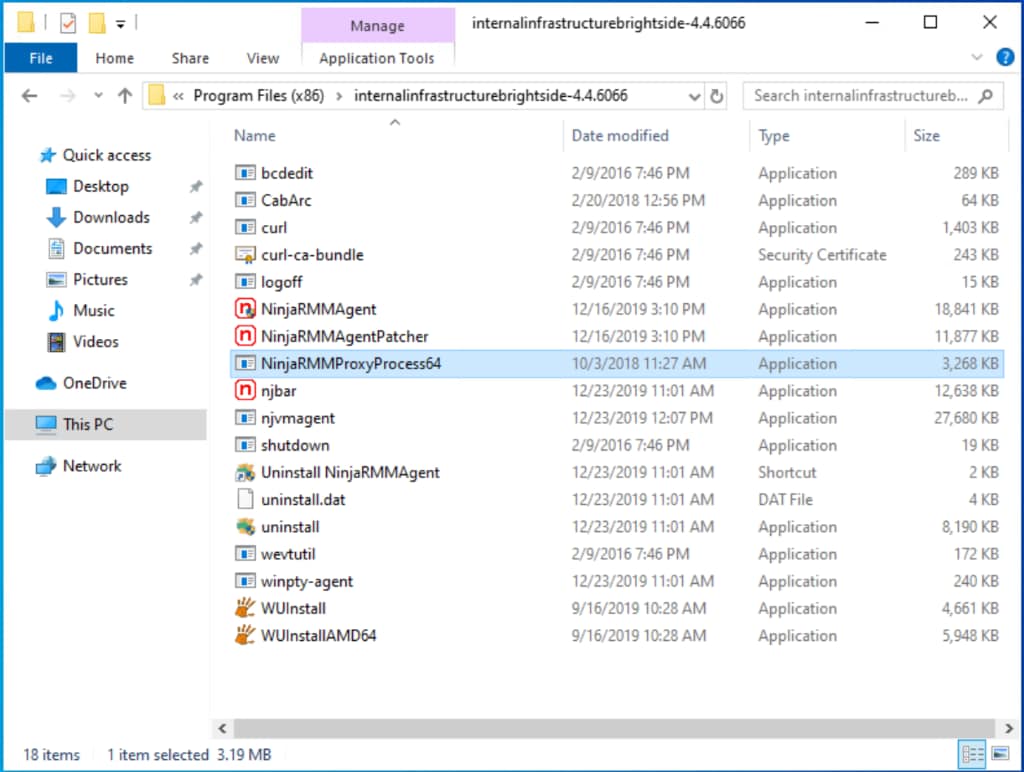
You can transfer the file to the desired device via the Device > Tools > File Explorer (one of our
Bitdefender download failed — Can't open downloaded file:
Problem
Bitdefender fails to install with the following error message in the activity log:
Bitdefender installation process failed. Can't open downloaded file
Cause
The most common cause for this error during the Bitdefender installation process is drive space.
Solution
Verify that the target device has at least 2.5GB of free space available for the installation of Bitdefender per their system requirement documentation.
If the issue you are experiencing is not listed above, or if you need further assistance after attempting the recommended troubleshooting steps, please contact NinjaOne Support.