
Topic
This article explains how to use environment variables when running scripts in NinjaOne.
Environment
NinjaOne Endpoint Management
Description
When you execute a script that includes variables, the NinjaOne agent adds them as environment variables only for the lifetime of the script's execution. If NinjaOne already has an existing environment variable from the script, the script fails and sends an activity log clarifying which script failed and why.
Scripts also send an activity log entry for changes made to a variable. This information can help users identify and plan for debugging or troubleshooting needs.
Select a category to learn more:
- Environment Variables
- Create Script Variables
- Edit or Delete Created Variables
- Add Variables to a Script
- Additional Resources
Environment Variables
We also expose the following environment variables you can use for all types of scripts (Windows, macOS, and Linux):
NINJA_EXECUTING_PATH -Install location
NINJA_AGENT_VERSION_INSTALLED -Agent Version
NINJA_PATCHER_VERSION_INSTALLED -Patcher Version
NINJA_DATA_PATH -Agent data folder (scripts, policy, downloads, logs)
NINJA_AGENT_PASSWORD -Agent password for obtaining session key
NINJA_AGENT_MACHINE_ID -The machine ID used on the server
NINJA_AGENT_NODE_ID -The node ID used on the server.
NINJA_ORGANIZATION_NAME -The organization name used on the server.
NINJA_ORGANIZATION_ID -The organization ID used on the server.
NINJA_COMPANY_NAME -The company name used on the server.
NINJA_LOCATION_ID -The location ID used on the server.
NINJA_LOCATION_NAME -The name of the location used on the server
Windows has an additional variable NINJARMMCLI with the following value:
C:ProgramDataNinjaRMMAgentninjarmm-cli.exeThe C:ProgramData phrase at the start of this path is the same as the following native environment variable values:
$env:ALLUSERSPROFILE$env:ProgramData
Create Script Variables
You can add new script variables from the Script Variables field in the script editor. Refer to NinjaOne Endpoint Management: Getting Started with Automation Scripting to learn more.
&|;$><`!.To add a script variable, perform the following steps:
- Create a new script or open a template from NinjaOne's Automation Library.
- Click Add in the Script variables section and select an option from the drop-down menu. You can add a maximum of 20 variables to a single script. For a description of each variable, refer to NinjaOne Endpoint Management: Automation Script Variable Types.
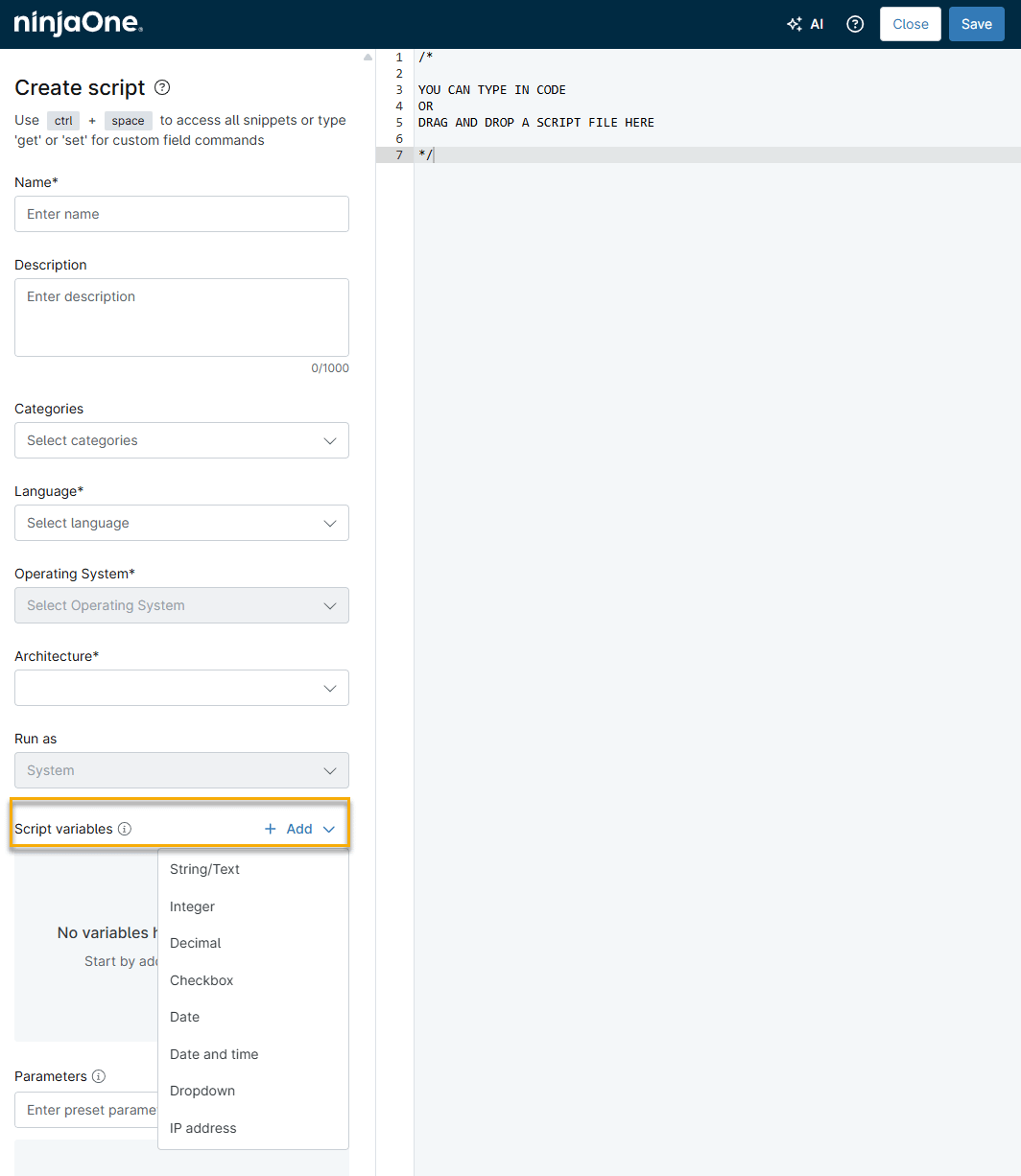
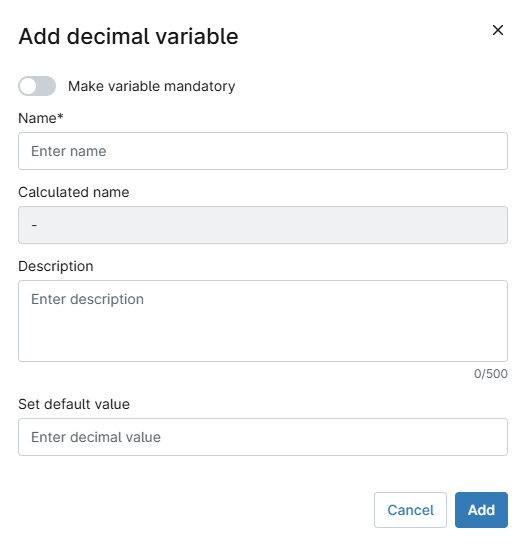
- The Add variable dialog will open and display configuration options that are relevant to the type of variable you selected. Refer to the table below for an explanation of each configuration field and the variable types to which it applies.
| Field | Description | Relevant Variable Types |
|---|---|---|
| Make variable mandatory | Activate the toggle to make the variable a requirement when the script runs. If activated, the form generated by the script will not run if this value is not present. | All except Checkbox |
| Name | Give your variable a descriptive name. | All |
| Calculated name | NinjaOne will automatically populate a variable name in this field. | All |
| Description | This optional field sets a description of the variable. When running a script, NinjaOne displays the description as an informational tooltip icon (i) over the variable, which provides more information or helpful tips. | All |
| Set default value | This optional value uses pre-defined content when you run the script. The format of this field will change based on the variable type selected. | All |
| Option value | This mandatory value allows users to select options from a list. Each value entered provides a separate option. | Dropdown |
Edit or Delete Created Variables
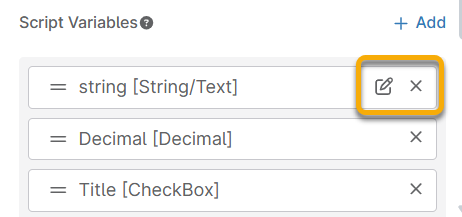
You can edit or delete script variables as needed. Move your mouse cursor over the variable name, then click the Edit icon, or click the X to delete. You can also change the variable order by dragging them up or down in the stack.
Add Variables to a Script
In the script editor, click the editing pane, then press CTRL + Space. The script variable selector displays as a contextual menu. Place your cursor over the variable to view a description. Custom fields also display in this script variable selector.
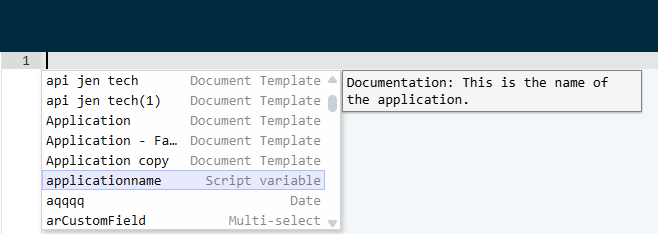
After you select the variable, NinjaOne inserts it into the code in the script editor, formatted for the language you selected when adding the variable.
Additional Resources
Refer to NinjaOne Endpoint Management: Scripting, Automation and CLI Resource Catalog to learn more about NinjaOne's Automation Library.