
Topic
Learn how to create new policies in NinjaOne and configure settings for them.
Environment
NinjaOne Endpoint Management
Description
A policy is a collection of conditions, actions, and various settings, such as Windows patch management and antivirus deployment, which can be collectively applied to a group of devices that are members of that policy.
Select a category below to learn more.
- Introduction to Policies in NinjaOne
- Create a New Policy
- Edit, Copy, or Delete Policies
- Additional Resources
Introduction to Policies in NinjaOne
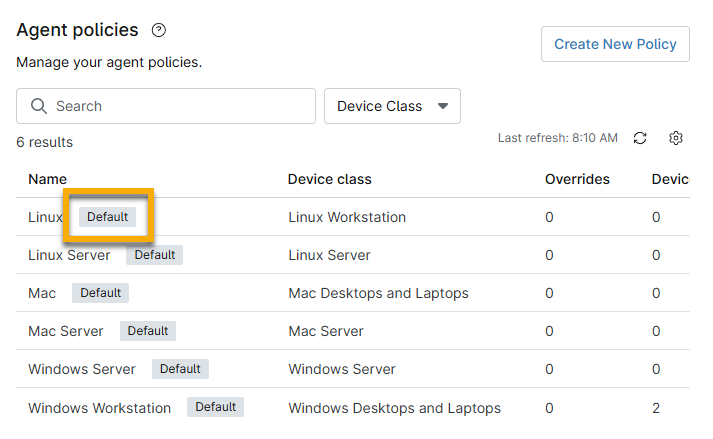
NinjaOne provides a predefined list of default policies. The default policies can be identified by the Default tag assigned to them, which means you cannot delete them. You can either edit these default policies or create new policies.
Leveraging Policy Inheritance
Common standard service offerings from IT teams and MSPs include monitoring many of the same health and performance metrics across clients for each device type and deployment of the same antivirus and remote access tools across all endpoints.
NinjaOne’s policy inheritance scheme allows you to do all the hard work of policy setup once and then apply those changes to sub-policies, saving you time and effort.
To create a policy that inherits values from a default or original policy, perform the following steps:
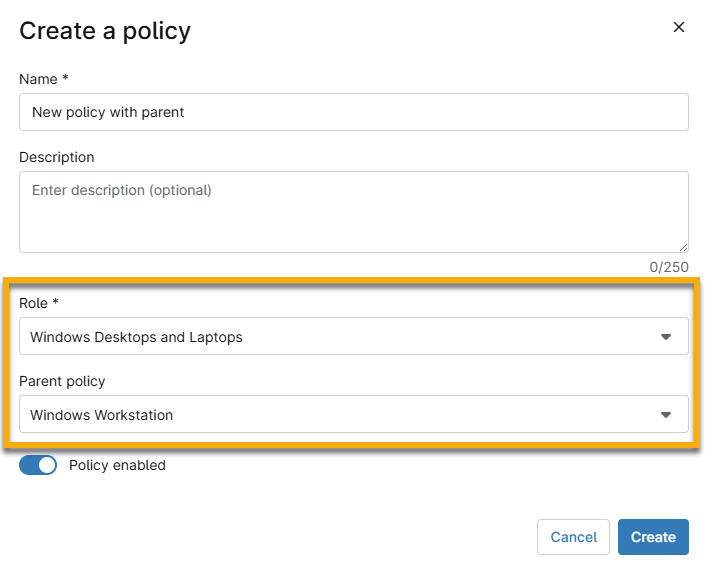
- Create a new policy and give the Name a unique identifier. Select a Role to designate the device type that the policy will manage and then select an option from the Parent policy drop-down menu.
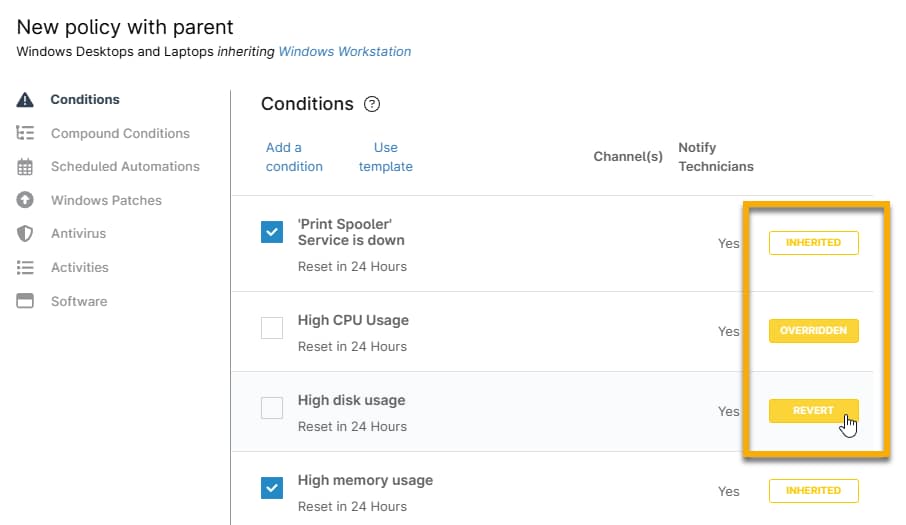
- Go through each section of the policy and note the "Inherited" tags.
- When you modify a setting in an inherited policy, this tag changes to "Overridden."
- To undo an override, move your cursor over the "Overridden" tag; it will change to "Revert." Click Revert to reset the inherited value.
Create a New Policy
To create a new policy without inherited values, perform the following steps:
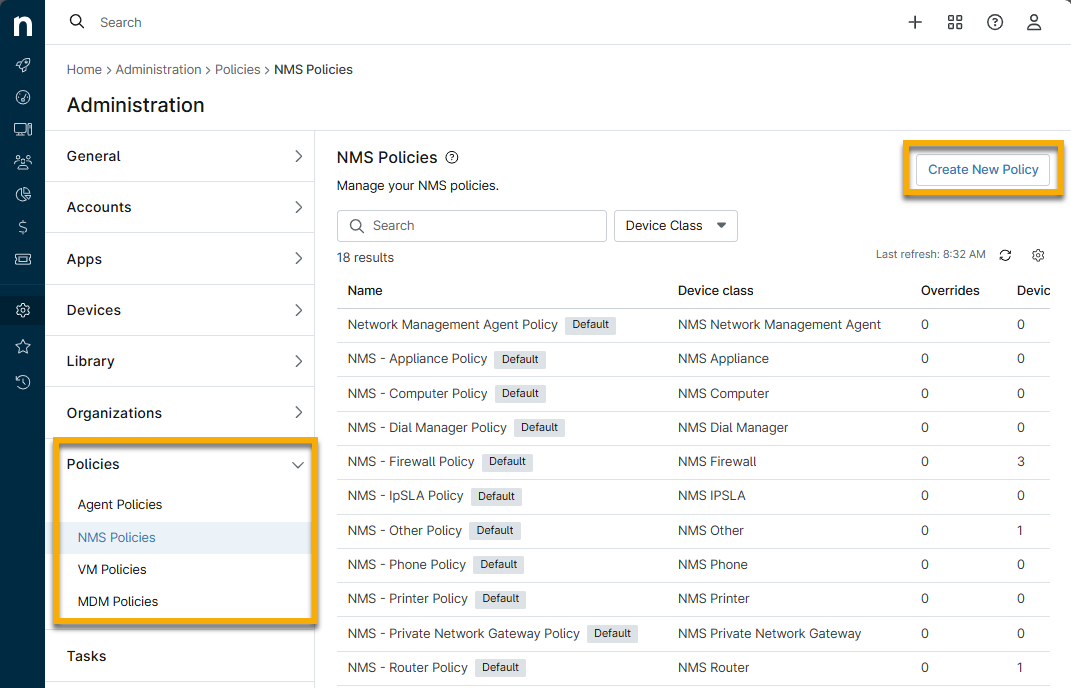
- Click Administration in the left navigation pane and select Policies.
The Agent Policies page displays by default. - Select the type of device for which you want to create a new policy (Agent, NMS, MDM or VM).
- Click Create New Policy.
- Alternatively, click on the + icon at the top of the NinjaOne console and select Policy.

- Give the Name a unique identifier.
- Select a Role to designate the device type that the policy will manage.
- Ensure the Policy enabled toggle switch is on to deploy the settings to managed devices.
- Refer to the previous section (Leveraging Policy Inheritance) for information about the Parent policy field.
- Click Create.
The policy configuration page displays.
- Go through each policy section to manage the settings. Policy settings vary by role and device type; refer to Policies: Administration and Management for use case-specific help guides.
Edit, Copy, or Delete Policies
Navigate to Administration → Policies; move your cursor over the policy and click the ellipses icon.

- Edit: Use this option to configure or modify policy settings.
- Delete: Use this option to remove a policy from NinjaOne.
- Copy: Use this option to copy all values into a new policy. This method does not use policy inheritance, and you will not have the ability to "revert" changes you make to copied values.
Additional Resources
For more information on policy settings, refer to Policy Management: Resource Catalog.