
Topic
This article explains how to log in and connect to endpoints as an end user in NinjaOne.
Environment
NinjaOne Platform
Description
Once the end user has accepted the invitation and completed the account creation process, they can log in by simply navigating to the appropriate NinjaOne instance in their web browser (such as app.ninjarmm.com, us2.ninjarmm.com, eu.ninjarmm.com, or oc.ninjarmm.com) and entering their credentials.
The end user can move their cursor over each icon to review its purpose.
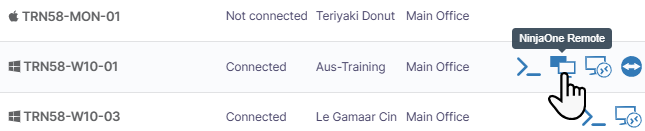
Figure 1: NinjaOne end user device list → Tooltip
Important Considerations
If the end user will initiate connections via the Cloud remote desktop protocol (RDP), the system administrator must provision the devices for access beforehand. Additionally, if the machine the end user is connecting from is not a Microsoft Windows device, they must have the appropriate RDP application installed on their device. For more information about user permissions, refer to NinjaOne Accounts: User Roles and Permissions.
If the end user will be initiating connections via TeamViewer, they must have the full TeamViewer desktop application installed on the machine from which they are connecting.
If the end user has been granted access to NinjaOne Backup data, they can click the backup management icon. This opens the backup manager, allowing end users to navigate through any plans that have run on their device and download folders and files.
End users can use Wake-on-LAN to activate devices that are in a sleep state. For this feature to work, the device must be connected to the same network as another online device.
Additional Resources
For information about user management, refer to User Management: Resource Catalog.