
Topic
This article explains how to configure the settings in the Support hours tab of the NinjaOne Ticketing application.
Environment
NinjaOne Ticketing
Description
The Support hours tab allows administrators to designate the standard hours of work and communication for the business. These hours refer to the entire business rather than individual technician work schedules.
Index
Select a category to learn more:
Support Hours
NinjaOne sets business hours to 24 hours, 7 days a week by default, but you can customize them for each day of the week by performing the following steps:
- Click Edit.
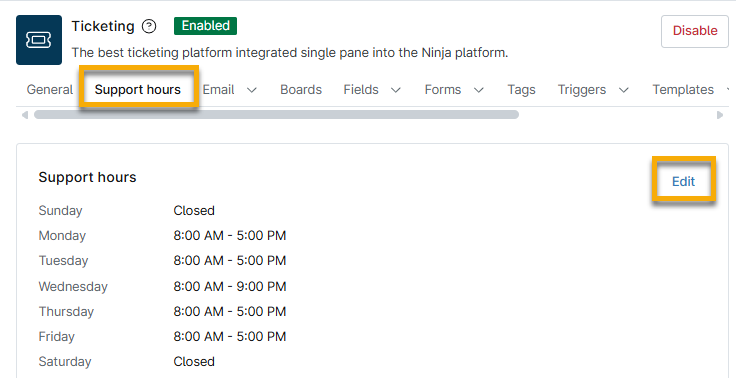
- Select Custom from the Schedule drop-down menu in the Edit support hours dialog and then select the checkbox for each day your business is available.
- Use the subsequent drop-down menus to specify the hours during which you are available. The business hours you select reflect the time zone you entered at Administration → General → Settings.

You can configure automations according to your business hours. Refer to NinjaOne Ticketing: Automation Triggers and Templates to learn more.
Holidays
You can define which days are public holidays, which you can exclude from service level agreement (SLA) tracking. Refer to NinjaOne Ticketing: Service Level Agreements (SLAs) to learn more about SLAs in NinjaOne Ticketing.
You will create groups of holidays, and these groups can contain one or multiple holidays. When you create SLAs for ticketing, you will select the group that excludes the holidays specific to that agreement. For example, you may have SLAs for customers in different countries, who observe holidays on different dates.
To create a holiday, perform the following steps:
- Click Add group.
- In the Add group dialog, provide a unique identifier for the Name field.
- Click Add holiday.
- Provide the name and date for the holiday. Click Add.
- Click Add again to close the Add group dialog.
Additional Resources
Refer to NinjaOne Ticketing: Resource Catalog to learn more about NinjaOne Ticketing.