
Topic
This article explains how to configure privacy preferences policy control (PPPC) for macOS devices enrolled in NinjaOne Mobile Device Management (MDM).
Environment
- NinjaOne Mobile Device Management
- Apple macOS
Description
In the macOS platform, you must grant applications access before the apps can get data from many common sources, such as the Microphone, Screen Recording, and even certain user folders like Downloads and Desktop.
In practice, when apps attempt to use this data, the user receives a prompt and must navigate to System Settings in order to approve, or the app will not function correctly. In some cases, users may receive several prompts for a single application if multiple permissions are needed.
NinjaOne MDM gives technicians the ability to pre-configure these privacy permissions for their managed applications, ensuring their apps function correctly and improving user experience.
Select a category to learn more:
Define the Policy Control MDM Payload
You can specify settings for multiple apps, regardless of whether that app is deployed in the policy. First, decide which app you want to configure privacy preferences for, and then which individual preferences to configure for that app.
- In the macOS policy, expand the MDM section and click Privacy preferences.
- Click Add preference on the right side of the page.

Figure 1: Add a privacy preference to a macOS policy in NinjaOne
The configuration modal displays.
- Use the following table to help fill out the fields in the General section.
| Field | Description |
|---|---|
| App name | Enter a name to help you identify this preference. |
| Identifier type | You must identify application bundles by their bundle ID. Nonbundled binaries must be identified by installation path. Helper tools embedded within an application bundle automatically inherit the permissions of their enclosing app bundle. |
| Identifier | Enter the bundle ID or installation path of the binary. |
| Code requirement | Enter a code requirement that can be obtained via the command "codesign -display -r - {path_to_app}" |
- Open the Preferences section. Click Add on the right side of the modal.
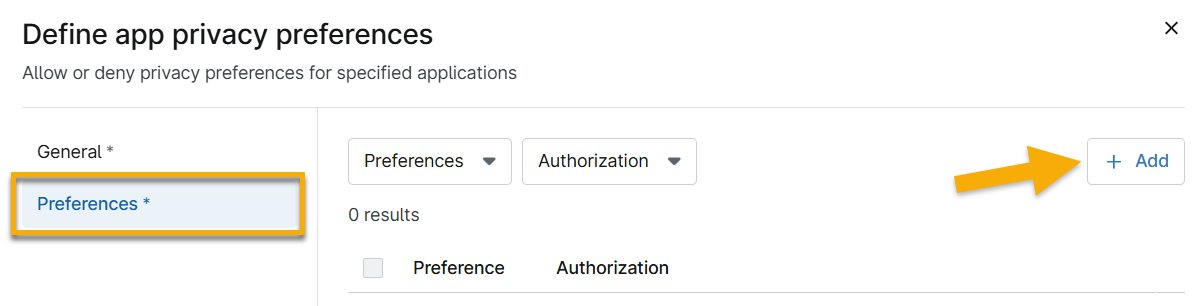
Figure 2: Add preferences and define their authorization
- Specify the type of permission that you will enforce from the top drop-down menu, and then specify the authorization for that permission type from the bottom drop-down menu.
- Click Add, and then click Submit.
Edit or Delete Privacy Preferences
To edit or delete a privacy preference app bundle, move your cursor over the row and click the ellipsis button. Then, select the applicable option.
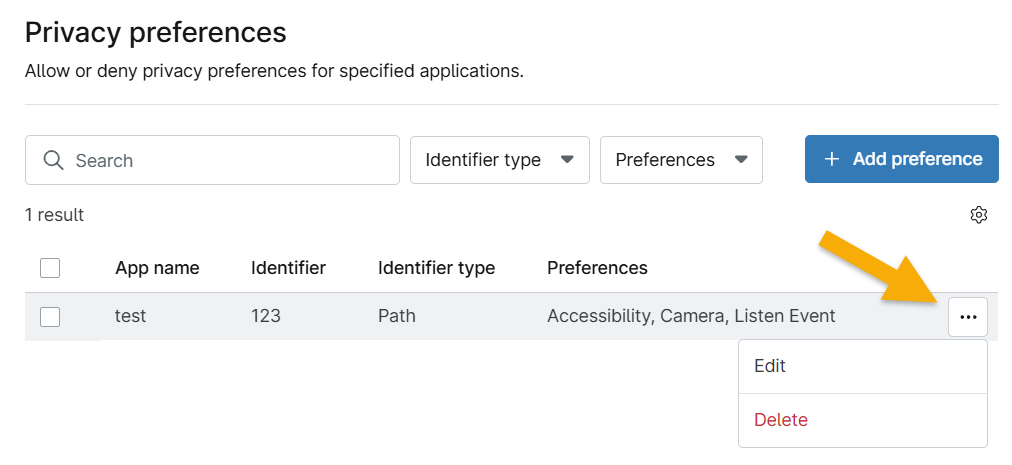
Figure 3: Edit or delete a privacy preference app bundle
To edit or delete authorization for a privacy preference type, edit the privacy preference app bundle, navigate to preferences, and then move your cursor over the row and click the ellipsis button. Then, select the applicable option.
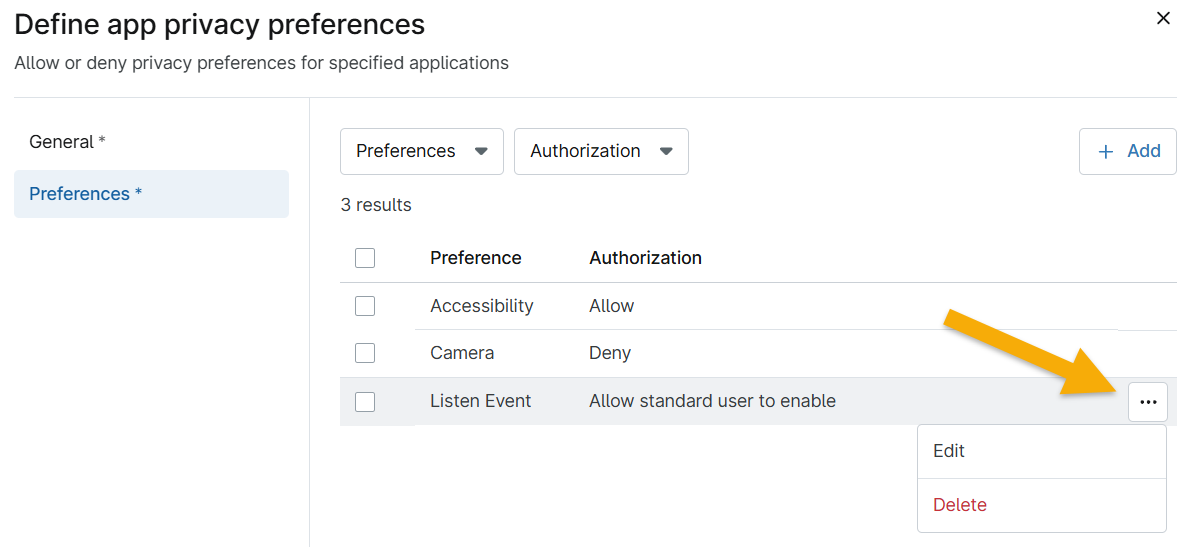
Figure 4: Edit or delete a privacy preference app bundle
Additional Resources
Refer to the following resource to learn more about NinjaOne MDM: NinjaOne MDM: Resource Catalog.