
Topic
This guide shows you how to synchronize data between your NinjaOne and ConnectWise manage accounts manually.
Environment
- NinjaOne platform
- ConnectWise Manage
Description
Agreement syncs work with device data mapped between the software. After you enable the integration between ConnectWise Manage and NinjaOne and map your data, you can sync the data on demand or through a schedule.
Select a category to learn more:
Run Agreement Synchronization on Demand
- In NinjaOne, go to Administration → Apps → and select ConnectWise Manage.
- From the main ConnectWise integration configuration page, click Run Agreement Sync in the top right corner of the Synchronization Status section.

Figure 1: Run an agreement sync for ConnectWise in NinjaOne
ConnectWise agreement syncs only include agreements with a status of “Active.” For the agreement sync to be successful, you can also only have one “Active” agreement of an agreement type per ConnectWise company.
- You will see a preview of the sync data. Click Sync Now to continue. You can export this data to a .csv by clicking Export in the top right corner.

Figure 2: Run an agreement sync for ConnectWise in NinjaOne → Export data or sync immediately
Synchronization Logs
If you want to view information about sync warnings or errors or view any activity logged for ConnectWise synchronization, click the Last Configurations Sync hyperlink in the Synchronization Status section of the ConnectWise app.

Figure 3: View last configuration sync logs for ConnectWise in NinjaOne
Use the drop-down menu at the top to change the log dates. Move your cursor over icons to view additional information about errors. If you experience issues, you can request support using the information in these logs.
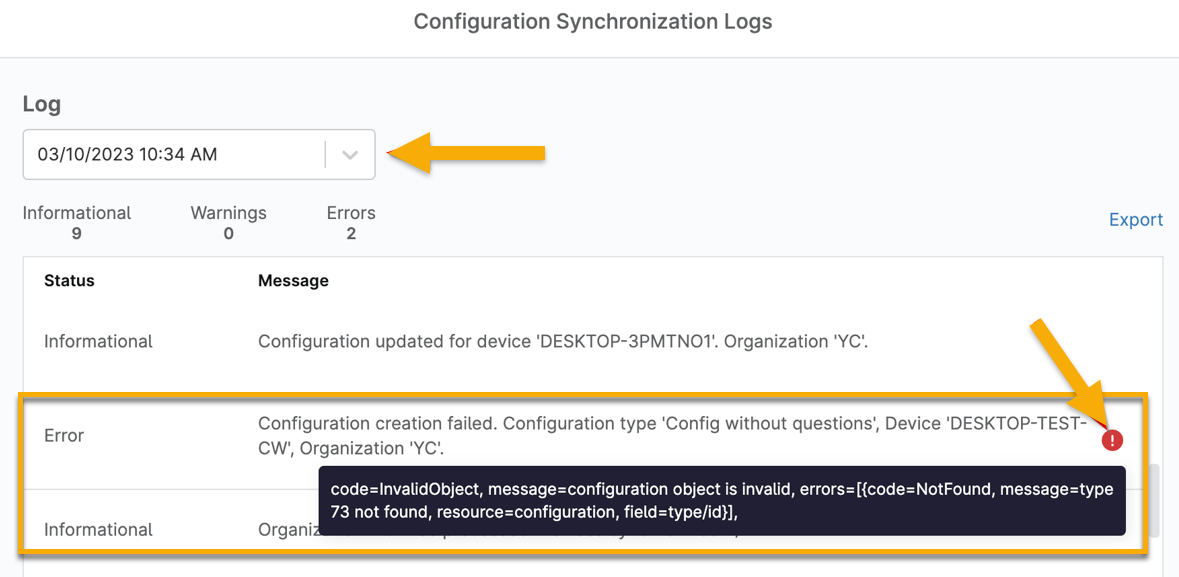
Figure 4: ConnectWise sync log details

Figure 5: ConnectWise sync warnings and errors