
NinjaOne's Command Line Interface (CLI) is a robust tool that provides much of the same functionality and visual experience as running cmd.exe on Windows or Terminal on macOS. You can also launch PowerShell remotely on Windows devices.
To learn more about the ninjarmm-cli component for Windows, Mac, and Linux devices and interacting with custom fields, refer to Command Line Interface (CLI): Custom Fields and Documentation Scripting.
Select a topic to continue:
- Granting CLI Permissions
- Using Utility Icons
- Using CLI or PowerShell on a Windows Device
- Launching the CLI (Terminal) on a Mac or Linux Device
- Additional Terminal Launch Options
- Additional Resources
Granting CLI Permissions
System administrators have access to the CLI by default. For other technician roles, or technicians without roles, you must manually grant CLI permissions.
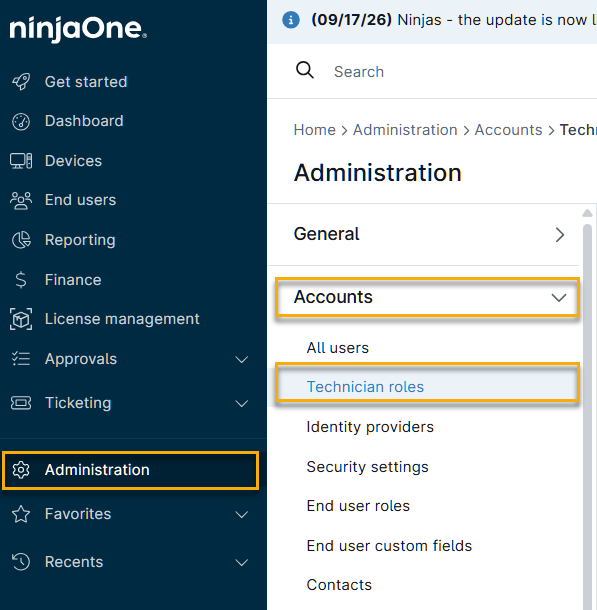
- In NinjaOne, navigate to Administration → Accounts → Technician roles and select a technician role.
- Navigate to Devices → Remote tools, then click the Allowed drop-down menu and select the Command Line checkbox. When finished, click Save changes.

Using Utility Icons
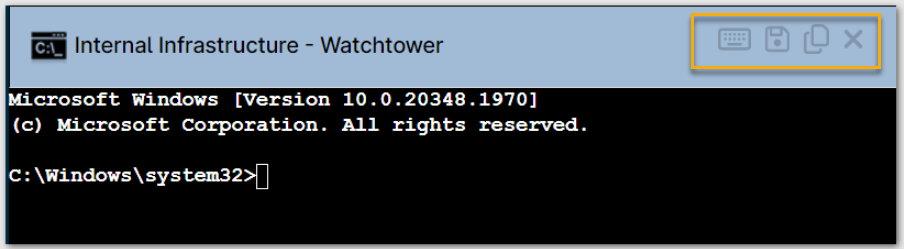
The Icons in the CLI, PowerShell, or Terminal window's navigation menu allow you to perform the following actions on the device:
- Keyboard icon: allows you to send the "Ctrl+C" command to terminate the current action.
- Disk icon: allows you to download Terminal contents to a txt file.
- Duplicate icon: allows you to copy the contents to clipboard.
- "X" icon: terminates cmd.exe on the device.
Using CLI or PowerShell on a Windows Device
Launching CLI or PowerShell
To launch PowerShell from NinjaOne, it must be installed locally on your device. CLI access is not available if the device is offline.
- On the device's Overview page, place your cursor over the Remote CLI icon.
- Select CMD or PowerShell from the drop-down menu, then select the appropriate System (
localsystem) or Logged-in user run type when the options appear. Click the icon next to your choice to open the session in a new tab.

net use will not see mapped drives that were mapped in a standard user context.Windows CLI Tool Functionalities
The CLI tool includes the following functionalities:
| Functionality | Description |
|---|---|
| Run interactive shells | Run any interactive shell installed on the PC, including cmd.exe, powershell.exe (or pwsh.exe), bash.exe, psql.exe, python.exe, and others. |
| Execute scripts inside shells | Copy and paste scripts to powershell.exe, bash.exe, or python.exe; copy and paste SQL to psql.exe. |
| Run WSL | Run and use WSL (Windows Subsystem for Linux) to access a Linux distribution installed under Windows. |
| Install and uninstall software | Use Chocolatey to install and uninstall software on the PC. Refer to Chocolatey.org (external link) for more information. |
| Work with shells in full interactive mode | Work with all shells in full interactive mode with all events and pseudo-GUI support, including:
|
CLI Considerations
- Highlighting any text in the CLI utility automatically copies to the clipboard.
- While running cmd.exe as System, SFC commands will not resolve on a user level (we do include a
sfc /scannowcommand in our native scripts. Refer to NinjaOne Endpoint Management: Native Automation Scripts for more information). - To use a curl command, you must use the
-Oflag.
curl -O https://url.zip- To use wget, use the
--no-check-certificate --progress=bar:forceparameter at the end of your URL.
Launching the CLI (Terminal) on a Mac or Linux Device
To view the files and folders under ~/Users/ within the remote Terminal, you must grant Full Disk Access to the ninjarmm-macagent file (which is housed in the hidden NinjaRMMAgent folder under /Applications). This can be done locally on the machine under System Preferences → Security & Privacy → Privacy.
Launching the CLI (Terminal)
- On the device's Overview page, place your cursor over the Remote CLI icon, select CMD or PowerShell from the drop-down menu, then select the appropriate System (
localsystem) or Logged-in user run type when the options appear. - Choose whether to launch Terminal, or Terminal as Root. Click the icon next to your choice to open the session in a new tab.

Additional Terminal Launch Options
In addition to using the device's Overview page, you can:
- Launch a command line session from a global search.
- Launch a command line session from the Organization dashboard.
Launching the CLI or Terminal from a Global Search
To launch the CLI or Terminal from a global search:
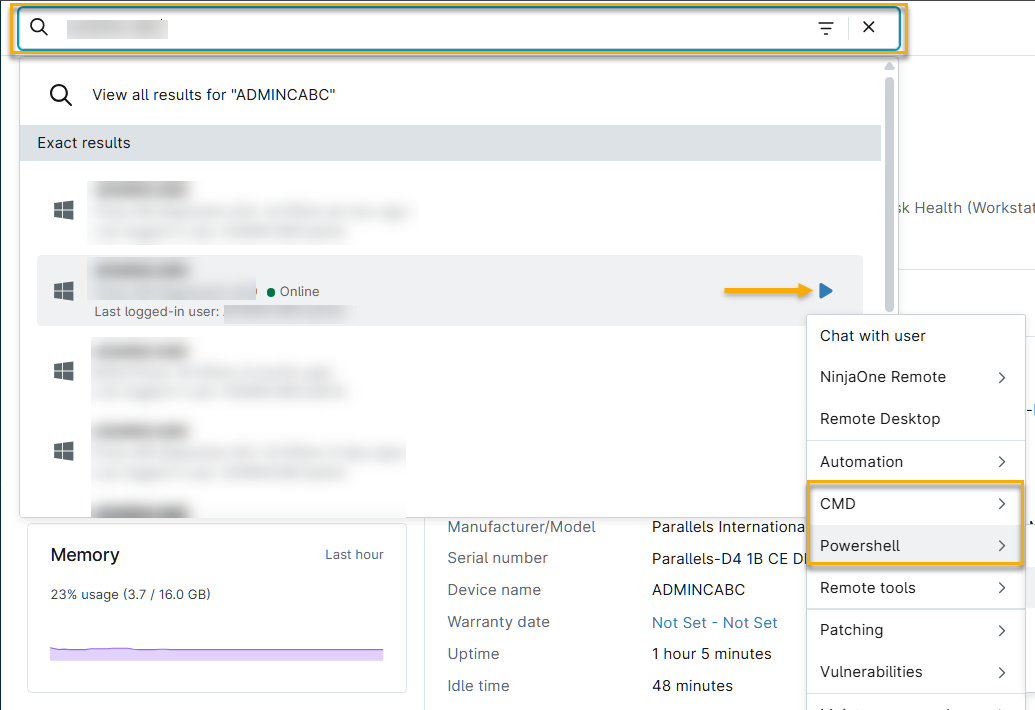
- In NinjaOne, enter the device name into the search bar.
- Place your cursor over the device name in the search results, then click the Run icon when it appears.
- Select your connection type from the drop-down menu:
- Windows: Select CMD or PowerShell, then select the appropriate run type when the options appear. Click the icon next to your choice to open the session in a new tab. Refer to the Using CLI or PowerShell on a Windows Device section of this article for more information on connection types.
- macOS or Linux: Select Terminal, then select Terminal as Root or Terminal when the options appear.
Launching the CLI or Terminal from the Organization Dashboard
To launch the CLI or Terminal from the organization dashboard:
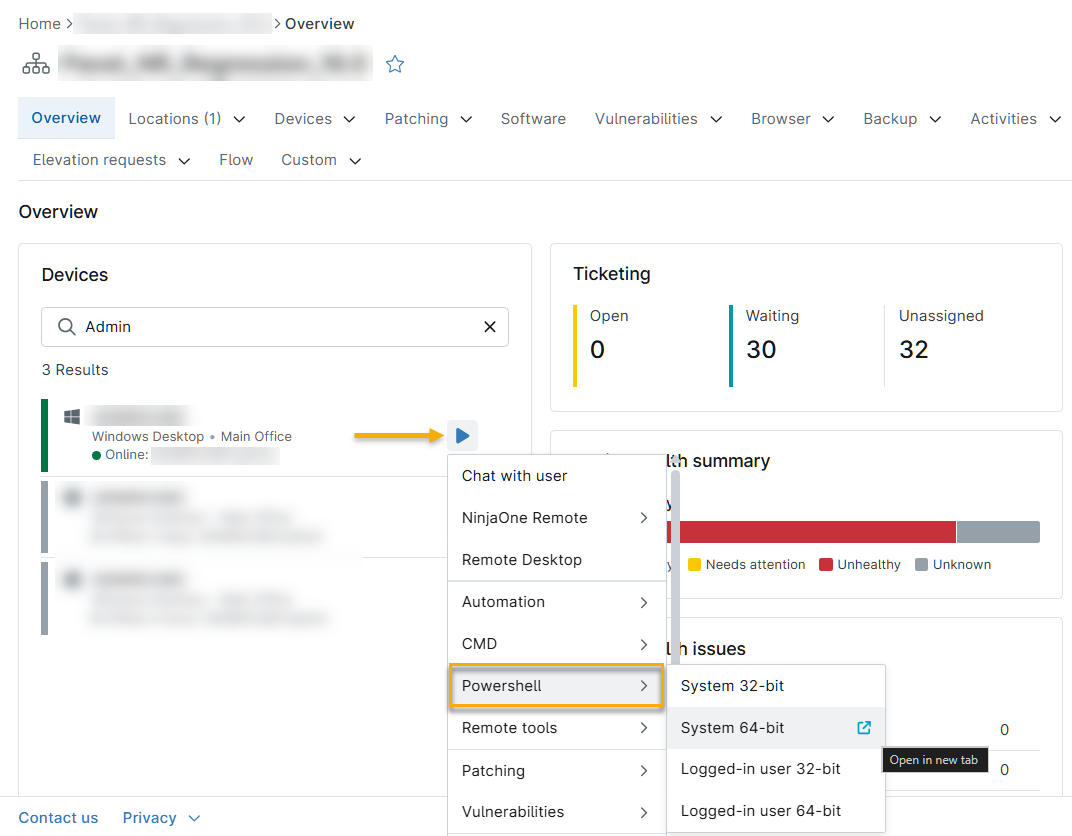
- In the organization's Overview page, select the device, then click the Run icon when it appears.
- Select your connection type from the drop-down menu:
- Windows: Select CMD or PowerShell, then select the appropriate run type when the options appear. Click the icon next to your choice to open the session in a new tab. Refer to the Using CLI or PowerShell on a Windows Device section of this article for more information on connection types.
- macOS or Linux: Select Terminal, then select Terminal as Root or Terminal when the options appear.
Additional Resources
For a list of frequently asked questions about CLI, refer to Command Line Interface (CLI): FAQ.