
Topic
This article describes how to automatically assign critical information about target endpoints to the NinjaOne agent during deployment.
Environment
NinjaOne Endpoint Management
Description
You can use alphanumeric tokens with a specialized "generic" agent installer when deploying the NinjaOne agent to Microsoft Windows, Linux, and Apple macOS endpoints. The tokens represent each agent's server, organization, location, and role. Select a topic to continue.
Index
- Managing the Installer in NinjaOne
- How Automatic Tokenization Works
- Viewing Installer Details and Obtaining the Install Command
- Revoking Tokens
- Additional Resources
Managing the Installer in NinjaOne
The generic installer includes options for uninstall prevention, deduplication, and automatic token creation. You can manage these features from within NinjaOne by navigating to Administration → General → Settings → Agent Installer.
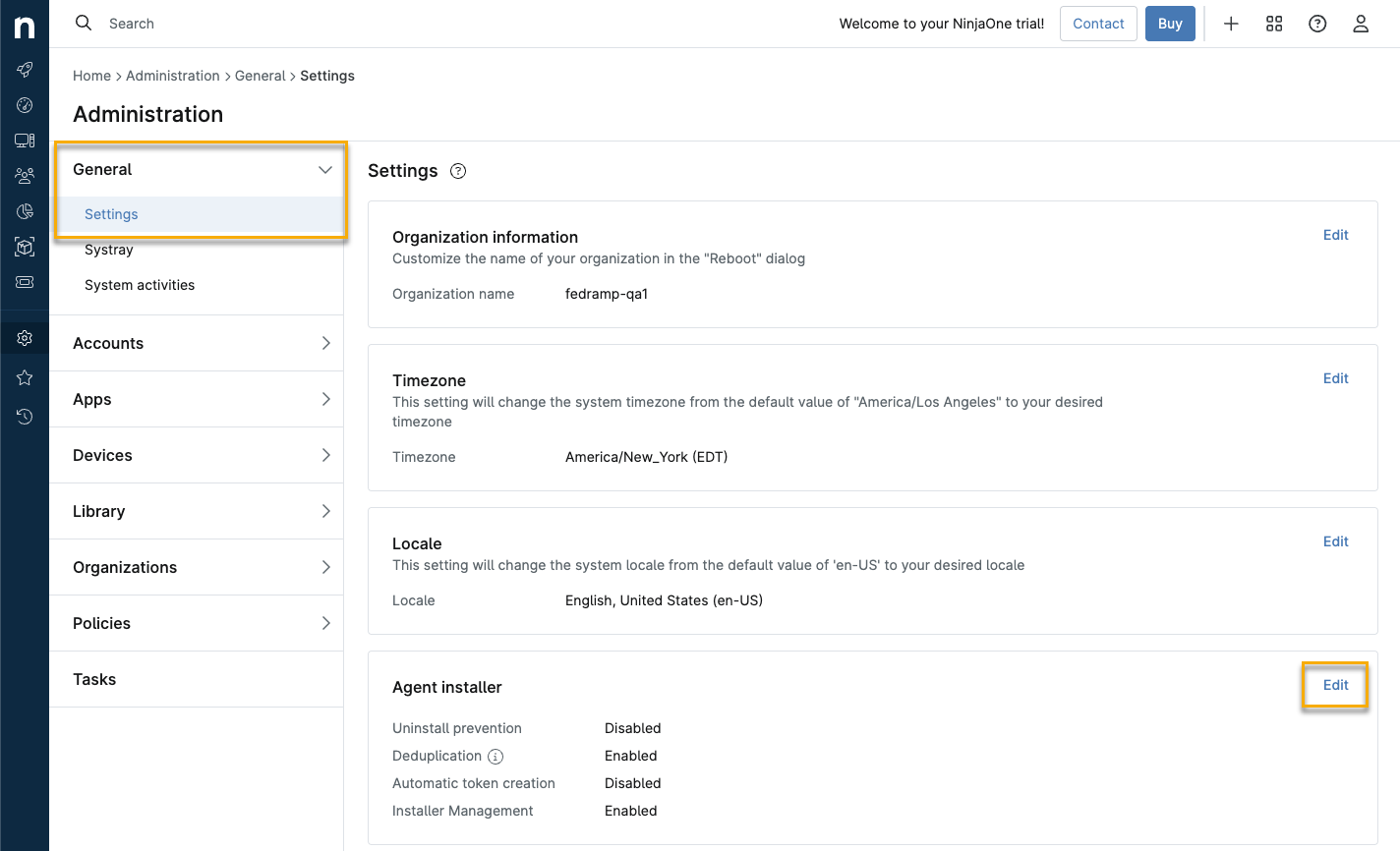
The Agent installer pane enables you to configure these settings:
- Uninstall prevention: When active, end users cannot uninstall the NinjaOne agent from endpoints where it is present.
- Agent deduplication: Enable deduplication to detect and automatically merge duplicate device entries found in NinjaOne during deployment.
- Automatic token creation: To automatically create generic agent tokens for all of your NinjaOne Organizations and Locations, ensure that this option is not deactivated.
- Installer Management: Activate this setting to show the Agent Installers feature on dashboard pages.
How Automatic Tokenization Works
Automatic tokenization generates a token for every combination of location and organization. This process will continue as you add new organizations and locations. This approach simplifies script-based installations, speeds up mass deployments, and offers multiple advantages over traditional workflows. For example:
- The generic installer supports scripted deployment by accepting a token (for example, via a command-line parameter) to assign the target server, organization, location, and role. It integrates easily with existing deployment scripts.
- The installer is hosted at a persistent URL that always provides the latest agent version, eliminating the need to update scripts when new versions are released.
If automatic tokenization is deactivated, NinjaOne will no longer automatically create tokens for new locations and organizations, but will still generate tokens when a new device is added, based on the selections made during the device addition process. While the generation is still "automatic," you must add a device to create the token.
Viewing Installer Details and Obtaining the Install Command
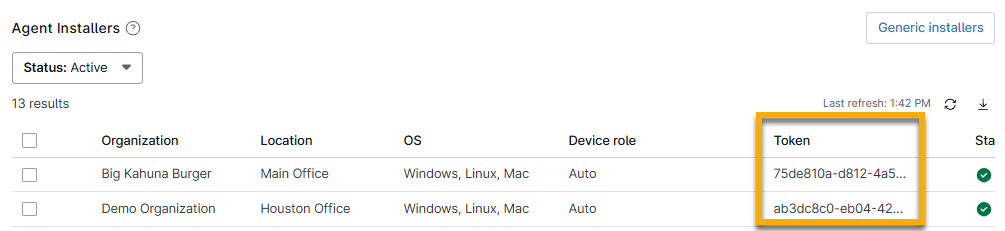
The Agent Installers screen contains a list of all valid agent installers, including their installation tokens. You can use this list to choose the best installer for the devices you are adding.
To view the details for installers assigned to a particular organization or system, perform the following steps:
- In NinjaOne, access the dashboard for the selected organization or system.
- Open the Devices tab and select Agent Installers.
- Click the value shown in the Token column for the installer you want to review.
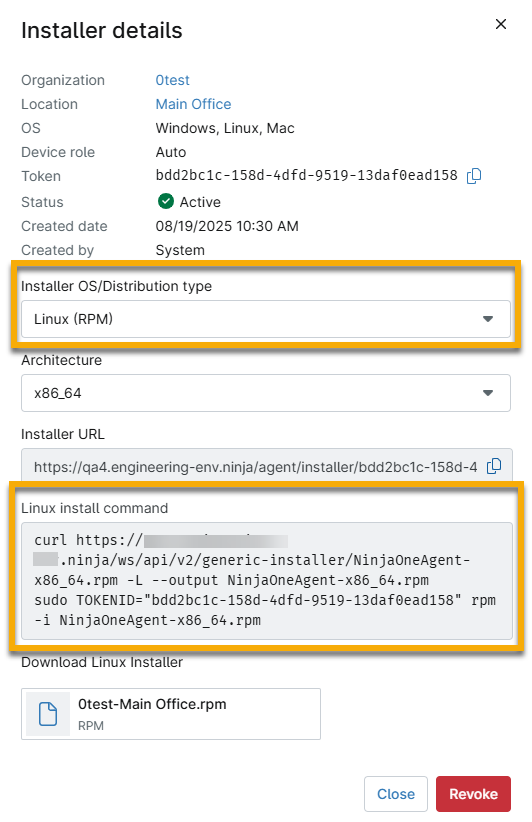
The Installer details window will open, displaying information similar to the example shown in Figure 3. In the Installer details window, you can select a new operating system or distribution type, which will generate a URL, command, and download file that you can use to install the token. Refer to the Additional Resources section of this article for instructions about how to add a Microsoft Windows, Apple macOS, or Linux device.
Revoking Tokens
You can revoke tokens from a single device or many devices at once. If you revoke a token while automatic token creation is activated, NinjaOne will generate new tokens for each organization and location.
The Device Revocation Process
NinjaOne does the following when you revoke access for one or more devices:
- Deactivates Agent Installer table entries for revoked devices.
- The installer's Status column will report it as Inactive.
- The Revoked date and Revoked by columns will populate with the date the revocation took place and the ID of the user who performed the action.
- Records an entry in the Activities log containing "Activity: Org Updated → Agent Installer Revoked."
Revoking a Single Token
To revoke a single token:
- In NinjaOne, access the dashboard for the selected organization or system.
- Open the Devices tab and select Agent Installers.

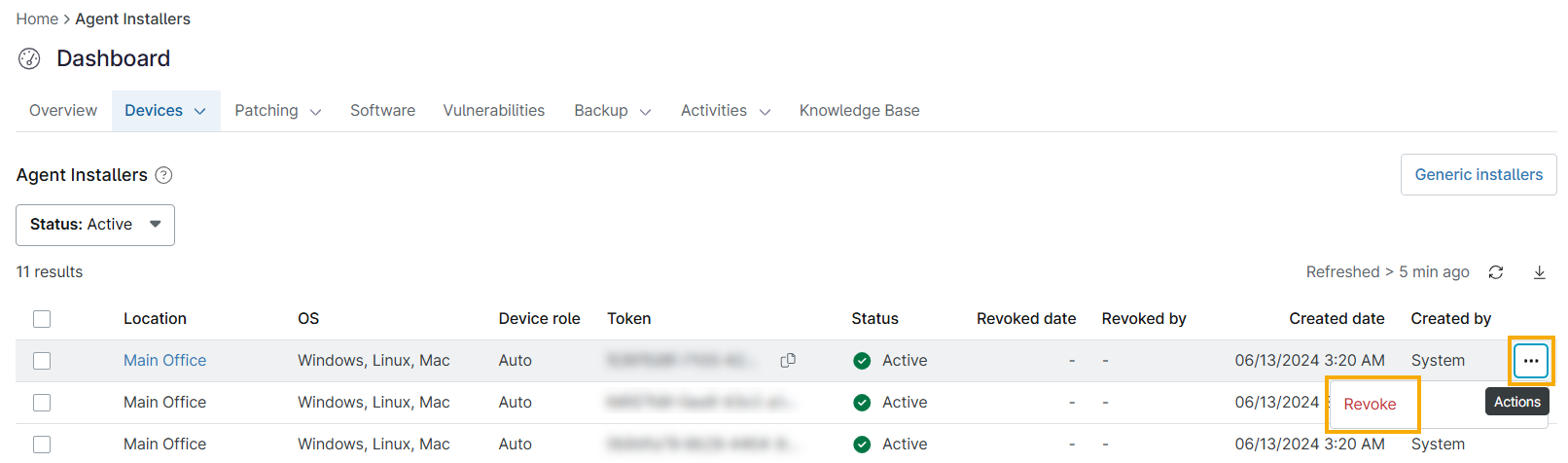
- In the Agent Installers table, move your cursor over the entry for the device you want to revoke, then click the gear icon and select Revoke from the drop-down menu.
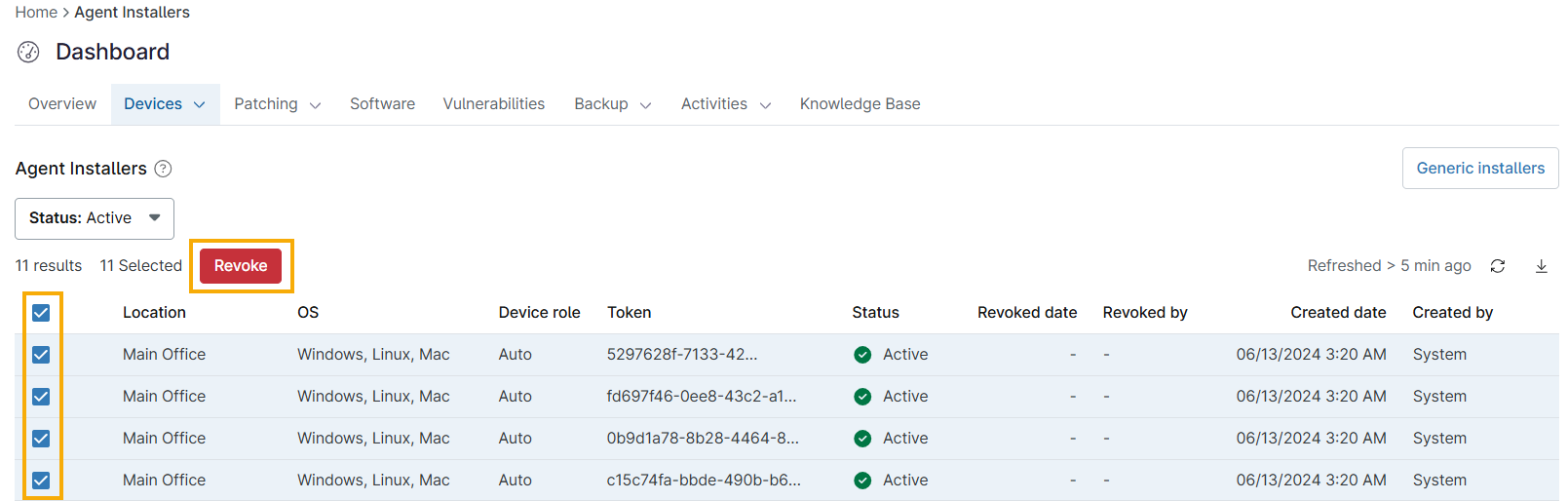
Revoking Multiple Tokens
To revoke multiple tokens:
- In NinjaOne, access the dashboard for the selected organization or system.
- Open the Devices tab and select Agent Installers.
- In the Agent Installers table, select the checkboxes for each device you want to revoke.
- Click Revoke.
Additional Resources
To learn how to deploy the NinjaOne agent to supported endpoints, and for additional background information, refer to the following articles and resources:
- Tokenization Troubleshooting: Installation Issues
- NinjaOne Agent Installation: Add Device (Windows)
- NinjaOne Agent Installation: Add Device (macOS)
- NinjaOne Agent Installation: Add Device (Linux)
- NinjaOne Endpoint Management: How to Add a Linux Device (FedRAMP customers only)
- Learn about cross-platform software (external link)