
Topic
This guide provides instructions for enabling and setting up the NinjaOne Documentation feature. Once enabled, refer to NinjaOne Documentation: Resource Catalog for more information and best practices.
Environment
NinjaOne Documentation
Description
NinjaOne Documentation empowers you to chronicle, standardize, and use contextual information about your managed IT environments directly in NinjaOne.
Index
Select a category to learn more:
- Enable NinjaOne Documentation
- Manage Documentation Templates
- Import History
- Documentation Checklists
- Public Links History
- Shared Links Administration
- End User Roles
- TOTP
Enable NinjaOne Documentation
To use the NinjaOne Documentation feature, you must enable it in the console. To do so, perform the following steps:
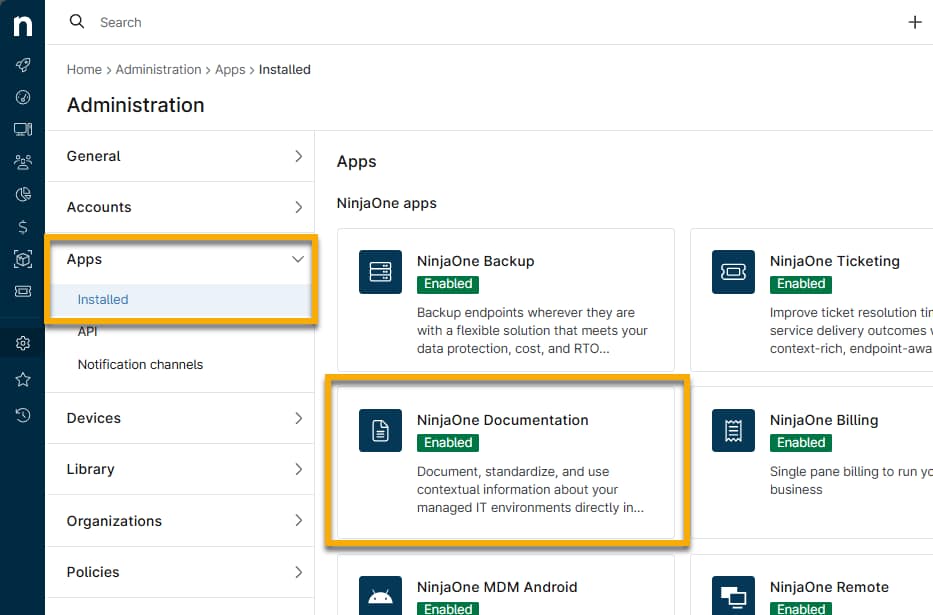
- Navigate to Administration → Apps → Installed and click NinjaOne Documentation.
- Click Enable.
Manage Documentation Templates
You will use the NinjaOne Documentation application to create and manage templates, create checklists, review import history, view public and shared links, manage access for end user roles, and enable or disable time-based one-time passwords (TOTP).
Select a category to learn more about the Documentation tab in the NinjaOne Documentation application:
- Import Document(s) from CSV
- Import Templates From Library
- Create a Document Template
- Archive or Delete Document Templates
Import Documents from CSV
You can download created templates in NinjaOne Documentation and then import them into other environments or documentation tools. For more information, refer to Documentation: Import via CSV with Migration Tool.
Import Templates From Library
NinjaOne provides several default templates to help maximize the use of documentation. These templates become available for use in NinjaOne and display in the NinjaOne Documentation application.
To access default templates, perform the following steps:
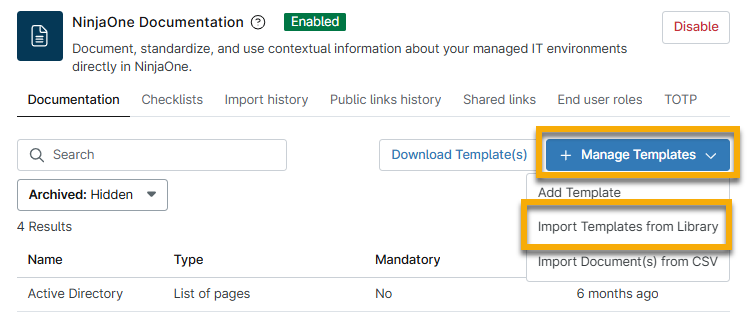
- Click Manage Templates and then select Import Templates from Library.
- In the Default Templates configuration modal, select all checkboxes for the templates you would like to add and then click Save.
- Use the search field to find templates by keyword or scroll through the list of available templates.
- You can edit a template before adding it: move your cursor over the row and click the ellipsis menu button to see the Edit option.
- When you click edit, the Create document template modal opens. For instructions on managing this data, see the following section of this article: Create a Document Template.

Create a Document Template
Use the Add Template option to create a document from scratch.
- Navigate to Administration → Apps → Documentation. Click Manage Templates and then select Add template.

- Use the table below to determine how to complete the fields.
| Field | Description |
|---|---|
| Template name | Give the template a unique identifier. |
| Description | Clarify the purpose of the document. |
| List of Pages | The template supports multiple documents, similar to a folder. |
| Mandatory | Require the form to be filled out in an organization. |
| Available to all technicians | This box should be selected by default. If you clear the field, a new drop-down menu will appear below, where you can select one or more technician roles to grant access. |
| Custom Fields | Add custom fields and UI elements. |
- Open the Custom fields tab and click Add item to add custom fields and UI elements to the template. To learn more about custom fields, refer to NinjaOne Custom Fields: Resource Catalog.
- Field: Select a field type from the drop-list and use the Label field to create a name/description for it. The Name field automatically updates to reflect the input in the Label field. When you click Create, additional fields populate to allow further configuration. Adding a tooltip provides an information bubble that users can hover their mouse over to see helpful information.
- UI Element: Select a field type from the drop-list and use the Reference Name field to create a unique identifier for it.
- Drag elements up and down within a template to change the display order.
- Click Save when finished.
The documentation template is now visible and ready for use.
Archive or Delete Document Templates
To delete a document template, hover your cursor over the applicable row and then click the ellipsis button that appears on the right side. You must first archive a document before you can delete it, so click Archive.
To view archived templates, make sure the filter option is set to Visible. Move your mouse cursor over the row and click the actions menu button to either restore the template or delete permanently.
When you select Delete, you will be notified whether the template is being used by any organization documents. If you choose to continue, verify your identity through MFA to confirm. You cannot restore deleted templates.
Import History
The Import History will show a list of documents which have been imported via an uploaded CSV file.
Documentation Checklists
Checklists are a type of documentation that NinjaOne technicians can create and manage from the NinjaOne Documentation application. Once added to the NinjaOne Documentation application, the checklist(s) can be added to the Documentation > Checklists tab on the organization dashboard (see NinjaOne Documentation: Checklists for more information).
Public Links History
The Public Links History tab relates to the public links created from the Share function in the Knowledge Base. The Share function allows system administrators and technicians with the appropriate "Global Knowledge Base Documentation Access" permissions to create a public link for specific documents. Public links allow documents to be accessed outside of NinjaOne with the branding that was configured for custom application logo.
To learn more, please see NinjaOne Documentation Tool: Public and Shared Links.
- Latest Access—Date and time the public link was used.
- IP Address—IP Address used to access the link.
- Title—Name of the public link.
- Organization—Organization to which the document belongs, if applicable (documents not tied to an organization show "GLOBAL_ORGANIZATION").
- Article—Title of the document accessed.
- Share Link—URL of the public link to the document. Hover your mouse over this area to see an option to copy the link.
A maximum of 150 results display on the page, after which the X result(s) text changes to display paginated results that can be navigated through by clicking the arrows.
Shared Links Administration
From the Shared Links tab, technicians and system administrators can edit or delete all active shared links in one place, regardless of which organization is using them.
- Edit a shared link by activating the checkbox and selecting Edit or click the ellipsis button to the right and select Edit.
- Delete one or more shared links by activating the checkbox(es) and selecting Delete or click the ellipsis button to the right and select Delete.
End User Roles
When sharing a folder with end users, the information populates under the End User Roles tab. This tab will not display until a folder has been shared with at least one end user.

- Revoke access to a folder. This will remove the row from the page and revoke access for all user roles associated.
- Open the folder in a new tab. This redirects you to the Knowledge Base tab on the global dashboard, where you can see all files within that folder.
- Edit access to add or remove user role(s) or display contents with or without a folder.
TOTP
System administrators can allow technicians to share Time-based one-time passwords (TOTP) codes for Apps & Services, Checklists.
There are two parts to TOTP codes:
- TOTP Secret — this is used to generate a one-time code based on the current time.
- TOTP Code — this is the code generated by the secret that is revealed after providing MFA authentication. This code allows logins credentials to be shared with only intended recipients while securing the data from others.
Additional Resources
Learn more at NinjaOne Documentation: Time-based One-time Passwords (TOTP).