
Topic
The NinjaOne Assist mobile application is currently available for public download in the iOS App Store and Google Play; however, it is currently limited to end user functionality at this time. If you are a technician or system administrator, please continue to use our NinjaOne Mobile app.
Figure 1: NinjaOne Assist application display in the Apple Store
NinjaOne is building the NinjaOne Assist app to perform as a vital part of our MDM solution. Allowing for more real-time "heartbeats" (i.e., pings) to determine more accurately whether devices are online, provide additional device details and inventory not available from traditional MDM pathways, and provide end users with an optional experience to interact with the NinjaOne Platform (Ticketing, Documentation, their device information and more).
Though the app's primary function today is not quite full featured to reflect the above vision, the NinjaOne Assist app currently provides the ability to manage appropriate permissions and access to perform key tasks and gathers information for the support of these features in the future.
Environment
- NinjaOne Assist mobile application
- iOS
- Android
Index
- Important Notes
- User Dashboard Navigation
- Settings
- Devices
- Tickets
- Support
- Frequently Asked Questions (FAQ) and Troubleshooting
Important Notes
- The NinjaOne Assist mobile application now supports screenshare using Quick Connect. The technician must create an invitation on the Web app and share with the end user, who will enter the code on their device after tapping Remote Support Portal within the mobile app.

Figure 2: NinjaOne Assist application → Remote Support Portal
The Quick Connect section of the NinjaOne Web app will update the list of devices to include the mobile device, where technicians can connect or deploy the RMM agent. The end user will start the broadcast after the technician connects and confirm their agreement to share content.
- NinjaOne's MDM location tracking feature requires the NinjaOne Assist app to be installed and active on the device, and Location Services enabled under device settings.
- The NinjaOne Assist app should not be installed on Apple devices if the policy has Location Tracking disabled and NinjaOne Remote is not enabled.
Launch the NinjaOne Assist app to initiate location tracking. The mobile device will then receive a notification confirming that the location tracking service is active if enabled at the policy level.
User Dashboard Navigation
- Settings — Allows end users to change personal information, view legal information, or sign out.
- Devices — Shows all devices assigned to the end user in NinjaOne. Technicians and system administrators can assign or remove devices through the end user account editor on the web version of NinjaOne.
- Tickets — If the end user has Ticketing enabled for their NinjaOne account. The number of existing tickets, whether open or completed, will be displayed in parenthesis. When this section is selected, the user will see three tabs for Active (pending), Completed (Resolved), and All.
- Support — Contact NinjaOne Support via phone or email.
- Send Feedback — Because the NinjaOne Assist application is still in its early stages, we welcome our users to use the link on the User Dashboard to tell us about your experience. Please let us know if you experience any bugs or have feature requests that we can prioritize. The feedback will be sent to [email protected].
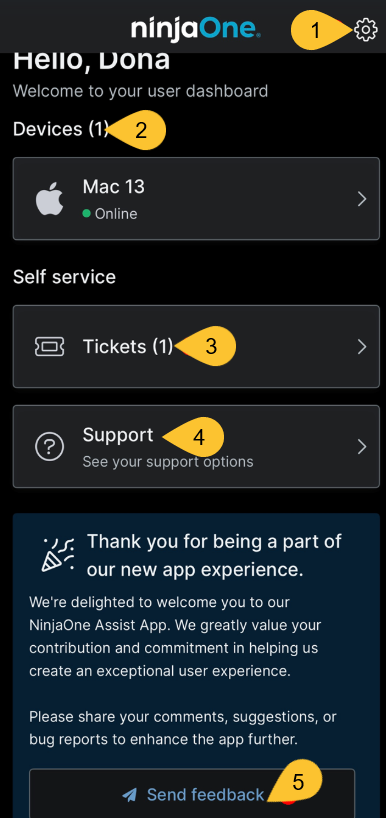
Figure 3: NinjaOne Assist application → Dashboard overview
Settings
Tap the gear icon in the top right corner of the app screen to open the Settings page. From here, end users can:
- Change their first and last name displayed in the app.
- Change their listed phone number.
- Change their listed email address.
- Change their login password.
- Contact NinjaOne Support via email (for help or to submit a feature request).
- View legal information, such as terms of use, privacy policy, and end user license agreement (EULA).
- Sign out of the app.
Devices
Select the device to see device detail or support options, or create a ticket for that device.
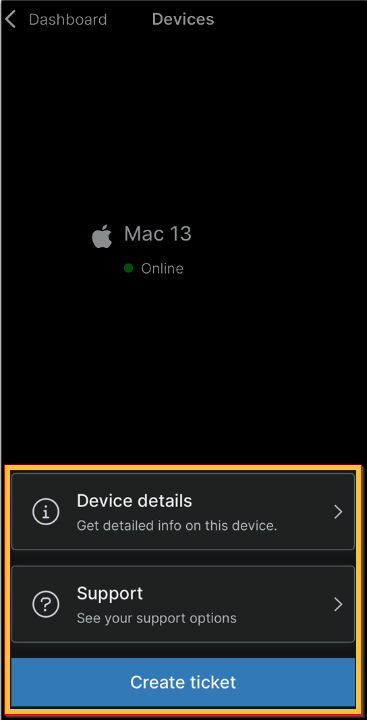
Figure 4: NinjaOne Assist application → Devices dashboard
Device Details
Device details on the NinjaOne Assist app are somewhat limited in comparison with the web version. This section contains data that is typically found on the device dashboard Overview page, such as device make/model, login and uptime, and IP addresses. This information is read-only for information purposes.
Tickets
This section only appears if Ticketing is enabled on the end user account in NinjaOne. End users must have the Ticketing access set to "View, Update, Create." If any changes are made to the end user account, the end user must log out of the app and then log in again to see updates. If the user is logged in on the app while changes are being configured, they may be automatically logged out by the app.
Create Tickets
End users can create tickets from either the Tickets page or Device page on the app.
- If creating a ticket from the Device page, the device field will be automatically populated; if creating a ticket from the Tickets page, the device must be manually selected from the dropdown.
- Ticket type (i.e., form), subject (title), and description are required.
- To add attachments, end users must click View Library and select the items they wish to add to the ticket. Once selected, the photos and videos can be accessed only through the ticket. Creating a new ticket will require the end user to select View Library again for new photos/videos.
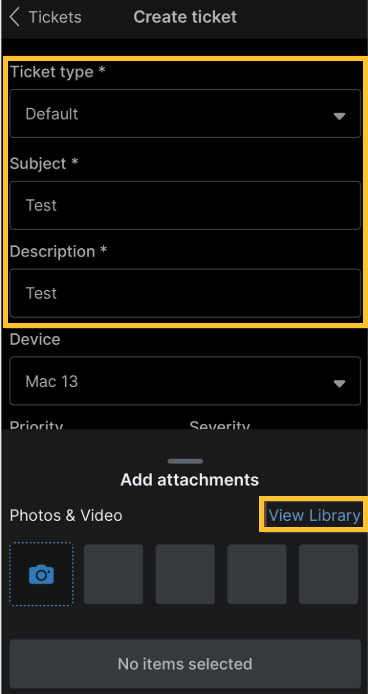
Figure 5: NinjaOne Assist application → Create a ticket
Manage Tickets
End users can view active and completed tickets for which they are listed as the requestor. The NinjaOne Assist app will not display tickets unless the end user is the requestor, even if they are listed as the CC or if the ticket addresses a device that is assigned to them.
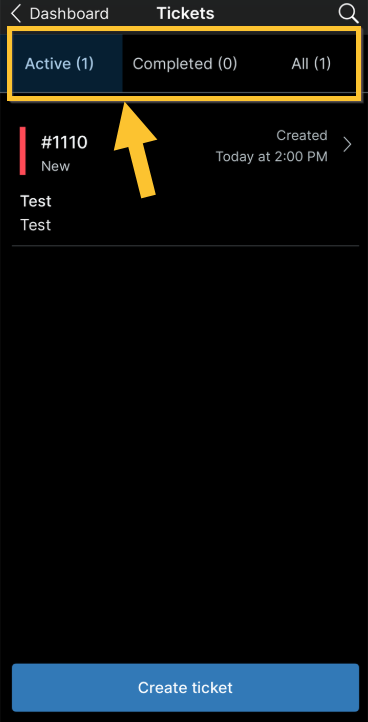
Figure 6: NinjaOne Assist application → Tickets dashboard
End users can manage tickets by tapping the ticket number and using the tabs at the top of the app screen. A description of each tab is provided below.
- Details — View details for the ticket, such as device, organization, priority, status, and copied participants.
- Feed — View or add comments and attachments. Adding a comment or attachment after a ticket has been resolved will reopen the ticket.
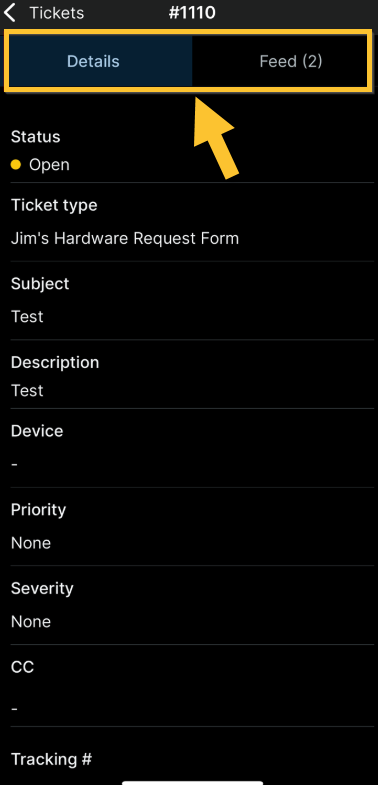
Figure 7: NinjaOne Assist application → Ticket details
Support
There are multiple places in the NinjaOne Assist app where you can contact your company Support via phone or email. These Support links use the data that system administrators have set up for branding system settings.
If you are requesting support or a feature specific to the NinjaOne Assist app, please use the Feedback button on the user dashboard. These requests will go to a separate inbox dedicated to the development and improvement of this app.
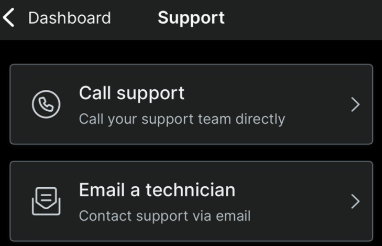
Figure 8: NinjaOne Assist application → Support
Frequently Asked Questions (FAQ) and Troubleshooting
- Can I prevent my end users from making account changes?
- The Contact Support links do not work
- Is the NinjaOne Assist app exclusively designed for End Users?
- Is the NinjaOne Assist app exclusively for MDM customers?
- Will end users be able to see their assigned devices in the app?
- Can end users remote into their desktop from their phone?
- Will end users have access to Knowledge Base / Documentation?
- Is the NinjaOne Assist app required for mobile screensharing?
- Is the end user required to give consent when remoting into a mobile device?
- Can a technician use the end user's camera to help visually diagnose issues?
- Can an end user create a ticket from the app?
- How does the NinjaOne Administrator set the support email and support phone number?
- If an end user clicks on a Quick Connect email invitation, will it automatically forward them to the NinjaOne Assist app?
- Can an end user update their Ninja contact information (name, email, phone number, password) in the app?
- Can I use TeamViewer or Splashtop to remotely access a device with the NinjaOne Assist App?
Can I prevent my end users from making account changes?
End Users can change their contact information like their name and phone number directly from the app within the Settings. At this time, there is no way for system administrators to inhibit their end users from making these changes.
The Contact Support links do not work
If the customer has not set up their Call Support or Send an email then the buttons will not direct the end user anywhere. The NinjaOne Development Team is building out messaging to notify the end user when these features are not enabled in these cases.
To enable them, go to Administration → General → Branding within the NinjaOne Web platform and update the Support Phone Number and Support Email to use or update these Contact Support buttons. Branding also must be enabled.
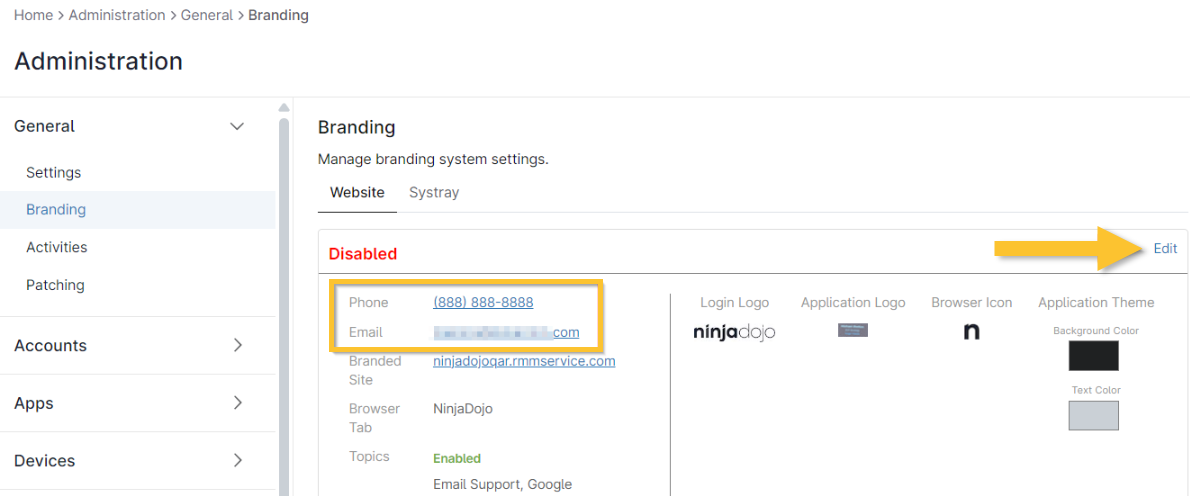
Figure 9: NinjaOne → Administration → Branding → Edit
Is the NinjaOne Assist app exclusively designed for End Users?
Currently, yes. We do plan on building out a technician experience that will eventually replace the existing Technician mobile app. For now, only End Users are able to log into the application.
Is the NinjaOne Assist app exclusively for MDM customers?
No. Any NinjaOne end user can log into the NinjaOne Assist app and benefit from its features. Users can even share their screen with a Technician via Quick Connect directly from the log in screen (no end user credentials required).
Will end users be able to see their assigned devices in the app?
Yes. End users will be able to see all devices that have been assigned to them. The two most recently interacted devices will show on the dashboard, but they can view all of their devices by tapping the 'See all' link on the Dashboard.
Can end users remote into their desktop from their phone?
Yes, but only via NinjaOne Remote. They will need to install the NinjaOne screenshare utility from the app store which the NinjaOne Assist app will launch automatically when the session is initiated.
Will end users have access to Knowledge Base / Documentation?
Yes. If there are KB articles that have been shared with the end user, then they'll be able to access them via the app by tapping on the 'Knowledge Base' tile on the Dashboard.
Is the NinjaOne Assist app required for mobile screensharing?
Yes. Users will need to download the NinjaOne Assist app from the app store (if not already installed). When the user opens the app, they'll see a 'Share my screen' tile. Once they tap that then they'll be directed to enter a valid 10 digit Quick Connect invitation code.
The Quick Connect process can be bypassed if the device is enrolled in MDM. The technician can simply click on the NinjaOne Remote icon displayed on the MDM device overview page.
Is the end user required to give consent when remoting into a mobile device?
Currently, yes. Eventually we'll likely be able to bypass this requirement for MDM Android devices, but iOS (managed or not) and all non-managed devices will require that the user initiates the screenshare broadcast.
Can a technician use the end user's camera to help visually diagnose issues?
Yes. The technician can start a screenshare session using Quick Connect or the MDM device dashboard. Once the connection is established, then the end user can simply open their camera app.
Can an end user create a ticket from the app?
Yes. If NinjaOne Ticketing is enabled, then the user will see a Create a Ticket button on the dashboard (and other various screens throughout the app). When tapped the user will be able to choose and fill out a ticket form which will generate a new NinjaOne Assist Ticket.
If the division is not using NinjaOne Ticketing, then they can choose the Email Support or Call Support tiles to reach their IT support.
How does the NinjaOne Administrator set the support email and support phone number?
This is set via the branding. Ninja Administrators can go to Administration → General → Branding and update the support phone number and support email.
If an end user clicks on a Quick Connect email invitation, will it automatically forward them to the NinjaOne Assist app?
Not at the moment. This redirection is on our roadmap.
Can an end user update their Ninja contact information (name, email, phone number, password) in the app?
Yes. The user can tap the profile icon in the top right-hand corner of the mobile dashboard and then tap the relevant option they want to update.
This action will require an MFA confirmation
These options are disabled for SCIM/IDP generated End Users
Can I use TeamViewer or Splashtop to remotely access a device with the NinjaOne Assist App?
NinjaOne Remote (and/or NinjaOne Remote: Quick Connect) is currently the available remote access feature that can be used with the NinjaOne Assist App.
Additional Resources
You can use NinjaOne Remote to remotely access mobile devices through the NinjaOne Assist App.