
Topic
This article describes recommended troubleshooting steps in the event that you encounter an issue with NinjaOne file/folder backups or restores.
Environment
Description
NinjaOne Device Backup is a complete and robust backup and restore solution. But even the most robust solution may encounter problems from time to time.
The following sections provide basic troubleshooting procedures for a variety of scenarios. Click a link below for more information on the topic.
- General Troubleshooting:
- File/Folder Troubleshooting:
- Image Restore Troubleshooting:
- Error: Collecting local disk information failed. Please ensure at least one disk is present
- When running the restore procedure, it fails to find the recovery partition
- Adapters are not showing up during a restore
- Destination does not have enough free space to accommodate the request
- Bios displays an error about boot device/operating system not found after restore
- System unable to boot after successful restore
- Image backup complete with warning "The VSS Snapshot was deleted by the system"
General Troubleshooting:
Lockhart.exe has high disk usage when running backups
Problem
Lockhart.exe has high disk usage when running backups.
Cause
This may be due to ReFS.
Solution
Please see this article from Microsoft for information on options for resolving heavy memory usage in ReFS.
Trimmed revisions on a local NAS device showing up in the recycle bin
Problem
Trimmed NinjaOne Backup revisions on a local NAS device are showing up in the recycle bin, rather than being hard deleted as expected.
Cause
When files are trimmed from local storage, they are deleted from the NAS. If data is being retained in the recycle bin, it could be due to the way the NAS device's recycle settings are configured.
Solution
To prevent trimmed files from going to the recycle bin (instead of being deleted from the storage device), follow these steps:
- Go to Control Panel > Shared Folder. Select a shared folder and click 'Edit'.
- The checkbox for the recycle bin must be disabled or unchecked.
- The user type does not matter, but it is recommended to use a special backup user with admin rights to the created folder.
Restore job is slow
Problem
A file/folder restore job is taking a long time to complete.
Cause
Several factors need to be considered when evaluating the speed of a restore:
- The type of restore (offline restores will take longer than other restores due to the process required to create and store the archives)
- Offline restores are typically not recommended because it is a more complicated process that can significantly increase restore time
- The speed of the target disk (restore target)
- For NAS restores, the speed of the disk on the NAS device
- The speed of the internet connection or LAN connection
- The stability of the connection
- The CPU speed available for decompression and decryption
Solution
Evaluate the conditions above to identify what may be impacting the speed of the restore. As an example, if you have a 1GB network speed (high) but are restoring to a VM with 1 core and 2 GB of memory (low), this restore job may be slow to complete even though the network speed is high.
If the issue you are experiencing is not listed above, or if you need further assistance after attempting the recommended troubleshooting steps, please contact NinjaOne Support.
File/Folder Troubleshooting:
NinjaOne Backup failed to install
Problem
The NinjaOne Backup agent fails to install on a machine.
Cause
The NinjaOne Backup agent requires TLS 1.2 to be the default protocol - install failures will occur if this is not the cause.
Solution
Update the machine to enable TLS 1.2 as the default secure protocol. If TLS 1.2 is already the default protocol and the NinjaOne Backup agent is still failing to install, please reach out to NinjaOne Support.
Device not appearing as option for restore destination
Problem
I am trying to restore a file from one device to another device, but the device I want to restore data to is not showing up in the Restore-To drop-down menu.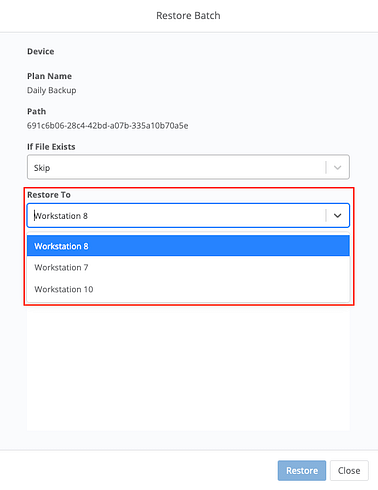
Cause
This occurs when the device you want to restore data to is not in the same NinjaOne organization as the device you're restoring data from.
Solution
Both devices need to be in the same organization and have NinjaOne backup enabled to use the backup to restore from one device to the other. To resolve this, you may move (even if temporarily) the device you want to restore the data to into the same organization as the device you're restoring data from.
Image Restore Troubleshooting:
Error: Collecting local disk information failed. Please ensure at least one disk is present
Problem
Error occurs when attempting to restore an image backup job.
Cause
May occur if there are issues with disk detection or configuration.
Solution
It is important to verify that the disk is properly connected and recognized by the system. Additionally, checking for any raw partitions using disk management tools like diskpart can help identify if the disk is not properly formatted or initialized.
Check BIOS settings to make sure there is no type of hardware RAID setup enabled. Commonly seen changing to AHCI in BIOS has solved this error.
When running the restore procedure, it fails to find the recovery partition
Problem
There are some instances where after a restore from an image backup that you will need to restore Windows to its factory settings (i.e. hardware reallocation), but when you try to run the restore procedure it fails to find the recovery partition. However, when you look, the recovery partition is there.
Cause
This is due to restoring an image to a different hardware platform or to even a new drive on the same hardware platform. This can introduce minor changes in the Windows registry where it refers to the drive “ids.” If this happens, it will break the link from Windows to the Recovery partition. This is a normal issue based on Windows settings and can be easily recovered.
Solution
To resolve this issue, we need to re-associate the recovery partition to the Windows operating system.
If you can still boot into Windows, you can relink the Recovery and Windows partitions by running the following:
Open a command prompt with Administrator privileges:
First, we need to assign a drive letter to the recovery partition.
From the Admin command prompt:
- Type diskpart <RETURN>.
- Type list disk <RETURN>.
- Type SEL DISK 0. List part.
- Verify recovery partition.
- Select part # (this will be the recovery partition).
- Assign (this will assign a drive letter).
- Type <RETURN>.
- Exit.
C:WindowsSystem32reagentc /setreimage /path R:RecoveryWindowsRE /target C:WindowsC:WindowsSystem32reagentc /enableYou can also perform the same actions from the Recovery Environment as well.
To do this you will need to boot the computer using either a windows installation / boot media or the Image Restore Tool from NinjaOne.
From the recovery environment you will need to open a command prompt and perform the following actions. One thing to note is that if you use this method you will need to run the following command first to retrieve the Windows Partition Identifier (OSGUID).
To locate the Windows Partition Identifier OSGUID execute:
C:Windowssystem32>bcdedit -enum -vExample: Windows Boot Manager
identifier {9dea862c-5cdd-4e70-acc1-f32b344d4795}
device partition=DeviceHarddiskVolume1
path EFIMicrosoftBootbootmgfw.efi
description Windows Boot Manager
locale en-US
inherit {7ea2e1ac-2e61-4728-aaa3-896d9d0a9f0e}
default {4203bfc7-6ef3-11e6-a05b-f48e38a9de31}
resumeobject {4203bfc6-6ef3-11e6-a05b-f48e38a9de31}
displayorder {4203bfc7-6ef3-11e6-a05b-f48e38a9de31}
toolsdisplayorder {b2721d73-1db4-4c62-bf78-c548a880142d}
timeout 30
Windows Boot Loader
identifier {4203bfc7-6ef3-11e6-a05b-f48e38a9de31}
device partition=C:
path Windowssystem32winload.efi
description Windows 10
locale en-US
inherit {6efb52bf-1766-41db-a6b3-0ee5eff72bd7}
recoverysequence {2970182c-6efb-11e6-a38e-f48e38a9de31}
recoveryenabled Yes
isolatedcontext Yes
allowedinmemorysettings 0x15000075
osdevice partition=C:
systemroot Windows
resumeobject {4203bfc6-6ef3-11e6-a05b-f48e38a9de31}
nx OptIn
bootmenupolicy Standard
Once you have the OSGUID, please run the following commands:
W:WindowsSystem32reagentc /setreimage /path R:RecoveryWindowsRE /target W:WindowsPlease use the osguid from the running the bcdedit command
W:WindowsSystem32reagentc /enable /osguid {XXXXXXXX-XXXX-XXXX-XXXX-XXXXXXXXXXXX}Once this is complete you will now be able to boot back into the Windows Recovery Setup to restore your windows device back to Windows Default Settings.
Adapters are not showing up during a restore
Problem
Adapters are not showing up during an image restore.
Cause
This may occur if non-x64 drivers are being used for WinPE.
Solution
Please ensure that only x64 drivers are being used for WinPE.
Destination does not have enough free space to accommodate the request
Problem
A restore job fails with the error "Destination does not have enough free space to accommodate the request."
Cause
This error will trigger if the backup file cannot be downloaded due to a lack of space on the destination hard disk. This could occur if the restore is done in NJA format which does not compress the files.
Solution
Freeing up space on the destination disk should resolve the issue.
If the issue you are experiencing is not listed above, or if you need further assistance after attempting the recommended troubleshooting steps, please contact NinjaOne Support.
Bios displays an error about boot device/operating system not found after restore
Problem
Bios displays "Boot Device not found/Operating System not found" when booting the system after a restore.
Cause
Bios settings may not be correct.
Solution
Check to see which type of boot record you have created. It will be either GPT or MBR. Bios mode should be set to Legacy/bios boot for MBR and UEFI for GPT. From command line, Diskpart can be used as a quick way to determine if the boot record is MBR or GPT.
More information about this issue can be found here.
System unable to boot after successful restore
Problem
The system is unable to boot after a successful restore, despite the fact that all required partitions have been backed up and restored.
Cause
The Windows defaults for the boot drive and OS files were not set properly during the restore.
Solution
These commands can be executed after booting back into the PE image and opening a CMD window:
bcdedit.exe /store vol_pathEFIMicrosoftbootBCD /set {bootmgr} device partition=C:
bcdedit.exe /store vol_pathEFIMicrosoftbootBCD /set {default} device partition=C:
bcdedit.exe /store vol_pathEFIMicrosoftbootBCD /set {default} osdevice partition=C:
bcdedit.exe /store vol_pathEFIMicrosoftbootBCD /enum
If the system is still unable to boot, try:
bcdboot c:windowsIf the system is still unable to boot, try:
mountvol
mount unmounted efi partition (100/200 mb)
mountvol G: <VOLUMEPATH>
attrib G:EFIMicrosoftBootbcd -h -r -s
bootrec /rebuildbcd
Image backup complete with warning "The VSS Snapshot was deleted by the system"
Problem
An image backup job has a warning that states warning such as "The VSS Snapshot was deleted by the system."
Cause
There are three primary causes for this warning:
- The disk is full. This is the most common reason for snapshot deletion.
- There is insufficient shadowstorage (which is the space allocated for snapshots).
- A disk is failing (or multiple disks are failing).
Solution
- If the disk is full, snapshots will automatically be deleted by Windows in an attempt to make room on the disk. Freeing up space on the disk should resolve the issue. 10% of free space is required for proper snapshot functionality, while 20% is recommended.
- If there is not enough shadowstorage space allocated for snapshots, shadowstorage needs to be either increased or added for the disk. This can be identified and resolved using vssadmin commands.
- The following command may be run through an elevated (run as admin) command prompt to determine the allocated shadowstorage space:
vssadmin list shadowstorage- The maximum shadow copy storage space should be 10% of the volume at minimum. 20% of the volume is recommended.
- If the maximum shadow copy storage space is less than 20%, the following command may be used to resize it (replace X with the drive letter of your choice):
vssadmin resize shadowstorage /for=X: /on=X: /maxsize=20%- Alternatively, if a volume has no shadowstorage listed at all, use the following command to create shadowstorage (replace X with the drive of your choice):
vssadmin add shadowstorage /for=X: /on=X: /maxsize=20%
- If a disk is failing, troubleshoot the failure. This Microsoft article provides information about different VSS event IDs.