
Topic
This article explains how to restore or download file/folder backup data for a Microsoft Windows or Apple macOS device.
Environment
NinjaOne Device Backup
Description
NinjaOne file/folder backups offer granular download and restore options for your customers' data. Follow the instructions in this article to restore or download your backup data.
- Currently, only cloud and hybrid backups offer both download and restore options. You cannot download local backups; you can only restore them.
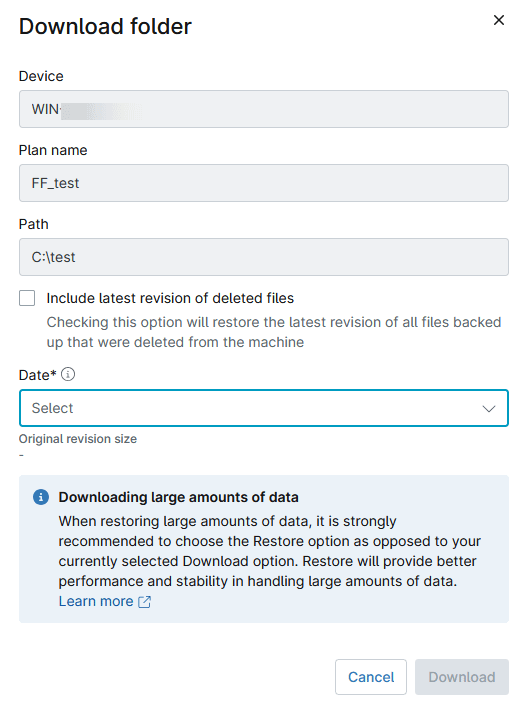
- When restoring large amounts of data, we strongly recommend restoring the data directly rather than downloading it with a browser.
- You can grant end users the ability to restore backup data for their assigned Windows or Apple macOS devices. For more information, refer to our End User Sharing and How to remotely access a device's backup data as an end user articles.
Select a topic for more information on file/folder restores.
- Locate File/Folder Backup Data
- Manage Backups
- Restore
- Download
- How File/Folder Restoration Works
- Additional Resources
Locate File/Folder Backup Data
Once a backup job is complete, you can restore or download the backed-up data for each device. Follow the steps below to locate the Manage section for your backups.
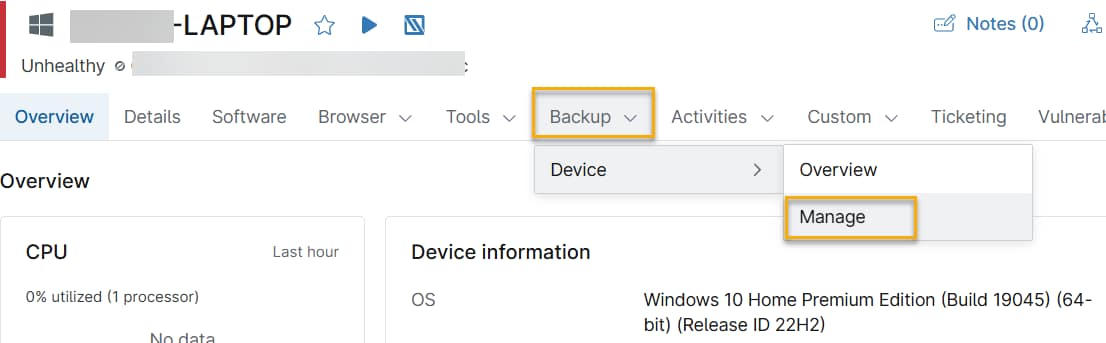
For a Microsoft Windows or Apple macOS device that still exists in NinjaOne:
- Navigate to the device dashboard whose File/Folder backup data you would like to download or restore.
Move your cursor over the Backup tab and navigate to Device → Manage.
Figure 1: Device dashboard (click to enlarge)
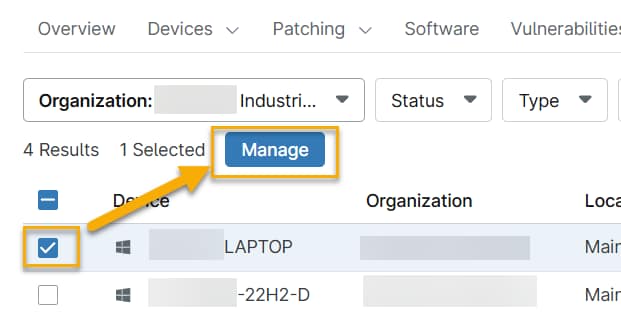
For a Windows or Mac device that has been deleted in NinjaOne:
- Navigate to the global backup dashboard
- Select Backup → Device → Usage from the navigation bar.
- Select the Organization from the drop-down menu.
- Select the checkbox next to the device you wish to restore or download.
- Select the Manage button at the top of the screen.
Manage Backups
On the Backup Management page, NinjaOne displays a list of backup plans enabled on the selected device.
To manage your backups, follow these steps:
- Select a plan name to view the available backups created by that plan.
- You can click the name of the backed-up folders to view their contents. To navigate back to an earlier folder, click the folder in the path listed at the top of the page.
- Select the folder you'd like to perform the action on. The Manage page displays options to Delete, Restore, or Download in both the top and right corners of the screen. You can choose the option for the action you want to perform.
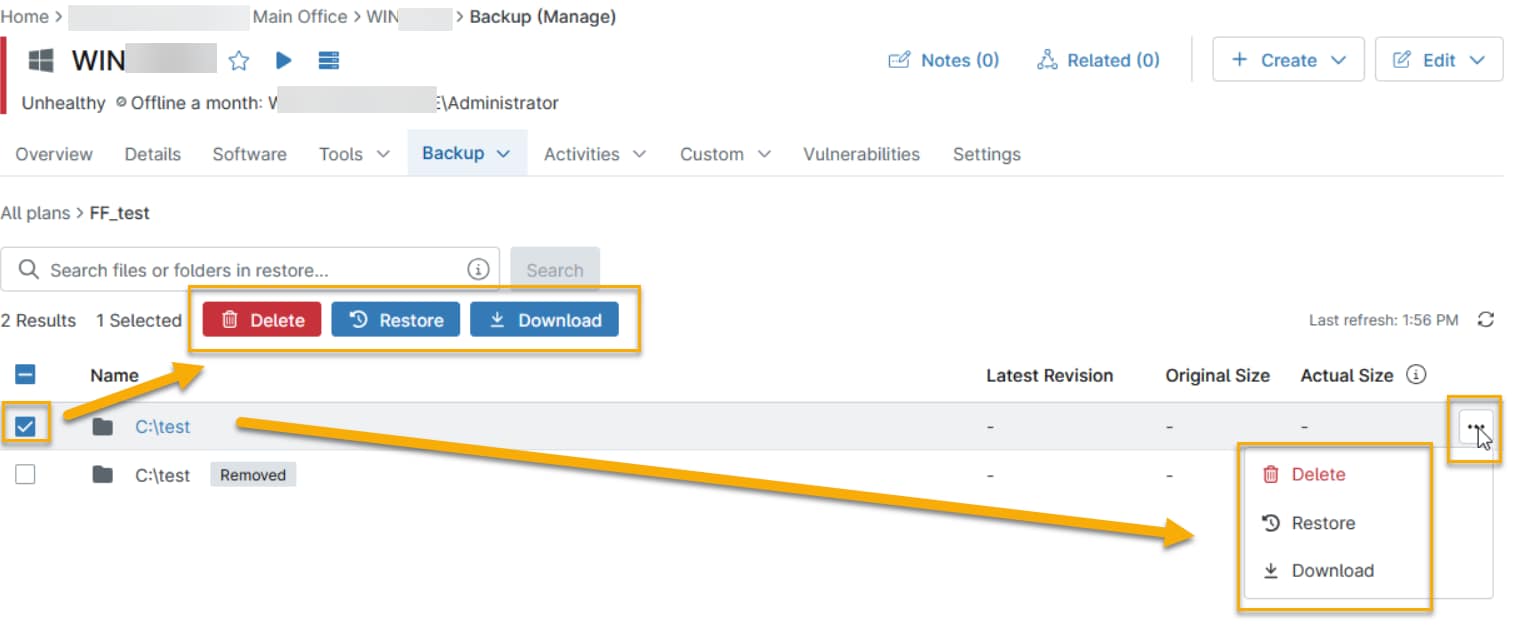
The options NinjaOne will present with will vary depending on the action you choose. The following sections give a brief overview of the Restore and Download options.
Restore
Restore will copy the files back to the host machine. You can replace the existing files or specify a different location to copy them to.
Follow these steps to perform a file/folder restore.
- Select the Restore option to launch the restore wizard.
- Fill out all required fields. NinjaOne will prompt you to decide how the backup tool handles instances where a file already exists at the destination (Skip, Overwrite, or Overwrite current if older), also the device and location for restored data. You can restore data to its original location if that device is available, or you can restore to a different location. If you select Other Location, the Restore To drop-down displays with a list of all available devices with NinjaOne Backup enabled that exist in the same organization as the current selected device.
The Date drop-down lists each time the backup has run, so if you are missing data from a particular revision, you will need to select a time that the file existed. This rule only applies to single files. You can also select the checkbox to include the latest revision of deleted files.
Browse to, and then select a new location. You can then select New Folder to name the restored folder.
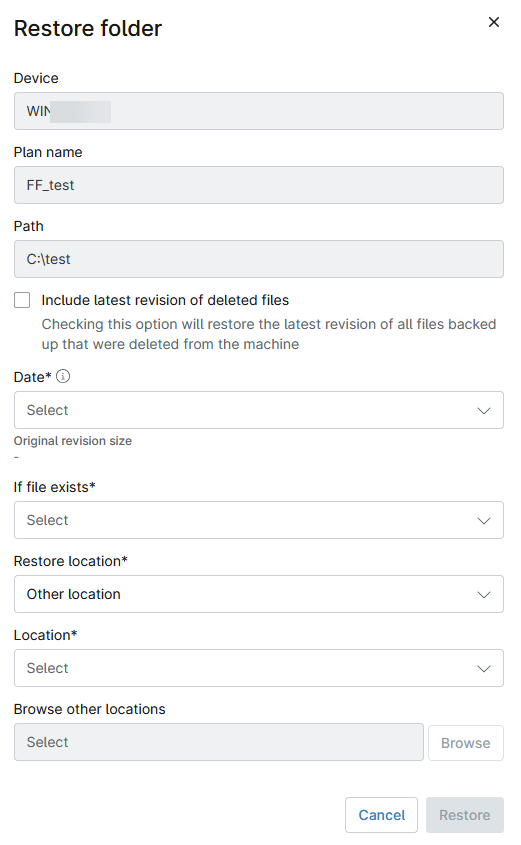
- Once you've filled in all the required fields, click Restore to begin the restoration. The Restore window will open and display the status of your job.
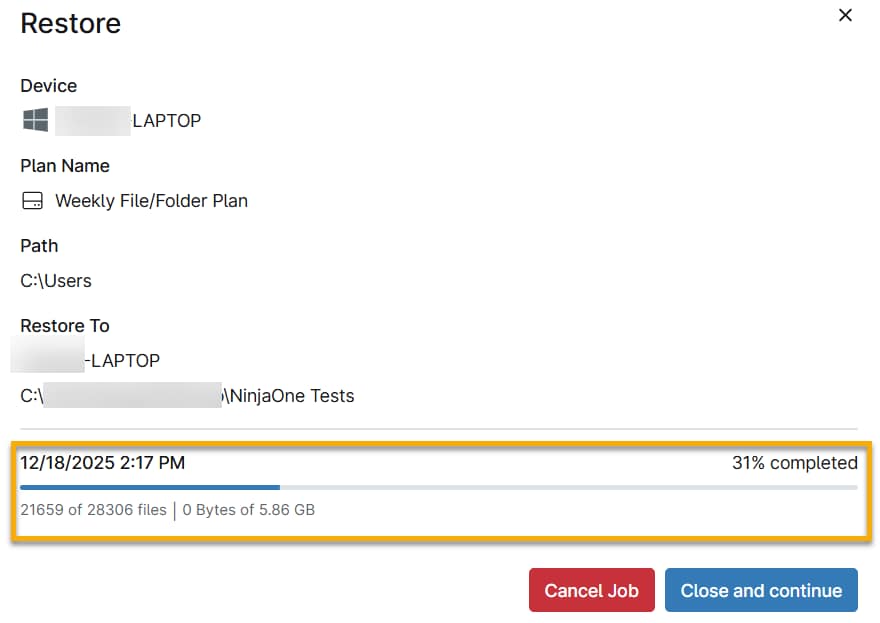
- When the restore is complete, the status will display 100% completed. You can then close the restore window.
Download
The Download option works similarly to the Restore option, but instead allows you to choose the date of the file backup and download that data directly to your own machine as a .zip file. You can also select the checkbox to include the latest revision of deleted files.
When restoring large amounts of data, we recommend the Restore option as it provides better performance when handling large data sets.
How File/Folder Restoration Works
Here is a brief explanation of the steps involved in restoring a file/folder.
- An HTTPS connection is initialized and validated.
- The download of the stored resource begins.
- Depending on the size of the file and the number of incremental backups (deltas), NinjaOne may need to download multiple files to restore a single file. For example, if you have a 10MB file that has changed four times, the agent must download four individual deltas to reassemble the file. For this reason, restoring a file may not be a single sequential download.
- NinjaOne restores the file in small portions.
- For each of the downloaded pieces, the NinjaOne agent validates the downloaded data and then decrypts and decompresses the data. The NinjaOne agent then validates the hashes of the data again to ensure the integrity of the restoration.
When the file restoration is complete, NinjaOne moves on to the next file.
The priority of the restored files is determined by file size, ensuring that several threads are always available to process small files while NinjaOne continues to process larger files.
The speed of the restoration is dependent on several factors:
- The speed of the target disk (restore target).
- For NAS restores, the speed of the disk on the NAS device is important.
- The speed of the internet connection or LAN connection.
- The stability of the connection.
- The CPU speed available for decompression and decryption.
As an example, if you have 1Gbps of network speed (high) but are restoring to a virtual machine with one core and 2GB of memory (low), this job may be slow to complete even though the network speed is high.
Additional Resources
The documents linked below provide more information on NinjaOne Backup:
- NinjaOne Backup: Setup Guide
- NinjaOne Backup: Deleting Data
- NinjaOne Backup: Backup Plans
- NinjaOne Backup: FAQ
- NinjaOne Backup: Troubleshooting
- NinjaOne Backup: Troubleshooting Error Codes
- Dashboards: NinjaOne Backup