
Topic
This article describes NinjaOne NMS credential types, how to add and configure credentials during network discovery, and how to monitor credential health for your network devices.
Environment
NinjaOne NMS
Description
NMS uses credentials to communicate with monitored network devices using protocols such as SNMP v1/v2, SNMP v3, Telnet, and SSH. You add and configure credentials during network discovery, and NMS assigns them to the devices it discovers. Once assigned, NMS automatically monitors each credential and reports its health status to NinjaOne so you can identify and resolve failures directly from the platform.
Select a topic to continue.
- Credential Types
- Adding Credentials
- Credential Health Monitoring
- Credential Status in Device Settings
- Last Credential Check on the Overview Tab
- Credential Status in the Monitored Hosts List
- Editing a Credential
- Credential Status Reference
- Activities
- Additional Resources
Credential Types
NMS supports multiple credential types. The type you select determines which configuration fields appear in the New Credential window during network discovery.
SNMP Considerations
NinjaOne uses SNMP to discover, profile, and monitor your network devices.
- SNMP v1 and SNMP v2c use a community string to access device data. NinjaOne displays a compliance warning when you create SNMP v1 or SNMP v2c credentials. You must acknowledge the security risks before you can save the credential.
- SNMP v3 requires username and password authentication and an encryption password. It is the preferred SNMP protocol for FedRAMP deployments. The SNMP v3 Engine ID must be unique across all NMS targets; duplicate Engine IDs are not permitted.
- SSH credentials serve two purposes: backing up the configurations of supported NMS devices (using Enable/Privileged mode) and establishing remote terminal connections from within the NMS device.
- Basic credentials enable NinjaOne to gather additional device details and install the NinjaOne Windows Agent. Windows Management Instrumentation (WMI) needs to be enabled on the target device.
FedRAMP Deployment Constraints
NinjaOne NMS operates under FIPS 140-2 cryptographic requirements in FedRAMP environments. The following restrictions apply when you configure credentials:
- SNMP v1 and SNMP v2c are available in FedRAMP deployments but not recommended. NinjaOne displays a compliance warning when you create these credentials, and you must acknowledge the risks before you can save the credential.
- SNMP v3 is preferred for SNMP management in FedRAMP deployments. Within SNMP v3, the MD5 authentication algorithm, the SHA-1 hashing algorithm, and the DES encryption algorithm are unavailable. Use only SHA-based authentication and AES-based encryption.
- Telnet is available but not recommended in FedRAMP environments because it lacks encryption and does not meet FIPS 140-2/140-3 cryptographic requirements. NinjaOne displays a warning when you create Telnet credentials.
- In all deployments, NinjaOne masks credential information in NMS Delegate logs.
Adding Credentials
You add credentials in the Network Discovery window. Credentials you create here are stored for reuse across discovery sessions.
- In the Network Discovery window, click Create credential. The New Credential window opens.
- Select a credential type: SNMP v1, SNMP v2c, SNMP v3, Basic, Telnet, or SSH. The window updates to show the configuration fields for the selected type.
- Complete the configuration fields. Refer to Credential Type Settings for a description of each field.
- Click Add. The credential is now available from the credential drop-down menus in the Network Discovery window.
| Credential type | Settings |
|---|---|
| SNMP v1 and SNMP v2c | Available, but not recommended in FedRAMP deployments. NinjaOne displays a compliance warning when you create these credentials.
|
| SNMP v3 |
|
| Telnet and SSH |
|
| Basic |
|
You cannot create multiple credentials that share both the same name and credential type. Additionally, the credential name cannot match the password value.
After adding credentials, you can optionally assign additional credentials in the Network Discovery window:
- Second SNMP credential: NinjaOne tries this credential in addition to the first one selected.
- SSH credential: NinjaOne uses this credential when backing up device configurations.
Credential Health Monitoring
Credential health monitoring allows the NMS Delegate to automatically test each credential assigned to a monitored device and report the results to NinjaOne. NinjaOne tests credentials at a maximum rate of once per hour. Credential checks occur even if polling is disabled, as long as credentials are assigned to the device.
Each test attempts to authenticate with the device using the assigned credential. NinjaOne records the result and the time of the check, and updates the credential's status accordingly. When a credential's status changes between checks, NinjaOne generates a system activity and can trigger a notification based on your notification configuration.
You can view credential status in three locations: the device's Settings tab, its Overview tab, and the NMS Delegate's Monitored hosts list. When a credential fails, you can replace it directly from the Settings tab without leaving the page.
Credential Status in Device Settings
The Settings tab of an NMS device provides the most detailed view of credential health.
- In NinjaOne, click Devices, then select the device whose credentials you want to view.
- On the device's Overview page, click Settings, select the General tab, and scroll to the Credentials section. NinjaOne displays a list of each credential type along with its current health status and the time of its most recent check.
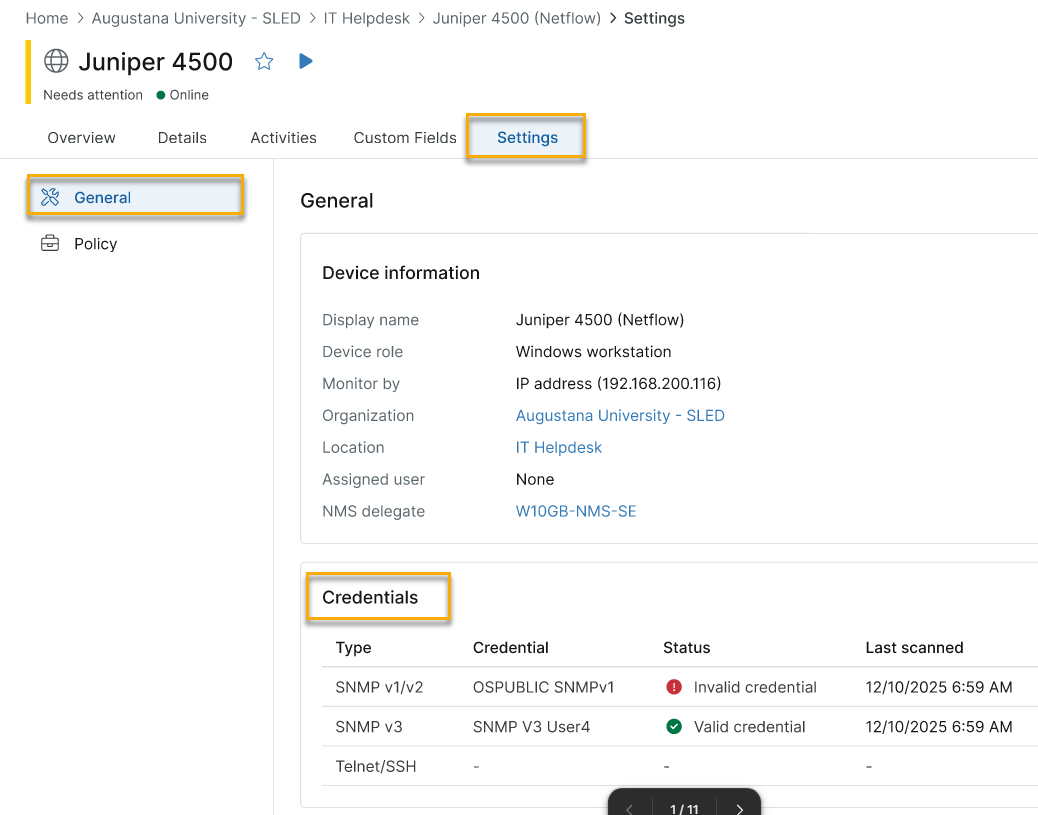
The Credentials table includes the following columns:
| Column | Description |
|---|---|
| Type | The credential protocol: SNMP v1/v2c, SNMP v3, or Telnet/SSH. |
| Credential | The name of the credential assigned to that protocol. A dash indicates no credential is assigned. |
| Status | The result of the most recent credential health check. A dash indicates no credential check has been performed yet. See Credential Status Reference for a description of each status. |
| Last scanned | The date and time of the most recent health check for that credential. A dash indicates the credential has not yet been checked. |
When SNMP credentials of different types (SNMP v1, SNMP v2c, SNMP v3) are assigned to a device, NinjaOne uses the most secure credential for active monitoring and tests the remaining credentials in order from most to least secure. All assigned credentials are tested regardless of which one is used for monitoring.
Last Credential Check on the Overview Tab
The Overview tab of an NMS device displays a Last credential check field in the Device information card. This field shows the date and time of the most recent credential health check. A status indicator appears when one or more credentials have an error.
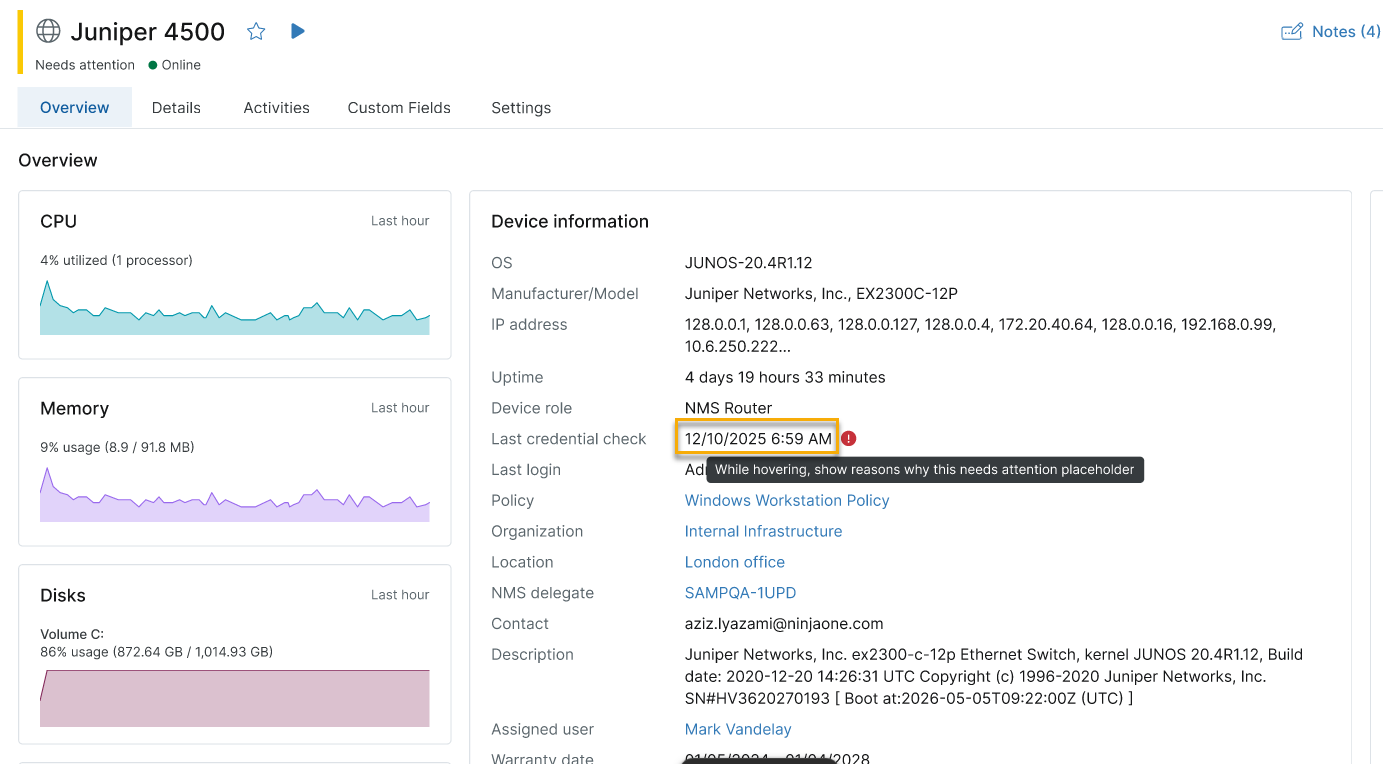
| Indicator icon | Description |
|---|---|
| No indicator | There are no credentials assigned, or NinjaOne has not yet checked the credentials since its assignation. This will be represented as a dash in the UI. |
| Error indicator | At least one credential has an invalid or failed status. |
To view specific failing credentials, click Settings and scroll to the Credentials section.
Credential Status in the Monitored Hosts List
When you view an NMS Delegate device, the Monitored hosts field in the Device information card shows the number of network devices the Delegate is monitoring. Click the number to open the Monitored hosts list.

| Indicator icon | Description |
|---|---|
| No indicator | All configured credentials passed their most recent check. |
| Warning indicator | At least one credential requires attention. |
| Error indicator | At least one credential has an invalid or failed status. |
The Monitored hosts list includes a Credential status column showing the SNMP credential check result for each monitored device.

When a device shows a Credential status of Invalid credential, its IP address appears as a link. Select the link to navigate directly to that device's Settings tab to investigate and resolve the credential failure.
Editing a Credential
When a credential health check identifies an invalid or failing credential, you can replace it directly from the Credentials section in the device's Settings tab.
- Navigate to the device's Settings tab and scroll to the Credentials section.
- On the row of the failing credential, select the more options (···) button, then select Edit.
- In the dialog that opens, select a replacement credential from the Credential drop-down.
- Select Update.

The NMS Delegate checks the updated credential on its next monitoring cycle, typically within one hour. The Status and Last scanned fields update after the check completes.
Credential Status Reference
The following table describes each credential status value and its meaning.
| Status | Meaning |
|---|---|
| Valid credential | The credential was tested and successfully authenticated with the device. |
| Invalid credential | The credential was tested but failed to authenticate. Common causes include an incorrect SNMP community string, an expired SSH key, or rejected credentials. Select Edit from the more options menu to replace the credential. |
| Not detectable | The credential check could not determine a result. This can occur when the device is unreachable during the check or when the check encounters an unexpected error. |
| — | No credential of this type is assigned to the device. |
Activities
NinjaOne generates a system activity when a credential's health status changes between checks. These activities appear in the Activities panel on the device's Overview tab and can trigger notifications based on your notification configuration.
| Activity | Trigger |
|---|---|
| NMS credential status changed | A credential transitions from a passing state to a failing state, or from a failing state back to a passing state. |
Additional Resources
Evaluate Thought process Several issues here, ranging from structural errors to style violations: