
Topic
This article provides use case examples and commonly used templates for user management in NinjaOne.
Environment
NinjaOne Platform
Description
Technician Role Templates
Use technician roles to create customized access levels that can be applied to multiple technician accounts. To learn more about user roles, refer to User Roles and Permissions.
There are two types of templates you can use for roles: blank and full permissions. A blank template will have all permissions turned off by default, allowing you to customize permissions on a granular level. A full permission template enables all permissions by default at the highest level of access. You can customize either type of template.
Select a use case to learn more:
Single Organization Access (Manage)
Give a technician or vendor ability to configure settings for a single organization. Use a blank template for this use case.
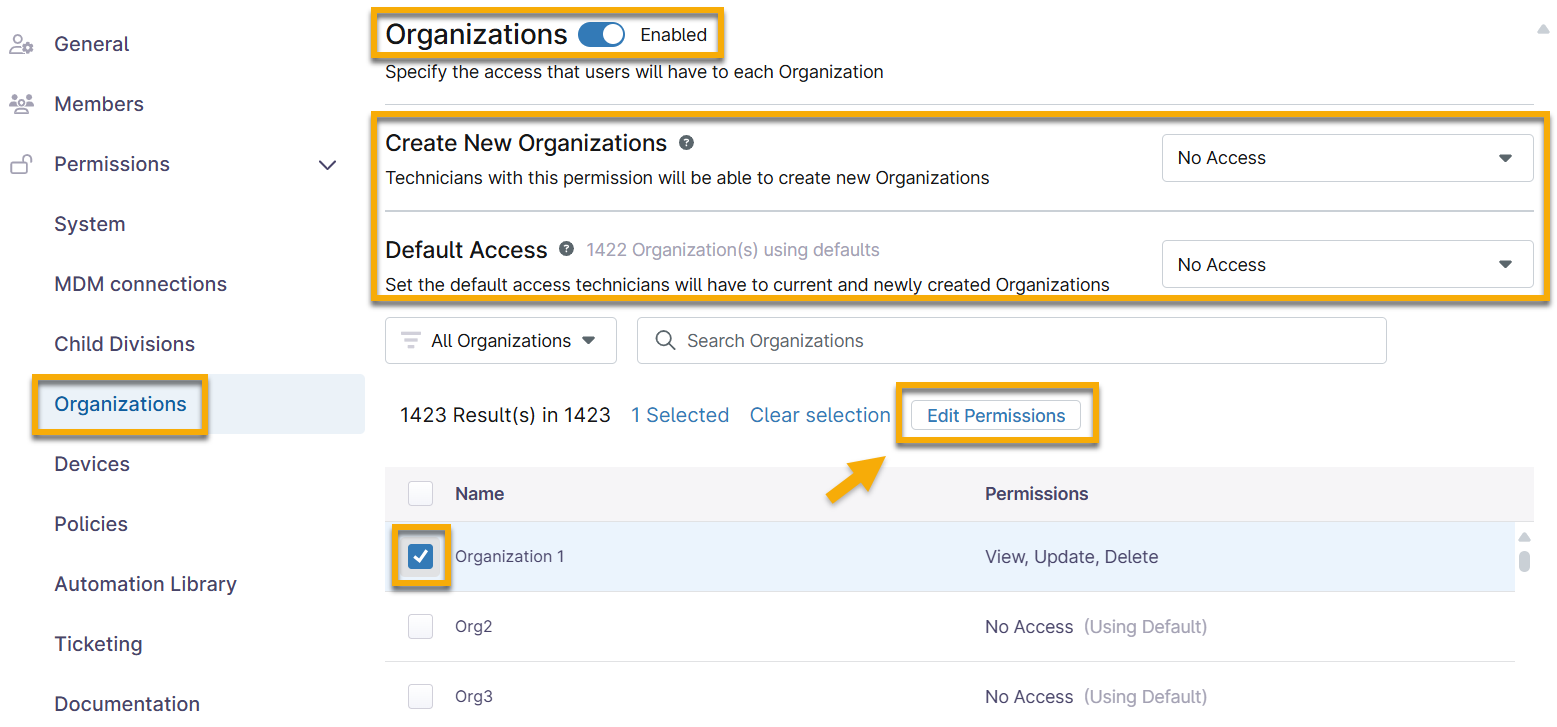
Manage organization access for technician roles in the Permissions → Organizations section. Use the following table to complete the applicable fields.
| Field or Permission | Access Level |
|---|---|
| Organizations | Click the toggle switch to enable the permissions. |
| Create New Organizations | No Access |
| Default Access | No Access |
| Results | Select the checkbox for the organization you want the technician to access, and then click Edit Permissions. Select "View, Update, Delete" or a similar option from the drop-down menu. |
Organization Policies
Organizations use policies for each device type. NinjaOne automatically assigns a default policy for new organizations, but you can edit these defaults or create new policies to meet your needs.
We recommend creating specific policies for each organization. To learn how to create a new policy, refer to NinjaOne Policies: Create and Manage a Policy. To learn how to configure an organization, refer to NinjaOne Endpoint Management: Creating and Editing Organizations.
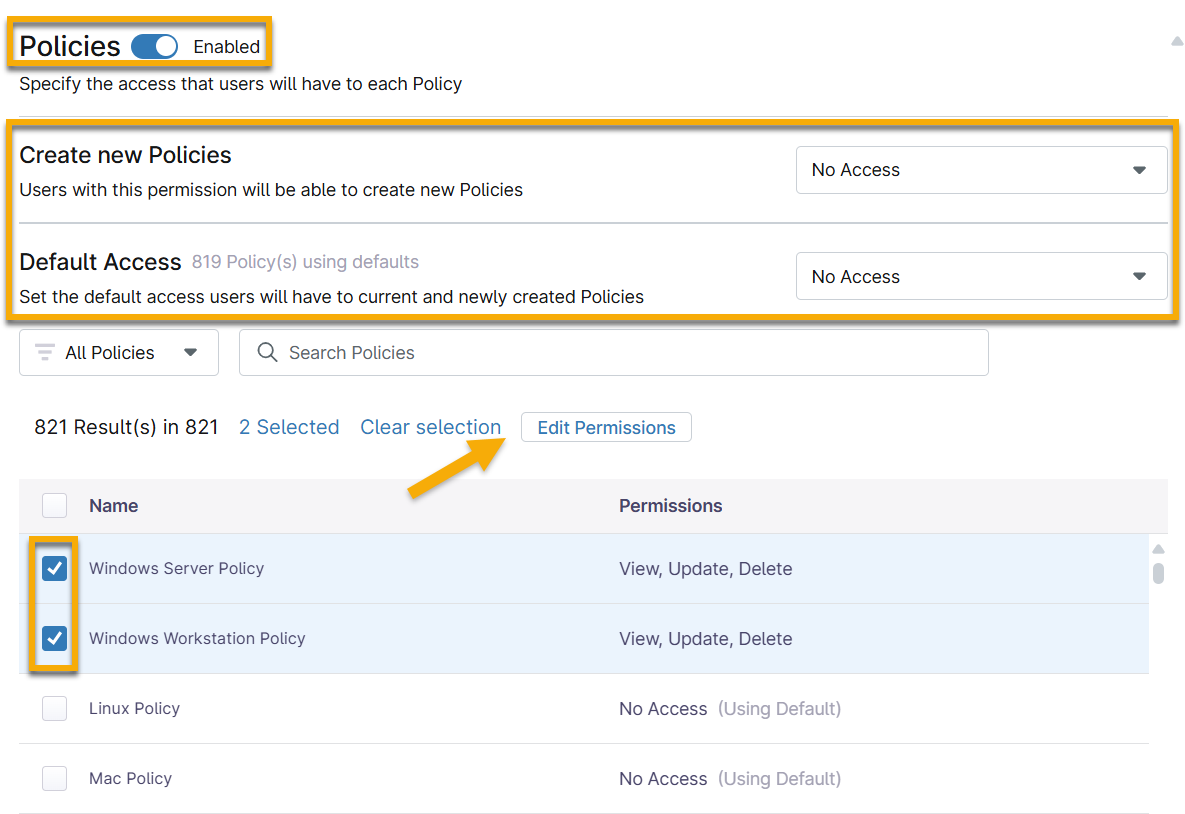
If you have specific policies for the organization, and you want the technician to access the organization's policies, open the Permissions → Policies section and use the following table to configure the permissions.
| Field or Permission | Access Level |
|---|---|
| Policies | Click the toggle switch to enable the permissions. |
| Create New Policies | No Access |
| Default Access | No Access |
| Results | Select the checkbox for the policy you want the technician to access, and then click Edit Permissions. Select "View, Update, Delete" or a similar option from the drop-down menu. |
Single Organization Access (View Only)
The purpose of this use case is to give view-only access for auditing or customer visibility. Use a blank template for this process.
Manage organization access for technician roles in the Permissions → Organizations section. Use the following table to complete the applicable fields.
| Field or Permission | Access Level |
|---|---|
| Organizations | Click the toggle switch to enable the permissions. |
| Create New Organizations | No Access |
| Default Access | No Access |
| Results | Select the checkbox for the organization you want the technician to access, and then click Edit Permissions. Select "View" from the drop-down menu. |
Organization Devices
You must register devices with an organization when you add them to NinjaOne. Any technician or role with Update permissions for an organization can add devices and manage approval. When the technician or role has only View access, you must grant additional permission via Permissions → Devices so they can view the device information.
Device roles determine accessibility, meaning that when a technician has access to a device role, they also have access to all devices in that role. If you want to limit the devices further, you can create custom roles and then change a device's role from the Device Dashboard → Settings → General → Device Information page. Refer to NinjaOne Endpoint Management: Device Roles for more information.
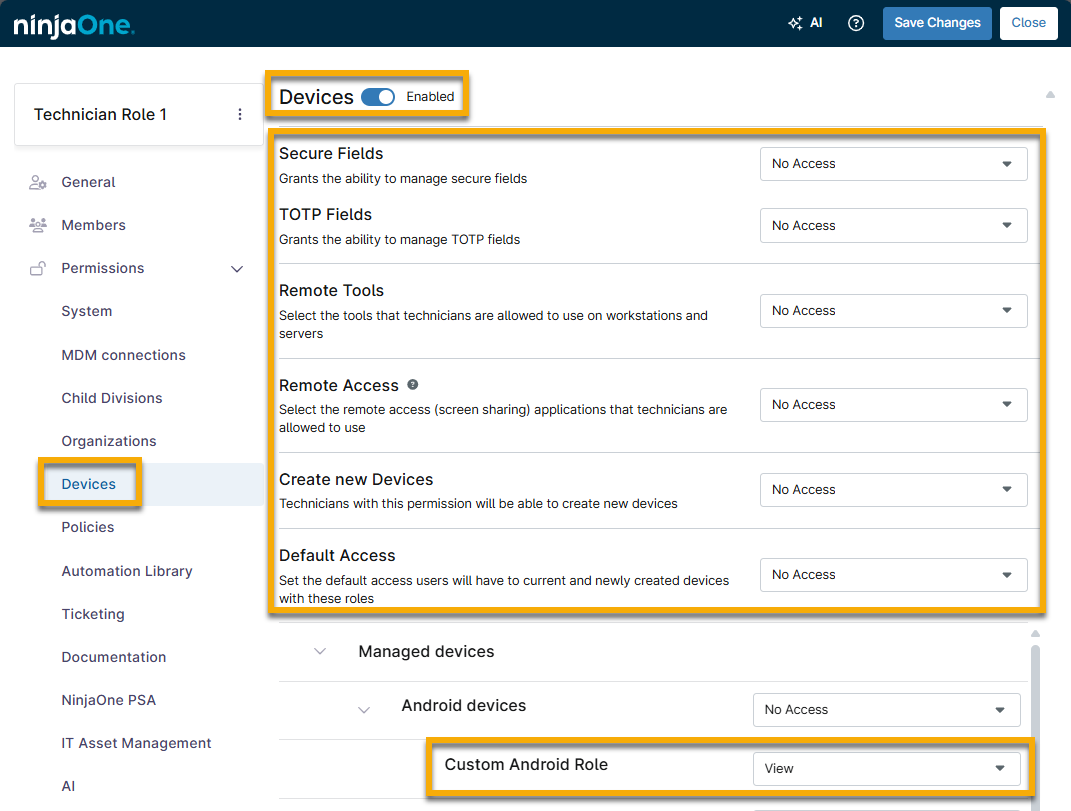
Use the following table to complete the applicable fields.
| Field or Permission | Access Level |
|---|---|
| Devices | Click the toggle switch to enable the permissions. |
| Secure Fields | No Access |
| Remote Tools | No Access |
| Create New Devices | No Access |
| Default Access | No Access |
| Managed or unmanaged devices | Expand the device roles until you find the specific role and give it "View" access. |
Additional Resources
To learn more about managing users and technicians in NinjaOne, refer to User Management: Resource Catalog.