
Topic
This article discusses software patching for Apple macOS applications in NinjaOne and explains how to activate, configure, and view patching activity.
Environment
NinjaOne Patching
Description
NinjaOne Patch Management allows you to create patching policies that automatically scan for and apply new software patches for your macOS endpoints.
Select a topic to continue.
- Pending Reboots
- Enabling Software Patch Management
- Configuring Software Patching Settings
- Software Tab Actions and Settings
- Viewing Patch Scan and Installation Attempts
- Manually Scanning for or Applying Updates
- Supported Software
Pending Reboots
If a patch requires a reboot that has not yet been performed on a device, as specified in the reboot options, NinjaOne will display a Pending reboot icon. Refer to our Pending Reboots article for more information.
Enabling Software Patch Management
You must activate software patching before you can use it to manage software patching.
- In NinjaOne, click Administration → Policies, then select a macOS policy from the Agent policies list.
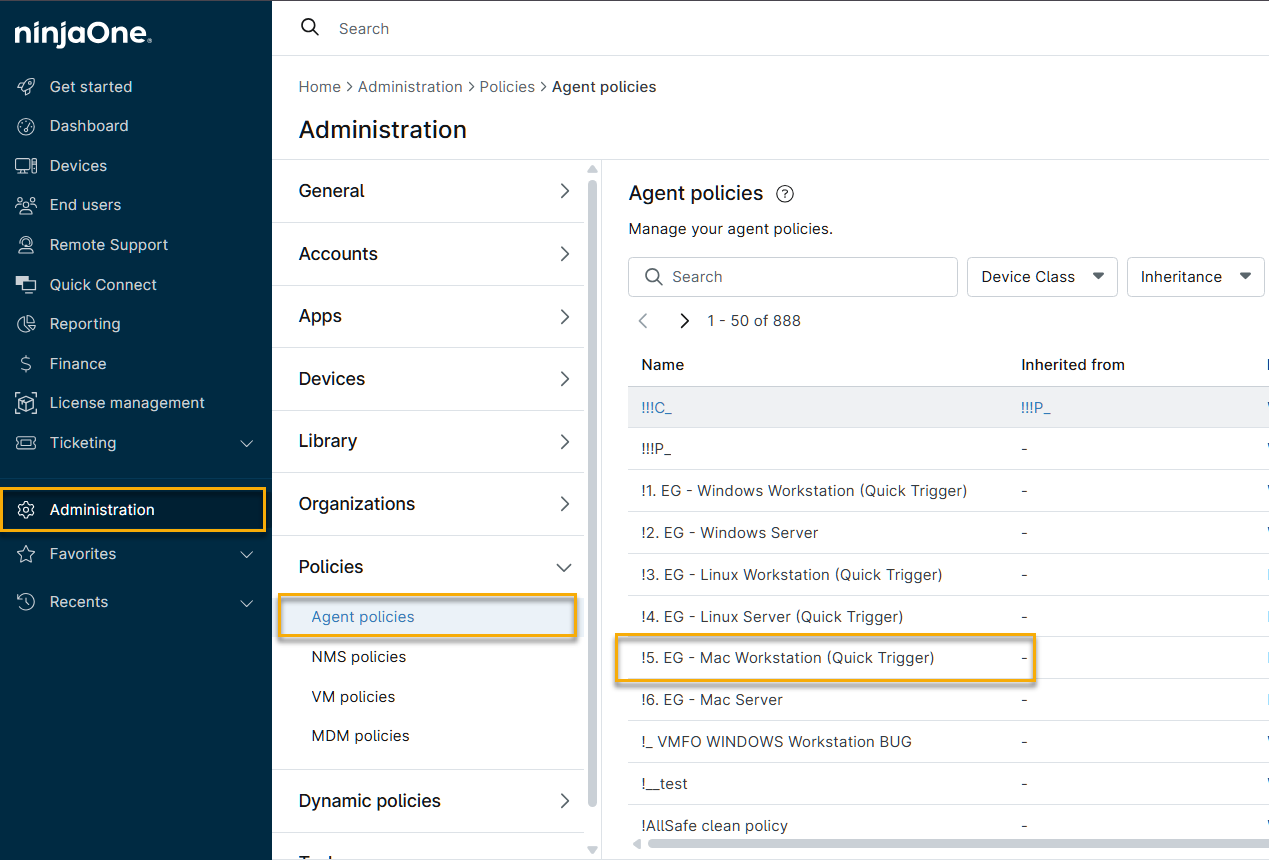
- Click the Software patching configuration tab, then activate the Enable software patching toggle.

Configuring Software Patching Settings
Options in the Settings tab include scanning and patching, required software installation, and maintenance. When you finish your configuration, click Save to apply the new settings.
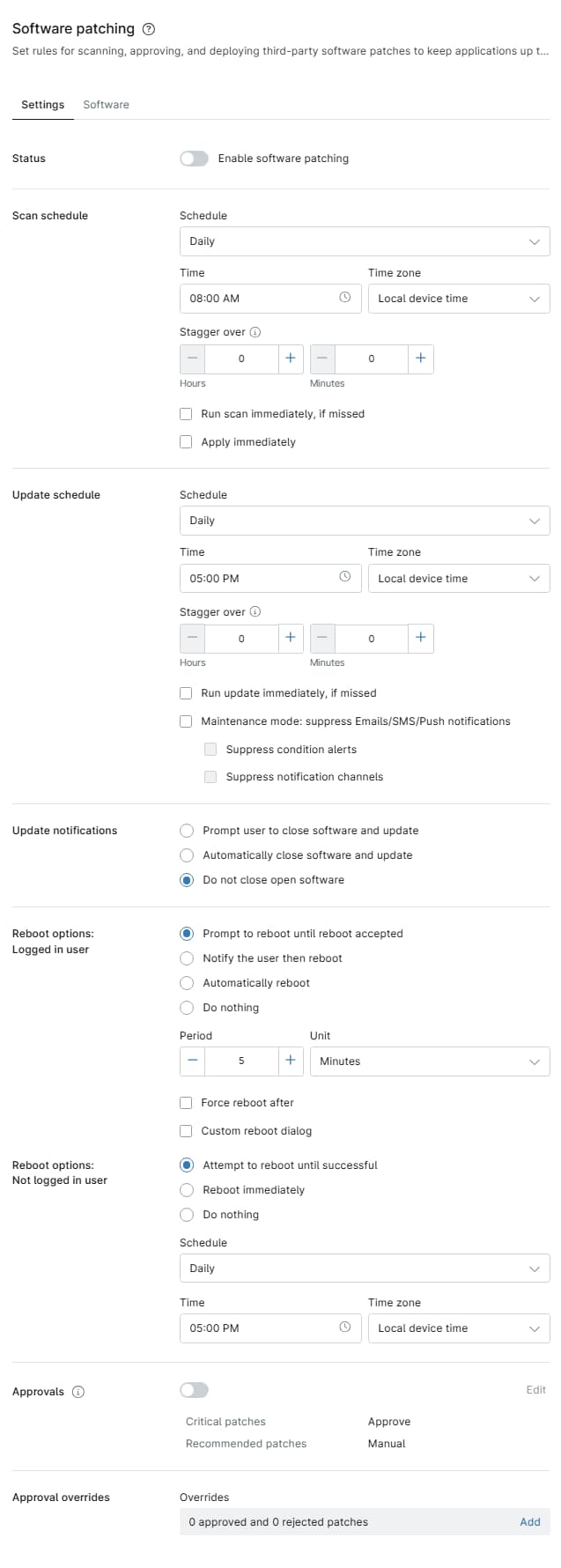
General Settings Explained
Use the table below to learn more about each setting.
| Setting | Description |
|---|---|
| Scan schedule | This parameter set determines when the device will scan for available new patches.
|
| Update schedule | These settings specify when NinjaOne should apply the updates it finds when scanning.
|
| Update notifications | Select how NinjaOne notifies users when the system needs to update software that cannot be patched in the background. The current setting will show as a link in this section. Click the link for the following additional options:
Applications must be closed to apply an update fully. If an application is still open when NinjaOne attempts to install an update, the installation will fail, and the following error will appear in the activity log: "One or more products failed to update due to application running state." Closing an open application can result in the loss of any unsaved data. When selecting an automatic close option, we recommend scheduling updates during off-peak hours, when users are less likely to actively use their systems. |
| Reboot options | These settings let you specify reboot behavior after NinjaOne patches a device. You can configure settings for both logged-in and logged-out users. If an end user interacts with a reboot prompt, NinjaOne will display an activity in the Device's Activity feed. Refer to Device and System Activity Notification Feed for more information. Reboot options: Logged-in user: Here you can configure the following settings:
Reboot options: Not logged in user: Here you can configure the following settings:
|
| Approvals | In this section, you can configure approval settings for all NinjaOne software not listed on the Software tab. Click the Edit link to automatically approve, reject, or require manual approval for Critical and Recommended patches. Refer to NinjaOne Dashboards: Software Inventory for more information. |
| Approval overrides | Here, you can set NinjaOne to override your patching policy for specific patches. Click the link to open the Overrides list, then search for the patch name. Use the second drop-down menu to select whether to approve or reject the patch. Examples of scenarios in which patches would appear in the Overrides section:
|
Software Tab Actions and Settings
The Software tab is where you can select which applications you would like to include in NinjaOne's software patching. From here, you can also configure approval settings for critical and recommended patches and specify if you wish to use the current policy when installing the updates.
When you activate software patching for a product, NinjaOne downloads all updates for that product on the machines affected by the policy. Those updates remain downloaded as long as you have software patching activated for that product.
The Software Library
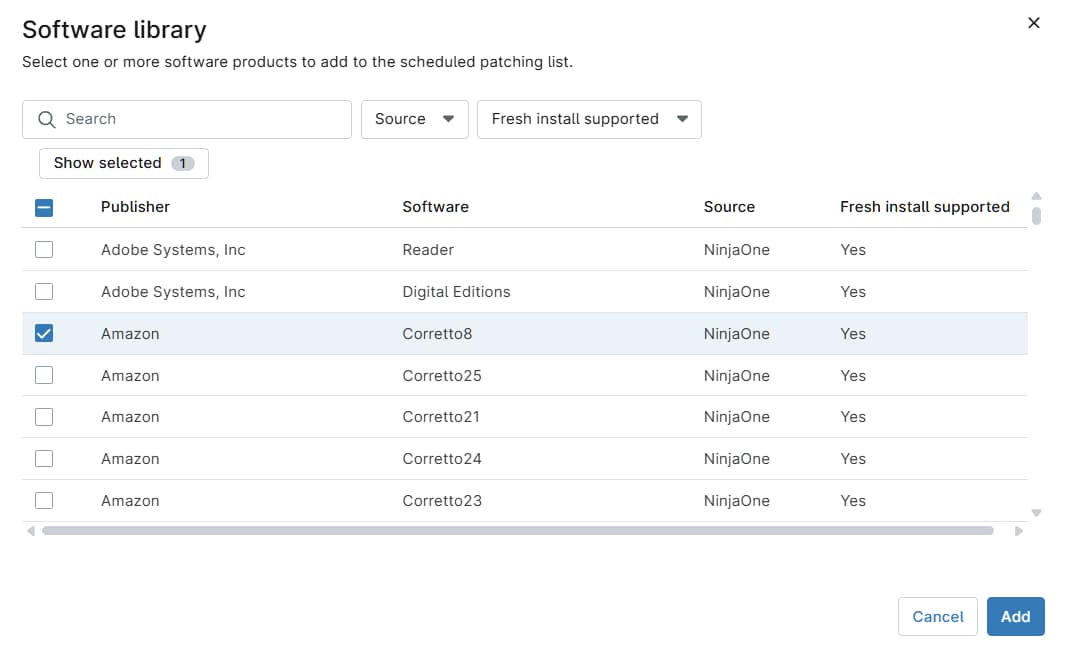
NinjaOne stores available applications in the Software library, which shows you the following information:
| Column | Description |
|---|---|
| Publisher | Shows the vendor or organization responsible for developing and distributing the application. |
| Software | Lists the official name and versioning of the specific application or package. |

Adding Software to the Scheduled Patching List
To add new software to be installed and patched:
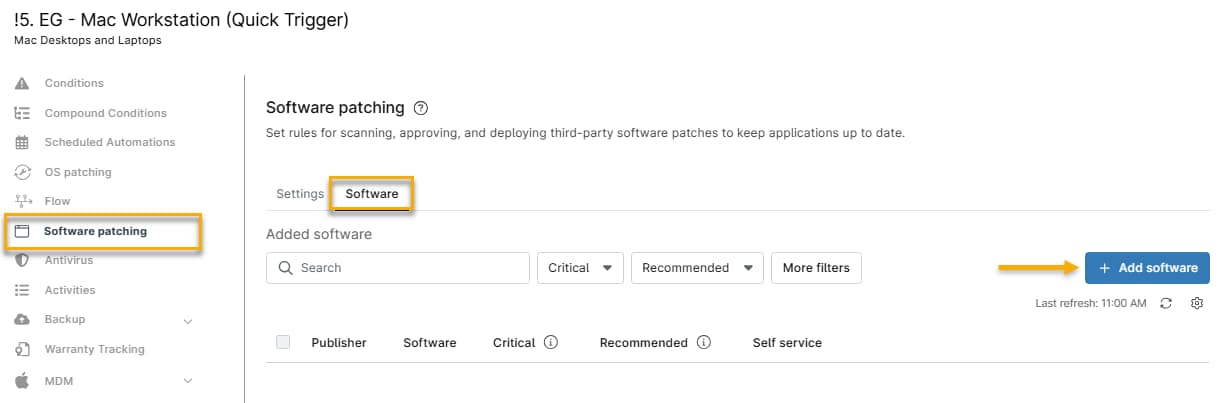
- On the policy's configuration page, navigate to Software patching → Software → Add software.
- The Software library window will open. Select the checkbox for any new software, then click Add.
Editing Patching Settings For Added Software
After adding new software, you can configure the approval and install settings for each patch type.
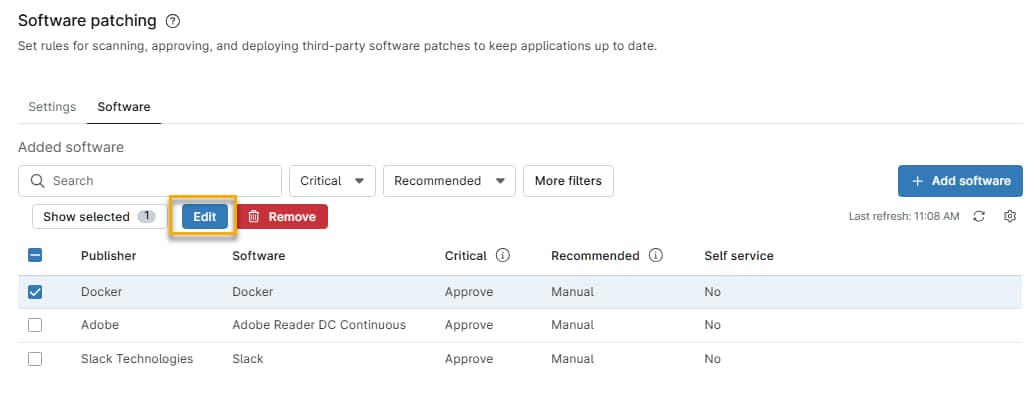
- Select the software (or select Select All), then click Edit.
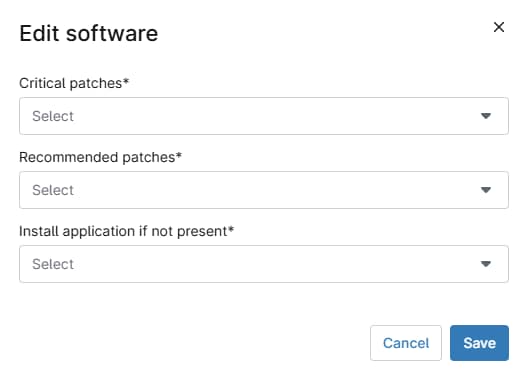
In the Edit software window, configure the following options:
| Option | Description |
|---|---|
| Critical patches | Specify automatic installation behavior for critical patches. Select Approve, Manual, or Reject. Refer to the Patch Approval Options section of this article to learn more. |
| Recommended patches | Specify automatic installation behavior for recommended patches. Select Approve, Manual, or Reject. Refer to the Patch Approval Options section of this article to learn more. |
| Install if application not present | After adding software, you can configure NinjaOne to automatically install many supported applications if they are not already found on devices in the policy. Select Yes to automatically install the application on machines where it is missing. If you select No, the installer for that software shows in the Rejected software tab. You can approve the installation at a later time. |
| Enable self-service | Make the application available to allowed end users in the End-user portal. The end users must be the assigned owners of the applicable devices. |
Patch Approval Options
You can select one of three options for Critical and Recommended patches:
- Approve: Automatically approves all patches for the next update cycle.
- Manual: Patches in this category appear in a "pending" state, requiring manual approval or rejection (for either the devices or the entire policy).
- Reject: Automatically rejects all patches for that category.
Viewing Patch Scan and Installation Attempts
NinjaOne provides multiple ways to view patches installed on your system, patches pending installation, or patches that failed to install.
Viewing by Status in NinjaOne Dashboard
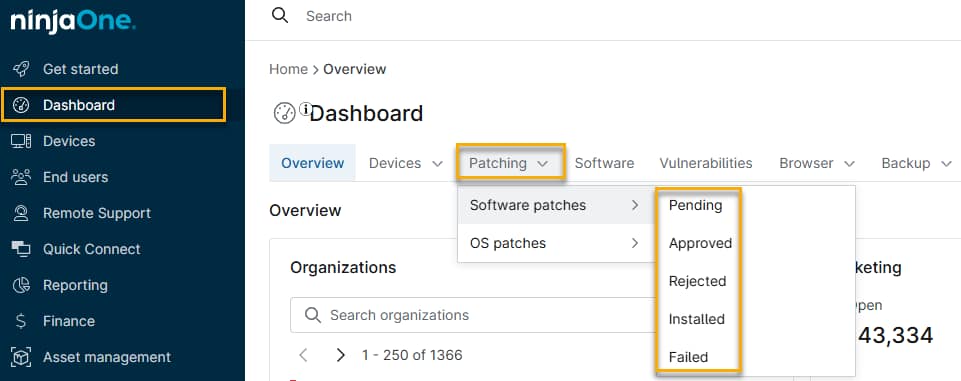
You can view patches found and patches installed in the System dashboard's Patching → Software patches tab. Use the flyout menu to filter by patch status (Pending, Approved, Rejected, Installed, or Failed). Once a patch has attempted to install during an update cycle, you can view its details in the Software tab of the dashboard.
Viewing Patches by Release Date
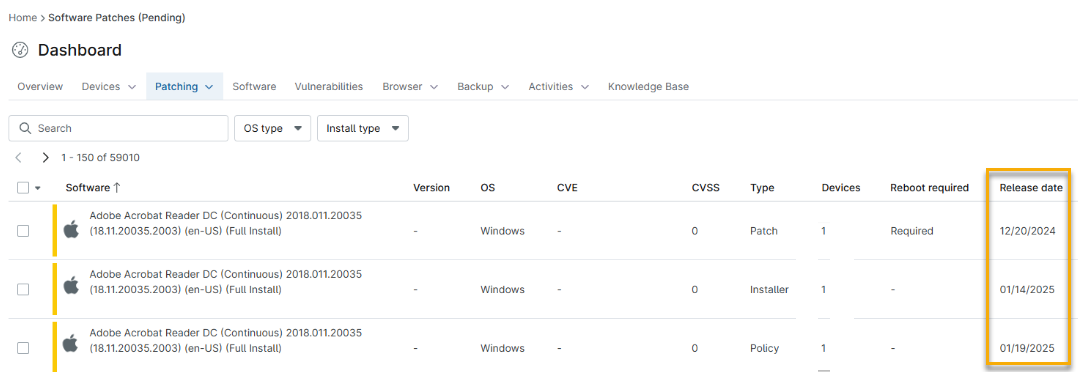
Check the Release date column to learn the patch release date. If the manufacturer does not provide the release date, NinjaOne will use the first detected date instead.
Viewing Applicable Devices for a Patch
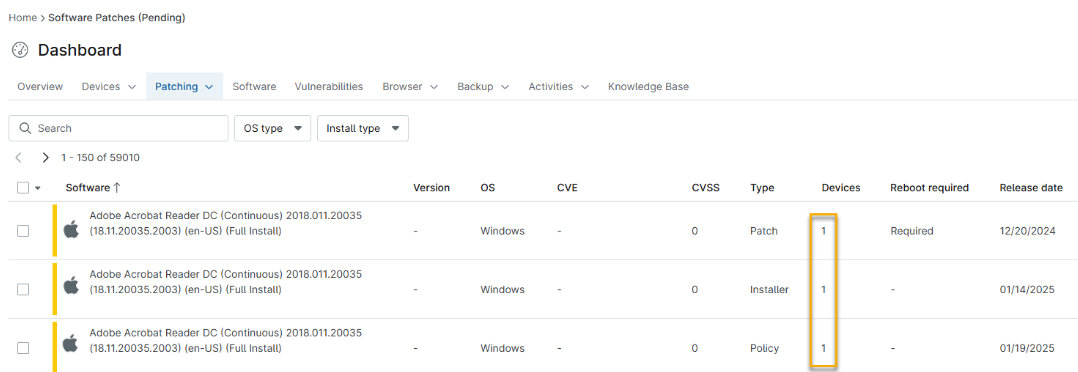
At the System or Organization dashboard level, you can click the number in the Devices column to list the devices to which the patch status applies. For example, clicking the number for a patch in the Approved tab shows the devices for which it is approved (but not yet installed).
Viewing Installed Applications
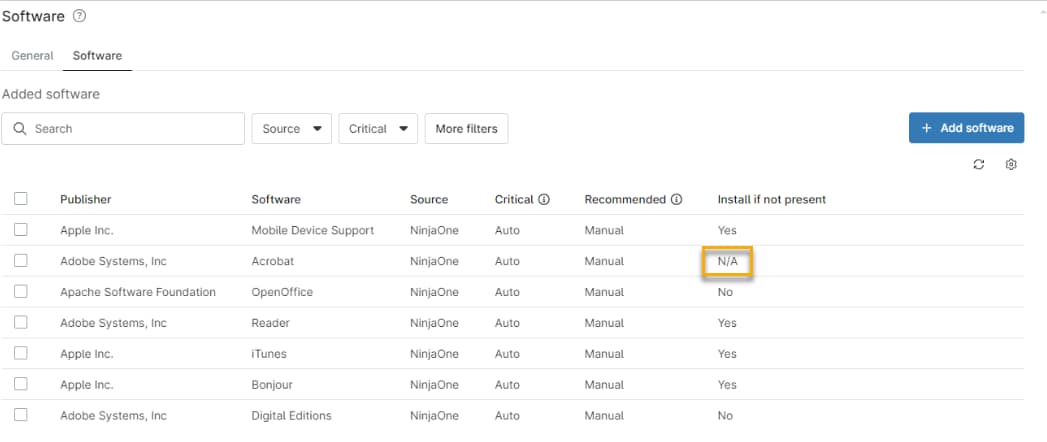
After you configure patching, the applications will appear when you select Expand all. An N/A install status indicates that the manufacturer does not support installation for that software. Refer to the list of supported products below for more information about which options support installations.
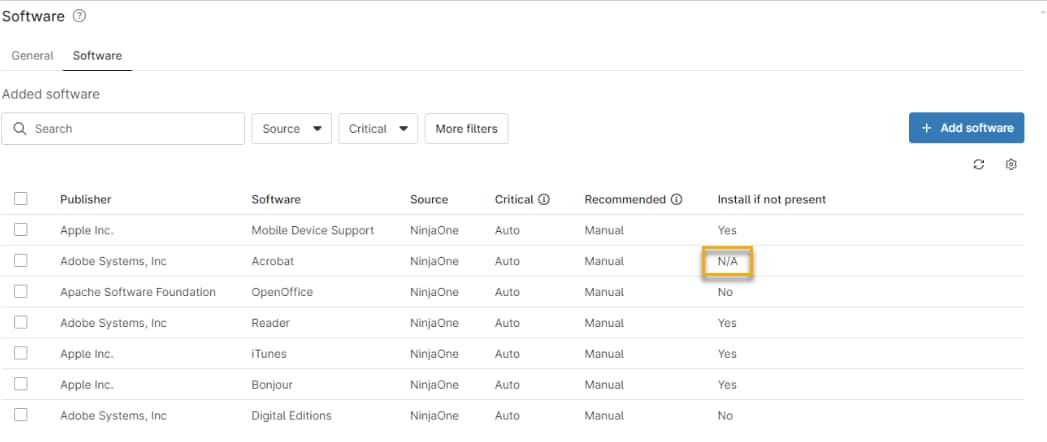
Figure 12: Unsupported software in the Software list (click to enlarge)
Manually Scanning For or Applying Updates
You can run a manual patching cycle at any time.
On a Single Device
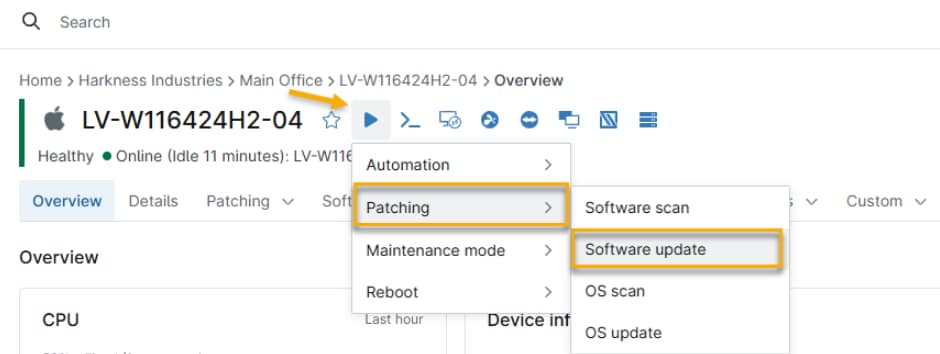
You can run a manual patch scan and update cycle on demand from any endpoint. To do so, navigate to the Device overview, place your cursor over the Play action button, and select Patching → Software scan (to scan for new patches) or Software update (to apply existing patches).
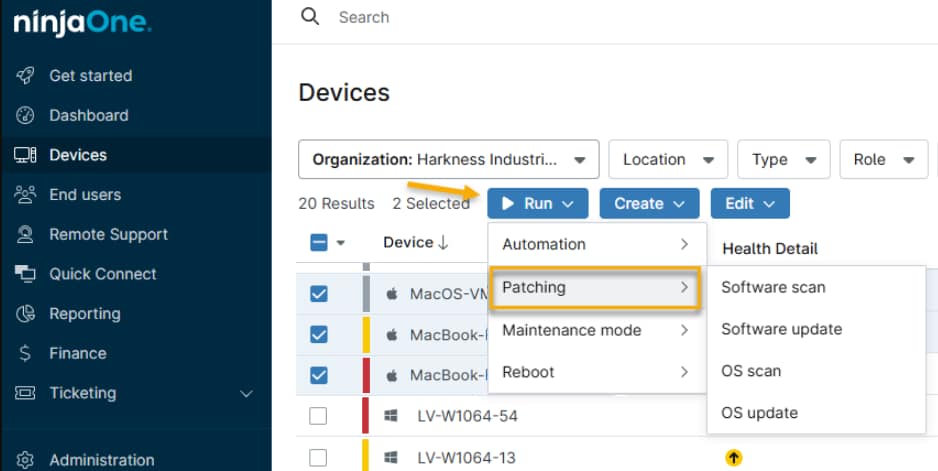
On Multiple Devices
To scan and apply patches on multiple devices:
- The devices must be the same type.
- You must activate software patching for the policy that governs the device.
- Selected devices must be online.
Procedure
- In the Devices tab, select the checkboxes for the devices on which to run the scan and update cycle.
- Place your cursor over the Run button, then navigate to Patching → Software update → Software scan (to scan for new patches) or Software update (to apply existing patches). NinjaOne will show the software patching status at the device level. If you have patches set to approve or reject manually, you can take those actions from the Device overview.
Supported Software
For a full index of supported Apple macOS software titles, refer to NinjaOne Patching: Supported Software Catalog (Apple macOS).
Additional Resources
For a list of frequently-asked questions about software patching, refer to NinjaOne Patching: Software Patch Management FAQ.