
Topic
The following is a list of frequently asked questions regarding Microsoft Windows operating system (OS) patch availability within NinjaOne Patching.
Environment
- NinjaOne Patching
- Microsoft Windows
Index
Select a topic to continue:
- How does NinjaOne know what to patch?
- Why might a recently-released patch not be available?
- How can I install a patch if it is not available in NinjaOne?
- Why must I manually install patches unavailable through NinjaOne?
- How long does it take for a Windows OS patch to become available in NinjaOne?
- How do local Windows Update policies such as Group Policy Objects (GPOs), Microsoft Intune, and registry changes impact patch visibility?
- What are compatibility (safeguard) holds, and how do they affect availability? How can I confirm if Windows is blocking a patch?
- What should I check if a patch is missing or not installing?
- Can NinjaOne patch Windows OS after it reaches end of life (EOL)?
FAQ
How does NinjaOne know what to patch?
NinjaOne uses the Windows Update Agent (WUA) to determine which patches are available on a device. This mechanism is similar to the one used when you manually check for updates in Windows. Patch visibility follows these rules:
- If Windows can see a patch, NinjaOne can see it.
- If Windows cannot see a patch (due to group policies, compatibility holds, or other configuration settings), NinjaOne will not show it.
Why might a recently-released patch not be available?
Availability depends on multiple factors, including rollout timing, device configuration, and compatibility holds (for feature updates or major upgrades). NinjaOne can only detect patches that Windows makes available to the device. NinjaOne will not see patches that Windows has not yet offered.
After detecting available patches, NinjaOne follows the device’s patch policy to decide whether to install or ignore them.
How can I install a patch if it is not available in NinjaOne?
If Microsoft has released a patch, but the device does not see the patch as available, you can install it manually by using one of the following methods:
- Download the patch from the Microsoft Update catalog and manually install it through the command line or a custom script.
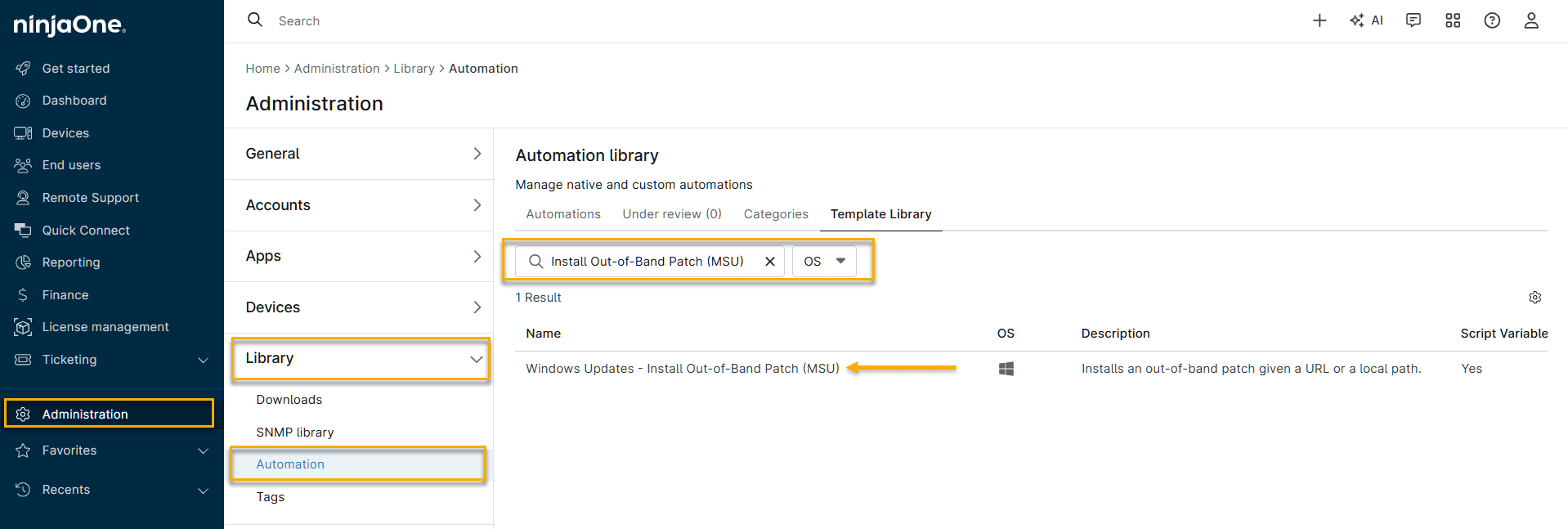
- Download the patch from the Microsoft Update catalog and manually install it via NinjaOne's Windows Updates - Install Out-of-Band Patch (MSU) automation template, available in NinjaOne at Administration → Library → Automation → Template Library. Refer to NinjaOne Endpoint Management: Automation Script Templates for more information about using automation script templates.
Why must I manually install patches unavailable through NinjaOne?
You must install these patches manually because NinjaOne gets its available patches through the same Windows Update service as Windows devices and cannot automatically install patches that Microsoft has not yet made available. After the Windows Update service makes the patch available, NinjaOne will install the patch on your devices based on your device policy settings.
How long does it take for a Windows OS patch to become available in NinjaOne?
NinjaOne shows patches as soon as Windows makes them available to the device. The following details explain this behavior:
NinjaOne uses the Windows Update Agent (WUA), which checks directly against Microsoft during scans.
There is no additional delay introduced by NinjaOne.
If a patch is not visible, Microsoft is likely not yet offering it to the device.
How do local Windows Update policies such as Group Policy Objects (GPOs), Microsoft Intune, and registry changes impact patch visibility?
Windows Update policies directly control what patches a device can see. For example:
Group Policies can defer, pause, or restrict updates.
Target version settings can limit which feature updates are offered.
The Windows Server Update Service (WSUS) or other update source settings can change where the device looks for updates.
If a local policy blocks or delays a patch, NinjaOne will not see it.
What are compatibility (safeguard) holds, and how do they affect availability? How can I confirm if Windows is blocking a patch?
Compatibility (safeguard) holds are applied by Microsoft to prevent updates on devices with known issues. The following conditions apply:
- These holds block specific updates until the issue is resolved.
- Compatibility (safeguard) holds are most commonly applied to feature updates (for example, Windows 11 26H2 upgrades).
- If a safeguard hold is active, the update will not appear in NinjaOne.
How to check if a safeguard hold is applied:
You can check if a safeguard hold is applied by using one of the following methods:
Option 1: Check the registry (fastest method)
The GStatus value indicates whether a hold is in effect. In the registry, navigate to the following location: HKLMSOFTWAREMicrosoftWindows NTCurrentVersionAppCompatFlagsAppraiserGWX. If the GStatus value equals 0, a safeguard hold is applied.
You can also check for the specific safeguard ID by navigating to the following location in the registry:
HKLMSOFTWAREMicrosoftWindowsNTCurrentVersionAppCompatFlagsTargetVersionUpgradeExperienceIndicators<TargetVersion> (Example: GE24H2)
Option 2: Check Windows Update settings
In Windows, navigate to Settings → Windows Update. If a hold exists, you may see a message such as: “An upgrade is on its way to your device.” Selecting Learn more will show details about the hold
What should I check if a patch is missing or not installing?
Perform the following actions to verify what Windows sees and how the device is configured:
- Run Windows Update manually to confirm if the patch is offered.
- Review local Windows Update policies, such as GPOs, Microsoft Intune, and registry keys.
- Confirm whether the update source is Microsoft or WSUS.
- Check for compatibility holds or deferrals.
- Review NinjaOne activity logs and device logs for errors.
If Windows does not offer the patch, NinjaOne cannot detect or install it.
Can NinjaOne patch Windows OS after it reaches end of life (EOL)?
NinjaOne can install any patches that Windows makes available to the device. The following scenarios apply depending on the device's lifecycle status:
- Devices can still install the last publicly released patches from before EOL (for example, the final Windows 10 updates released before October 2025).
- After EOL, new patches are only available through Microsoft’s Extended Security Updates (ESU) program. The ESU license must be installed and activated on the device before Windows will offer these updates. After the ESU is active, NinjaOne can detect and install them normally.
If Windows does not offer any newer updates, NinjaOne will not have additional patches to install.
Additional Resources
The following articles provide additional information about Windows patch management in NinjaOne:
- For a list of more frequently asked questions about Windows patch management, refer to Windows Patch Management: FAQ.
- Refer to NinjaOne Patching: Windows OS Patch Management to learn more about configuring Windows patch policies.