
Topic
This article discusses how to select device roles in NinjaOne.
Environment
NinjaOne Agent
Description
Device role selection lets the NinjaOne agent generate installers that classify a device under a specific role.
Selecting a Device Role
- In NinjaOne, click Devices in the left navigation menu, then click the + icon and select Computer from the Add Device drop-down menu.

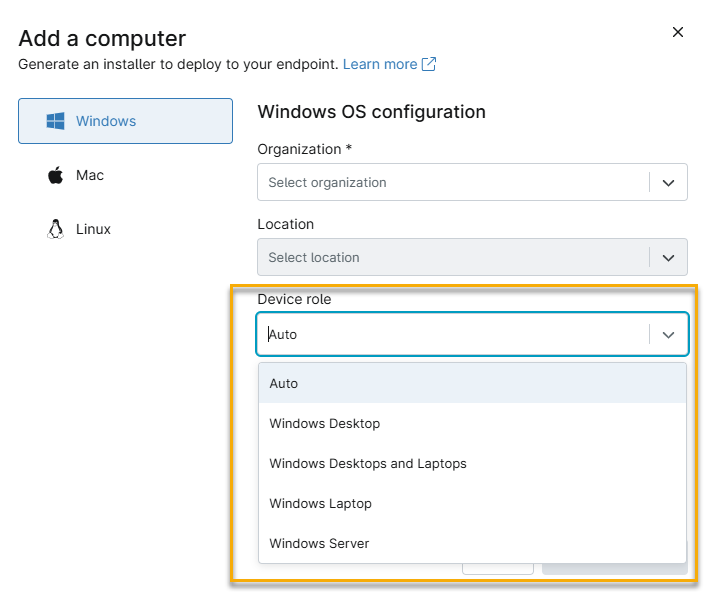
2. Select the role from the Device role drop-down menu. The generated installer will automatically assign devices on which it runs to that device role.
Important Considerations
- The available role options depend on the device type for which you create the installer. For example, when generating a Windows installer, the Device role menu shows roles under the following classes:
- Windows Desktops and Laptops
- Windows Servers
- If you select the Auto option, NinjaOne automatically assigns device roles based on the following criteria:
- Windows: Based on the locally-assigned chassis type and OS version.
- Mac: Based on the chassis type and whether the macOS Server app is installed.
- Linux: Servers are identified based on the image's description as a server in the /etc/os-release file. Otherwise, all machines are assigned the Linux Desktop role by default.
Additional Resources
Refer to the following NinjaOne Dojo articles for more information about installing the agent on devices: