
Remote device management has become an essential capability for modern IT operations. As organizations adopt mobility strategies, administrators need the ability to provide support, enforce compliance, and troubleshoot issues on mobile endpoints without requiring the user to be physically present. Remote control for Android devices is one of the most direct ways to achieve this, enabling IT teams to see and, when permitted, take action on a user’s screen in real time.
NinjaOne provides Android remote control functionality as part of its broader Mobile Device Management (MDM) feature set. This capability is designed to integrate with established workflows for device enrollment, policy application, and support delivery. In practice, it allows technicians to interact with Android devices as if they were holding them, while still respecting security, privacy, and compliance boundaries.
How do I setup Android Remote Control in NinjaOne?
Android remote control is provided through the NinjaOne Remote app. Make sure the app is enabled and that Android is selected when configuring the integration for your organization.
Verify that NinjaOne MDM for Android is enabled and the target devices are enrolled and managed.
Full remote control is only available on company-owned, (fully managed) devices. BYOD and COPE devices support remote view only; input control is restricted by Android Enterprise policies and may vary by OEM.
Note: Even on Android devices enrolled as corporate-owned, remote sessions are view-only by default. To enable full remote control, the end user must manually grant the required permissions.
How do I start a remote-control session to an Android device?
Follow the next steps to start a remote session to an Android device:
- From the device dashboard, find the device you want to remote control.
- Click on it. The device overview appears.
- Click the
 icon in front of the device name.

- The NinjaOne Remote connection window appears, indicating it´s trying to establish a connection.

- On the remote Android device, a notification appears. The end user must tap on it to continue with the connection.

- A screen appears warning that everything on your screen, including notifications will be recorded, etc. If you agree, tap Start broadcast.
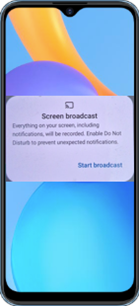
- Another screen appears asking if you want to start recording or casting with NinjaOne Assist? Tap Start now.

- Next, the share session begins, and the following screen appears on both sides.
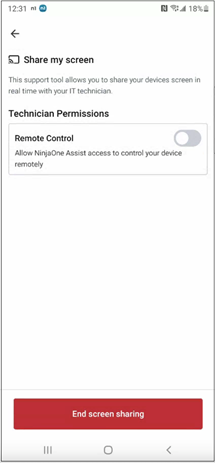
- As you can see, the Remote Control button appears off, this happens the first time the remote control establishes, and the session is view only. To allow full remote control, turn on the switch.
- You will be taken to the Android Settings Accessibility screen to manually set the remote-control permission.

- Tap Installed services.

- Tap NinjaOne Remote.

- Turn on the switch; the following screen appears.

- To allow NinjaOne to have full control of your phone, tap Allow, then the following screen appears.

- Tap I acknowledge.
- Once permissions are granted, the session transitions from view-only to full remote control, allowing the technician to operate the device.
Note: After full remote control is granted, the setting is remembered, so steps 11–17 only need to be done once. In a similar way, the full remote-control permission can be revoked any time.