
Topic
This article covers the process to enable full permissions on Apple macOS for use with NinjaOne Device Backup.
Environment
- NinjaOne Device Backup
- Apple macOS
Description
You can back up your Apple macOS files and folders with NinjaOne Device Backup. Review the following sections for detailed instructions on setting up your macOS device for use with NinjaOne Device Backup.
- MacOS Permissions
- MacOS Default Exclusions
- Mobile Device Management (MDM)
- Frequently-Asked Questions (FAQ)
- Which versions of macOS does NinjaOne Device Backup support?
- Why does NinjaOne Data Protection need Full Disk Access?
- Why isn't this access granted automatically?
- What is the name of the app that I need to add?
- What is Lockhart?
- Can I back up macOS devices to a network attached storage or other local storage device?
MacOS Permissions
Enabling Full Disk Access on your macOS device
Full Disk Access is a privacy feature introduced in macOS 10.14 (Mojave) that prevents some applications from accessing important data. While NinjaOne Device Backup supports macOS 12 (Monterey) and newer, you'll need to manually grant permissions to some applications so they can access these protected areas. Previous versions of macOS allowed permission to be granted automatically.
To grant the required permissions, follow these steps:
On your macOS device, navigate to System Preferences → Security & Privacy; then, select the Privacy tab.
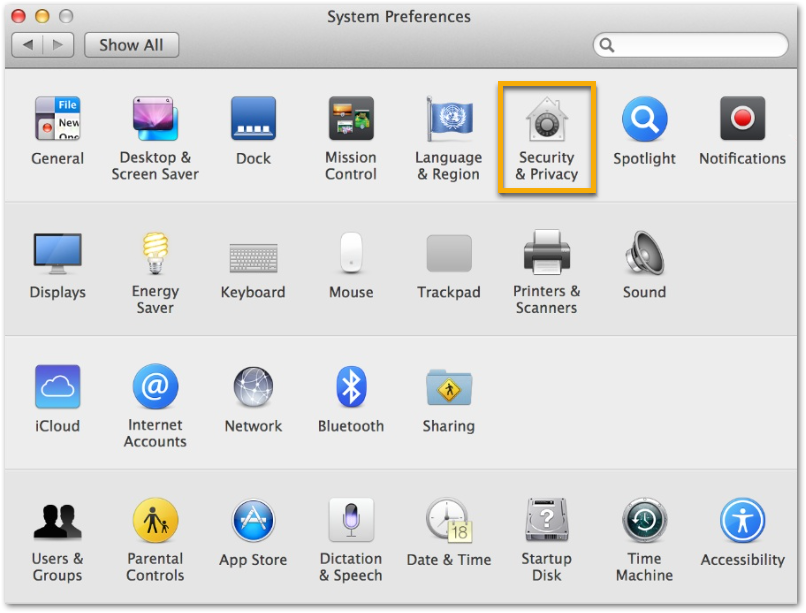
Figure 1: System Preferences (click to enlarge) From the Privacy tab, select Full Disk Access from the navigation pane and then click the lock icon at the bottom of the screen.

Figure 2: Security & Privacy (click to enlarge) Enter system administrator credentials and then click Unlock.

Figure 3: Credentials (click to enlarge) Click the plus sign.
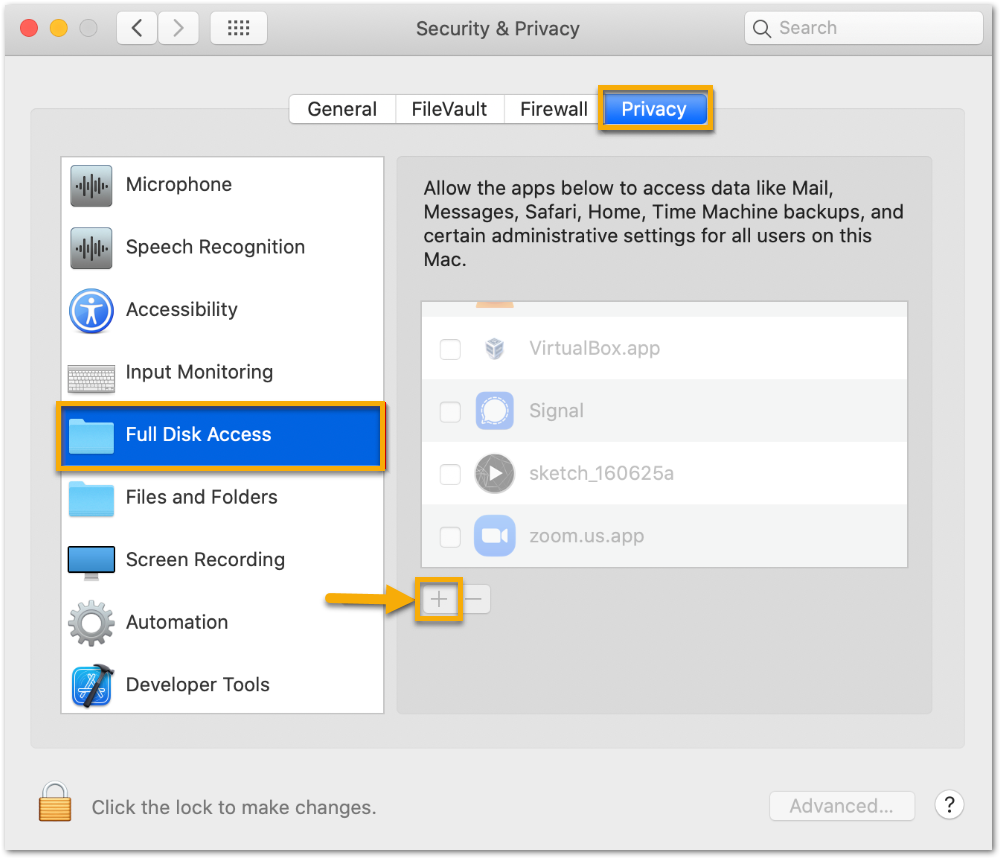
Figure 4: Full Disk Access (click to enlarge) Click Applications, and then select the Lockhart application from the list and click Open.

Figure 5: Lockhart (click to enlarge) - If prompted, click Quit Now. You have now enabled full disk access.





If you have not successfully enabled full disk access to a macOS device, your device will display a 309 error when attempting to run a backup. If this error occurs, review the steps above to verify that you have correctly enabled full disk access.

MacOS Default Exclusions
The following items will be excluded from NinjaOne Device Backup jobs on macOS devices by default. You can modify some of these exclusions in the Advanced tab when configuring your backup plans. For more information, refer to NinjaOne Device Backup: File/Folder Backup Plans.
We've listed each item by its ID, then type, pattern, and description.
"1","extension","ithmb","OSX Thumbnails" "2","extension","vmdk","OSX vm disks""3","extension","vmem","OSX vm memory""4","extension","vmsd","OSX vm sd size" "5","extension","vmsn","OSX vmware snapshot""6","extension","vmx","OSX vm disk""7","extension","vmxf","OSX vm config file""8","extension","menudata","OSX menu file""9","extension","appicon","OSX app icon files""10","extension","appinfo","OSX app info files" "11","extension","pva","OSX pva video file""12","extension","pvs","OSX parallels file""13","extension","pvi","OSX sample packs""14","extension","pvm","OSX parallels vm""15","extension","fdd","OSX parallels disk""16","extension","hds","OSX parallels disk""17","extension","drk","OSX race studio 2""18","extension","mem","OSX parallelsl mem dump""19","extension","nvram","OSX vmware ram""20","extension","hdd","OSX parallels disk""21","extension","wab~","OSX outlook scratch file""22","extension","sys","OSX ms-dos system file""23","extension","cab","OSX cab archive file""24","extension","exe","OSX windows executable""25","extension","msi","OSX windows installer""26","extension","dll","OSX windows dynamic link library""27","extension","dl_","""28","extension","wim","OSX wim""29","extension","ost","OSX ost""30","extension","o","OSX compile output files""31","extension","qtch","OSX qtch""32","extension","log","OSX log files""33","extension","vmc","OSX vmc""34","extension","vhd","OSX vhd""35","extension","vo1","OSX vo1""36","extension","vo2","OSX vo2""37","extension","vsv","OSX vsv""38","extension","vud","OSX vud""39","extension","iso","OSX disk image""40","extension","dmg","OSX installer""41","extension","pkg","OSX package installer""42","extension","sparseimage","sparse image""43","folder","/Applications","OSX Applications""44","folder","/Desktop DB","OSX binaries""45","folder","/Desktop DF","OSX binaries""46","folder","/Home","OSX binaries""47","folder","/Library","OSX Library files""48","folder","/Network","OSX binaries""49","folder","/Private","OSX private files""50","folder","/System","OSX System files""51","folder","/Volumes","OSX binaries""52","folder","/automount","OSX binaries""53","folder","/bin","OSX binaries""54","folder","/cores","OSX binaries""55","folder","/dev","OSX dev files""56","folder","/etc","OSX posix files""57","folder","/mach","OSX binaries""58","folder","/mach_kernel","OSX binaries""59","folder","/mach.sym","OSX binaries""60","folder","/net","OSX posix network files""61","folder","/opt","OSX binaries "62","folder","/sbin","OSX binaries""63","folder","/sw","OSX binaries""64","folder","/tmp","OSX temp files""65","folder","/usr","OSX usr files""66","folder","//.app","OSX binaries""67","folder","//.DS_Store","OSX binaries""68","folder","/.fserventsd","OSX binaries""69","folder","/.hotfiles.btree","OSX binaries""70","folder","/.Spotlight","OSX binaries""71","folder","/.Trashes","OSX binaries""72","folder","/.vol","OSX binaries""73","folder","/Users/[^/]+/Library","Users Library folder""74","folder","/Users/[^/]+/Applications","Users Applications""75","folder","/Users/[^/]+/Parallels","Parallels binaries""76","folder","/Users/[^/]+/Virtual Machines.+","Virtual machines binaries""77","folder","/Users/[^/]+/.config/Carbonite","OSX Carbonite""78","folder","/Users/[^/]+/.Trash","OSX user trash""79","folder","/Library/Application Support/com.apple..+","OSX preinstalled app data""80","common",".DS_Store","OSX Desktop Services Store""81","filename",".localized","OSX Desktop localized"Mobile Device Management (MDM)
NinjaOne Device Backup is fully compatible with Mobile Device Management (MDM). Refer to the following articles for more information about Apple MDM.
- NinjaOne MDM: Getting Started with Apple Device Management
- NinjaOne Apple MDM: Application Management
- NinjaOne Apple MDM: Frequently-Asked Questions
- NinjaOne MDM for macOS: Define Agent Permissions with a Third-Party Solution
Frequently-Asked Questions (FAQ)
Which versions of macOS does NinjaOne Device Backup support?
NinjaOne Device Backup supports macOS 12 (Monterey) and newer versions.
Why does NinjaOne Data Protection need Full Disk Access?
To complete a successful backup, NinjaOne Device Backup needs full access to your files. Full access allows the backup service to perform all backup-related tasks, including traversing folders and reading files to back them up.
Why isn't this access granted automatically?
As of macOS 10.14 and higher, Apple requires the user to approve access to anything privacy related—including disk access for backups.
What is the name of the app that I need to add?
The NinjaOne Device Backup service is named Lockhart and runs as a macOS daemon.
What is Lockhart?
Lockhart is the name for the NinjaOne Device Backup service.
Can I back up macOS devices to a network attached storage or other local storage device?
No, at this time, macOS file/folder can only back up to the Cloud.