Topic
This article explains how to create a local file-based exception for Bitdefender GravityZone.
Environment
- NinjaOne integrated vendors
- Bitdefender GravityZone
Description
You can configure a local file-based exception in Bitdefender GravityZone to keep the product from scanning certain files. If you have the Bitdefender GravityZone integration enabled in NinjaOne, these settings will be deployed to managed devices that have the Bitdefender GravityZone antivirus established at the policy level.
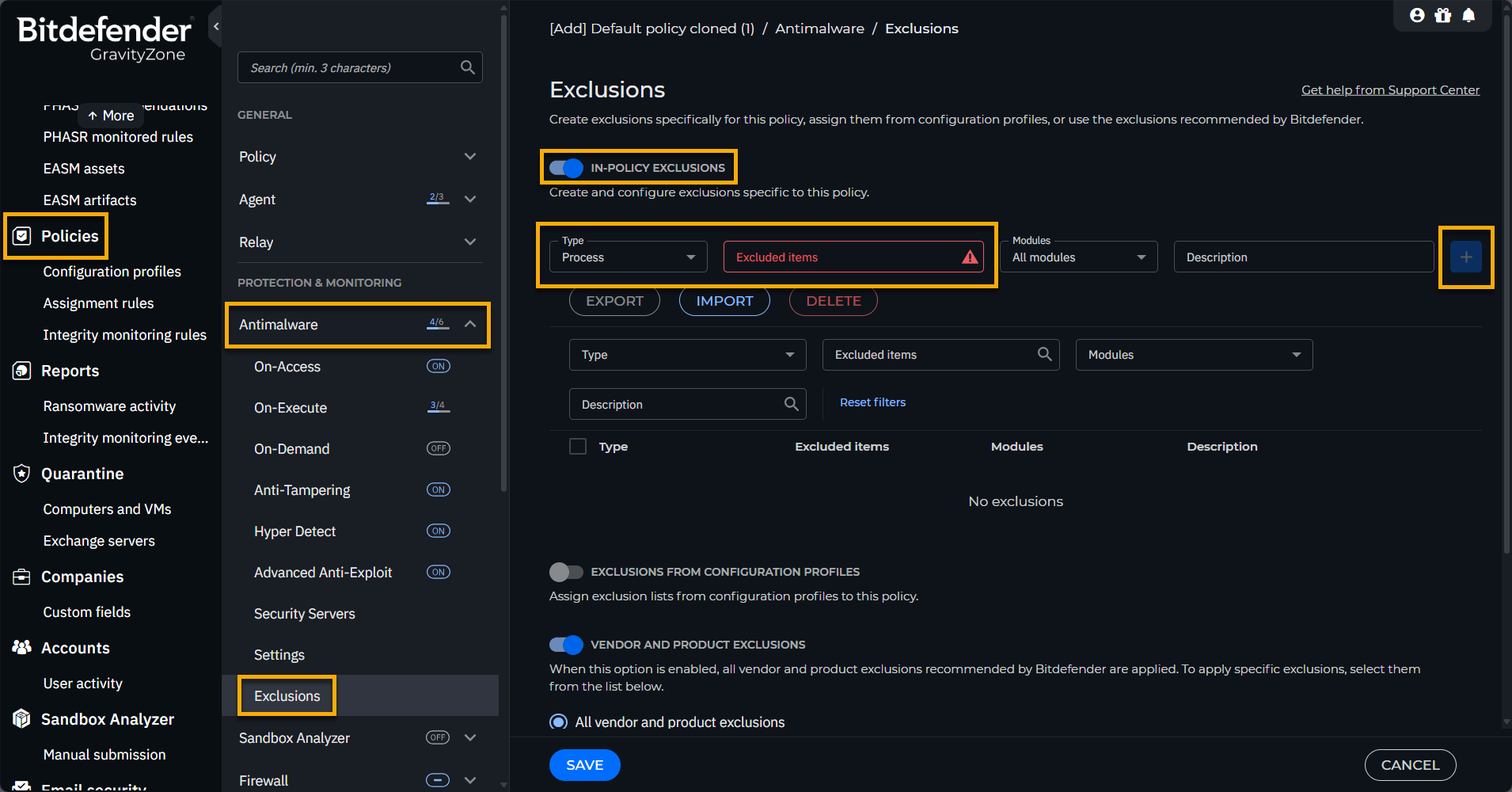
- To create a local file-based exemption, log in to Bitdefender Control Center and click Policies in the left navigation pane.
- If you already have an existing custom policy, click on it to edit it. Otherwise, click the Add button (+) to create a new policy.
- Go to Antimalware → Exclusions tab.
- Activate the toggle switch for In-Policy Exclusions.
- From the Type menu, select Process.
- Type the full path to the file you want to exclude from scanning into the Excluded items field.
- From the Modules menu, select All modules.
- Click the Add button (+) to add the file to the exclusions list.
- Save the policy and assign it to the workstations.
Figure 1: Configuration fields for file-based exemptions in Bitdefender GravityZone (click to enlarge)