
Topic
This article discusses adding a company-owned, Personally Enabled Android device to NinjaOne MDM.
Environment
- NinjaOne MDM
Description
You can use NinjaOne to enable and set access levels for Company-owned Personally Enabled (COPE) Android devices from within NinjaOne. COPE devices, while owned, secured, and managed by the company, allow users to customize interfaces and download applications for personal use.
Procedure
Prepare the device.
Ensure the device is either out-of-the-box or has been reset to factory defaults. COPE enrollment requires a blank device to enable full management.
Enable Android Enterprise
Before enrolling the device, ensure that Android Enterprise is enabled in NinjaOne. Refer to the instructions in the article MDM: Enable the Android Enterprise Device Management.
Add the Device to NinjaOne
- Navigate to the NinjaOne console and click the plus icon in the top-right corner.
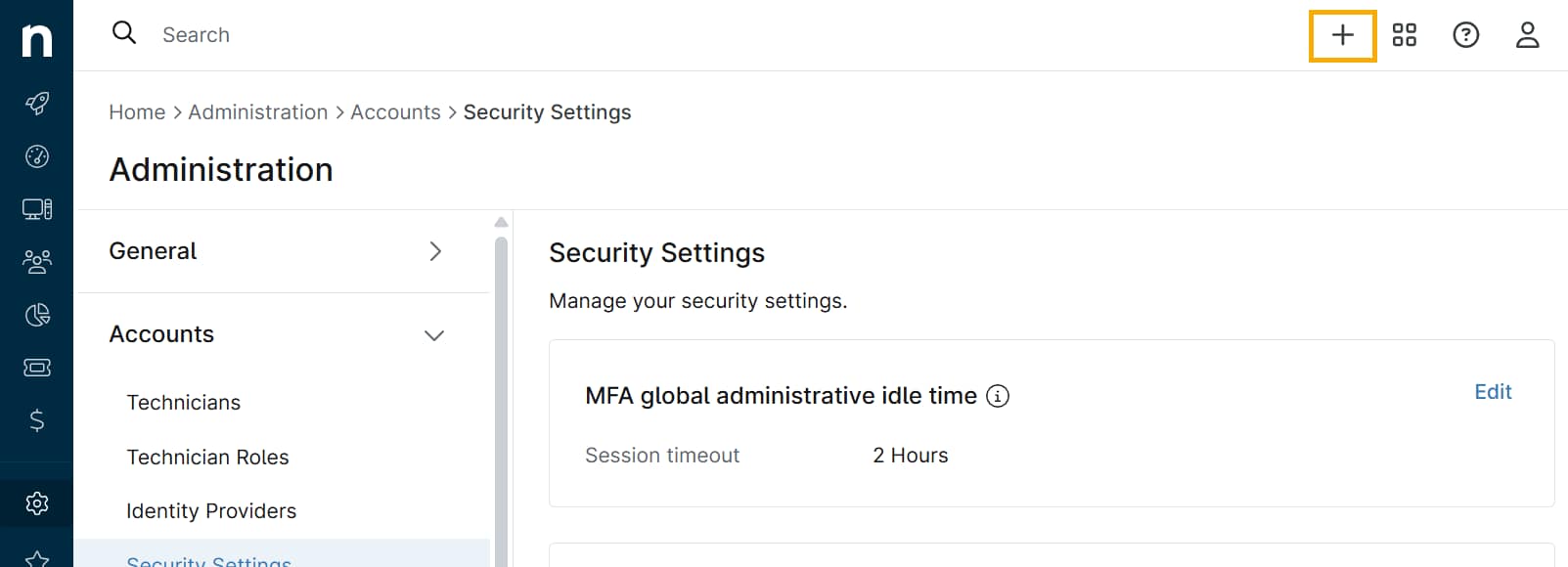
Figure 1: The NinjaOne Console (click to enlarge)
- Use the expanded menu to select Device → Mobile Device → Android.
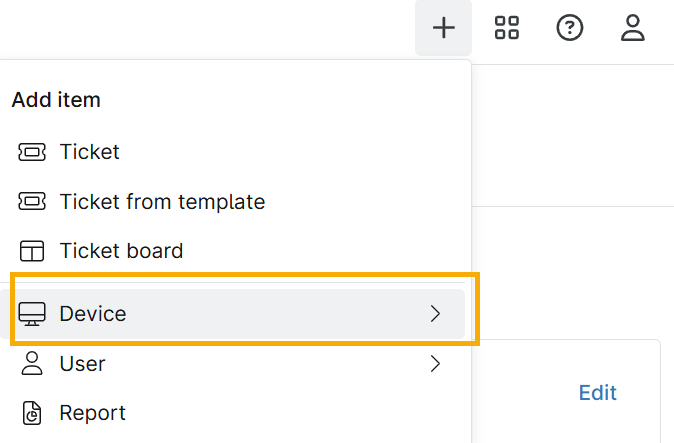
Figure 2: The Item Selection menu (click to enlarge)
- Set the Usage Type to End user device - allow personal usage.

Figure 3: The Add Mobile Device modal (click to enlarge)
- In the NinjaOne console. click Generate QR Code which will be used to enroll the device.
You can either:
- Scan the QR code directly on the device.
- Email or text (SMS) the QR code to the user for enrollment.
Enroll the Device
- On the device, tap the welcome screen six (6) times to activate the QR code scanner.
- Scan the QR code displayed in the NinjaOne console.
- Follow the on-screen prompts to complete the enrollment process.
Complete the Setup
After scanning the QR code, the device will automatically download the NinjaOne Assist app and any apps assigned at the policy level. It will then appear in the NinjaOne console under the designated organization and location.
Configure Policies
After enrollment, configure the appropriate MDM policies for the device, such as passcode requirements, app restrictions, and network settings. Refer to NinjaOne MDM: Android Policy Management for more detailed instructions.