
Topic
Learn how to create and manage invoices for NinjaOne's Billing tool.
Environment
NinjaOne Billing
Description
The NinjaOne Billing tool allows you to create and manage agreements, view invoices, and recalculate prices on time entries.
First, enable NinjaOne's Billing tool. Learn how to here: NinjaOne Billing: Getting Started with Professional Services Automation (PSA).
Then, select a category to learn more:
- Configure Invoices
- Manage Your Invoices
- Approve Pending Invoices
- Export Invoices and Line Item Data
- Additional Resources
Configure Invoices
Once you enable the NinjaOne Billing tool, you can configure your invoice data.
- Edit Invoice number generation settings to automatically generate invoice numbers with prefixes or suffixes. When invoice numbering is enabled, you can edit invoice numbers as long as the invoice is not marked as complete.
- Edit Invoices to control how time entry items are displayed on invoices. This allows you to present information in the format of your preference.
- Select an option from the Placeholders drop-down menu to copy data to your clipboard. Then, paste the data into either the Public or Private time entry text field.
- This tool works similarly to ticketing email automation in NinjaOne. Refer to NinjaOne Ticketing: Automation for more information.

Manage Your Invoices
Once enabled, the NinjaOne Billing tool provides a Finance tab in the left navigation pane, where you can create and manage agreements, view invoices, and recalculate prices on time entries. You can also perform these actions from the Finance tab on the Organization Dashboard.
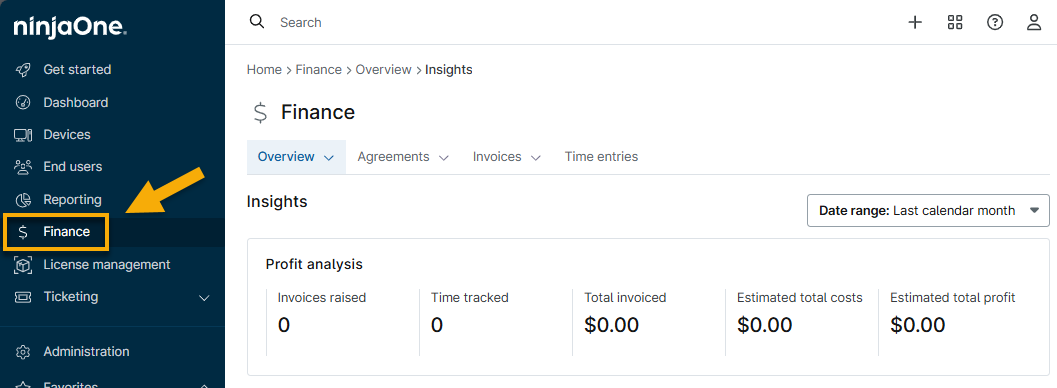
Once an invoice has been created from a service agreement, either automatically or manually, it displays in the Invoices section in Finances. The invoices are separated further based on their status.
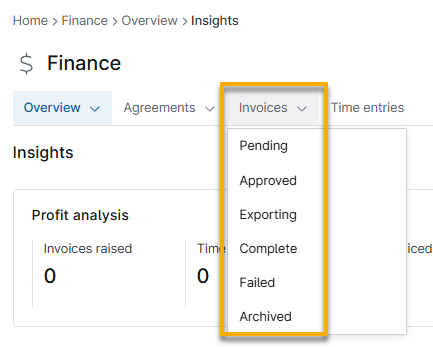
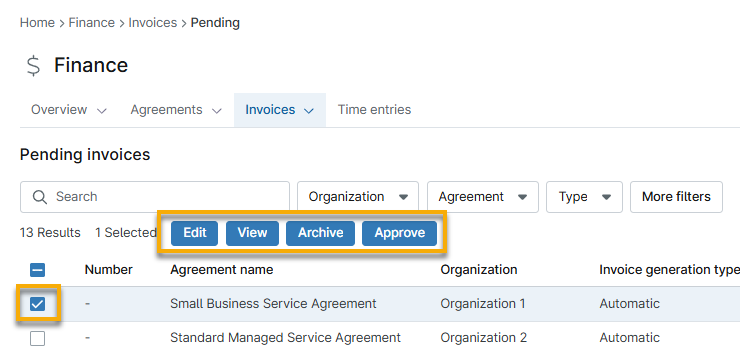
- Pending: Edit, view, archive, or approve pending invoices. Approved invoices will be sent to the payee.
- Approving the invoice sends it to the Approved tab.
- Approved: Archive, view, edit, or send approved invoices.
- Editing an invoice allows you to add, remove, or edit the products billed and change the start and end dates.
- Click Send to submit the invoice to the payee. The entry will update the Exporting tab.
- Exporting: View invoices that have been approved and sent to the payee. When the invoice is paid, the data is moved to the Complete tab; if the invoice is rejected or payment fails, the data is moved to the Failed tab.
- Complete: View and archive paid invoices.
- The View data is itemized per product, with a subtotal calculated at the bottom.
- Table column data includes taxes paid and currency used.
- Failed: View and archive invoices that failed to sync to QuickBooks Online.
- The Failure Reason column indicates the reason why the invoice failed to sync. Please contact support to determine why the sync failed.
- Set as Pending moves the data back to the Pending tab, which must be approved and sent again.
- Archived: View invoices that you set as "Archived." You can restore invoices from this tab by selecting the checkboxes and clicking the Unarchive button.
Approve Pending Invoices
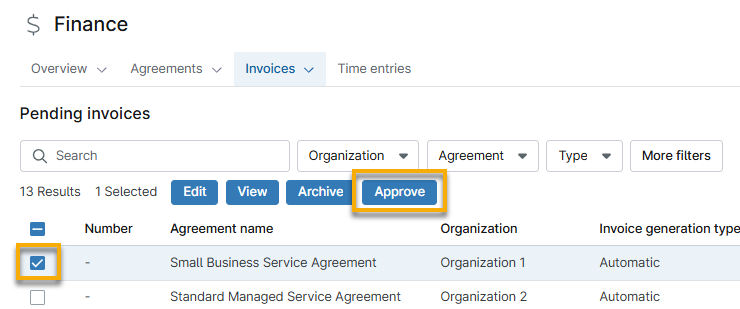
There are two methods for approving invoices from the Finance tab in NinjaOne:
- Select the checkbox next to the invoice Number column and then click Approve.
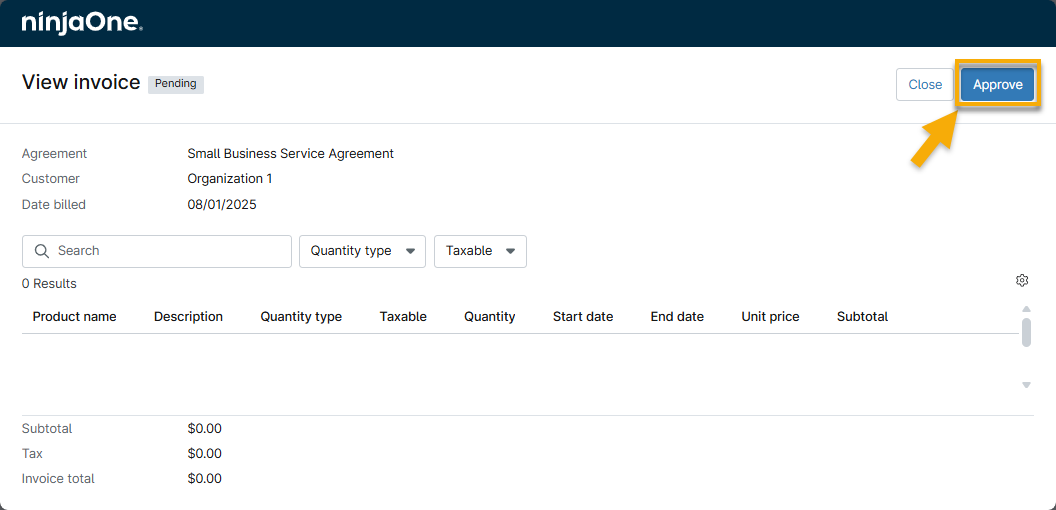
- Select the checkbox next to the invoice Number column and then click View. Review the data to ensure its accuracy, and then click Approve.
Export Invoices and Line Item Data
This section explains how to export invoices or invoice line items. If you want to learn about the Invoices → Exporting tab, refer to the section Manage Your Invoices.
You can filter and export relevant invoices and their line items as .csv files. This enables you to import data into third-party accounting tools and allows NinjaOne Billing to work with accounting tools that are not yet directly supported.

What the Exported Data Includes
All invoice tables will provide data for the following:
- Agreement
- Approval status
- Invoice ID
- Invoice number
- Due Date
- Invoice generation type
- Subtotal
- Billing period start date
- Billing period end date
- Created
- Last Updated
Global invoices will provide an additional column for the NinjaOne organization name.
Invoice line item data will include the following:
- Invoice ID
- Invoice number
- Organization
- Product name
- Description
- Product type
- Taxable (yes or no)
- Division or currency
- Quantity
- Billing period start date
- Billing period end date
- Unit price
- Subtotal
Additional Resources
Refer to NinjaOne Billing: Resource Catalog to view all related articles.