
This article discusses agent deduplication in NinjaOne.
Environment
NinjaOne Endpoint Management
Description
Agent deduplication is the automatic detection and merging of duplicate device instances in NinjaOne. A duplicate device can arise when the NinjaOne agent on an endpoint stops reporting and requires a manual uninstall and reinstall, causing the reinstalled device to register as a new entry alongside the dormant original. When active, agent deduplication automatically merges the new instance with the dormant device, preserving the device's historical Activities feed data.
Only system administrators can activate or deactivate agent deduplication.
Select a topic to continue:
- How NinjaOne Identifies Duplicate Devices
- Setting Up Agent Deduplication
- Enabling Notifications for Re-Enrollment Activities
NinjaOne Agent: Decuplication (NinjaOne, Inc., 01:25)
How NinjaOne Identifies Duplicate Devices
NinjaOne uses the following criteria to identify duplicate devices:
- Machine ID: A unique identifier that the NinjaOne Agent passes to the NinjaOne servers at registration. This ID consists of a unique Basic Input/Output System (BIOS) identifier and the Media Access Control (MAC) address of the device's network adapters. Adding or removing network adapters changes the Machine ID and can affect deduplication logic.
- Organization: The duplicate device must register under the same organization as the dormant device for NinjaOne to merge them.
Setting Up Agent Deduplication
- In NinjaOne, navigate to Administration → General → Settings → Agent installer and click Edit.
- In the Installer Settings section, click Edit next to the Deduplication: Merge devices if a duplicate device is found on installation setting.
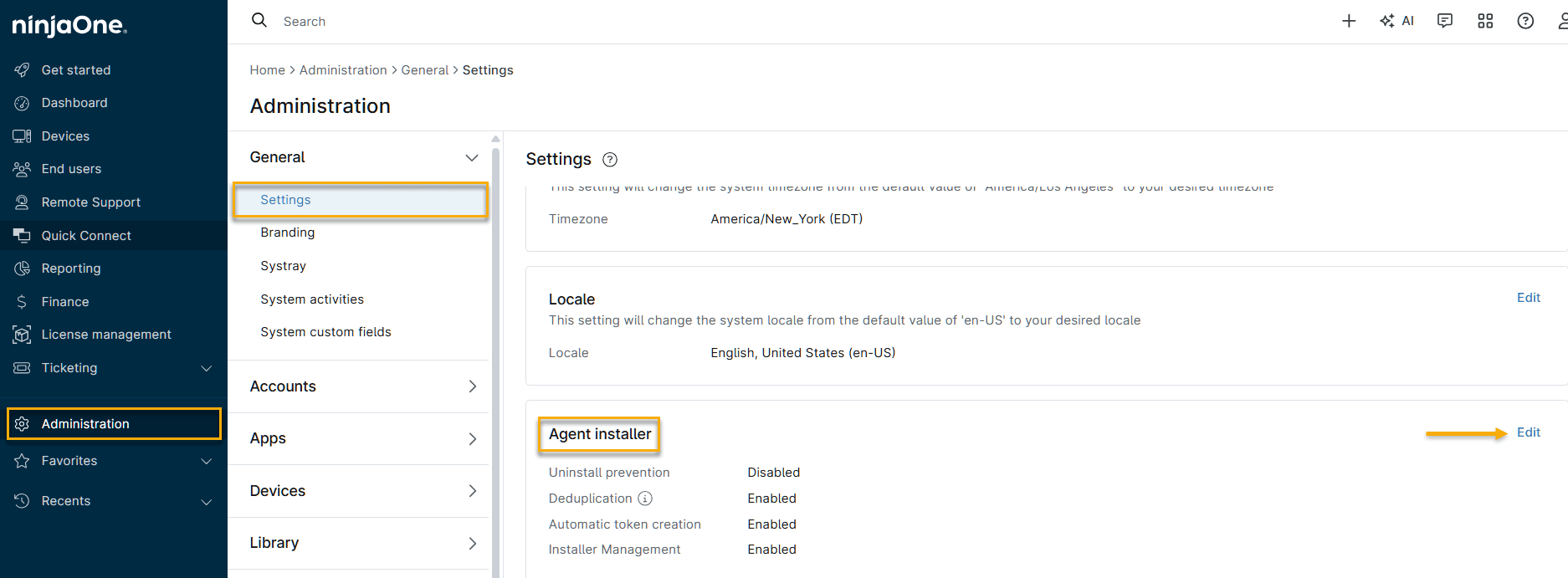
- Activate the Agent deduplication toggle, then click Update.
After activation, NinjaOne will automatically merge duplicate devices upon detection. This merge applies only to devices that enroll as duplicates after you activate the setting. When the merge completes, NinjaOne will restore the dormant device's historical Activities feed data and continue adding new entries. Refer to NinjaOne Endpoint Management: Device and System Activity Notification Feed for more information.
Enabling Notifications for Re-Enrollment Activities
NinjaOne generates a system activity whenever a device merge event occurs. You can configure notifications for this activity by performing the following steps:
- In NinjaOne, navigate to Administration → General → System activities → Device re-enrolled, then place your cursor over the Actions button and select Edit.
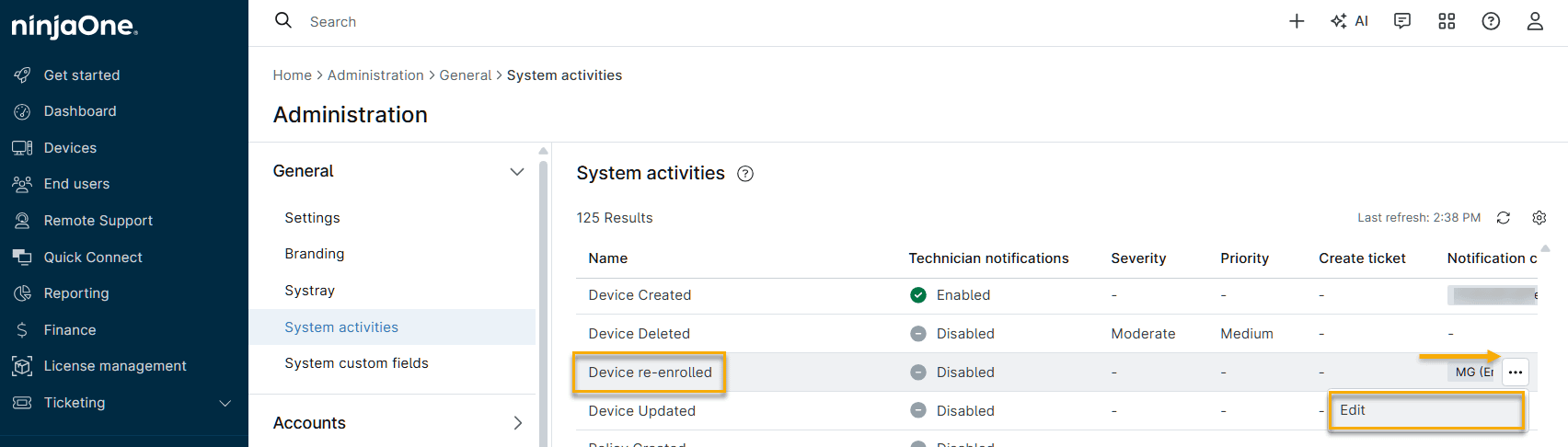
- The Edit activity settings window will open. Enter the following information. When finished, click Save.
| Field | Description |
|---|---|
| Severity | Severity defines the extent to which the condition can affect operations. |
| Priority | Determine whether the issue should be examined immediately or at a later time. |
| Create Ticket | NinjaOne Ticketing customers can automatically create a ticket from a ticket template. Refer to NinjaOne Ticketing: Automation Triggers and Templates for more information. |
| Notification Channels | Select the channels through which technicians receive the notification. Refer to NinjaOne Endpoint Management: Notification Channels and Alerts for more information. |
| Notify technicians via SMS/Email | Select whether you want technicians to receive a notification when the condition triggers. |