
Topic
This article explains how to activate and use the NinjaOne IT Asset Management (ITAM) feature.
Environment
NinjaOne ITAM
Description
NinjaOne ITAM extends the NinjaOne platform so you can track and manage the lifecycle of any item you want within NinjaOne.
Index
Select a topic to learn more:
- Manage Permissions for Technicians
- Activate the Product
- Configure the Asset Fields
- Configure the Entity Relationships
- Configure Supplier
- Configure Unmanaged Roles
- Manage Assets from the NinjaOne Dashboards
- Use ITAM with the API
- Additional Resources
Manage Permissions for Technicians
System Administrator roles must grant technicians permission to use the NinjaOne ITAM tool. To do so, perform the following steps:
- Navigate to Administration → Accounts → All users or Technician roles and select a technician account or role to edit it.
- Select IT Asset Management and ensure the Enabled toggle is active.
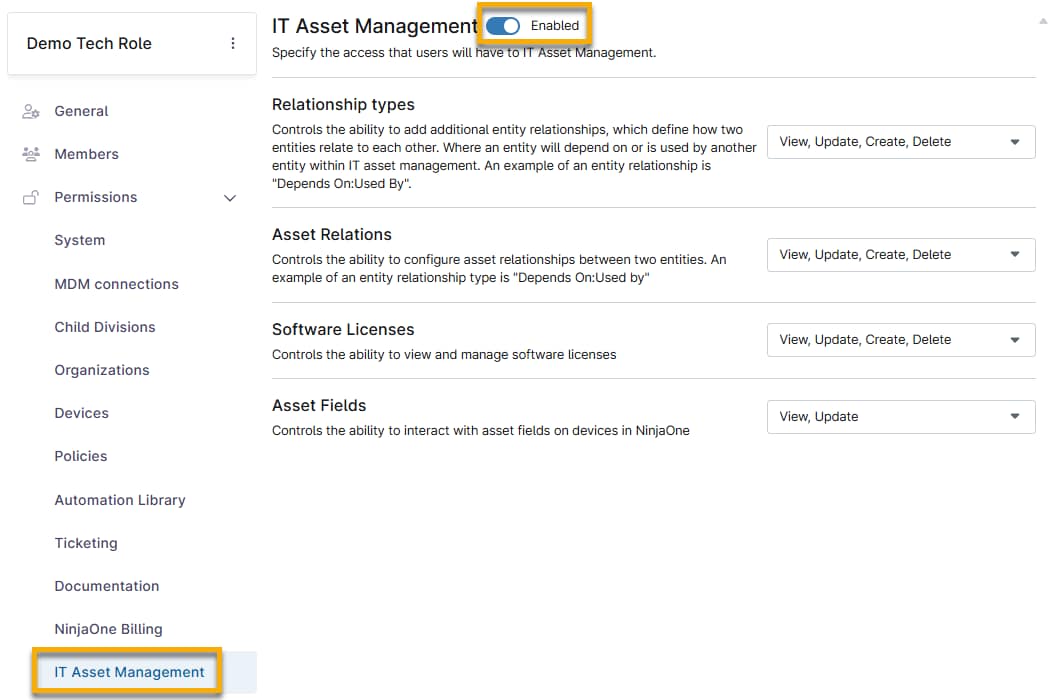
- Choose the applicable permission from each drop-down menu on the page, depending on the access you want the technician or role to have.
- Click Save changes.
Activate the Product
To use this feature, you must manually activate it. Perform the following steps:
- Navigate to Administration → Apps → Installed and select NinjaOne IT Asset Management.
- Click Enable.
Configure the Asset Fields
After you activate NinjaOne ITAM, three tabs will appear on the application configuration page.
Use asset fields to record basic information about the device and make it available to view on the device dashboard.
Open the Asset fields tab and then click Edit to configure the default settings. NinjaOne tracks this data for all managed assets.
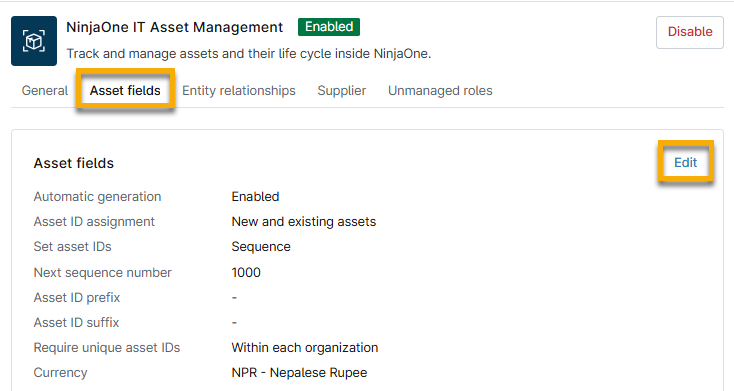
In the General section of the Edit asset fields settings dialog, select the default currency that your assets will use.
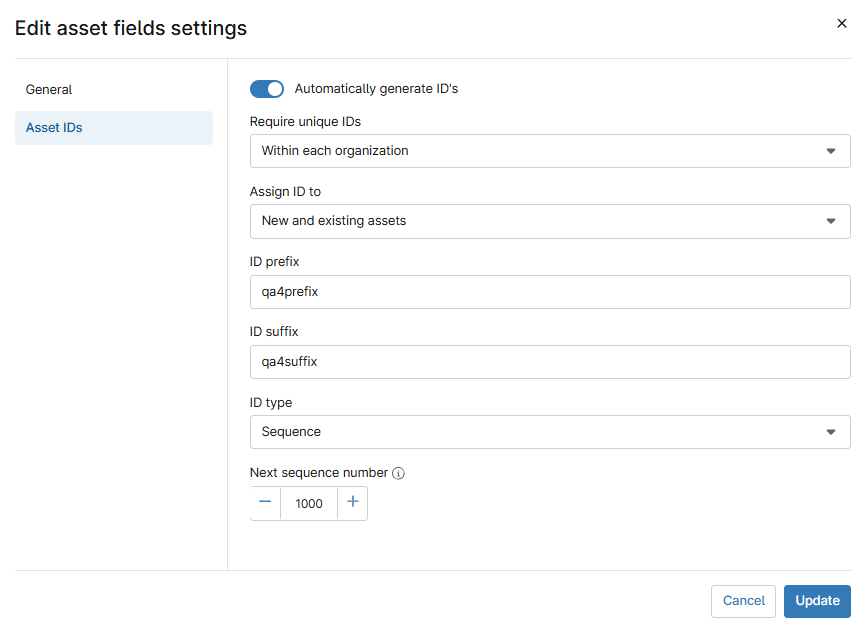
Then, open the Asset IDs section to configure identification settings for your assets. You can automatically generate identification numbers, prefixes, and suffixes for new and existing assets. If you set the ID type to Sequence, the Next sequence number value sets the starting point for generating the next ID if no existing ID exceeds the current value.
After you have created your asset ID, you can use that data to create a hyperlink to navigate directly to that device's dashboard. To create the URL, add your domain and the asset ID to the following example URL:
https://[domain]/#/assetManagement/search?assetId=[Asset ID Field][domain] and [Asset ID Field] text with your custom data. Figure 4 shows an illustration of the domain and Asset ID, so the URL should look like:https://qa6...-env.ninja/#/assetManagement/search?assetId=prx463sfx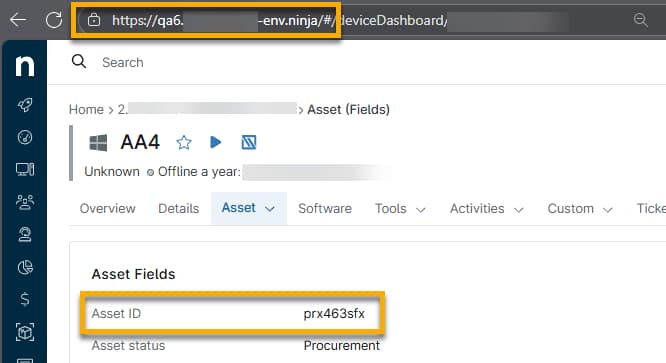
Configure the Entity Relationships
You can use NinjaOne ITAM to create global entity-to-entity relationships, which extend the functionality of a traditional database by connecting assets.
Refer to NinjaOne ITAM: Asset and Entity Relationships to learn more.
Configure Supplier
You can use NinjaOne ITAM to record supplier data for software licenses in NinjaOne.
Refer to NinjaOne ITAM: Supplier Data to learn more.
Configure Unmanaged Roles
When configuring unmanaged roles and custom fields, you can optionally import data from a preconfigured library of common asset types to help set up the unmanaged device.
- Open the Unmanaged roles tab and click Import.
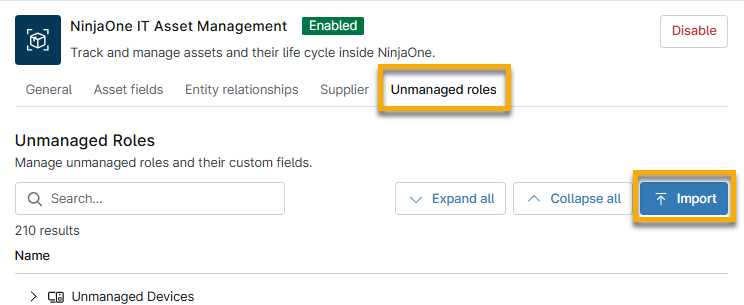
- Click the applicable buttons to expand and show or collapse and hide all category items, or click the arrows next to the category name.
- Click the category name that you would like to import. This import will include all items contained in the category, along with any associated custom fields and tabs.
- Click Continue.
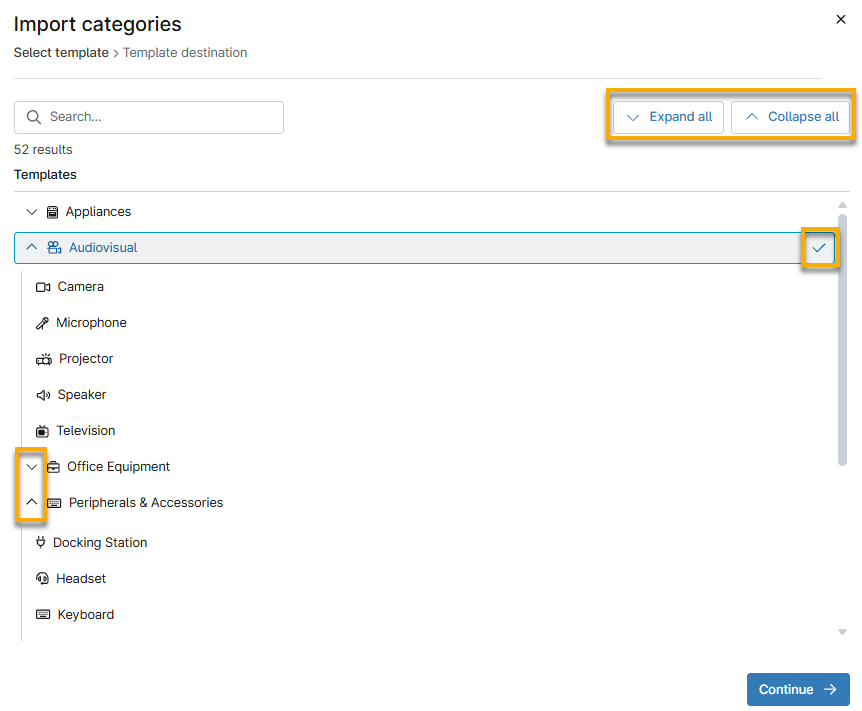
- Select a destination folder for the new category. To create a new folder, select the top-level Unmanaged Devices category.
- Click Import.
The new category will appear in the specified location in the Unmanaged Roles table in the ITAM application and at Administration → Devices → Roles. You can further manage roles by moving your mouse cursor over the row and clicking the actions menu. You can only delete the category folder after deleting all of its child categories. To learn more about working with unmanaged device roles in NinjaOne, refer to NinjaOne ITAM: Unmanaged Device Roles.

Manage Assets from the NinjaOne Dashboards
Technicians with permission to access the NinjaOne ITAM feature can manage assets from the end user, organization, and device dashboards.
Organization Assets
From the organization dashboard, you can manage licenses and asset relationships. Select the applicable option from the Assets tab.

For more information about managing licenses, refer to NinjaOne Endpoint Management: Asset Dashboard.
Device Assets
From the organization dashboard, you can manage asset fields, licenses, and relationships. Select the applicable option from the Assets tab.

- The Asset → Fields page allows you to view and update basic device information. Click the edit icon to change the data. NinjaOne publishes device information on the Devices search page.
- For more information about managing licenses, refer to NinjaOne ITAM: Software Licenses.
- For more information about managing asset relations, refer to NinjaOne ITAM: Asset and Entity Relationships.
Use ITAM with the API
You can use the following endpoints to gather ITAM information for staged or decommissioned devices. Refer to NinjaOne Documentation: Public API to learn more about the NinjaOne Public API tool.
GET /v2/devicesGET /v2/devices-detailed
Additional Resources
Refer to the following resources to learn more about the NinjaOne ITAM feature: