
Issue
My assigned applications are not deploying to the managed devices.
Environment
- NinjaOne Mobile Device Management (MDM)
- Apple iOS
- Apple iPadOS
Cause
Several factors could prevent applications from deploying to managed devices. Review the following Resolution sections to determine the cause.
Resolution
If you have followed all resolution steps and still experience issues, contact NinjaOne Support.
Content Token Usage
Verify that you are not using the same Apple Business Manager (ABM) or Apple School Manager (ASM) Apps and Books content token for a different Mobile Device Management (MDM) solution. For more information about using content tokens in NinjaOne, refer to NinjaOne MDM: Apple Apps and Books.
If you are using the same content token for different MDM solutions, you must either stop using the token in the other MDM or create a new location in ABM to use with the other MDM.
License Availability
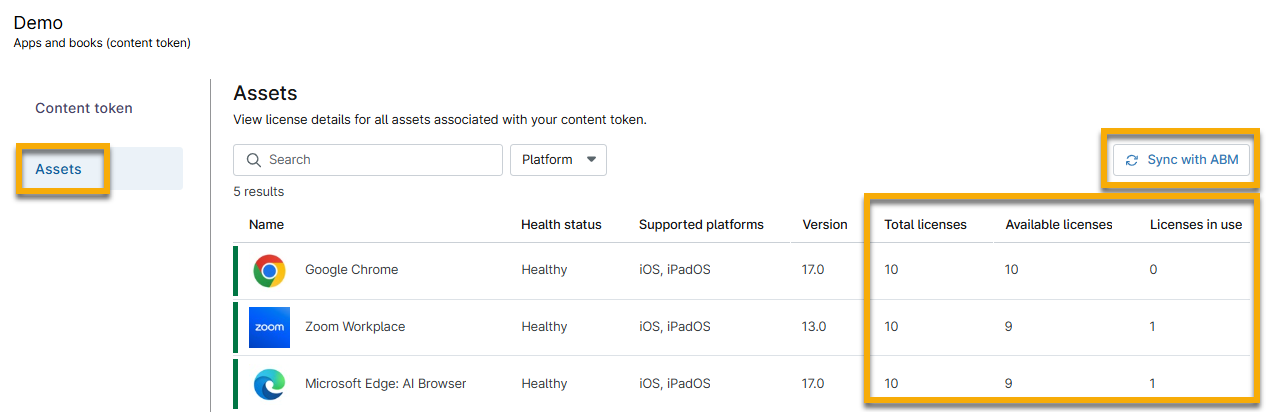
Confirm whether licenses are available for the application you are trying to deploy. To do so, perform the following steps:
- In NinjaOne, navigate to Administration → Apps → Installed → NinjaOne Apple MDM → Apps and Books.
- Place your mouse cursor over the content token and click the actions menu.
- Select Edit and then open Assets.
- Review the license columns to determine availability. If no licenses are available for the application, you must acquire additional licenses before deployment will succeed.
Volume Purchase Program (VPP) Issues
Use the Apple - Support - System Status (external link) page to determine whether any known issues are preventing applications from deploying to managed devices. If so, you must wait for Apple to release a fix.
General Troubleshooting
If the resolution options provided in the previous sections of this article do not work, try the following general troubleshooting tips.
Refresh the Token and Resync
- Renew the Apps and Books token. To learn how, refer to NinjaOne MDM: Apple Apps and Books.
- On the physical device:
- Tap Play.
- Select Security Actions → Resync Policies.
Add a New App License
- In ABM: Add a license for a new app.
- In NinjaOne:
- Navigate to Administration → Apps → Installed → NinjaOne MDM Apple → Apps and Books → View Assets → Sync with ABM.
- Verify that the app appears in the deployment table.
- Navigate to Administration → Policies → MDM policies and open the policy that manages the device in question.
- Add the app from the Apps and Books distribution type.
- Save the policy.
- On the physical device, resync the policy.
Network-related Issues
Attempt to deploy the application via an alternate network, such as a cellular hotspot. Ensure the hotspot device is using cellular data and not the same WiFi as the previous attempt.
Additional Resources
To learn more about troubleshooting NinjaOne MDM, refer to NinjaOne MDM: Resource Catalog.