
Issue
I cannot establish a connection to a machine using NinjaOne Remote.
Environment
NinjaOne Remote
Cause
There are two possible causes for this issue:
- Specific URLs or IPs could be blocking your NinjaOne Remote connection.
- Changes to Sophos application management. Refer to Announcement: Recent Changes From Sophos Affecting NinjaOne Remote for more information.
Resolution
Verify there are no specific URLs or IPs blocking your NinjaOne Remote connection by reviewing our NinjaOne Global Allowlist Information article. If you meet the allowlisting requirements and the issue persists, review the following sections for resolution steps.
Time Sync
Incorrect time syncs may cause failures when attempting to connect using NinjaOne Remote. During the connection, NinjaOne Remote requires you to sync both devices correctly to facilitate connection encryption.
- Configure time sync by running the following commands:
net start w32timew32tm /query /status
- Perform a time sync in any of the following ways:
- In the system tray on your computer, right-click the time and date data. Select Adjust date and time, and then click Sync now.
- Run
w32tm /resyncfrom an administrator command prompt or the remote command prompt. - Run the following from an administrator command prompt or the remote command prompt.
net stop w32timew32tm /unregisterw32tm /registernet start w32timew32tm /resync
- Retest the connection.
Port Access
Perform the following actions on the device seeking connection to NinjaOne Remote:
- Ensure port 443 is open.
- Review the
netstat -a -bcommand to see the ports that are currently in use and the executables involved. - To determine whether port 443 contains an issue, check if the port is bound by using the netstat command. Learn more by referring to netstat | Microsoft Learn (external link).
If you are still unable to connect the device, you can establish a proxy for a player or streamer using the following steps.
Set up a Proxy for ncstreamer.exe
NinjaOne Remote supports the use of SOCKS5 proxy with network support. However, it does not support the HTTP proxy. During startup, the player or streamer examines this environment variable and, if it exists and has the correct format, uses that parameter to establish the connection via that proxy.
- Navigate to Settings → System → About → Advanced system settings.
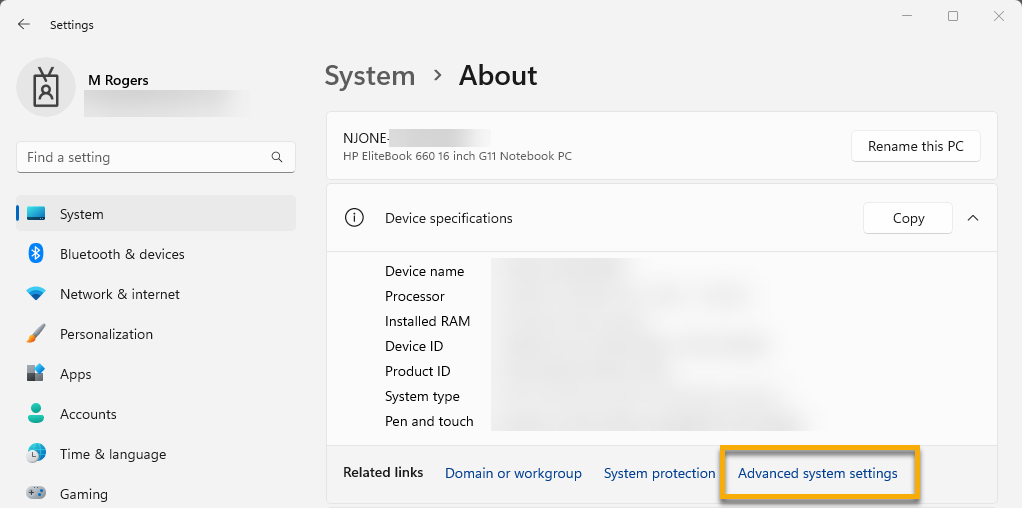
- In the System Properties dialog, click Environment Variables.
- From the System variables, click New.

Define the system environment variable
NC_PROXYformat as follows:Parameter Description NC_PROXY 192.168.1.1:1080:utente:password 192.168.1.1 IP address of SOCKS5 proxy 1080 SOCKS5 proxy port user User name for the proxy password Password for a given user for proxy access - Retest the connection.
Additional Resources
If the steps in this article did not resolve the issue, reach out to NinjaOne Support.
Refer to Remote Access: Resource Catalog to learn more about using remote access in NinjaOne.