
Topic
This article provides instructions for adding or blocking applications for managed mobile devices at the policy level in NinjaOne.
Environment
- NinjaOne Mobile Device Management (MDM)
- Apple iOS
- Apple iPadOS
Description
Add apps via the Mobile Device Management (MDM) policy editor to control which applications (apps) are available to end users and which are blocked.
In addition, NinjaOne's MDM tool supports apps assigned via Apple's App and Books Volume Purchase Program (VPP). Apple Business Manager (ABM) content tokens are supported per organization/location and provide information related to the token, assigned apps, and licenses from the MDM Configuration page in NinjaOne. To learn more about VPP support, refer to NinjaOne Apple Mobile Device Management (MDM): Apple Apps and Books.
Refer to our NinjaOne MDM Video Library to view videos related to NinjaOne MDM.
Index
Select a topic to learn more.
About the Assignment Types
You must connect the device to an iCloud account to access the Public App Store.
| Assignment type | Description |
|---|---|
| Required | Installs the app and provides additional options for app management:
|
| Blocked | When you save or resync a policy, NinjaOne will uninstall any app with the Blocked assignment type. This action does not prevent the user from installing the app from the mobile store, if allowed. NinjaOne will also instruct the operating system to prevent apps from being shown or launched in the Blocked configuration. This assignment type works only on devices enrolled as Company Owned or Supervised. |
The Applications table provides several data points at a glance. These columns can be removed or added by clicking the gear icon beneath the Add apps button. Refer to the following table for an outline of this information.
| Column name | Data |
|---|---|
| Name | The name of the app. |
| Seller | The vendor who owns or created the app. |
| Package ID | Apple's unique identifier for the app. |
| Cost | The price charged by the app. |
| Minimum OS support | Device version requirement to use the app. |
| Assignment Type | The assignment type that NinjaOne configured when adding the app (refer to instructions below this table). You can change this when editing an app. |
| Distribution Type | The method in which the policy added the app (Public App Store or Apps and Books). |
| Status | Active indicates that the app is blocked or installed on the physical device per the configured settings. Inactive means that the app is neither blocked nor force-installed, and its availability defers to the Restrictions set in the policy. |
| Overrides | If you created the policy using the parent policy option, Inherited or Overridden tags will indicate that the value has changed from the original policy. |
Add Apps From the App Store
You can add apps at the policy level, which deploys to all devices using that policy and allows you to use your Apps and Books token, or you can add apps ad hoc at the device level, which will always default to the iOS Public App Store.
Add Apps via the Policy
To add apps at the policy level, perform the following steps:
- In the MDM Apple policy, open the Applications section. Click Add and select Apps.

- Use the tabs to select an app from the Public App Store.

- Type the app's name or the publisher's name in the search field. If unsure what to enter, type a single letter and click Search.
- Click the app to open the installation options; alternatively, move your cursor over the app row and click the ellipsis button to review management actions.
- Select either Required or Blocked from the Assignment type drop-down, depending on whether you want the user to have access to the app. If you select Required, you can allow users to uninstall the app on their end or enforce management and removal of the app upon certain conditions. This function also applies when you switch a device's policy in the Settings tab on the device dashboard.

- Click Add.
Add Apps via the Device
To add apps for a single device, perform the following steps:
- From the Devices search page, click the action button and select Install apps.

- Type the app's name into the search field and click Search.
- Click the app you want to install on the device. A new dialog will appear to confirm that you are choosing to force-install the app. Select the applicable checkboxes to allow the user to remove the app, enroll in force management, or remove the app if the device is unenrolled in MDM.
- Click Install.
Verify Installed Apps
The managed app is listed in the policy, showing the app details and assignment type, and on the device dashboard at Software → Inventory.
Configure Apps
You can edit an app by moving your cursor over the row and clicking the ellipsis to review modification options. Configuration options are dependent on the distribution type.
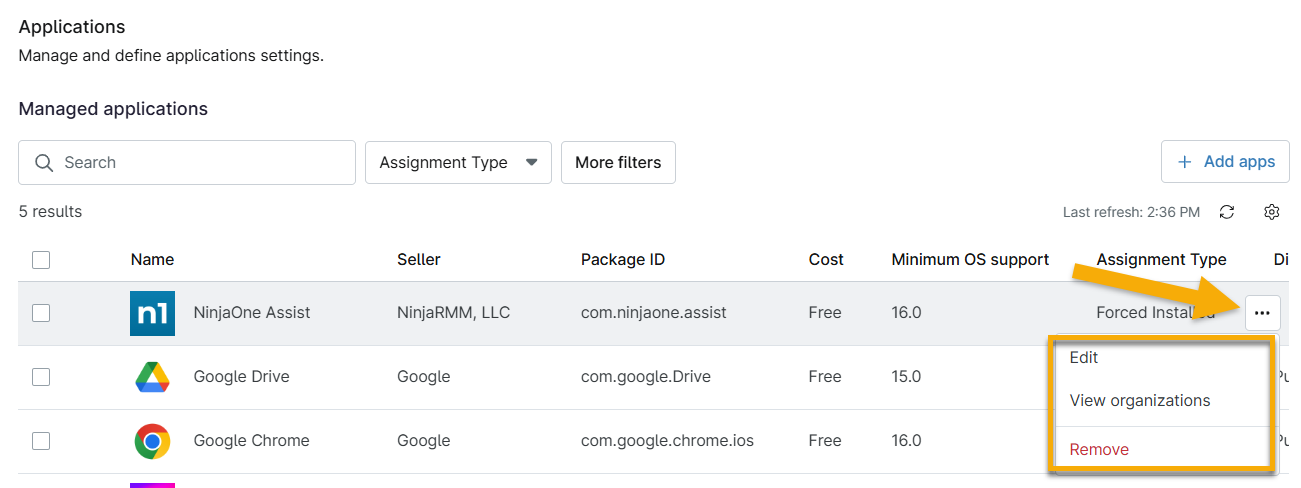
- Remove: Uninstall the app from all devices associated with the policy.
- Edit: Change the assignment type.
- View organizations: View all organizations assigned a content token for this app.
- This option is only available for apps added through Apps and Books.
- Revert overrides: Change an override to its original value.
- This option only appears if you modified a variable inherited from an original policy. Reverting an override will restore the policy to its inherited value.
Third-Party Configuration Settings
When editing an app (regardless of distribution type), you can change the assignment type (General) or deploy third-party configurations. An example of a third-party configuration is configuring your company's domain for your email service.
To deploy third-party configurations:
- Click Configurations in the Edit app policy dialog.
- Enter the code variables into the gray block starting at line 2. The configuration should always begin with a <dict> tag and always end with a </dict> tag. Technicians must provide key-value pairs supported by the application using the property list (p-list) format. Application developers should provide documentation about supported keys and values, and may provide example p-list dictionaries that you can use directly.
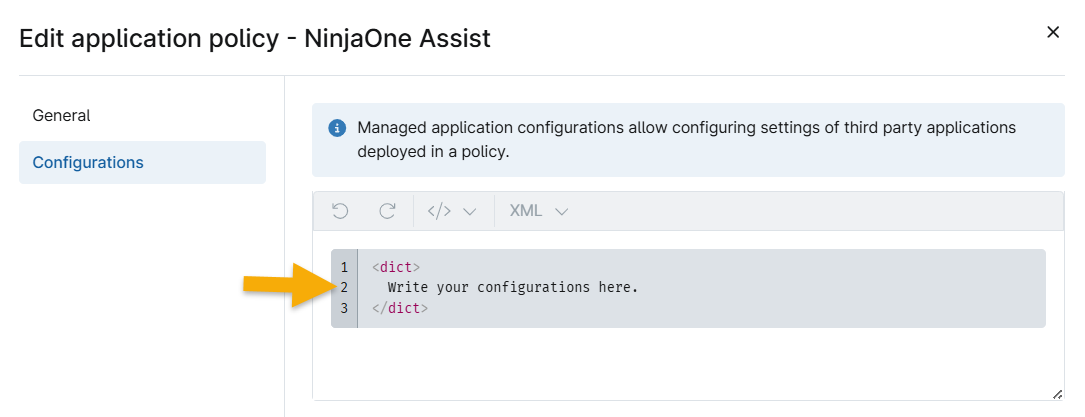
Refer to the following example of a valid configuration.
<dict>
<key>EmailAddress</key>
<string>${device.owner.email}</string>
</dict>
Refer to the following list of supported variables.
| Variable | Description |
|---|---|
| ${device.location.name} | The device's assigned location name value |
| ${device.location.id} | The device's assigned location ID value |
| ${device.organization.name} | The device's organization's name value |
| ${device.organization.id} | The device's organization's ID value |
| ${device.serialNumber} | The device's serial number value |
| ${device.id} | The device's GUID value (unique identifier) |
| ${device.owner.email} | The device's assigned user email address value |
| ${device.owner.firstName} | The device's assigned user's first name value |
| ${device.owner.lastName} | The device's assigned user's last name value |
| ${device.owner.displayName} | The device's assigned user's display name value |
Delete Apps in Bulk
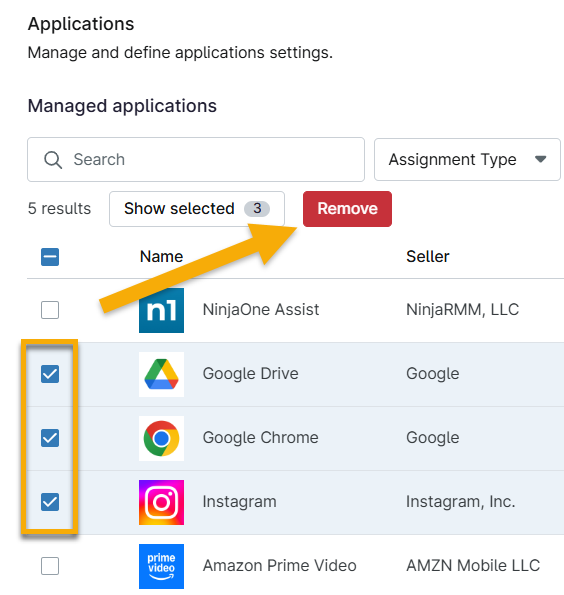
If you remove an app and save the policy, NinjaOne will uninstall the app from all devices associated with the policy.
To remove multiple apps at once, select the checkboxes next to the app name and then click Remove at the top of the table.
Additional Resources
Refer to NinjaOne Mobile Device Management (MDM): Resource Catalog to learn more about NinjaOne MDM.