
Topic
This article explains how to install Bitdefender GravityZone (BDGZ) by using NinjaOne Mobile Device Management (MDM).
Environment
- NinjaOne MDM
- NinjaOne Integrations
- Bitdefender GravityZone
Description
You can deploy Bitdefender GravityZone to your devices using NinjaOne MDM policy configurations.
Process Scope
- Create a device group in your GravityZone Mobile security console.
- Add the BDGZ application through your MDM policy in NinjaOne.
- Add the tenant information for Android devices.
- Activate the application for the device group (Android devices only).
Index
Create the Device Group
Before you can install the application in NinjaOne, you need to set up device groups in BDGZ.
- From the BDGZ platform, select Mobile security in the sidebar menu and click Open console for the company to which you want to add devices. To learn more about Mobile security configuration, refer to Bitdefender Support Center — Mobile Security (external link).
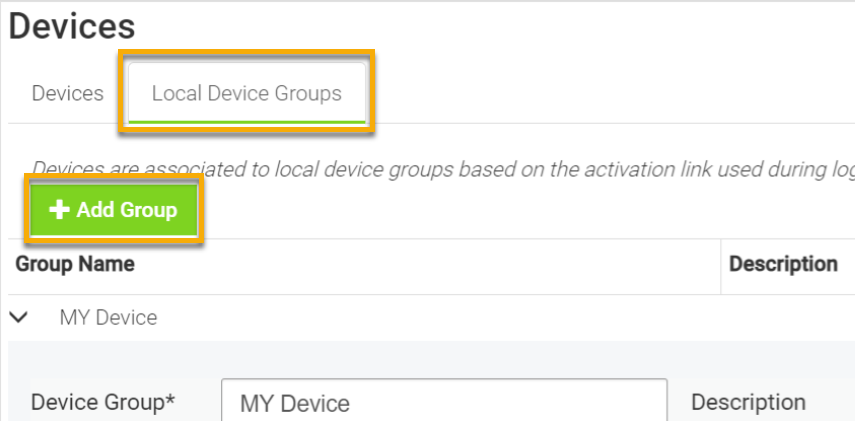
- Select Devices in the sidebar menu and open the Local Device Groups tab. Click +Add Group.
- Enter a unique identifier into the Device Group field and then click Save Group.
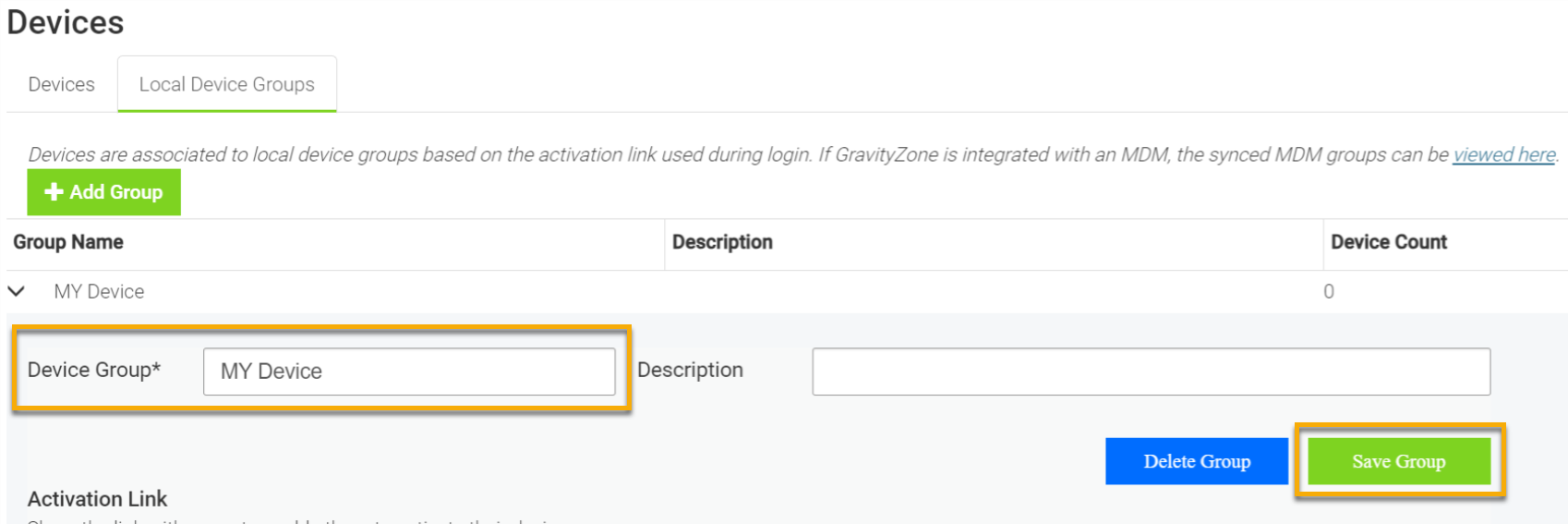
Keep this tab open for future use.
Install the Application
To learn more about adding applications to an Apple or Android MDM policy, refer to NinjaOne Apple MDM: Application (App) Management and NinjaOne MDM: How To Add Android Apps From the Google Play Store.
- Open NinjaOne in a separate tab, and navigate to Administration → Policies → MDM policies. Select the policy you want to update.
- Add the application to the policy.
- If you are adding the BDGZ application to an Android MDM policy, select Applications → Management in the sidebar menu and then click +Add apps → Play Store.
- If you are adding the BDGZ application to an Apple MDM policy, select Applications and click + Add → Apps. Use the Public App Store section.
- Use the search field to find the Bitdefender applications and select Bitdefender GravityZone MTD.
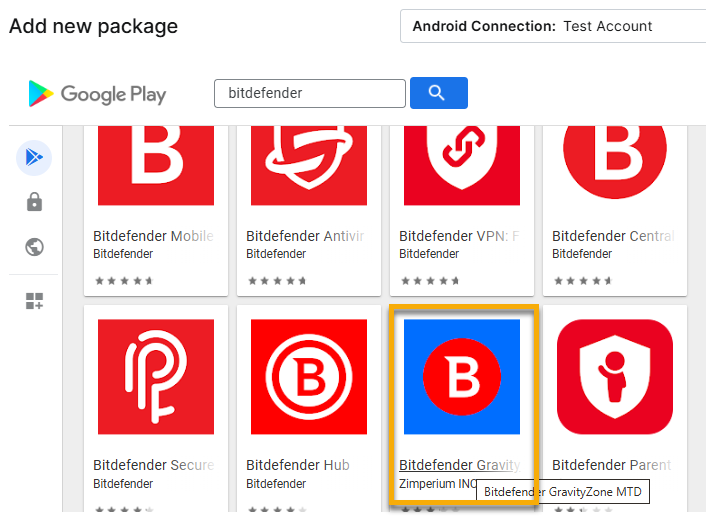
- For Android policies, click Select to install the application. For Apple policies, select Forced installment for the Assignment type and click Add.

- Click Close and then save the policy.
Android Policy Configurations
If you are installing Bitdefender GravityZone onto Android devices, use the following steps to add the tenant information.
- Return to the Mobile security company console page on the BDGZ platform. Select Devices in the sidebar menu and click Manage. Copy the Tenant ID.
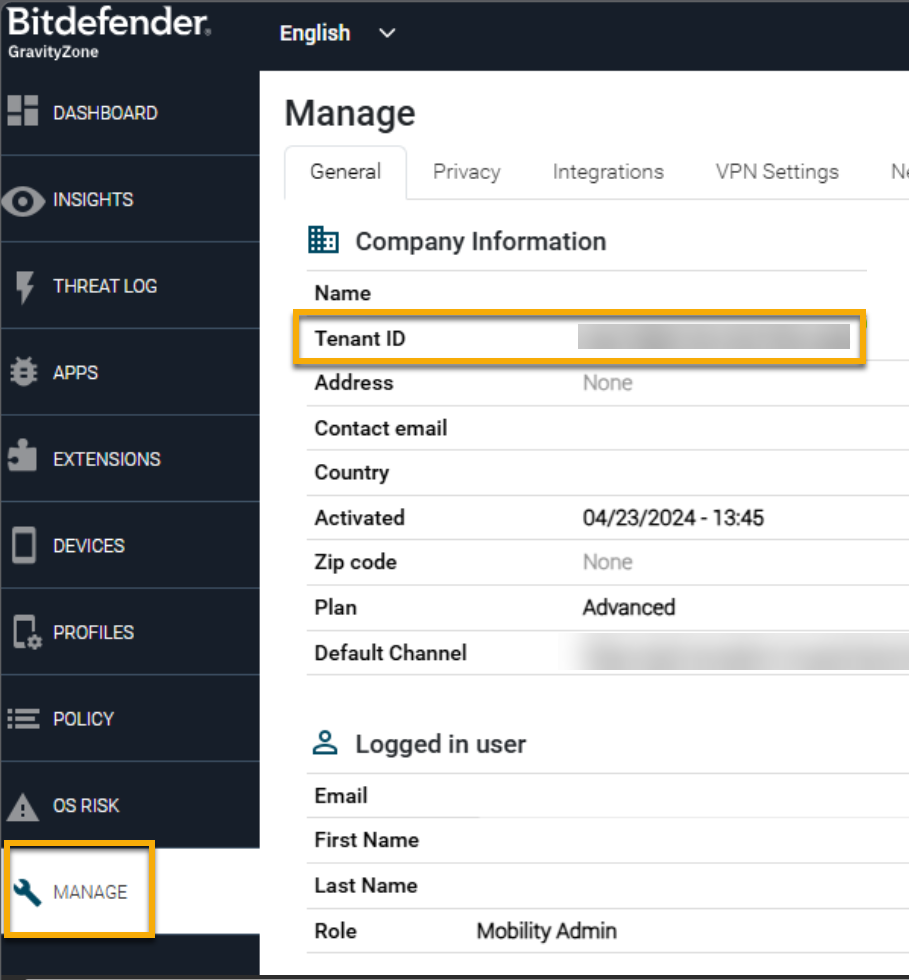
- On the NinjaOne platform, open the Android policy and edit the Bitdefender GravityZone MTD application. Click the Managed configurations tab.
- Paste the Tenant ID from BDGZ into the Tenant field in NinjaOne.

- Return to the Mobile security company console page on the BDGZ platform. Click Devices.
- Click Copy Link for the device group you created earlier in this process.
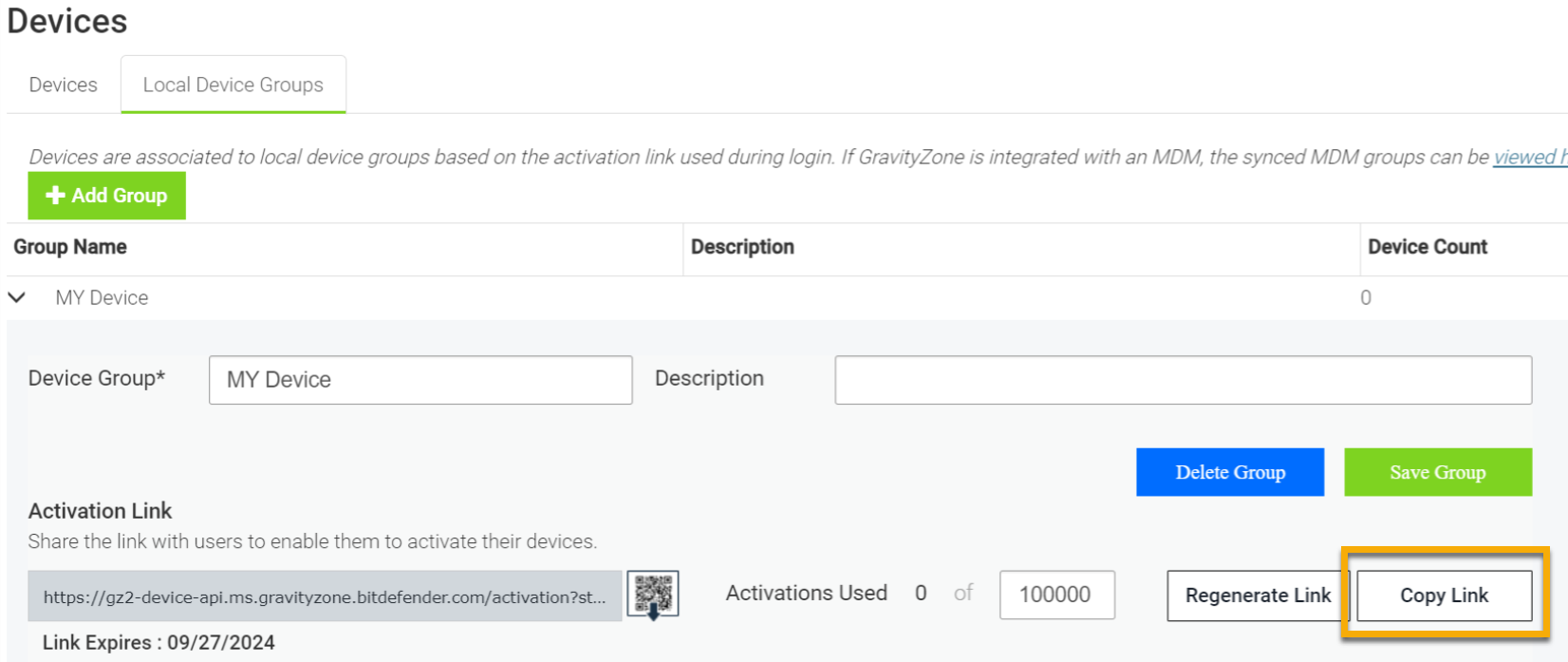
- On the NinjaOne platform, in the application's Managed configurations tab, paste the data into the Activation Link field.
- Click Update and save the policy.
Additional Resources
- For more resources about NinjaOne MDM, refer to NinjaOne MDM: Resource Catalog.
- For resources about the Bitdefender GravityZone integration, refer to Integrations and Third-Party Apps: Resource Catalog