
Environment
- NinjaOne Endpoint Management
- NinjaOne Agent for Linux
Description
The NinjaOne Agent installer is an executable file that installs the NinjaOne Agent on a device, enabling the device to be monitored and managed in NinjaOne. This guide explains how to generate the installer from the NinjaOne platform, download it to your device, and share an installer link with end users.
How to Add a Computer to NinjaOne (NinjaOne, Inc., 00:01:26)
Before You Start
Before generating the installer, confirm that your environment meets the following requirements:
- You must generate and install the NinjaOne Agent on a device before you can manage the device in NinjaOne.
- To generate the NinjaOne installer, you first need to set up an organization and create a policy. Refer to NinjaOne Endpoint Management: Creating and Editing Organizations and NinjaOne Policies: Create and Manage a Policy for instructions.
Generating a NinjaOne Installer
In NinjaOne, click the Add icon and select Device from the drop-down menu.
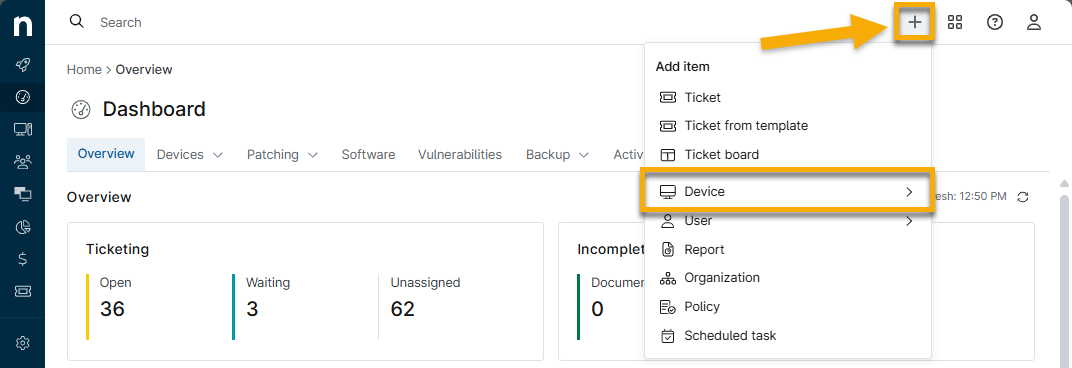
Figure 1: Add → Device (click to enlarge) - Select Device from the menu.
- The Add a computer window will open.
- Select Linux from the operating system options.
- Select the appropriate Organization, Location, Device Role, Distribution type, and Architecture values.
- Click Generate Installer.
- NinjaOne will surface a prompt alerting you that the installer has been generated successfully.

Sharing a Link to the Installer
Click Download to save the installer to your device, or click Copy link to copy a shareable installer link to your clipboard. [VERIFY WITH PM: Add full click path for Download and Copy link UI elements.] This link may expire in the following circumstances:
- Division cached installers are cleared.
- A minor or major agent upgrade is released.
- A bug fix for an installer-related issue has been released.
Installing the Linux Agent on a Device
You must run the installer on the command line for Linux devices. The following instructions work for RPM Package Manager or Debian or Ubuntu.
RPM Package Manager Instructions
Use this procedure for the following distributions:
- Red Hat Enterprise Linux (RHEL)
- Fedora
- CentOS
Install NinjaOne Directly from the Generated Link
- Open a terminal and type the following command, replacing [rpm package link] with the installer link generated by NinjaOne.
wget -O ninjarmm-agent.rpm [rpm package link]- Run the following commands, replacing [rpm package name] with the rpm package name. If the install succeeds, the directory lists NinjaOne program files, such as ninjarmm-linagent.
sudo rpm -i ninjarmm-agent.rpm

ls /opt/NinjaRMMAgent/programfiles- Verify the installation by running the following command. Your device should return an output of Active.
sudo systemctl status ninjarmm-agent.serviceInstall NinjaOne from a Downloaded Copy of the Installer
- Open a terminal and navigate to the directory in which the RPM package is saved, then type the following commands. If the install succeeds, the directory lists NinjaOne program files, such as ninjarmm-linagent.
sudo rpm -i [rpm package name]

ls /opt/NinjaRMMAgent/programfiles- Verify the installation by running the following command. Your device should return an output of Active.
sudo systemctl status ninjarmm-agent.serviceDebian Package Manager Instructions
Use this procedure for the following distributions:
- Debian
- Ubuntu
Procedure
Install NinjaOne Directly from the Generated Link
- Open a terminal and type the following command, replacing [deb package link] with the installer link generated by NinjaOne.
wget -O ninjarmm-agent.deb [deb package link]- Run the following commands. If the installation succeeds, the directory lists NinjaOne program files, such as ninjarmm-linagent.
sudo dpkg -i ninjarmm-agent.deb

ls /opt/NinjaRMMAgent/programfiles- Verify the installation by running the following command. Your device should return an output of Active.
sudo systemctl status ninjarmm-agent.serviceInstall NinjaOne from a Downloaded Copy of the Installer
- Open a terminal and navigate to the directory containing the DEB package.
- Enter the following commands. The directory will list NinjaOne program files such as ninjarmm-linagent.
sudo dpkg -i [deb package name]

ls /opt/NinjaRMMAgent/programfiles- Verify the installation by running the following command. Your device should return an output of Active.
sudo systemctl status ninjarmm-agent.serviceAdditional Resources
The following articles provide additional guidance for deploying the NinjaOne Agent to other platforms and environments.
- For information about installing on Microsoft Windows devices, refer to NinjaOne Agent Installation: Add a Microsoft Windows Device.
- For information about installing on macOS devices, refer to NinjaOne Agent Installation: Add an Apple macOS Device.
- For additional methods of deploying the NinjaOne Agent on multiple devices, refer to NinjaOne Installer: Mass Deployment.
- To learn more about the NinjaOne Agent, refer to NinjaOne Agent: Resource Catalog.