Topic
This article shows you how to enable NinjaOne's native ticketing tool and configure your customized settings.
Environment
NinjaOne Ticketing
Description
NinjaOne Ticketing allows users with the appropriate account permissions to create, track, and resolve tickets without the need for third-party software.
To set user permissions for NinjaOne Ticketing, refer to NinjaOne Ticketing: Technician and User Permissions.
To view more videos about NinjaOne Ticketing, check out our Video Library
- Terminology Used in this Article
- Enable NinjaOne Ticketing
- Configure General Settings
- Configure Incoming Email Settings
- Create and Manage Ticketing Boards
- Configure Custom Fields for Ticketing Forms
- Configure Ticketing Forms
- Configure Tags
- Configure Ticketing Automation Rules
- Configure Custom Status
- Additional Resources
Terminology Used in this Article
Learn more at NinjaOne Terminology.
| Term | Definition |
|---|---|
| IP | Internet protocol |
| SMTP | Simple mail transfer protocol |
| SSL | Secure socket layer |
| Systray | System tray |
Enable NinjaOne Ticketing
Currently, only system administrators can enable the NinjaOne Ticketing app.
- Click Administration in the left-side navigation pane and select Apps. The Installed page opens by default—click NinjaOne Ticketing.
The Ticketing editor displays. - Click Enable.
- Select the options for your general settings, which are outlined in the following section of this article.
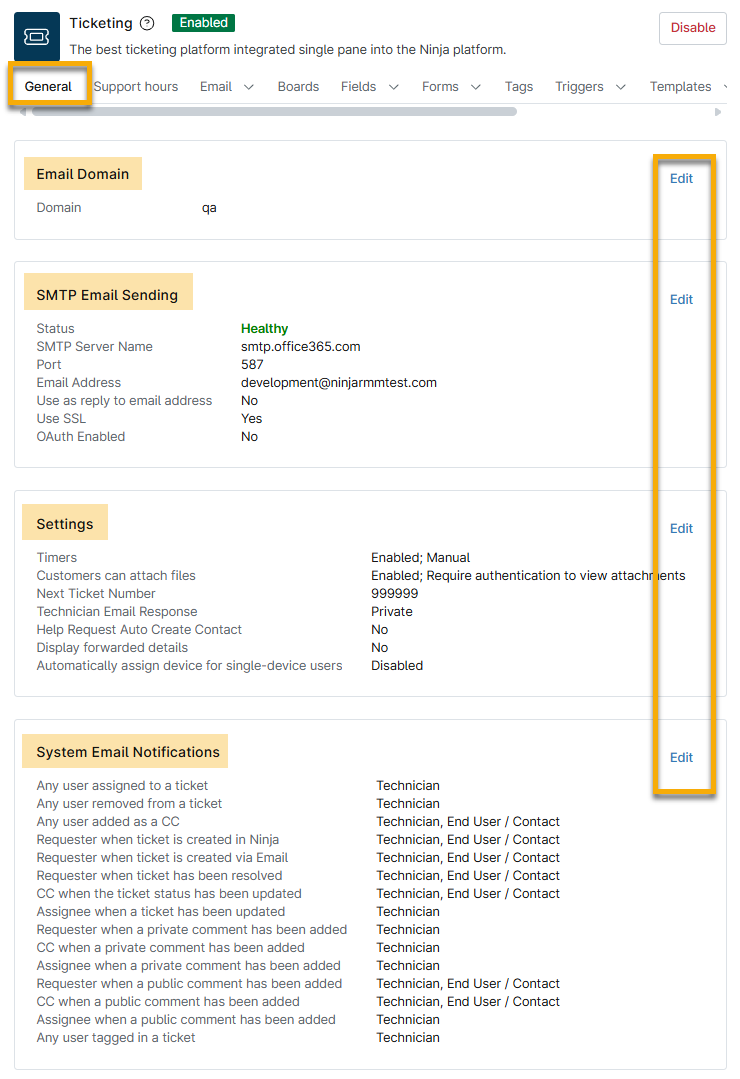
Configure General Settings
System administrators are prompted to configure these settings during the initial setup process for NinjaOne Ticketing. These settings can be updated at any time.

Email Domain
The first group of settings includes the option to configure your domain. This is the custom name of your Ticketing instance and is used to create email addresses for your users. This field is required and can reflect any name you want to display for ticket emails.
To learn more, refer to the section titled Configure Incoming Email Settings further in this article.
SMTP Email Sending
The option to use a dedicated SMTP email server for sending ticketing emails is disabled by default, meaning that Ticketing uses NinjaOne's default email server for outgoing email. If you'd prefer to have Ticketing use your own configured SMTP server, click Edit to enter the necessary credentials.
- Select "Basic" for Authentication Type to continue with non-Microsoft 365 setup, or refer to NinjaOne Ticketing: SMTP Microsoft 365 Configuration for instructions.
- Activate the Enabled toggle switch to power on the outgoing mail server.
- Enter the SMTP server name, the port, whether this dedicated server uses SSL, and the email and password.
- Click the Test button to verify the connection and resolve any errors that may be reported. Then, click Save.
- NinjaOne's mail server IP, 198.37.154.203, must be allowlisted. Refer to our Global Allowlist (Whitelist) Information for complete information.
- Only a system administrator can configure the SMTP information.
- If the SMTP connection stops working at any point (the credentials are changed but not updated in NinjaOne), an error message indicating this will be displayed as a banner in the ticket editor.
- After saving the outgoing mail server settings for the SMTP Email Sending setup, a "Pending" status displays if the configuration is not complete. A "degraded" status indicates temporary or transient errors and changes to "Healthy" when the issue is resolved. If the error persists, the status will transition to "Unhealthy" with a tooltip that explains the reason for the error.
- Clicking Test sends an email to confirm the correct configuration settings.
- If you select the checkbox to Use SMTP Username, an additional field will display, allowing you to provide an SMTP username. Use this option if your provider requires a username, rather than just an email address.
Settings
Ticketing Settings affect general ticket behavior.
| Setting | Description |
|---|---|
| Timers |
|
| Starting ticket number | The ticket number that should be assigned to the next incoming ticket (this is intended to assist users who are transitioning from another ticketing product but want to pick up from the previous numbering system). The default value is 1000. |
| Attachments | The ability for end-users to attach files to tickets and the requirement for technicians to authenticate their identity to view those attachments. |
| Technician email response | This option creates either a public response to the requester or a private internal note when the response to a ticket is via email rather than from within the ticket in NinjaOne. |
| Systray help request | The options here relate to your system tray ("systray") branding options. For more information about systray branding, refer to Branding: Systray Icon. If this setting is enabled, the contact can be created either under the organization that manages the device or as a global contact. If this option is disabled, tickets created from systray help requests will not automatically provide a requester. |
| Email receptions | This option controls whether NinjaOne Ticketing will include the From, To, Date, and Subject headers in forwarded emails. If this is disabled, the headers will be removed and will not be recoverable. |
| Automatically assign device for single-device users | If a user is the owner of a single device and that device is assigned to the same organization named in the ticket, that device will be automatically assigned to the user's tickets. To learn how to set a user as the owner of a device, refer to Add or Change Device Owner. |
Business Hours
The next settings allow administrators to designate their business hours (the standard hours of work and communication for your business). These hours refer to the entire business rather than individual technician work schedules.
Business hours are set to "24 hours, 7 days a week" by default but can be customized for each day of the week.
Use the toggle switches to determine whether your business is closed or open on a particular day, and specify the hours during which you are open. The business hours you select reflect the time zone you entered at Administration → General → Settings. Automations can be configured according to your business hours.
- To learn more about customizing your time zone settings in NinjaOne, refer to Time Zone Settings.
- To learn how to set up ticketing automations, refer to NinjaOne Ticketing: Automation.
System Email Notifications
System notification email settings enable you to enable or turn off email notifications for various types of system or ticketing events, depending on whether the user is a technician or an end user.
Use the tabs on the left side of the configuration modal to switch between technician and user notifications and then select whether the recipient will receive a notification and, if so, which email template will be used for the notification. To learn more about email templates, refer to NinjaOne Ticketing: Email and Notification Management.
To learn how to configure these settings, refer to NinjaOne Ticketing: Email and Notification Management.
Boards
Use ticket boards to organize your tickets into different categories.
| Board | Description |
|---|---|
| All tickets | All existing tickets in the Ticketing system. |
| Open tickets | All tickets that have not been resolved. |
| My tickets | All tickets assigned to the logged-in technician. |
| Deleted tickets | All deleted tickets. |
| Unassigned tickets | All tickets that have yet to be assigned to a technician. |
| Organization Dashboard Tickets | Relates to the Ticketing tab on the organization-level dashboard. Refer to NinjaOne Ticketing: Device and Organization Dashboards for more information. |
| Device Dashboard Tickets | Relates to the Ticketing tab on the device-level dashboard. Refer to NinjaOne Ticketing: Device and Organization Dashboards for more information. |
Add a Ticketing Board
To add a new ticketing board, perform the following steps:
- Open the Boards tab and click Add.

Use the following table as a guide to complete the applicable fields.
Field Data General Name Provide a unique identifier for the board Description Optionally, provide a summary of what kind of tickets will be sent to this board. Conditions Meets all conditions You can add one or more conditions under this field. If you add multiple conditions, the ticket will be created only if all conditions are met.
The more conditions you add here, the narrower the requirements for routing that ticket to the board.Meets any condition You can add one or more conditions under this field. If you add multiple conditions, the ticket will be created if only one of the conditions is met. Columns and sorting Use the fields in this section to change the default sorting and display of the board. You can add or remove columns and rearrange the way they are presented, so you can see only the information that is important to you. If you have conditions under both All and Any, and the ticket meets the Any conditions but not the All conditions, then the ticket will not be routed to the board.
Tickets can exist on multiple boards simultaneously, and if the conditions for a specific board are no longer met, it will be removed from that board.
- Click Save.
Edit, Copy, or Delete a Ticketing Board
Custom boards may be edited, copied, or deleted by selecting the checkbox next to the board name and then clicking Edit, Copy, or Delete. Alternatively, move your cursor over the board name and click the ellipses button to view these options.
Default boards labeled "System" cannot be deleted, but you can edit and copy them.

Configure Board Layout
To change the layout of your ticketing board, perform the following steps:
- Click Display Order.

- Use the Visible boards field at the top of the configuration modal to determine how many boards are visible in the left-side navigation pane before NinjaOne displays the Show All option (this will not include the "Pending Emails (#)" option). This value can be set to any value between 1 and 20, and defaults to 5. An eye icon
displays for each row that is considered "visible."

- To reorder the boards, click and hold the row and then drag it to the desired spot.
- Click Save to confirm changes.
Fields
Custom fields may be created in the Fields tab to further customize different ticketing forms. Learn more about custom ticketing forms in the following section.
Forms
To help facilitate your understanding of ticketing forms, we created NinjaOne Ticketing: Configure Custom Fields and Forms for Tickets. Refer to this article to learn how to create, edit, deactivate, and implement the forms.
Tags
You can use tags to dictate which boards a ticket applies to, or create automations based on those tags. This tab allows you to create new tags, and rename, merge, and delete existing tags.
Triggers
Ticketing automation is separated into the Triggers and Templates tabs on the NinjaOne Ticketing application configuration page.
To learn about ticketing automations, refer to NinjaOne Ticketing: Automation Triggers and Response Templates.

Custom Status
This feature allows users to create new custom statuses that display as children of existing system statuses (New, Open, Waiting, Paused, Resolved, Closed). These custom statuses can be assigned to any ticket and can be applied to board conditions, board filters, and automations.
For more information, refer to NinjaOne Ticketing: Ticket Creation and Management.
The NinjaOne Ticketing Custom tab is separated into two sections; click the section name to learn more:

Custom Ticketing Statuses
Use the status of the ticket to communicate the progress of the ticket (pending, testing, backlogged, and more).
If there is a number next to the status name, this indicates that custom statuses have been added; click the arrow to expand the section and view new statuses.
To manage custom statuses, open the Custom → Status tab on the NinjaOne Ticketing configuration page; move your cursor over the status to view customization options.
- If the status is at the top or primary level, you have the following options:
- Edit status: Change the display name and notification options.
- Add custom status: Create a secondary status.
- If the status is at the secondary level, you have the following options:
- Edit status: Change the display name and notification options.
- Delete: Erase the status.

The Resolved setting at Custom → Status works differently from other custom statuses; in addition to creating a display name, you must also select an option for Automatic transition for resolved tickets and Transition time for resolved tickets.
The data for the Automatic transition for resolved tickets drop-down menu is dependent on the custom fields configured for Closed statuses.

Custom Ticketing Relationships
Use ticketing relationships when linking tickets or assigning parent tickets on the ticketing boards; refer to the Related Tickets section of the NinjaOne Ticketing: Ticket Handling article to learn more.
You must enable the Ticket Relations permission for technicians to access this setting. Check out our NinjaOne Ticketing: Technician and User Permissions article for more information.
To create a custom relationship for linked tickets, perform the following steps:
- Open the Custom → Relationships tab on the NinjaOne Ticketing configuration page and click Add relationship.

- Give the Relationship name a unique identifier and optionally add a description.
- Click Add.
You can deactivate or change the name and description of relationships that you added in the system. You can only deactivate the native relationships that are tagged as "System."

Additional Resources
Refer to the Ticketing Resource Catalogue to learn more about NinjaOne Ticketing.