
Topic
This article explains how to set up System for Cross-domain Identity Management (SCIM) with Okta's custom Security Assertion Markup Language (SAML) 2.0 application.
We recommend setting up Single Sign-on (SSO) and SCIM using the NinjaOne Okta Integration Network application, as it greatly simplifies the configuration process. Use the following resources for setup instructions. If your organization requires advanced identity configurations not supported by the OIN template, this article provides SCIM setup steps using Okta’s Custom SAML 2.0 app.
Environment
- NinjaOne Identity Access Management (IAM)
- NinjaOne Integrations: Okta
Description
Integrating Okta with NinjaOne via SCIM allows you to automatically create, delete, and provision technicians and end users within NinjaOne. This article serves as a starting point for SCIM configuration with NinjaOne. Configuration is dependent on your specific Okta setup, so we recommend reviewing the Additional Resources section to find related processes.
For more details on the concepts behind lifecycle management with SCIM and Okta, refer to Understanding SCIM | Okta Developer (external link).
Select a category to learn more:
- Prerequisites
- Configure SCIM in Okta With a Custom SAML 2.0 Application
- Configure Group to Role Mapping in NinjaOne
- Additional Resources
Prerequisites
Before you can provision user accounts via SCIM, you must create the IDP and enable SSO. To do so, refer to Configuring NinjaOne SAML in Okta.
Configure SCIM in Okta With a Custom SAML 2.0 Application
To set up SCIM with Okta's custom SAML 2.0 application, perform the following steps:
- Log in to your Okta account as an administrator.
- In the navigation pane, expand the Applications drop-down menu and select Applications.
- Select the NinjaOne application.

- Open the General tab and select SCIM in the Provisioning section.
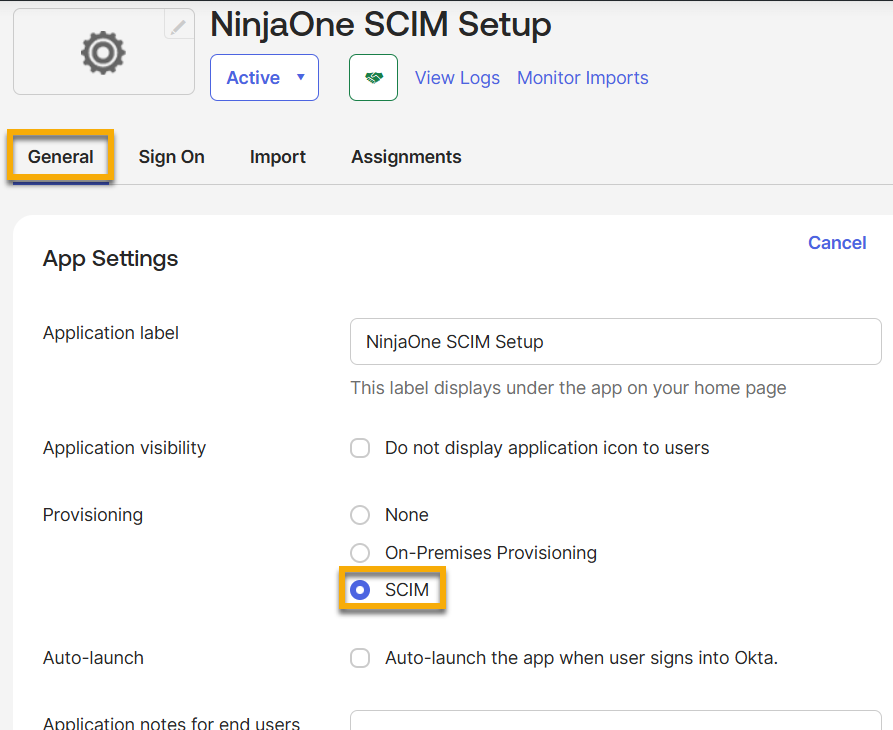
- Click Save.
- Open the Provisioning tab and select Edit. Click Configure API Integration.
- In a separate browser tab, sign in to the NinjaOne console as a system administrator.
- Navigate to Administration → Accounts → Identity Providers and select your Okta entry.
- Click Edit in the System for Cross-domain Identity Management widget.

- In the Configure SCIM modal, click the toggle switch to enable SCIM provisioning.
- Click Generate token.

- Click the paper icon to copy the SCIM secret token and also the SCIM API endpoint URL. Return to the Okta Admin console.
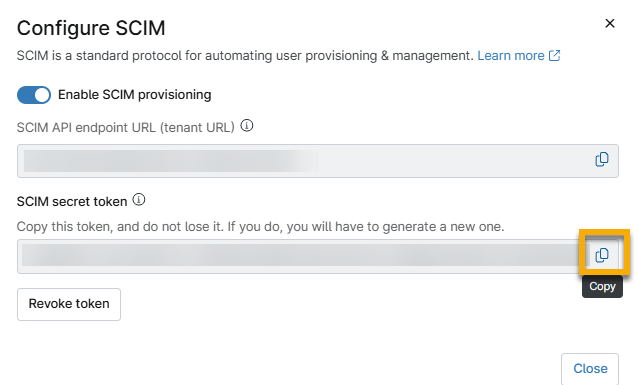
- From your previous location on the Okta Admin Console (NinjaOne application), paste the SCIM API endpoint URL from NinjaOne into the SCIM connector base URL. Select the checkbox Enable API integration and then paste the SCIM secret token from NinjaOne.
- Set the Unique identifier field for users to an Okta user attribute that contains a value of an email address. Common attributes include userName (Okta username) and email (primary email). For more information, refer to User Profiles | Okta Developer (external link).
- Select the checkboxes for the following Supported provisioning actions:
- Push New Users
- Push Profile Updates
- Push Groups
- Set the Authentication Mode to HTTP Header.

- Open the Provisioning tab to find new settings available for configuration.
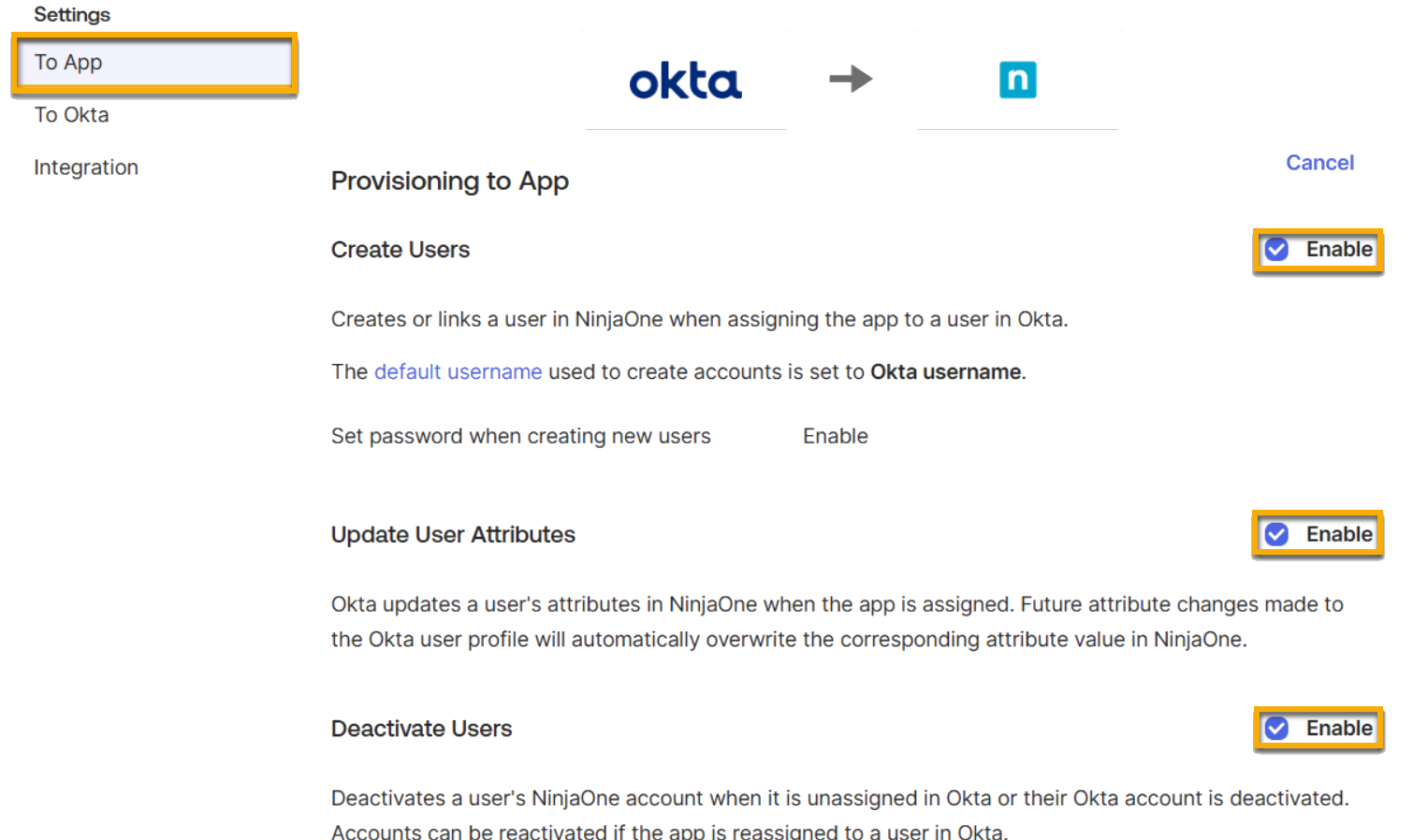
- Open the To App tab and click Edit.
- Select the checkboxes for the following provisioning options:
- Create Users
- Update User Attributes
- Deactivate Users
- Scroll to the Attribute Mappings section and click Go to Profile Editor.
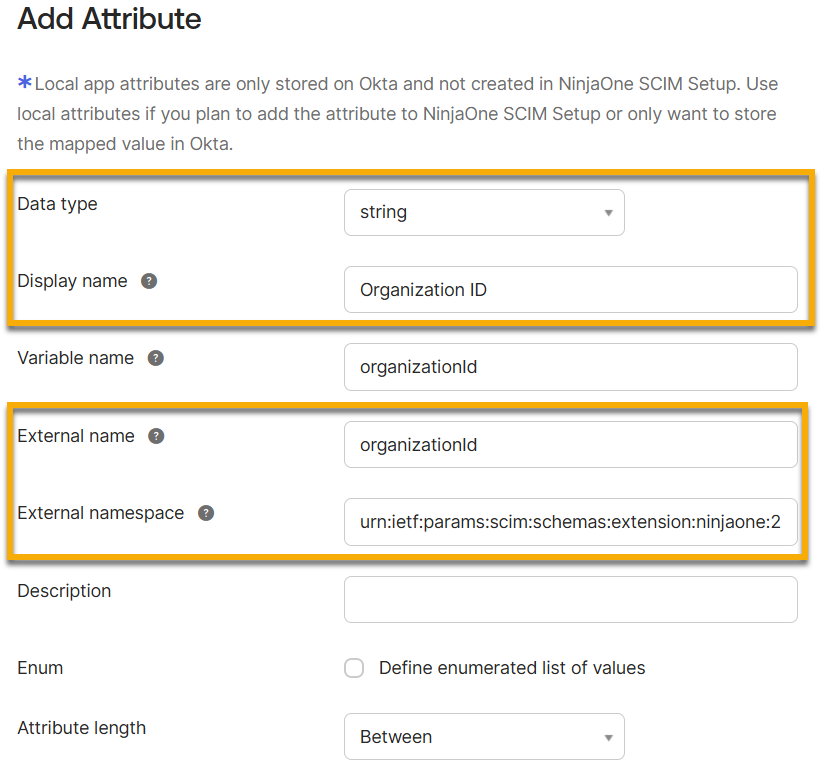
If you will be assigning end users to specific organizations, select Add Attribute and then configure the following fields:
Attribute Field Value Data type "String" Display name Enter a unique identifier External name "organizationId" External namespace "urn:ietf:params:scim:schemas:extension:ninjaone:2.0:User" Attribute type "Group" (recommended)
- If you intend to create NinjaOne technician accounts, you must first unmap and delete the default User type attribute. Refer to the following steps for instructions.
In the Profile Editor, click Mappings and set the
userTypeattribute to Do not map. Repeat this step in the NinjaOne SCIM to Okta User and Okta User to NinjaOne SCIM tabs. Save Mappings when complete.
Figure 9: SCIM setup user profile mappings - Locate the User type attribute in the Attributes list and delete the entry. Allow a few minutes for the change to take effect.

- Click Add Attribute and then use the following table to configure the applicable fields:
| Attribute Field | Value |
|---|---|
| Data type | "String" |
| Display name | Enter a unique identifier |
| External name | "userType" |
| External namespace | "urn:ietf:params:scim:schemas:extension:ninjaone:2.0:User" |
| Attribute type | "Group" (recommended) |
- Return to the Provisioning section of the NinjaOne SCIM application. In the To App section, remove all mappings from the Attribute Mappings section except for the following:
| Attribute | Value |
|---|---|
| userName | Okta automatically sets this field |
| givenName | "user.firstname" |
| familyName | "user.lastName" |
| organiztionId (optional) | Select any value |
| userType | Select any value |
Create NinjaOne Technician Accounts
When creating technician accounts, you must assign a unique value to the userType attribute. Failing to do so will create an end user account.
The userType attribute has two accepted values:
- Set the attribute to "technician" to create a technician account.
- Set the attribute to "endUser" (case sensitive) to create an end user account.
To map the userType attribute, perform the following steps:
- Click the pencil icon to edit the fields.
- Refer to the following table for guidance as you configure an Attribute value that meets your organization's needs:
| Attribute Value | Definition or Purpose |
|---|---|
| Same value for all users | Assign all users to the NinjaOne Okta app who are of the same type. |
| Map from Okta Profile | Create an end user or technician account based on the value of the selected profile attribute. |
| Expression | Create an end user or technician based on the output of your custom Okta expression. For more information, refer to Okta Expression Language overview guide | Okta Developer (external link). |

- Select Create and update for the Apply on field.
- We recommend inserting multiple test users into the Preview field to confirm that your attribute mapping produces the desired output.
- Click Save.
Assign End Users to a NinjaOne Organization
If you are assigning end user accounts to a specific NinjaOne organization or multiple NinjaOne organizations, you must assign a value to the organizationID attribute. Accounts missing an accepted attribute value will be automatically created as global end users.
The organizationID attribute has two accepted values:
- Set the attribute to "all" to create a global end user.
- Set the attribute to "<your organization ID>" to assign a user to the corresponding NinjaOne organization.
If you need help finding the organization ID in NinjaOne, refer to NinjaOne Platform: How to Find an Organization ID.
To map the organization attribute, perform the following steps:
- Click the pencil icon to edit the fields.
- Refer to the following table for guidance as you configure an Attribute value that meets your organization's needs:
| Attribute Value | Definition or Purpose |
|---|---|
| Same value for all users | Assign all users to the NinjaOne Okta app who are of the same type. |
| Map from Okta Profile | Create an end user or technician account based on the value of the selected profile attribute. |
| Expression | Create an end user or technician based on the output of your custom Okta expression. For more information, refer to Okta Expression Language overview guide | Okta Developer (external link). |
- Select Create and update for the Apply on field.
- We recommend inserting multiple test users into the Preview field to confirm that your attribute mapping produces the desired output.
- Click Save.

Assign Users for SCIM Provisioning
To assign users for SCIM provisioning, perform the following steps:
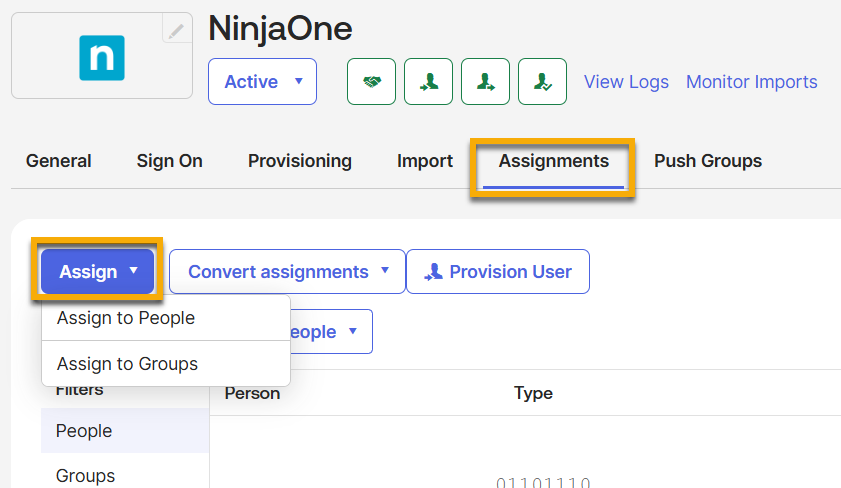
- Return to the NinjaOne application configuration page in Okta and open the Assignments tab.
- Click Assign and select the applicable option for your purposes. During the assignment, you will have the option to override your attribute mappings and set the user type and organization ID. If you are assigning a group, this change will affect all members of the group.
The SCIM provisioning process will begin.
Configure Group to Role Mapping in NinjaOne
Optionally, you can use Group Mapping in Okta to automatically assign members of Okta groups to roles in NinjaOne. To do so, perform the following steps.
- In Okta, open the Push Groups tab in the Ninja SSO and SCIM application. Click Push Groups to set the target groups.
- Set the action to Create Group and save. This action can take up to an hour to complete.

- Log in to NinjaOne as a system administrator.
- Navigate to Administration → Accounts → Identity Provider.
- Select the Okta OIN IDP.
- Next to Group Mapping, click Edit.
- Select roles from the drop-down menu to associate with the groups you synchronized with Okta, if applicable. The menu will include both end user roles and technician roles. The User Type assigned to the user in Okta determines which roles to assign to each user. If you need to create new roles, refer to User Roles and Permissions for instructions.
Additional Resources
Refer to the following resources to learn more about SCIM and SAML options with NinjaOne and Okta: