
Topic
This article discusses how to add web clips to managed Apple iOS devices through NinjaOne Mobile Device Management (MDM).
Environment
- NinjaOne Mobile Device Management (MDM)
- Apple iOS
Description
Web clips are shortcuts to websites that appear on your mobile device's home screen and provide quick access to an online resource. You can use NinjaOne MDM to distribute web clips to your managed iOS devices.
Adding a Web Clip
- In NinjaOne, navigate to Administration → Policies → MDM policies, then choose an iOS policy from the Agent policies list.
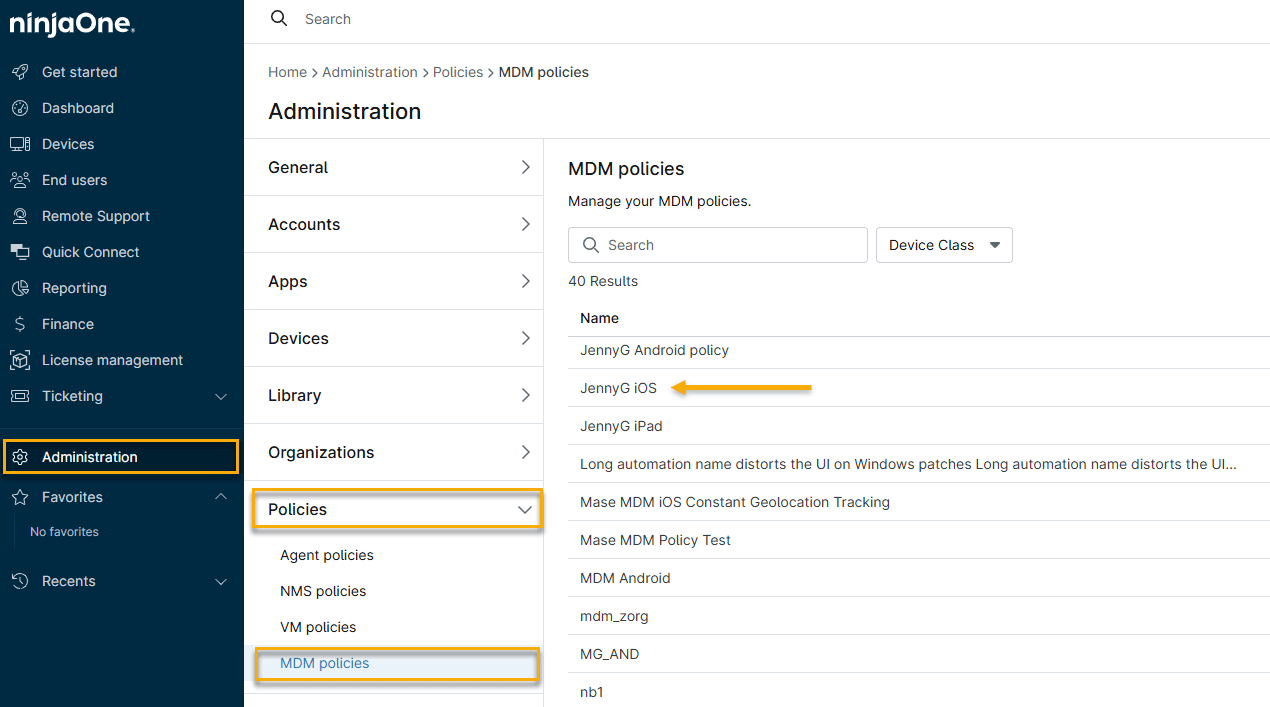
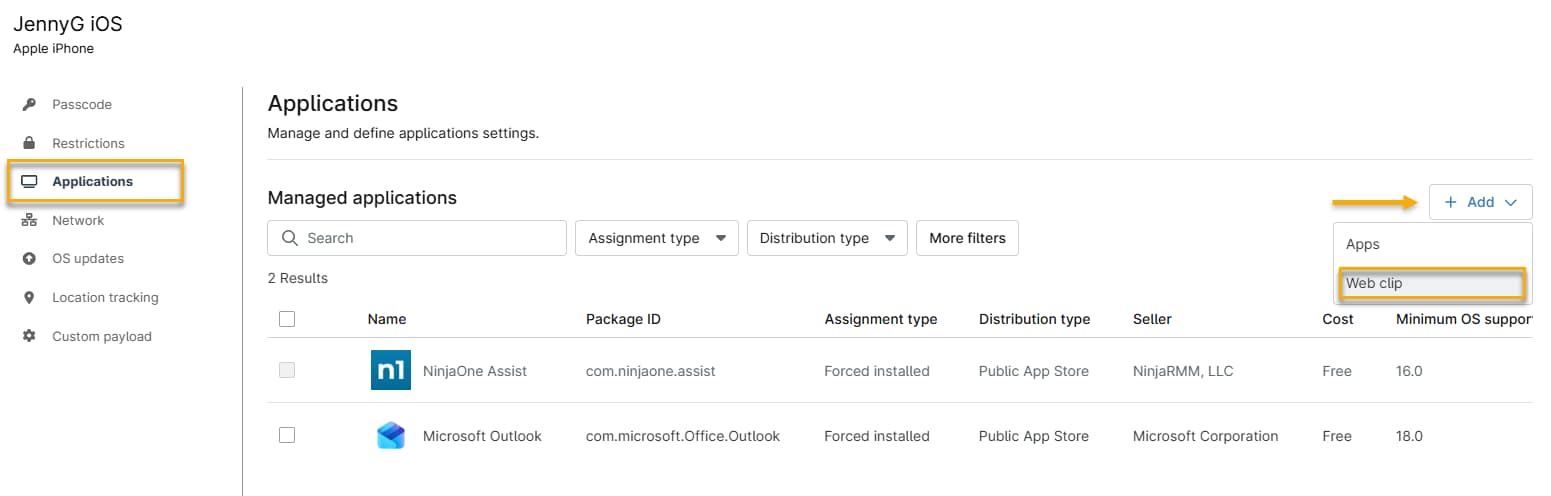
- On the policy's configuration page, click Applications, then click Add and select Web clip from the drop-down menu.
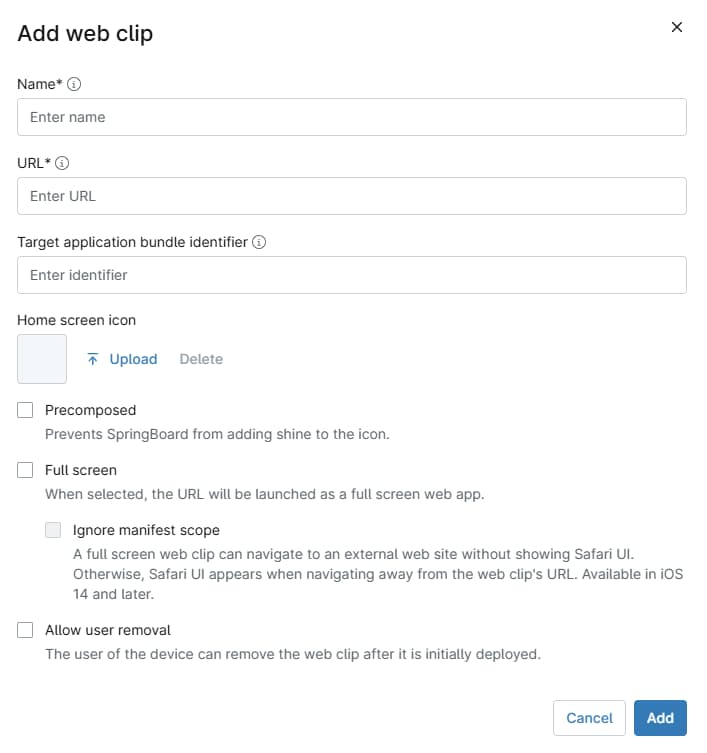
- The Add web clip window will open. Configure the following options. When finished, click Add.
| Option | Description |
|---|---|
| Name | Give the web clip a descriptive name. Users will see this name on their devices. |
| URL | Enter the URL to which the web clip will point, along with the full protocol (http or https). For example: https://ninjaone.com. |
| Target application bundle identifier | Specify an identifier to have the webclip open within a specific app on the device instead of in the default browser. Caution: If the app does not exist on a device, the web clip may not launch for that user. Refer to Apple's support article on Bundle IDs for iPhone and iPad Apple apps (external link) for more information. |
| Home screen icon | Upload the graphic icon that users will tap to open the web clip URL. The file must be a .PNG type, and should be smaller than 400 x 400 px. |
| Precomposed | Activate this checkbox to have iOS use your home screen icon as-is, without adding iOS styling or visual effects. |
| Full screen | By default, the resource will launch within the Safari user interface. Activate this checkbox to launch the resource in a standalone native app-like presentation. |
| Ignore manifest scope | If you are configuring the web clip to launch in full screen mode, you can activate this checkbox to prevent the web clip from showing the Safari UI when the user navigates to external websites. This feature is available for iOS 14 and later. |
| Allow user removal | Activate this checkbox to allow the user to remove the web clip icon by tapping and holding. |
Working with Web Clips
The web clips you add will appear in the Applications tab on the policy's configuration page.
Filtering Web Clips
Use the Distribution type filter to view your web clips separately from other apps.

Editing Web Clips
- In the Applications list, place your cursor over the web clip, then click the ellipsis (three dots) menu when it appears and select Edit.
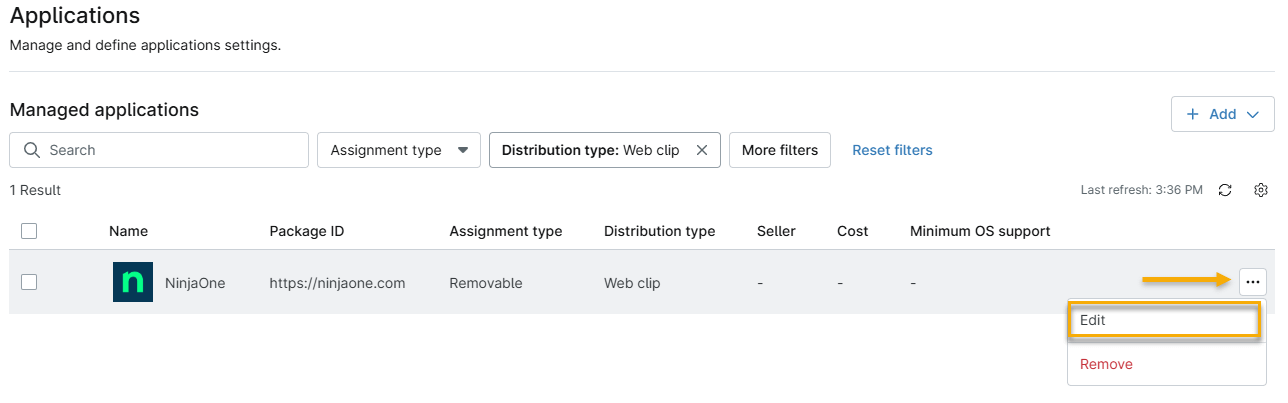
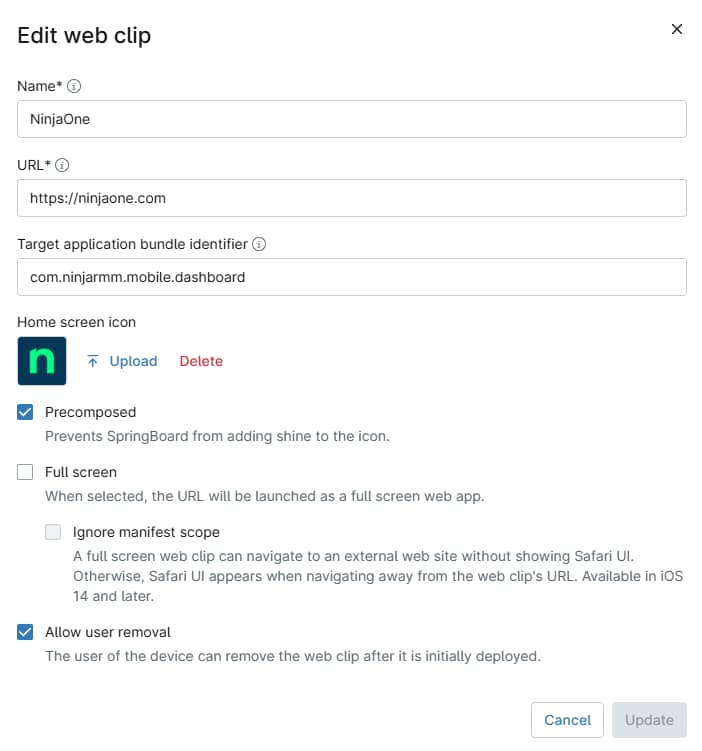
- The Edit web clip window will open, containing the same configuration options as described in the Adding a Web Clip section of this article. After making your edits, click Update to save the changes.
Deleting Web Clips
Removing a web clip will unassign it from all devices associated with the iOS policy.
In the Applications list, place your cursor over the web clip, then click the ellipsis (three dots) menu when it appears and select Remove. NinjaOne will prompt you to confirm the removal of the web clip.