
Topic
This article describes how to install and use WinGet to update supported third-party Microsoft Windows applications through NinjaOne.
Environment
NinjaOne Patching
Description
WinGet is the command-line tool for the Windows Package Manager. In NinjaOne, the WinGet integration installs and upgrades applications on Windows 10 and later devices, and configures patch settings for selected software. NinjaOne currently supports WinGet version 1.8.
View additional tutorials in our video library.
Select a section to learn more.
- About WinGet
- Activating WinGet
- Adding WinGet-Supported Software
- Configuring WinGet Software for Patch Management
- Scanning for Software Updates
- Automatically Upgrading All Applications
- Viewing Patch Information
- Additional Resources
About WinGet
Be aware of the following WinGet considerations:
- Windows 10 2004 (build 19041) or higher is required to support NinjaOne's Windows Package Manager integration. The Windows Package Manager is available on Windows 11, modern versions of Windows 10, and Windows Server 2025 as a part of the app installer.
- Not all products in the default WinGet repository will be available within NinjaOne.
- When you activate software patching for a policy, and the product list includes WinGet products, the NinjaOne agent will deploy a WinGet engine component to Windows 10+ workstations.
- All packages submitted to the Windows Package Manager repository undergo an approval process to ensure they comply with Windows Package Manager policies and are not known to be malicious. Each submission is run through several antivirus programs. NinjaOne does not validate software packages in the repository and cannot guarantee their authenticity, security, or integrity.
To learn more about WinGet, read Microsoft's Use WinGet to install and manage applications (external link).
Activating WinGet
Before you can use WinGet, you must activate the app in NinjaOne.
Important Considerations
- The application can only be activated or deactivated and removed. There are no additional configuration options except within policy software patching and installation settings. Once WinGet is activated, disabling or removing the application will also remove all WinGet settings.
- When WinGet is deactivated, you cannot use the WinGet engine for scans and patch applications.
- WinGet does not support force close.
- You cannot install or update per-user application instances. NinjaOne currently only supports system-wide installers.
Procedure
- In Administration → Apps, click Add, then select winget.
- Click Enable (this should be the default setting).

Adding WinGet-Supported Software
If WinGet is activated for the policy, users can search for any application across the WinGet and NinjaOne engines by vendor name, product name, or source.
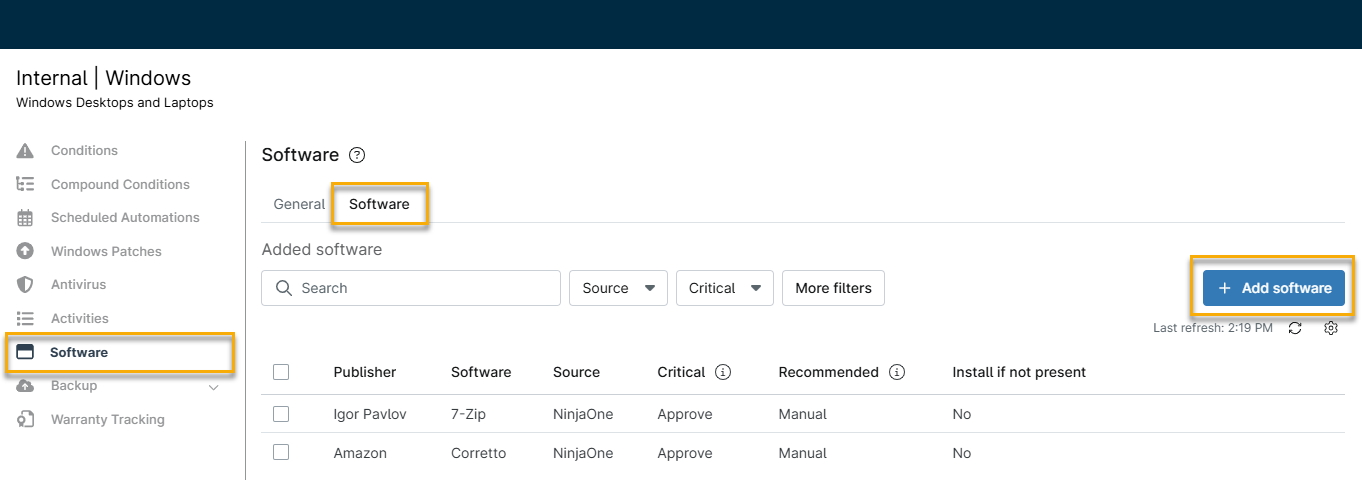
- Navigate to Administration → Policies and open a policy editor that supports Windows software in the configuration options. Ensure the Software tab is selected, then click the Add Software button.
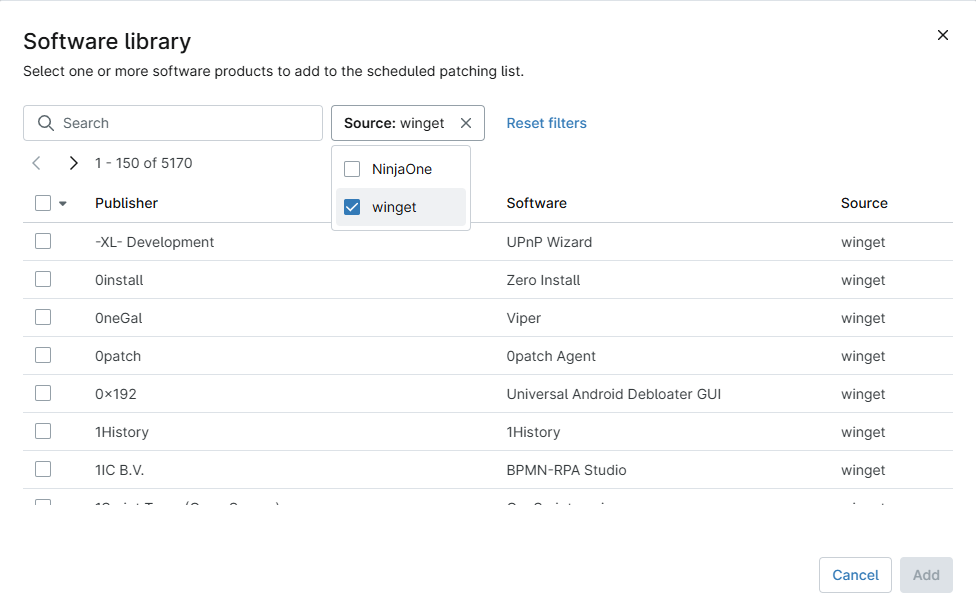
- Open the Source drop-down menu in the Software library window and select winget to filter the results. Use the available Search field to find results by software or publisher name. Select the desired WinGet software and click Add.
- Click Save to set the changes.
Configuring WinGet Software for Patch Management
After adding the software to the policy, you can configure it for automatic patch management.
Select the Software
- Navigate to Administration → Policies and open a policy editor that has WinGet software added.
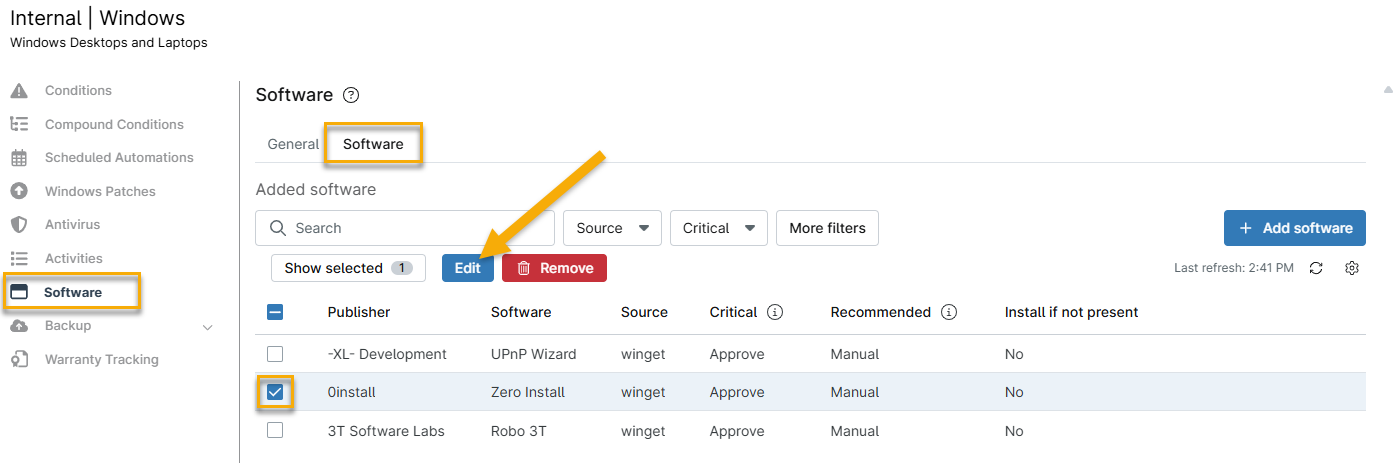
- Click Software in the configuration options, ensure the Software tab is selected, then select the checkboxes for one or more applications and click Edit.
Configure the Software
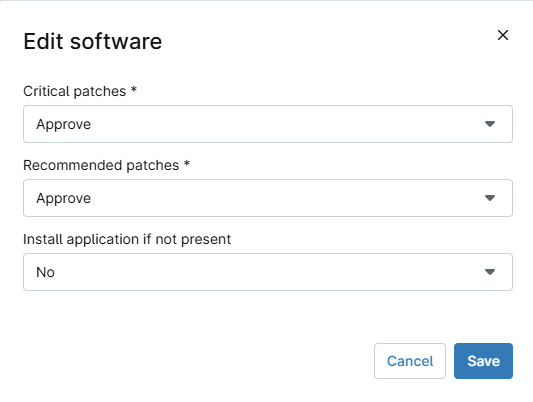
- Update the patch configuration fields to your preference, then click Save.
- Click Save to apply the changes.

Scanning for Software Updates
In the device dashboard for any endpoint with WinGet software added, click the action button and select Software Update → Scan. NinjaOne performs the Windows patch management scan and updates the Activities section. Refer to NinjaOne Patching: Windows Third-Party Software Patch Management for more information.
Automatically Upgrading All Applications
You can activate automatic updates for all WinGet-supported applications, saving you time and enhancing the security of your applications.
On the policy configuration screen, click the Software patching tab, then ensure the Settings tab is selected.
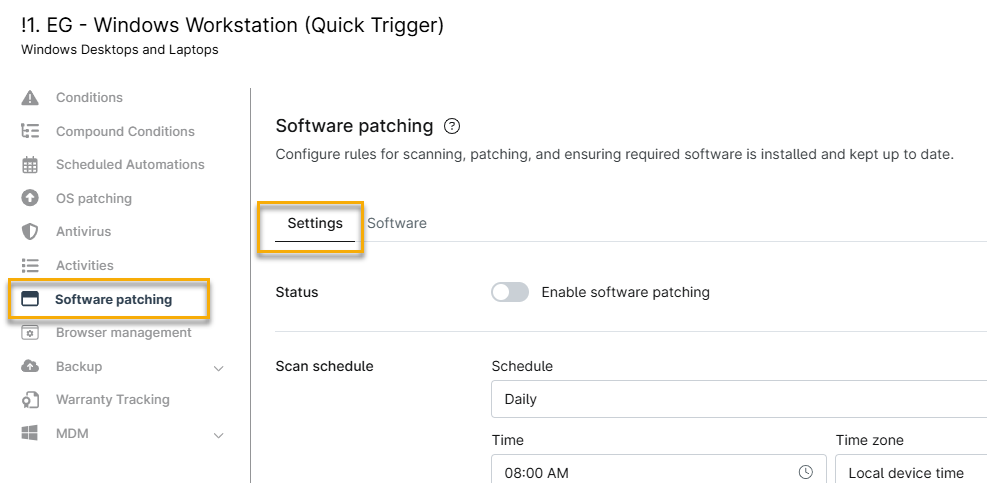
Scroll to the winget card and select the Update all available software to the latest version checkbox.

Selecting the optional Attempt to update even if the current version is unknown checkbox makes WinGet run with the --include-unknown command, which will upgrade packages even if WinGet cannot determine the current version.
Viewing Patch Information
You can find additional information about third-party software updates in the Patching search grid.
Viewing Patches by Release Date
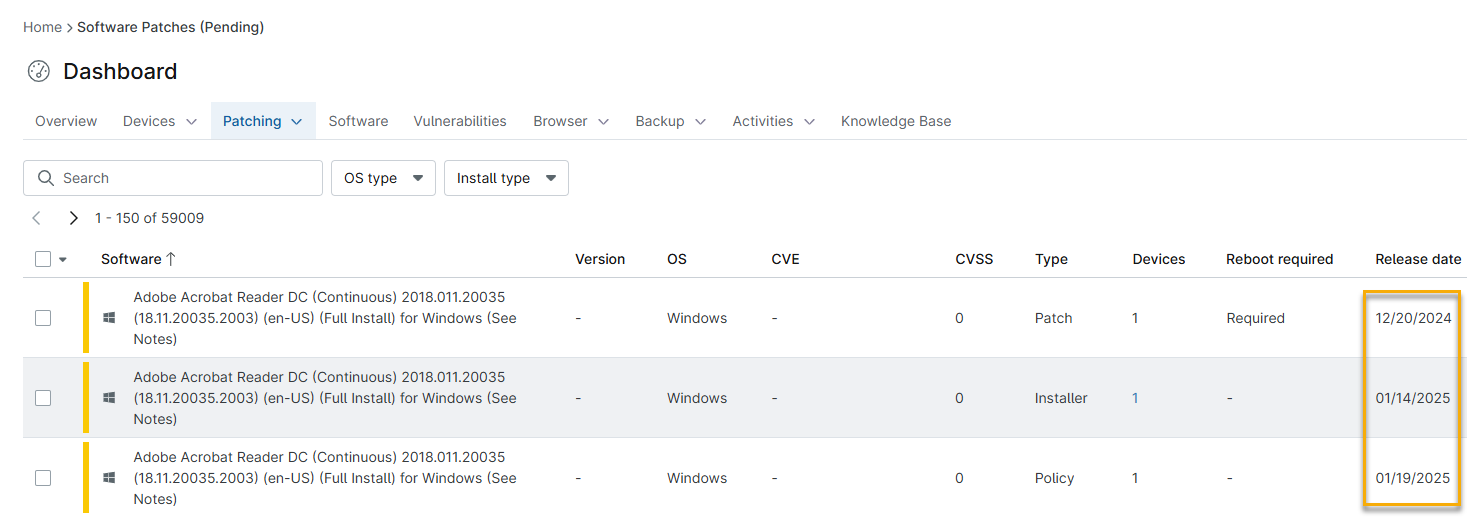
- In NinjOne, navigate to Dashboard → Patching → Software patches and choose a patch status from the flyout menu.
- Check the Release date column to learn the patch release date. If the manufacturer does not provide the release date, NinjaOne will use the first detected date instead.
Viewing Applicable Devices for a Patch
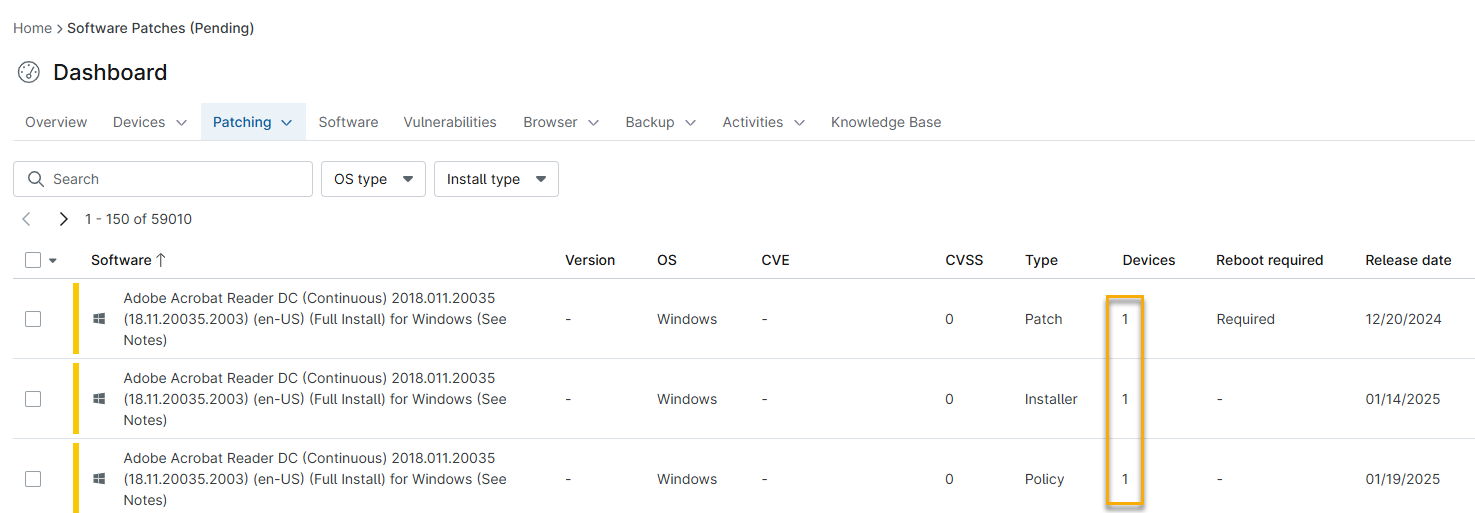
At the System or Organization dashboard level, you can click the number in the Devices column to generate a list of the devices to which the patch status applies. For example, clicking the number for a patch in the Approved tab shows the devices for which it is approved (but not yet installed).
Additional Resources
The following link directs you to Microsoft's WinGet learning resource: Use WinGet to install and manage applications (external link).