Already a NinjaOne customer? Log in to view more guides and the latest updates.

NinjaOne Mobile Device Management (MDM): FAQ

Frequently Asked Questions (FAQs) About Mobile Device Management: 


General FAQ

Policy Questions

Q: Does MDM support location-based policy overrides?

  • A: Yes: To do so, open the Organization editor in NinjaOne, select Locations, and then open the Policies > MDM Policies tab while adding or editing a location. 
    mdm edit policy by location.png


Q: Can an app be uninstalled at the policy level?

  • A: The app cannot be uninstalled directly, but you can use the "Blocked" assignment type to prevent the installation of an app through the Play Store for Android or App Store for Apple. 
    • Android: If the end user adds another Google account on the device and logs into Google Play, NinjaOne policies will not apply. On a work and personal device, only the Work Profile will be applicable to our policies.
    • Apple: For fully supervised devices, the blocked policy will apply at all times. For unsupervised devices, the blocked assignment type will uninstall the app from the device but does not prevent the app from being reinstalled by the user of the device if they have access to the App Store.


Q: Can I block apps in bulk? 

  • A: No; however, there may be a workaround for this:
    • Apple: Disable the "Allow Installation Apps" option under Restrictions. You must add all apps via "Force Install" assignment type with this method. 
      apple policy_restriction_apps.png
    • Android: Select "Allowlist" for Play Store Mode under Applications. Only apps included via the policy will be available, and any app not included will be automatically uninstalled from the device. 
      android policy_app allowlist.png
  • Please submit a feature request so we can prioritize this enhancement. 


Q: If I change the passcode policy, when will the user be prompted to update the password?

  • A: The user will be prompted to update their password as soon as the policy reaches the device, which depends on their network and whether the device is online (typically anywhere from 10 seconds to 10 minutes if online). 


Q: How do I access the app store on a company-owned device?

  • A: Currently, access can be managed through the Applications tab in the policy editor to "Allow" or "Deny" the Play/App Store mode. When set to "Allow", only the apps that have been approved will show in the Play Store—no other apps will display or be searchable. When set to "Deny", the Play Store shows all apps available to the Play Store with the exception of apps that have been explicitly blocked through the policy. For more information, please see the applicable Policy Configuration section in Mobile Device Management (BETA).
  • We are working on a future release to allow Android devices to control how the Play/App Store functions with an "Allow" or "Block" mode and improved clarity for these options. 


Q: Can I have MDM Pro even if I don't have NinjaOne Pro?

  • A: No. NinjaOne Pro is required for MDM Pro.


Q: I have a company owned iPad that is in ABM and NinjaOne, it's asking me to log into app store and won't install apps?

  • A:That will only be asked if the policy contains apps from the Public App Store. Set up a content token and sync it into NinjaOne. "Purchase" the apps in ABM and assign them to the content token. Then in the NinjaOne policy, make sure the apps are added as "Apps and Books" distribution type.


General Enrollment Questions

Q: Can I use NinjaOne MDM while also using another MDM (JAMF, Addigy, ManageEngine, Intune, other)?
or
Q: Can I use multiple MDM solutions on a single device?

  • A: All devices support only one MDM provider at a time (whether BYOD or customer owned). If you want to use NinjaOne MDM you must ensure the device is not already assigned to or enrolled in another MDM solution; otherwise, enrollment will fail.
    • This is an operating system limitation, not a NinjaOne limitation. 


Q: Can I move a device from one enrollment profile/content token to a different one? 

  • A: Yes, but you must first wipe the device. 


Q: Does NinjaOne send notifications pertaining to certification expiration for either Apple or Android? 

  • A: System status notifications for MDM is on the roadmap for NinjaOne; currently, you can refer to the Health Statuses for Apple devices.
    • Apple will send their own notifications to the person who created the Apple Business Manager account.
    • Android Enterprise connections do not expire.


Q: If Global configuration can be enabled only once, and we have multiple customers that need this, how would this be achieved?

  • A: When adding a device, you define the organization for which the device should enroll into. The global configurations can be used across many devices and the only two nuances to this are:
    • When creating the Android Enterprise connection, it asks for a "Business" name and this name will be displayed on all managed Android devices at the lock screen. 
      • Many MSP customers have been entering a generic value here like "IT Department" so that it is not specific to a single company name.
      • NinjaOne will be adding support for multiple Android Enterprise connections next year to support the need to have the granular, per company, text on devices.
    • For Apple Business Manager (ABM), the ABM connection is not required to manage Apple devices but is the most efficient onboarding experience (Automated Device Enrollment) for company owned devices that require full management. NinjaOne only supports one ABM connection today but will be adding support for more connections next year as well.


Q: Is there a way to see if a phone has been enrolled without checking the NinjaOne dashboard?

  • A: On the physical device, there should be a banner along the bottom of the lock screen stating that the device is owned by an organization. The name provided on the lock screen is the same organization name that was configured during setup. 


Q: Is there a way to enroll a device without it belonging to a company/organization, and instead is generic and/or personal to the client the device is assigned to? 

  • A: Enrolled devices must be associated with a company/organization, as this is a required field when adding the device to the console. Currently, there is no way to assign a custom one to devices; to change the organization assigned to the device, the integration must be reset and a new organization must be created to be used at enrollment time for your devices. Please reach out to NinjaOne Support for help with this configuration. 
  • NinjaOne is working to allow for multiple Android Enterprise integrations, allowing for many different organization names to be used. 


General Support Questions

Q: Is there a limit to the maximum number of devices that can be managed per account?

  • A: No, there is no limit. 


Q: Can I approve pending approvals for new MDM devices from the mobile app?

  • A: Yes! Access this feature from the Node Approvals section, which you can navigate to from the System dashboard Overview tab


Q: Does the NinjaOne MDM support mobile devices such as scanners?

  • A: If the scanner runs Android (v9.0+) with Google apps and services or another supported operating system, NinjaOne MDM can support it! If there is no Play/App Store, then it's likely uncertified and unsupported by NinjaOne. 


Q: I have MDM enabled but I don't see remote viewing as an option?

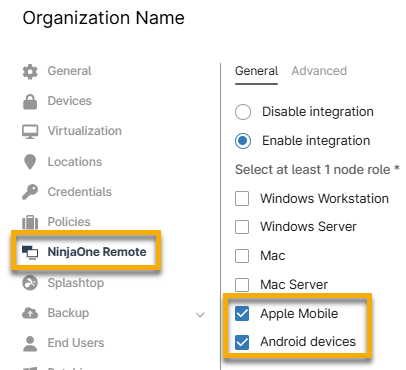
  • A: NinjaOne Remote should be enabled at the Organization level. For Android and Apple mobiles, end users must enable the functionality.


Q: Is it possible to push a VPN configuration file directly to a mobile device?

  • A: No. This is not currently supported. End users should raise this concern to the VPN providers as they could and should support managed configuration for EMM configuration.


Security Questions

Q: Can NinjaOne MDM prevent jailbreaking/rooting?

  • Android devices should be enrolled as a company-owned device and proper controls must be put in place to prevent jailbreaking/rooting. 
  • Apple devices should be enrolled as a supervised device for this protection. 


Q: How can I prevent users from restoring devices to their factory settings and no longer managed by NinjaOne MDM?

  • A: Within the policy restrictions, you can define what the users can and cannot do on the phone. One of the options is to disable the ability to perform a factory reset.
    mdm_policy_restriction_factory reset.png
  • Separately, if the device is enrolled as "Company Owned" or a Work only device, this prevents the user from unenrolling the device from the MDM.


Q: Is it possible for a user to unenroll a device from MDM without factory resetting a “personal device”?

  • A: Yes. Personal devices are deemed the ownership and property of the end user. As such, the end user retains full control of the device and has the ability to unenroll from the MDM at their own discretion. 


Device Details Questions

Q: The battery level on the NinjaOne console is different from what is shown on the physical device. Is this expected behavior?

  • A: Yes; the data in NinjaOne shows the battery level (current charge %) over a period of days as of the last sync. It will almost never be accurate to real-time as the information does not sync continuously (this would be detrimental to battery life). 


Q: Why is the Details tab not populating any data for Network? 

  • A: If the device does not have a cellular card, NinjaOne cannot receive network data. Additionally, Wi-Fi will only be returned if the device is supervised. 


Q: Is MDM available for Chromebooks?

  • A: No. Not at the moment as Chromebooks are another platform we will need to build support for.


Q: Can I import devices in with IMEI code (device ID)?

  • A: No. Only by reading the QR code.


Q: Will the device get locked if I remove it from MDM?

  • A: No.
    • For Unsupervised/non-ADE devices, no. Removing MDM will remove the configurations but the "personal" content on the device will be left alone.
    • For Supervised/ADE devices, generally MDM can only be removed by the administrator. It can be removed such that the "personal" content on the device is left intact, but generally speaking an admin would device wipe these devices at "end of life". This forces it back into the ADE flow so it cannot be set up again without management.


Android FAQ

Setup/Enrollment Questions

Q: I enrolled with a Google account, but I can’t figure out which account it is. How can I either find out what account it is connected to, or disconnect and reconnect my Enterprise ID for Android Enterprise?

  • A: Try going to https://play.google.com/work/adminsettings and you should see an Organization ID that will match the ID you see in the NinjaOne console. 
  • To disconnect/reconnect your Android Enterprise account, go to Administration > Apps > NinjaOne Android MDM > Actions > Reset connection. 
    Important Note: Resetting the connection causes associated devices to become unmanaged—they will not be erased but will need to be re-enrolled.


Q: Is MDM compatible with Android based, Unitech DR-5 and DR-6 scanner guns?

  • A: Yes, if the devices support Google Play services.


Google Play Store / App Questions

Q: Device restarts when system updates are set to automatic—is this expected behavior?

  • A: Yes; when setting system updates to automatic, you are directing Android to download and install any available system or Google Play system updates as soon as possible. As part of the update process a reboot is required and this will happen as soon as possible.
    • If this is disruptive, consider using the windowed update configuration to set a specific time for these updates. This time window is local to the device and not the MDM server, so setting a time window respective of time zone will enact at that time for each device.
    • If you are using windowed updates, be sure to set a reasonable time window; a window of about 4 hours is usually enough and ensures a balance between providing enough time for updates to install and not reducing efficacy of time windows by extending them for too long.

    • As a further note, when setting a window update policy, this also applies to applications.


Q: Why can't I install an application through the forced app policy?

  • A: In the affected policy under the Restrictions tab, verify that you do not have Install Apps Disabled enabled—if so, set it to "Off". 
    mdm_android policy_restrictions_install apps disabled.png


Q: Why can I not see applications specified in the policy to install? / Why am I getting an error that an app cannot be installed?

  • A: Verify that there is not a restriction on app installation. If you disable the ability to install apps, that removes NinjaOne's ability to push apps.
  • Set the Play Store Mode to "Allowlist" so that only apps approved by the policy will be visible for download.
  • For more information, please see the Applications section of MDM: Android Policy Management.


Q: I get the error "APK signed in debug mode" when uploading an application to the managed Google play iFrame; why?

  • A: The managed Google Play iFrame does not support debug applications. In order to upload an application, it must be signed for release.


Q: Does NinjaOne MDM support the deployment of APK (Android Application Package) files?

  • A: No. NinjaOne encourages customers to upload their in-house applications through the managed Google Play iFrame. There are several benefits to deploying through managed Google Play, and as an added bonus, private applications are not subject to the same policy requirements as public Google Play applications.


Q: Does NinjaOne MDM support management for system applications?

  • A: Support for this is implemented in NinjaOne Release Version 5.8. 
  • As a workaround, please look for the specific application within the Google Play store, as OEMs (original equipment manufacturers) often upload their system applications for faster and easier update management via Google Play. Otherwise, you can deploy a third-party alternative. 


Q: We have a managed Google Play account, but I am unable to add an account; how do I get around this?

  • A: You must disable global management in Google Workspace. 


Q: How do I deploy a paid app for Android?

  • A: In order to deploy paid applications, the customer will need to reach out to the application developer to agree on a deployment method and licensing path that suits both parties. This may include the app developer creating a custom version of their application and deploying it through managed Google Play as a private application, or through managed configurations; the developer can offer licenses to allow the installation of a public app that functions when the license key is input within the MDM.


Q: Can NinjaOne MDM remove preinstalled apps on Android devices?

  • A: System/factory apps are removed when the device is added with the "For work" Usage Type selected. 


Q: I added a custom app to the Google Play store that is used for only one customer. However, when I created a new policy for a different device, I can still see the custom app in the Google Play store. Can I prevent other customers or end users from seeing each other's apps that were approved through the Managed Play Store account?

  • A: Technicians and system administrators can see custom apps in the Managed Play Store account when viewing or modifying MDM policies, but these will not be visible to customers/end users unless the app is assigned to their device. 
  • As an extra step of precaution, you can hide an app from the Play Store by assigning it as "Disabled" or "Blocked" in the policy. 


Q: Is there a way to sideload applications on Android devices that aren't in the Google Play store?

  • A: This would be handled as a private application through the Play store.
    android policy_play store_private apps.png


Q: Is there a way to configure the kiosk settings on my Android device?

  • A: Currently, we support single app kiosk mode. You must select the kiosk app in the Applications tab of the Android policy. The Type of Installation defined for the App is "Installed in Kiosk Mode". This forces the app to stay as the only app accessible.
    mdm_kiosk mode.png


Google Workspace Questions

Q: Does NinjaOne MDM work with the Google Workspace device management system?

  • A: No; Google Android Enterprise does not support enrollment/activation with a Google Workspace managed domain account at this time. You must disable Workspace advanced management either at the company level or for a specific OU to exclude users accordingly. 
  • Google Workspace (and more broadly, Cloud Identity) support will come at a later date when Google publishes official support for this. In the meantime, when creating the Android Enterprise bind, please use a Google account (@gmail.com, or @customerdomain.com for Google accounts created using “use existing email address”).


Usage Type Questions 

Q: I'm unable to use the "For Work" Usage Type on my Android device. Why can't I successfully enroll this device?

  • A: The "For Work" Usage Type is to be used for company-owned devices at the initial, factory-new/reset welcome screen. 


Q: How can I enroll a phone after a factory reset? 

  • A: For Android devices, please use these steps for setup. 
  • Please note, if you have any apps that are set to "Required for Setup" on the device, this may cause issues during the enrollment process. NinjaOne recommends settings the apps to "Force Install" instead to push enrollment when the device comes online. We also recommend switching the Installer deduplication settings to "ON" under Administration > Settings > Installer Settings. 
    mdm_deduplication settings.png

Related Documentation: 


Apple FAQ

APN / ADE / ABM Enrollment Questions

Q: If a device doesn't have an Apple ID, can we still enroll them through ABM?

Q: Is there a way to restrict profile removal of the MDM for iOS and iPad OS? 

  • A: To restrict profile removal, the device must be enrolled as "Supervised" and their enrollment profile "MDM Removable" must be set to false. 
    1. To do this, go to Administration > Apps > MDM Configuration > Apple > Automated Device Enrollement (ADE); open the Actions dropdown and select Edit Profile & Devices
    2. In the Enrollment Profile tab, ensure the MDM Removable option is disabled (gray). 
      mdm removable_disabled.png


Q: How can I enroll a phone after a factory reset? 

  • A: For Apple devices, please use these steps for setup. 
  • Please note, if you have any apps that are set to "Required for Setup" on the device, this may cause issues during the enrollment process. NinjaOne recommends settings the apps to "Force Install" instead to push enrollment when the device comes online. We also recommend switching the Installer deduplication settings to "ON" under Administration > Settings > Installer Settings. 
    mdm_deduplication settings.png


Q: Can we manually renew the enrollment profile of an Apple device?

  • A: Yes. This action is available for devices and can be used to resolve devices that show an unverified or "Invalid" enrollment profile status. The renew action can be found on the device dashboard under the Run icon. 
    mdm_renew enrollment.png


Q: Where can I find the enrollment URL to set up a server with Apple Configurator? 

  • A: You can use the downloaded enrollment profile as-is; no URL needed. 
  • If you are attempting to enroll a device as Supervised, NinjaOne suggests using Apple Business Manager (ABM) and enrolling using Automated Device Enrollment (ADE) as best practice. 
  • Apple Support provides documentation for adding devices from Apple Configurator to ABM here: Add devices from Apple Configurator to Apple Business Manager - Apple Support.


Q: Can I connect to multiple ABM environments through NinjaOne MDM?

  • A: Yes. ABM could share an APNs. You just need to add multiple ADE/APN connections.


Q: Can I reconfigure APN settings from scratch? 


Q: Is it possible to change the organization for an Apple device?

  • A: Yes, organizations can be changed at any point.
    Important Note: When a device is enrolled using ABM's ADE functionality, the device's organization must be edited from the ABM/ADE screen. Please note, these changes do not take effect until the device is re-enrolled or reset. 


Q: Will it cause device problems when you renew APN with a different email address?

  • A: Yes, you have to renew the same exact certificate or else devices must be re-enrolled. End users can use any Apple Account to generate/renew the cert initially, but they should use one that is "owned" by the company rather than one of the employees, so that if the employee leaves it can be re-used.


Q: Do I have to do a factory reset on Apple devices before adding to NinjaOne?

  • A: Yes, end users need to set up integration with "Automated Device Enrollment" (ADE), and then resetting the devices will automatically enroll them in Ninja. 


App / Restriction Questions 

Q: Can NinjaOne MDM restrict users from logging in to their own iCloud accounts?

  • A: Yes; this can be done from the Restrictions tab in the Apple policy. The restriction is labeled "Modify Accounts Disabled" and can restrict adding or removing accounts. 


Q: I have an Apple ID located in the US and attempted to install an app that is available only in the UK. Installation was unsuccessful; is this expected behavior?

  • A: Yes; the location of the App Store being installed must match the location of the Apple ID used to install the app. 


Q: Why is the Software > Inventory tab on the device dashboard not showing all installed apps?

  • A: iOS only shows non system apps in the inventory. 
  • If a device is reset to factory defaults and enrolled in MDM, there will not be any software showing in the inventory until you install apps through either NinjaOne or on the device itself. 


Q: Can I enable location services on iOS devices through NinjaOne MDM?

  • A: No; Apple has not provided this service as part of their MDM capabilities. 


FAQ

Next Steps