
Topic
This article explains how to configure encryption settings at the policy level for Apple macOS devices enrolled in NinjaOne Mobile Device Management (MDM).
Environment
- NinjaOne Mobile Device Management (MDM)
- Apple macOS
Description
The Encryption section of the policy configuration page for MDM-enrolled macOS devices allows you to manage FileVault encryption settings. When you enable FileVault encryption at the policy level, NinjaOne will deploy the appropriate FileVault profile to the managed devices.
You can access the Encryption page from an agent macOS policy by expanding the MDM menu, or through an MDM policy.

When you enable these settings, all devices newly enrolled via Automated Device Enrollment (ADE) will automatically enable FileVault during the Setup Assistant stage.
FileVault Recover Key Escrow
If you encrypted your device before enrolling it in NinjaOne MDM, NinjaOne's ability to receive the recovery key depends on the device's state during enrollment. In a batch enrollment, it is expected that some devices will return the key, and others will not. This occurs because when you first use FileVault outside of NinjaOne, the recovery key is encrypted with a certificate that NinjaOne does not hold. NinjaOne's certificate only takes over at the next key rotation or when you reactivate FileVault.

The following table provides a description of each setting:
| FileVault Encryption Setting | Description or Purpose |
|---|---|
| Require encryption | Require the device to enable FileVault encryption during setup or login. If this setting is not enabled, the other settings will be deactivated. |
| Escrow recovery key | If enabled, the device will send the recovery key to NinjaOne, where we will store and manage it for each device. You can find the key on the device dashboard in the Details tab. |
| Force enable in Setup Assistant | Encrypt the device during the Setup Assistant stage for new enrollments. |
| Show recovery key | Make the recovery key visible after encryption is complete. It will only be displayed for the end user once; afterward, if the Escrow recovery key is enabled, you can find the key on the device dashboard in the Details tab. |
| Number of allowed deferrals | Set the permitted number of bypass attempts. If the value is set to 0, NinjaOne will prompt the user to enable FileVault at their next login. Set this key to -1 to enable unlimited deferrals. The valid range is from -1 to 9999. |
Once the policy is applied to the device, FileVault will be activated after a user logs out and logs back in to their local account, or during Automated Device Enrollment.
Once you enable FileVault, it may take up to an hour for the device to confirm encryption status and for the recovery key to initially display in NinjaOne.
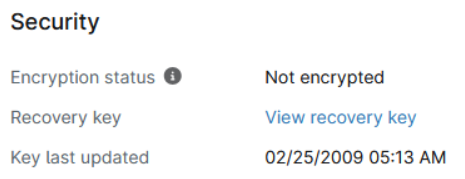
You can confirm whether the keys are accurately stored by navigating to the device dashboard in NinjaOne and opening the Details → MDM tab to verify the following information in the Security section:
- Encryption status should be set to "Encrypted."
- Recovery key should have the View recovery key hyperlink.
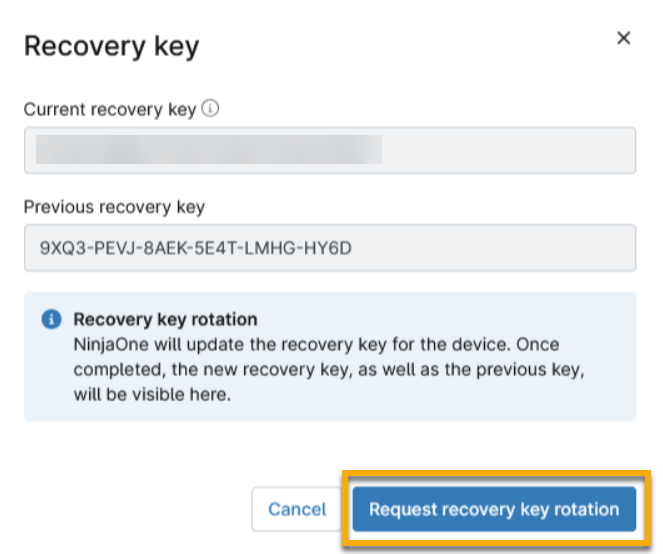
- Clicking View recovery key should open a modal showing the current recovery key.
- The Key last updated field should display a valid timestamp.
Rotate the Recovery Key
When you enable FileVault encryption settings at the policy level, you can request recovery key rotation after clicking the View recovery key hyperlink on the device dashboard at Details → MDM.
If the Escrow recovery key setting is later deactivated in the policy, devices that are already encrypted and have previously reported their recovery key will no longer report it. If these devices change their recovery key for any reason, NinjaOne will not be notified unless you re-enroll the device.
Additional Resources
Refer to NinjaOne MDM: Resource Catalog to learn more about NinjaOne MDM.