
Topic
This article explains how to configure general settings for NinjaOne Ticketing.
Environment
NinjaOne Ticketing
Description
When you first deploy NinjaOne Ticketing, you receive a prompt to configure the application's general settings, such as outgoing email preferences, notification behavior, and your business's operating hours.
Once defined, you can update these settings at any time by navigating to Administration → Apps → NinjaOne Ticketing → General within NinjaOne.
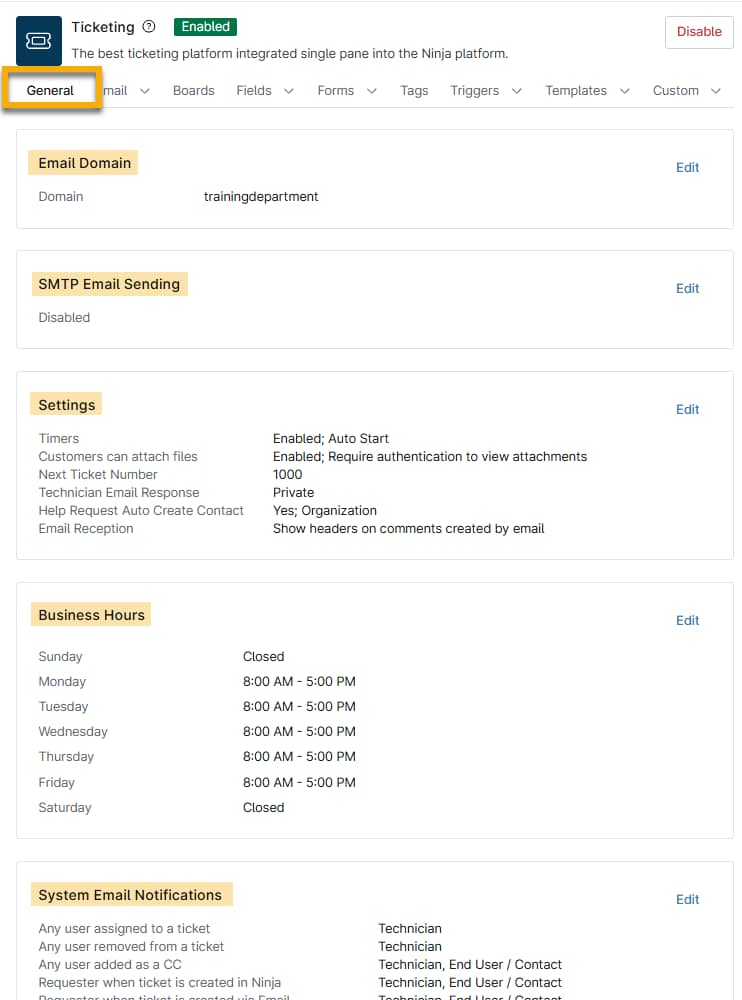
Email Domain
The email domain serves as the custom name for your Ticketing instance and is used by NinjaOne to generate email addresses for your users. This field is mandatory and can be set to any name you prefer for ticket emails.
SMTP Email Sending
At setup, NinjaOne Ticketing will use NinjaOne's default email server for outgoing email. If you'd prefer to use your own SMTP server, click Edit to enter the required credentials.
- Select Basic for Authentication Type to continue with non-Microsoft 365 setup, or refer to NinjaOne Ticketing: SMTP Microsoft 365 Configuration for instructions.
- Select the Enabled toggle to power on the outgoing mail server.
- Enter the SMTP server name, the port, whether this dedicated server uses secure sockets layer (SSL), and the email and password.
- Click the Test button to verify the connection and resolve any reported errors. Then, click Save.
Ticket Settings
The Ticket settings affect the behavior of all tickets.
| Setting Name | Description |
|---|---|
| Timers |
|
| Starting ticket number | The ticket number that should be assigned to the next incoming ticket, which is intended to assist users transitioning from another ticketing product and who want to continue from the previous numbering system. |
| Attachments | The ability for end users to attach files to tickets and the requirement for technicians to authenticate to view those attachments. |
| Technician email response | This option creates either a public response to the requester or a private internal note when a ticket response is sent via email rather than within the ticket in NinjaOne. |
| Auto-create new contacts from help request | If this setting is activated, you can create the contact either in the organization that manages the device or as a global contact. If this option is deactivated, tickets created from systray application help requests will not automatically provide a requester. |
| Display forwarded details | Display date, from, to, and subject for comments that contain a forwarded email thread and are received by email. |
| Auto-assign device | If a user owns a single device and that device is assigned to the same organization named in the ticket, the device will automatically be assigned to the user's tickets. |
| Match emails to tickets on references header | By default, ticketing matches emails to tickets using the in-reply-to header and message ID. Use this setting to also match an email to the reference header. |
| Allow users to edit comments | When active, technicians can edit comments on a ticket using the actions menu. This setting is active by default. The setting is granular: depending on the permissions assigned to their role, technicians may be able to edit their own comments, edit others' comments, or both. Edited comments are visible only within the technician console; end users in the end-user portal do not see that a comment has been edited. Editing a comment does not generate an email notification. Comment editing is not available on closed tickets. Three permission areas interact with this setting: Ticket Public Comments, Ticket Comment History, and Ticket Private Notes. Technician access to editing in each area depends on the permissions assigned to their role. For more information about technician permissions, refer to NinjaOne Ticketing: Technician and User Permissions. To learn how to edit comments on a ticket, refer to NinjaOne Ticketing: Edit Ticket Comments. |
System Email Notifications
The System Email Notifications settings enable you to configure when NinjaOne Ticketing sends automated email notifications and which email template each notification uses. Each notification is tied to a specific user type, a role on the ticket, and an activity that triggers it.
Each notification targets a specific person based on two things:
- Their user type
- The role they hold on the ticket at the moment the activity occurs
User types fall into two categories:
- Technicians: NinjaOne users who manage tickets from within the NinjaOne platform
- End users and contacts: External requesters and copied parties who interact with tickets through email or the end-user portal, rather than through the NinjaOne technician console
Roles describe the position a person holds on a specific ticket. Each ticket can have up to three named roles at any given time:
- Assignee: Technicians can be either a primary assignee or an additional assignee; system email notifications treat these roles equally
- Requester: The person who submitted the ticket or on whose behalf it was created
- CC: Any additional party copied on the ticket for visibility
A role is not a permanent property of a user. It is a position on a specific ticket, and it can change. If the assignee changes mid-ticket, the new assignee holds the role from that point forward. NinjaOne evaluates roles at the moment each activity occurs and notifies whoever holds the role at that instant, not whoever held it previously.
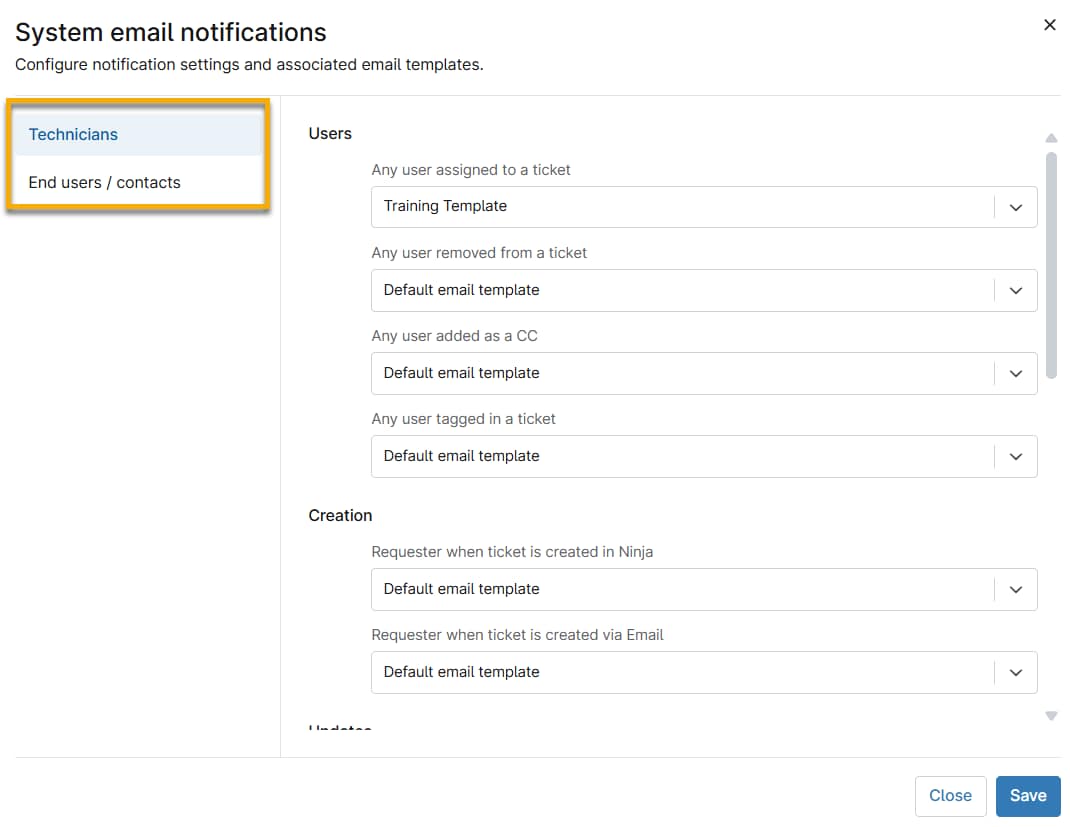
Consult the following table to understand the user types and scenarios to which notifications apply. To learn how to configure and edit email templates for these notifications, refer to NinjaOne Ticketing: Email and Notification Management.
Some notifications apply only to technicians and will not trigger for end users or contacts in the same ticket role.
| User type receiving notifications | Notification type | Trigger for notification |
|---|---|---|
| Technician or None | Any user assigned to a ticket | If assigned to a ticket |
| Technician or None | Any user removed from a ticket | If removed from a ticket |
| Technician, End User/Contact, or None | Any user added as a CC | If added to a ticket as a CC |
| Technician, End User/Contact, or None | Requester when ticket is created in NinjaOne | If set as requester upon ticket creation in NinjaOne |
| Technician, End User/Contact, or None | Requester when ticket is created via email | If set as requester, upon ticket creation by email |
| Technician, End User/Contact, or None | Requester when ticket has been resolved | If set as requester when the ticket is resolved |
| Technician, End User/Contact, or None | CC when the ticket status has been updated | If in the CC list when the ticket status is updated |
| Technician or None | Assignee when a ticket has been updated | If an assignee when the ticket is updated |
| Technician, End User/Contact, or None | Requester when a private comment has been added | If set as requester when a private comment is added |
| Technician, End User/Contact, or None | CC when a private comment has been added | If in the CC list when a private comment is added |
| Technician or None | Assignee when a private comment has been added | If an assignee when a private comment is added |
| Technician or None | Requester when a public comment has been added | If set as requester when a public comment is added |
| Technician or None | CC when a public comment has been added | If in the CC list when a public comment is added |
| Technician or None | Assignee when a public comment has been added | If an assignee when a public comment is added |
| Technician or None | Any user tagged in a ticket | If directly tagged on a ticket in a comment |
| Technician or None | Assignee when service level agreement (SLA) breached | If an assignee when ticket has breached SLA |
| Technician or None | Assignee when SLA exceeds 80% of allotted time | If an assignee when ticket is at risk of breaching SLA (exceeded 80% of allotted time) |
Additional Resources
To learn more about how to integrate NinjaOne Ticketing into your workflows, consult our NinjaOne Ticketing: Resource Catalog article.