
Topic
This guide covers installing Malwarebytes via the NinjaOne Web application on your Windows devices. NinjaOne does not currently integrate with Malwarebytes.
Environment
- NinjaOne Endpoint Management
- Microsoft Windows operating system
- Malwarebytes (malware removal and protection software)
Description
Malwarebytes is a proactive malware monitoring and web traffic protection tool that you can install on your endpoints. For more information about this solution, visit Malwarebytes Antivirus, Anti-Malware, Privacy Scam Protection (external link).
To install Malwarebytes protection on your managed endpoints via NinjaOne, perform the following steps:
- Navigate to the Malwarebytes Cloud Portal at ThreatDown (external link). Download the appropriate installer for the machines on which you want to install Malwarebytes (for example: 32-bit, 64-bit, or agnostic, as applicable).
- In the upper left corner of the page, click Dashboard.
- Click Windows Installer to generate an agnostic installer, or click More to view a list of available installers. Select and download the appropriate installer package for your operating system.
- Once you have downloaded a Malwarebytes installer, log in to NinjaOne as a system administrator.
- Create a new scheduled automation at the policy level or create a new scheduled task. To learn how, refer to NinjaOne Policies: Scheduled Automations or NinjaOne Endpoint Management: Scheduled Tasks.
- When adding the automation to run, select the native Install Application automation:
- Select the appropriate Architecture value (All, 32-bit, 64-bit).
- Select the Upload File checkbox and find the downloaded Malwarebytes installer file to upload.
Endpoints are assigned to the default group and use the default policy unless you specify a different group as a parameter. For more information about group parameters, refer to the Command line remote installation section in the Malwarebytes documentation (external link). - From the Run As drop-down menu, select System.
- Click Apply to add the application installation to the scheduled script or task.
- When adding the automation to run, select the native Install Application automation:
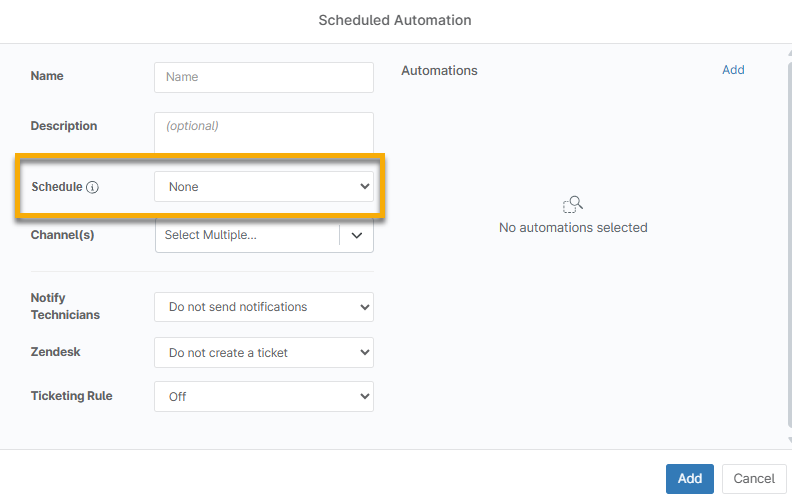
- Finish configuring the schedule and other applicable options for your scheduled automation or scheduled task, and then save the policy or task in question.
- Verify that the Malwarebytes installation has been completed as scheduled on all of the proper machines (either all machines in the policy you added scheduled automation to or all machines listed as a target in the scheduled task).
When the installation begins, you will notice an activity log in the NinjaOne Activity Feed. You will then notice another activity stating the installation is complete.
Within the Malwarebytes console, your machine should now appear in the Endpoints tab. You should also now notice Malwarebytes within the Add/Remove Programs list on the Host machine.
Finally, you should be able to find Malwarebytes listed in the Software Inventory tab on the NinjaOne device dashboard.

Additional Resources
For questions about getting support with Malwarebytes, refer to Who do I contact for support on Malwarebytes?