
Topic
This article explains how to mute threats from the system and organization dashboards.
Environment
- NinjaOne Integrations
- Bitdefender GravityZone
- SentinelOne
- CrowdStrike
Description
Stuck threats are a persistent issue affecting multiple antivirus integrations. The antivirus detects and reports the threat, but fails to clear it from NinjaOne after remediation. The self-service feature empowers users to resolve issues without needing to escalate them to NinjaOne Support.
Index
Select a topic to learn more:
- Main Causes for Stuck Threats
- Mute Active, Blocked, and Quarantined Threats
- View Muted Threat Activity
- Additional Resources
Main Causes for Stuck Threats
There may be various issues causing a stuck threat, and these issues may be limited to your antivirus choice. The following table provides a few reasons why a threat may become stuck.
| Cause | Antivirus Vendor | Details |
|---|---|---|
| Incorrect product code | Bitdefender GravityZone | The product code does not match the database, and this prevents threat removal queries from working properly. This often occurs during migration from Bitdefender SDK to GravityZone. |
| Timing issues | Bitdefender GravityZone | When GravityZone reports a threat after a full scan starts but before the scan completes, the threat remains stuck. The cleanup query only searches for records created before the scan start time. |
| API communication problems | SentinelOne |
|
| API credential problems | CrowdStrike | The required Alerts - Read scope is missing for threat retrieval. |
| Missing status updates | CrowdStrike | NinjaOne did not receive updates from the CrowdStrike API when detections were set to a Closed status. |
Mute Active, Blocked, and Quarantined Threats
System administrators can mute threats from the system and organization dashboards. To do so, perform the following steps.
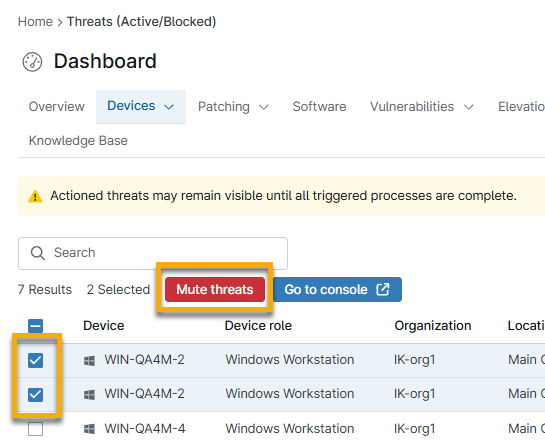
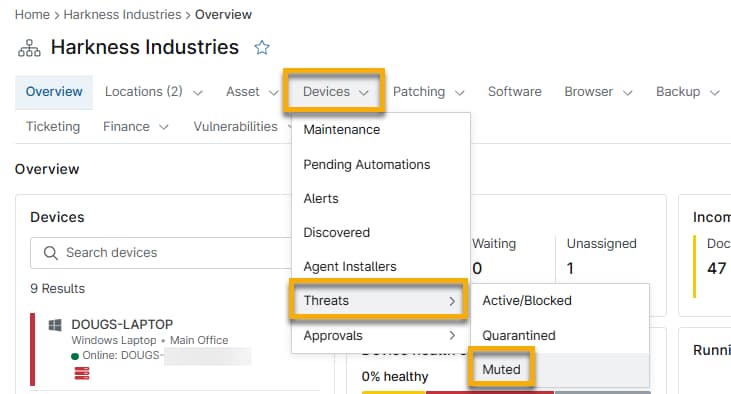
- Expand the Devices tab. Select Threats and then click Active/Blocked or Quarantined.

- Select one or more threats and then click Mute threat.
- After you have muted the threat, you can view or unmute it at Devices → Threats → Muted.
View Muted Threat Activity
When you mute or unmute a threat, NinjaOne records it as an activity. To view these activities, perform the following steps.
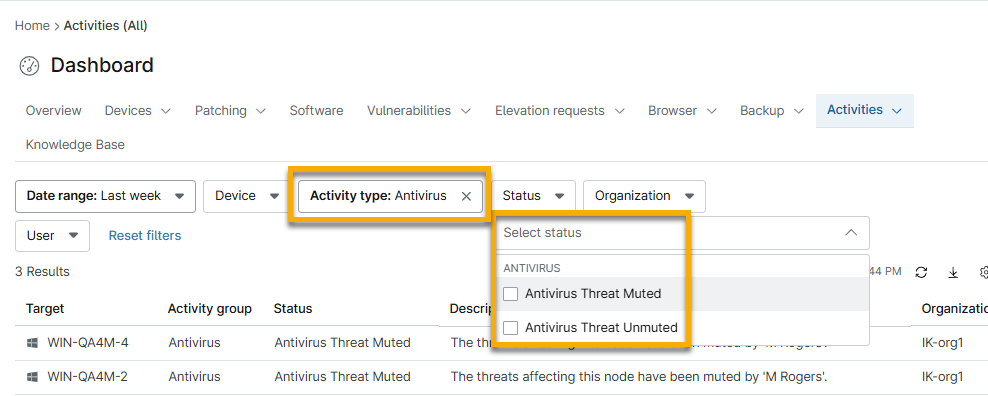
- On the system or organization dashboard, select Activities → All.
- Select Devices → Antivirus for the Activity type.
- Optionally, you can further filter the list by selecting a status.
Additional Resources
Refer to Integrations and Third-Party Apps: Resource Catalog to find more help with NinjaOne Integrations.