
Topic
This article explains how to manage the Ticketing boards in NinjaOne.
Environment
NinjaOne Ticketing
Description
Once you enable NinjaOne Ticketing, a new Ticketing tab is available from the main navigation pane on your NinjaOne console. The boards will be visible based on the display order and the number of visible boards selected on the NinjaOne Ticketing application configuration page in the Boards tab. Refer to NinjaOne Ticketing: Setup and Configuration for more information.
Select a category to learn more:
- Access Ticketing Boards
- Ticket Filtering Criteria
- Ticket Board Functions
- Pending Emails Board
- Additional Resources
Access Ticketing Boards
Select a board from the left navigation pane to view it. If applicable, click Show All to view boards that were hidden by the visibility range.

Ticket Filtering Criteria
You can filter boards by the following criteria:
- Status
- Organization
- Requester
- More filters
- Created
- Primary Assignee
- Tags
- Ticket ID
- Type
Ticket boards and counts are automatically refreshed when a ticket is created, updated, or deleted.

Filter by Health or Severity
Tickets with a Severity of Critical and a Priority set to High display a red exclamation point (!) in the Health column.

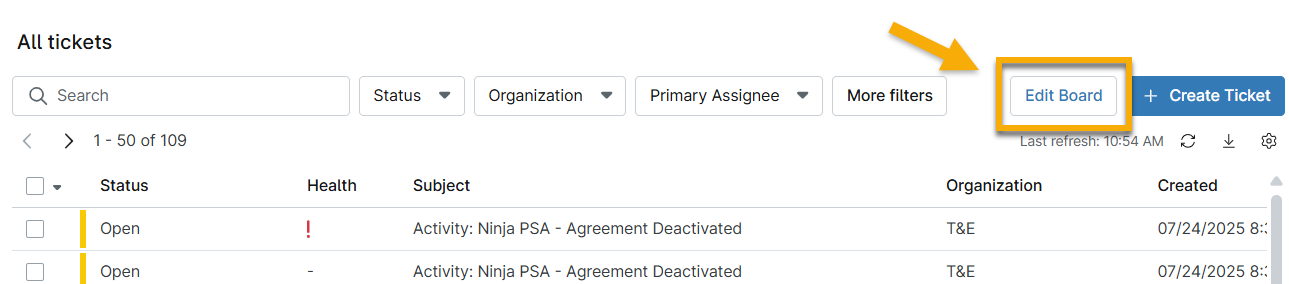
- Click Edit Board.
- In the configuration modal, open the Columns and sorting section.
- Select either Severity or Priority from the Columns drop-down menu and reorder the columns to improve visibility.
- Click Save.
Refer to the Edit Board Display section further in this article to learn more about this function.
Ticket Board Functions
This section explains the purpose of the buttons and icons on the ticketing boards.

| Ticket Function | Description |
|---|---|
Refresh  | Click this icon to refresh the list of tickets. |
Export  | Click this icon to export the list to a .csv (Comma-Separated Values) file. When exporting a ticket board, ticket tags will be included in the .csv file and will appear in the last column. |
| Edit Board | Click Edit Board to modify the columns or sorting for the board. Refer to the Edit Board Display section further in this article to learn more about this function. |
| Create Ticket | Click Create Ticket to manually create a new ticket. Refer to NinjaOne Ticketing: Create and Assign for more information. |
Table Settings  | Click this icon to manage the Auto-Refresh Table Data toggle switch. This setting is shared across all boards. |
| More Details | Move your cursor over the Subject in the list to see more details and click a ticket to open it. |
Edit Board Display
To change the columns that display or their order on the board, click Edit Board on the right.
You can use the Columns and sorting section to organize the tickets by a variety of data, such as location, device, created date, update time, and more. Control the type of information you see on the board by adding or removing columns and rearranging their layout.

Pending Emails Board
Unlike the other boards, the Pending Emails board in particular will list incoming requests from email addresses that are not associated with an existing contact.
The Pending Emails board also lists emails that do not match a configured receiving email address in the NinjaOne Ticketing system.

Resolve Permissions for Unknown Senders
To resolve an "unknown email sender" issue, perform the following steps:
- Navigate to Administration → Apps → NinjaOne Ticketing, and then open the Email → Allowlist tab.
- Click Add.

- You can permit a single email address, an entire email domain, or "all unmatched senders" which permits all emails unless they are specifically blocklisted.
- Click Save to set the permissions.
Approve or Reject Pending Emails
Open a pending email to view more information about the issue and the reason it was routed to the pending queue. You can then opt to Approve or Reject the email. Approving the email will create a ticket and automatically add the requester's email address as a contact. You also have the option to approve pending emails in bulk.
- Click Approve to allow the specific email address.
- Click Reject to block the specific email address.

Additional Resources
Refer to the following resource to learn more about ticketing in NinjaOne: Ticketing Resource Catalogue.