
Topic
This article describes how retention works for image backup plan types in NinjaOne Backup.
Environment
NinjaOne Device Backup
Description
The latest version of NinjaOne backup now requires only one full image backup, while recording periodic revisions as defined by your retention schedule. This feature saves significant storage space and running backup time compared to the previous version of NinjaOne Backup. To learn more about setting up NinjaOne Backup, refer to NinjaOne Backup: Setup Guide.
Index
Backup Retention Settings
The Image Backup engine allows you to keep local and cloud backups when using a Hybrid Storage Destination for different hourly, daily, weekly, and monthly retention periods.
Granular Restore Points
These retention settings provide administrators with more granular control over restore points for your data, allowing them to set a global limit on the number of backups to keep, specify how often backups occur, and determine how many backups to retain as the job runs for extended periods.
Backup administrators can set a retention policy similar to the following example.
To maintain six months of backups:
- First, keep daily backups for 7 days.
- Then, keep weekly backups for the next 6 weeks.
- Then, keep monthly backups for 6 months.
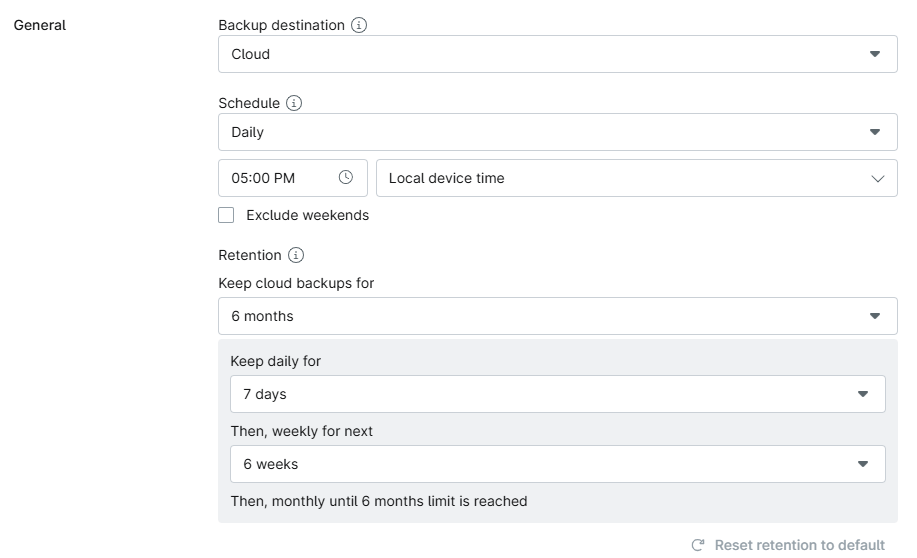
Backup and Retention Schedule Options
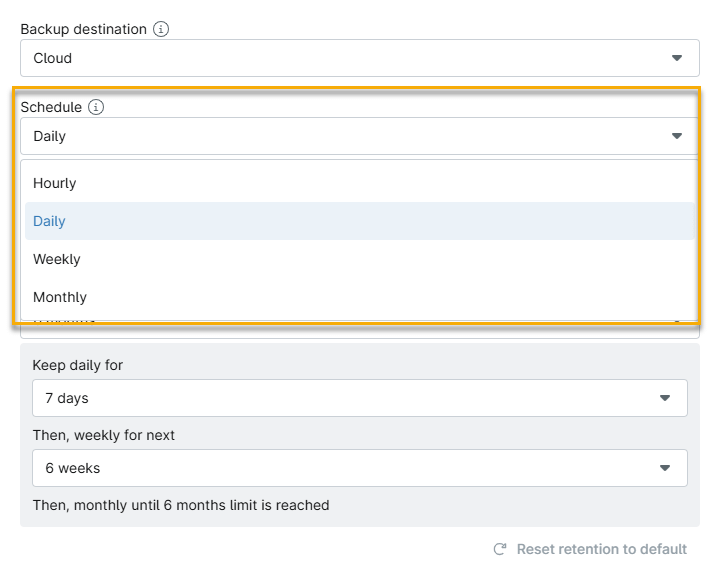
- Use the Schedule drop-down menu to select how often NinjaOne performs backups. You can choose from Hourly, Daily, Weekly, or Monthly plans.
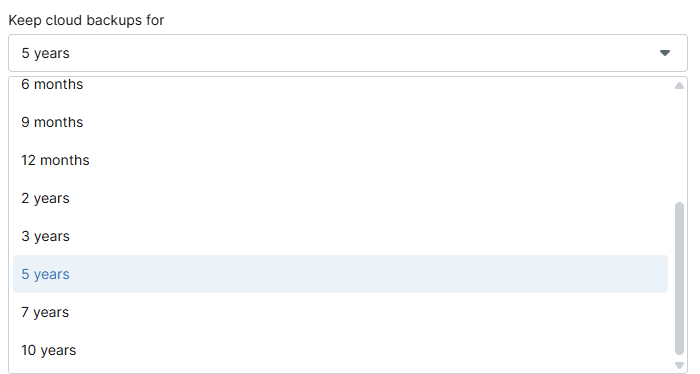
- Use the Keep Cloud Backups for drop-down menu to set the length of time that NinjaOne will store your backups in the Cloud. You can choose monthly increments ranging from 1 to 12 months, and yearly increments up to 10 years.
The backup engine allows you to reset the retention to default settings and also retains a record of your previous retention settings. You will notice an informational tooltip notifying you of your previous selections.
Retention Change Alerts
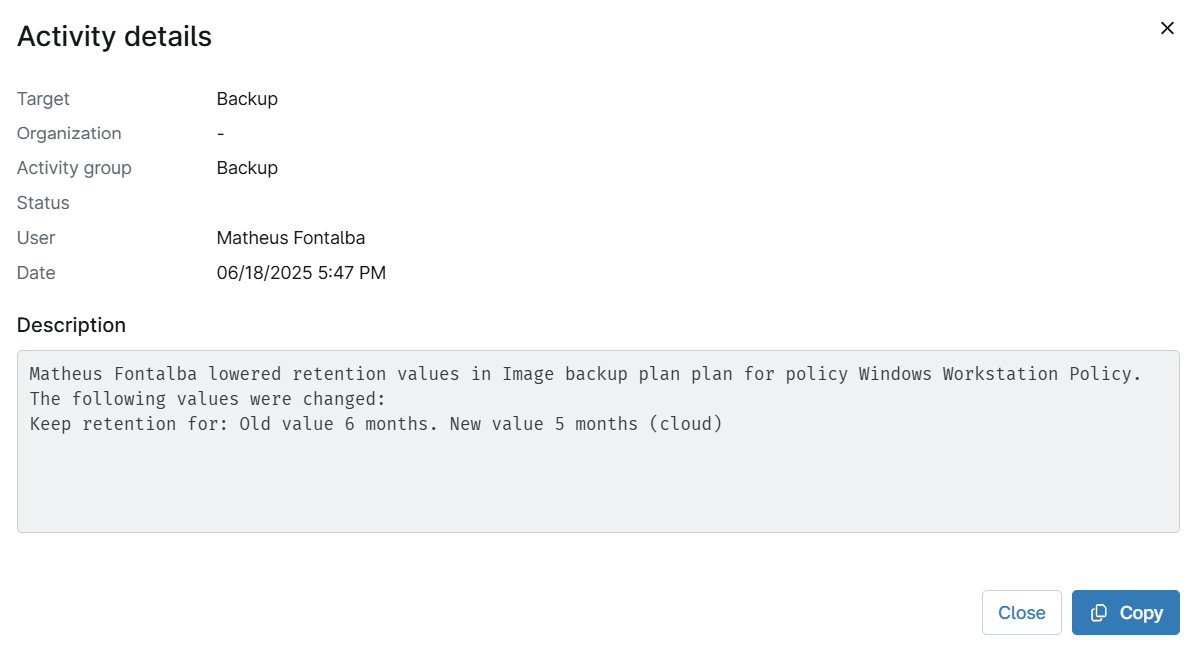
Lowering an image backup plan's retention time will trigger an alert in System Activity Details.
Trimming Concepts and Rules
Trimming is the process of dropping specific backup points that are no longer required based on the set retention criteria.
For example, when attempting to keep 14 days of daily backups, trimming would only occur after the 15th day's backups are completed, reverting to 14 days. The trimmer does NOT trim on Day 14, which would leave you with 13 days of daily backups, which is lower than your retention setting. This concept applies to hourly, daily, weekly, and monthly points.
Important Considerations:
- A trimming action will never reduce the number of backups below the number that has been set to keep. All trimming requires "greater than" the set values and not "greater than or equal to." Trimming can never reduce the number of hourly, daily, weekly, or monthly points below the numbers specified in the plan settings.
- Hourly to daily backup transitions do not occur concurrently; they happen consecutively, starting with hourly first.
- Backups always occur based on calendar age. In other words, if hourly backups did not happen on a specific date, you will still have your daily backups as planned, based on the latest retention points.