
Topic
This article describes common troubleshooting steps for issues with Windows patch management.
Environment
- Microsoft Windows
- NinjaOne patch management
Description
Windows patch management issues can range from missed scans to failed patch installations. The sections below address the most common scenarios and their resolutions. Select a topic to continue:
- Failed to scan for patches on Windows Server Update Services devices
- Failed patches
- Patch scans are running for too long
- Stop certain patches from being applied
- Windows Updates locally on the machine states my device has not been scanned recently
- Running a scan in Windows Updates finds available patches, even though patch management is configured in NinjaOne
- A patch is not listed as installed in NinjaOne, but is listed as installed via Windows Management Instrumentation calls on the device
- The Windows 11 upgrade is being installed on Windows 10 machines unexpectedly
Failed to Scan for Patches on Windows Server Update Services Devices
Problem
For endpoints that point toward Windows Server Update Services (WSUS) in a registry, NinjaOne misses a scan for patching on the devices.
Cause
Possible causes include servers being unreachable, communication errors, improper configuration, or other errors.
Solution
To check or disable WSUS locally on the device, check the following registry keys.
Under:
[HKEY_LOCAL_MACHINESOFTWAREPoliciesMicrosoftWindowsWindowsUpdate]
Look for the following values:
- WUServer
- WUStatusServer
Confirm that both values are blank. Then navigate to:
[HKEY_LOCAL_MACHINESOFTWAREPoliciesMicrosoftWindowsWindowsUpdateAU]
Find the key named UseWUServer, change its value to 0, and restart the Windows Update service.
Failed Patches
Problem
When you attempt to apply Windows patches, some of them fail to install.
Cause
Microsoft patches fail for many reasons, including but not limited to the following:
- Network interruption during scan or apply
- Faulty or buggy patch
- Presence of malware
Solution
NinjaOne provides common solutions for failed patches in the actions menu to the right of the patch:

In addition, you can follow these troubleshooting steps:
- Research the KB that is failing to determine if this is a known issue, and follow any resolution guidelines provided by Microsoft.
- Review the event logs of the affected device.
- Use the Windows Update Troubleshooter (external link) for Windows 7, 8, and 10 devices that are affected.
Patch Scans Are Running for Too Long
Problem
Windows patch scans run for extended periods of time and never complete.
Cause
Duration settings for scan schedules are missing or too long.
Solution
Patch scan duration varies by system but typically completes within three hours. In some cases, a scan can become stuck if the Windows Update Agent (WUA) or NinjaOne's patch management processes are unable to complete. This may indicate an issue with the wuauserv service and requires local investigation to identify the root cause.
Windows patch management scan schedule policy settings allow for duration limits to help control patch scan times. To configure this in your NinjaOne console, perform the following steps:
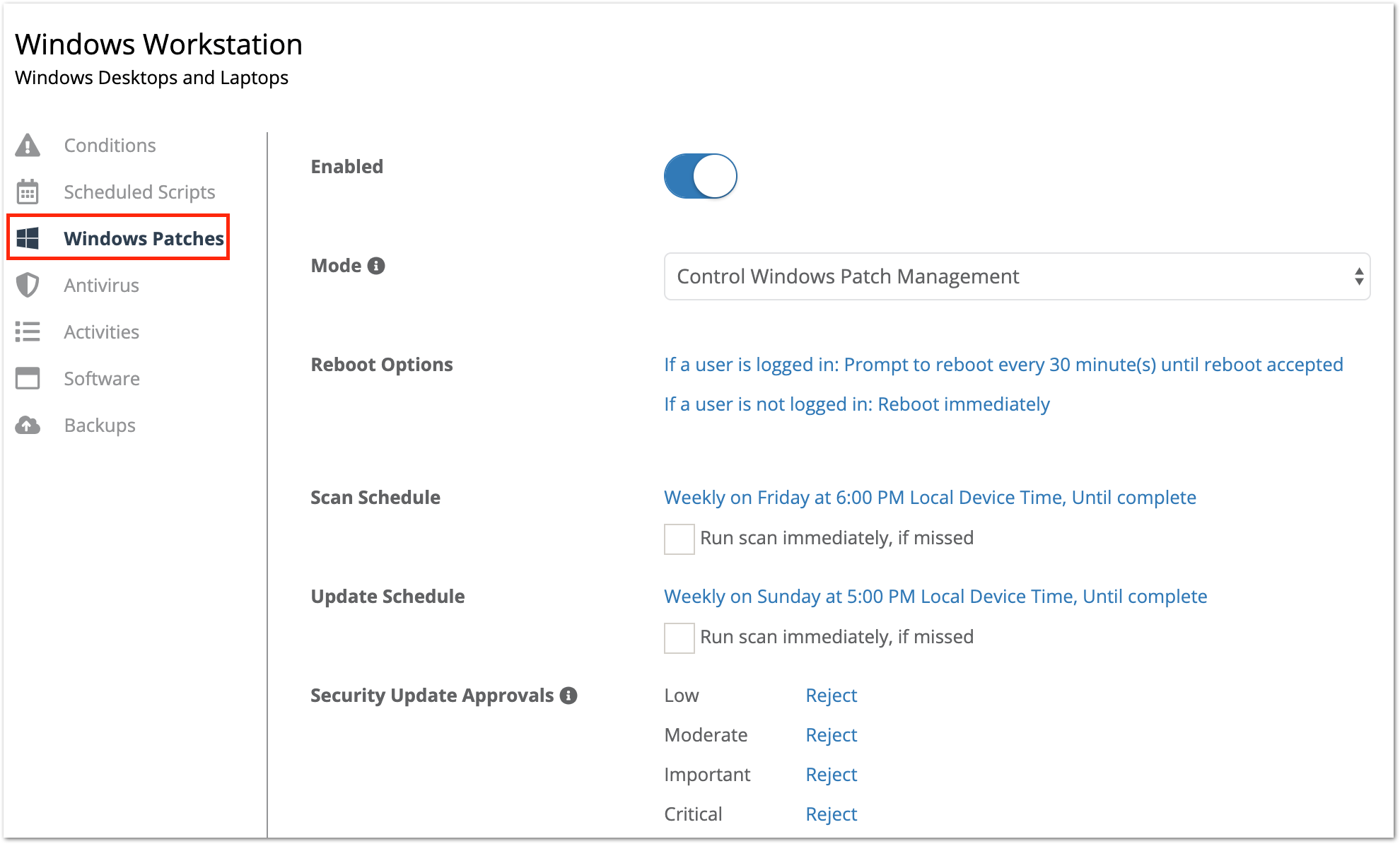
- Navigate to the policy editor you want to set a scan duration for, and then select the Windows Patches tab.
- Under Scan Schedule, click the current schedule to edit it.
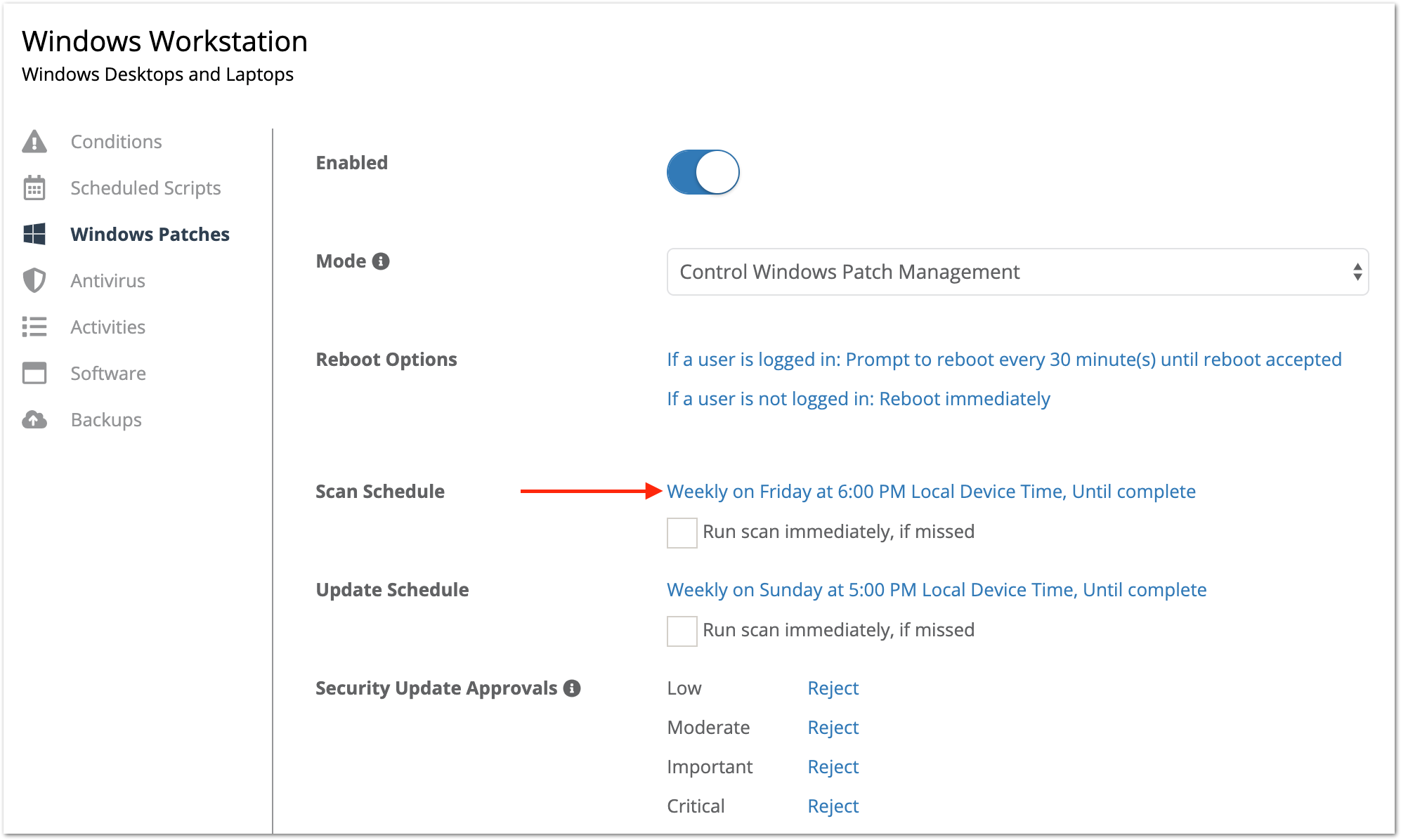
- Enter a time in hours or minutes for the duration.

- Save the changes.
You can apply the same duration settings to the update schedule if needed.
Stop Certain Patches from Being Applied
Problem
There are patches you do not want installed on a device or devices you manage.
Cause
Newly released patches can sometimes have unexpected or undesirable effects on agent machines, such as blue screens or application conflicts.
Solution
In these situations, you can reject a patch across multiple machines that may be affected. For more information about the options available, refer to Windows Patch Management: Approving, Rejecting, and Uninstalling Patches.
Windows Updates Locally on the Machine States My Device Has Not Been Scanned Recently
Problem
The Last Scan field in the Windows Updates tool locally on a machine states that your device has not been scanned recently.
Cause
Windows Updates only updates the Last Scan field based on scans that were run through its application locally on the device. Microsoft uses an .XML file to set this field. When NinjaOne runs a Windows patch scan, Windows Updates does not detect or reflect that the scan occurred.
Solution
To confirm that your device has been running scans through NinjaOne, refer to the Activity Feed first. If you do not see a recent scan based on your Windows Patches policy configurations, contact Support for assistance in determining why the scan was missed.

Running a Scan in Windows Updates Finds Available Patches, Even Though Patch Management Is Configured in NinjaOne
Problem
When you run a patch scan locally on a machine through Windows Updates, it finds available patches even though NinjaOne patch management is configured to handle updates.
Cause
The following are common reasons why Windows Updates locally on a machine may detect available patches:
- The last update cycle run through NinjaOne was missed.
- Since the last update cycle ran through NinjaOne, new patches have become available and NinjaOne has not run its next update cycle yet.
- You are between your scan cycle and update cycle, and those patches have not been applied yet.
- Windows patch management cannot update until the device is rebooted.
- Patches have been rejected for NinjaOne's patch management tool, either manually or per the approval settings configured for your policy.
- There are Windows patch management failures on the machine.
Solution
The following solutions correspond to the causes listed above:
- Check the Activity Feed for the device to confirm whether the most recent scheduled scan was missed. The scan may have been missed if the device was offline when the scan was scheduled to run. For more information about why the scan was missed, open a ticket with Support.
- This is normal if you run monthly updates on a device, as Microsoft releases patches every Tuesday.
- Check the device to see if there are updates listed under Pending or Approved.
- If there is a pending reboot on the device due to Windows patch management, NinjaOne cannot update the device until a reboot occurs. Refer to pending reboots for more information.
- Check the device to see if there are updates listed under the Rejected tab. Patches listed there will not be installed by NinjaOne's Windows patch management tool, but will still appear as available patches locally on the machine during a Windows Updates scan.
- Refer to the Failed patches section above.
A Patch Is Not Listed as Installed in NinjaOne, but Is Listed as Installed via Windows Management Instrumentation Calls on the Device
Problem
A specific patch does not appear as installed under Device → OS Patches → Installed, despite being verifiably present on the device as installed via Windows Management Instrumentation (WMI) calls.
There are various ways to query installed updates on a Windows machine. Results from different methods can vary depending on what is being queried. The Windows: How to List All of the Windows and Software Updates Applied to a Computer (external link) TechNet article provides insight on the methods used in this documentation.
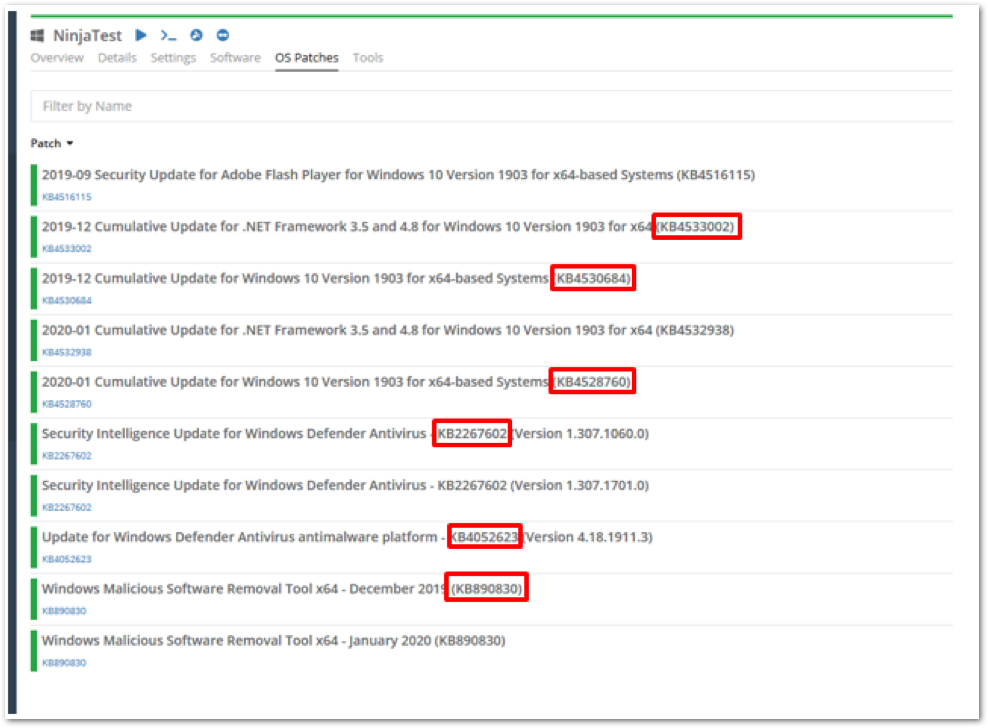
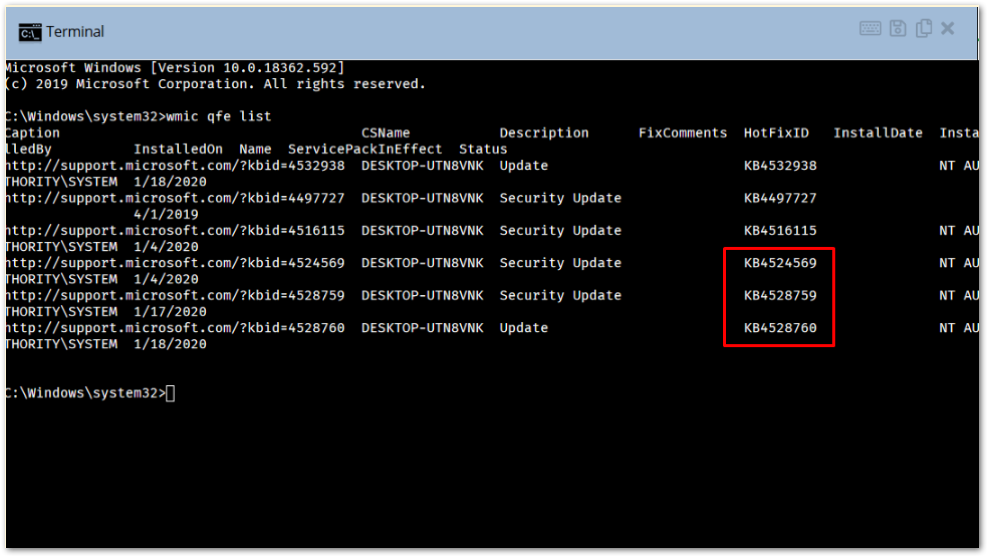
Figures 6 and 7 compare installed updates as listed in the NinjaOne console against installed updates as queried via WMI. As shown, there are updates on both sides that are not listed by the other method. Specifically, KB4524569, KB4528759, and KB4528760 appear as installed via the WMI query results but do not appear as installed in the NinjaOne console. Conversely, KB4533002, KB4530684, KB4528760, KB2267602, KB4052623, and KB890830 appear in the NinjaOne console but are not listed in the WMI query results.
Cause
This occurs because each method queries different locations for installed updates. NinjaOne queries for updates installed via Windows Update, Microsoft Update, Automatic Updates, WSUS, or Configuration Manager (ConfigMgr), which are generally installed using a Microsoft Installer (MSI). Installations of these packages are recorded in the Software Distribution datastore and the registry. NinjaOne queries these locations to gather installed patch information.
WMI uses the Win32_QuickFixEngineering class, which only returns updates supplied by Component Based Servicing (CBS). These updates are typically small, system-wide updates commonly referred to as quick-fixes or hotfixes. Refer to the Win32_QuickFixEngineering class (external link) documentation for more information.
Solution
Because these updates are not recorded in the registry, NinjaOne cannot query them to verify their existence at this time. In some instances, an update may be installed via an OS upgrade (such as version 1903 or 1909) and remain dormant on a system, as described in this Microsoft support article (external link).
In the specific case of KB4528759 and KB4528760, Microsoft has packaged the update into upgrade packages for Windows 10 to the current build of version 1903 (18362.592) and version 1909 (18363.592). As a result, the build number of the operating system installed on the agent machine is key to identifying whether KB4528759 or KB4528760 is installed.
The Windows 11 Upgrade Is Being Installed on Windows 10 Machines Unexpectedly
Problem
The Windows 11 upgrade is being automatically approved and installed on Windows 10 machines unexpectedly.
Cause
Microsoft assigns the same KB number to different update types depending on the OS version. A KB that represents a routine cumulative update on Windows 11 can represent a feature update (the Windows 11 upgrade) on Windows 10. This behavior is determined by Microsoft and is not controlled by NinjaOne. If NinjaOne is configured to auto-approve patches by KB number, this can result in an unintended OS upgrade on Windows 10 machines.
Solution
As a best practice, avoid auto-approving patches by KB number, as KB numbers are not unique across OS versions.
To prevent the Windows 11 upgrade from being offered on Windows 10 machines, run the attached registry script. This produces the same result as clicking Stay on Windows 10 in the Windows Updates panel on the device.
If the issue you are experiencing is not listed above, or if you need further assistance after attempting the recommended troubleshooting steps, contact NinjaOne Support.