
Topic
This article describes the initial process for setting up NinjaOne's Device Backup tools in your instance.
Environment
NinjaOne Device Backup
Description
NinjaOne features integrated image-based and file-based backup solutions that allow you to back up your data in different ways depending on your specific needs. To get started, review the sections below.
Index
- System Requirements
- Prerequisites
- Activating NinjaOne Device Backup
- Deploying NinjaOne Device Backup to Machines
- Applying Bandwidth Throttling to Individual Devices
- Granting Custom User Access to NinjaOne Device Backup
- Activating Backup From the Devices Search Grid
- Additional Resources
System Requirements
NinjaOne Device Backup supports the following operating systems:
- Microsoft Windows 8 and newer
- Microsoft Windows Server 2012 R2 and newer
- Apple macOS Monterey and newer
- Linux (File/Folder Backup Only)
To use local storage with Windows Server 2012 R2 and avoid backup problems, you must configure the file share to support concurrent connections. Refer to Performance Tuning Guidelines for Windows Server 2012 R2 (external link). Follow the steps for network tuning, disk subsystem tuning, and file server tuning.
Prerequisites
Before activating NinjaOne Device Backup, review the following prerequisites to ensure that your environment meets all compatibility requirements. NinjaOne Device Backup is compatible with Windows and Apple macOS devices. Linux is supported only on File/Folder Backup plans.
- If your antivirus solution has active protection activated, you must allowlist NinjaOne Device Backup executable (lockhart.exe). Not doing so may affect upload and download speeds.
- For Apple macOS devices, you must grant the Lockhart agent full disk access. For information about how to do so, refer to NinjaOne Device Backup: Full Disk Access Error 309 on Apple macOS.
Activating NinjaOne Device Backup
To configure backup services for your instance, perform the following steps:
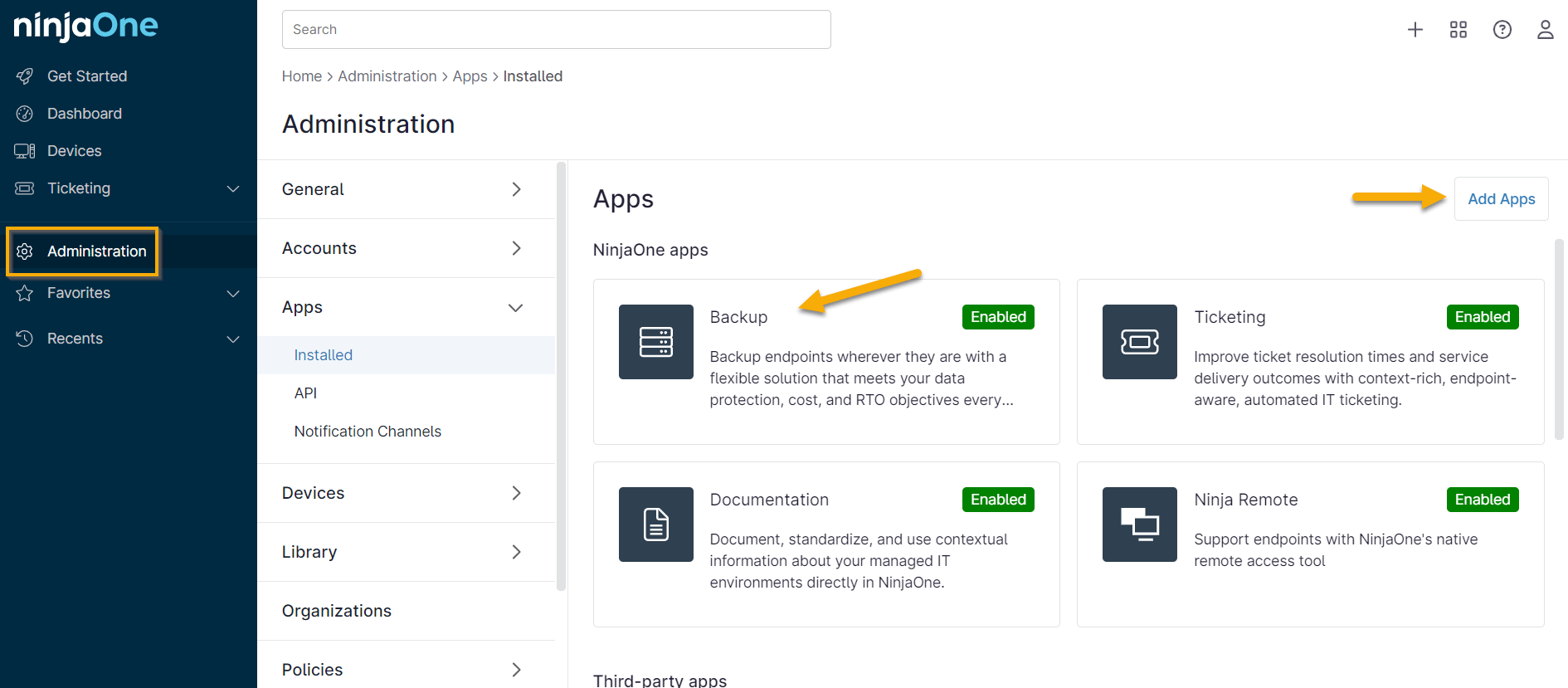
- In NinjaOne, navigate to Administration → Apps and select Backup. If the app is not visible, click Add Apps to select it.
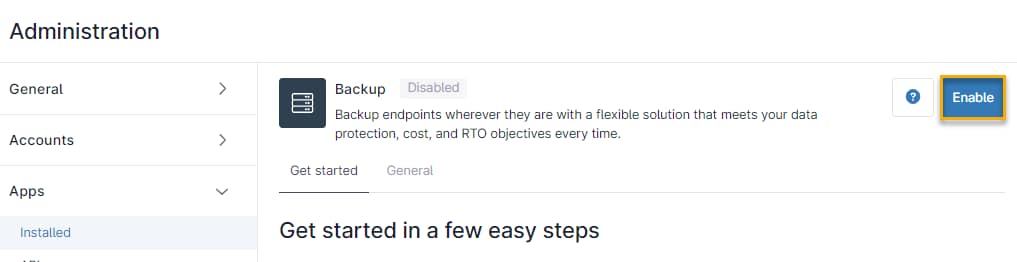
- On the Backup configuration page, click Enable.
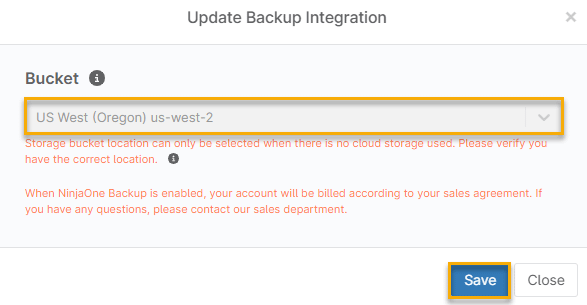
- On the Update Backup Integration dialog, choose which cloud storage bucket to use. The available cloud storage buckets populate automatically based on your geographical region.
- Click Save to continue.
The following storage buckets are available for each NinjaOne instance:
| Storage Bucket | Locations |
|---|---|
| US | Oregon |
| US2 | Ohio |
| EU | Frankfurt, Stockholm, Ireland, London, Paris, Switzerland |
| OC | Sydney |
| CA | Canada |
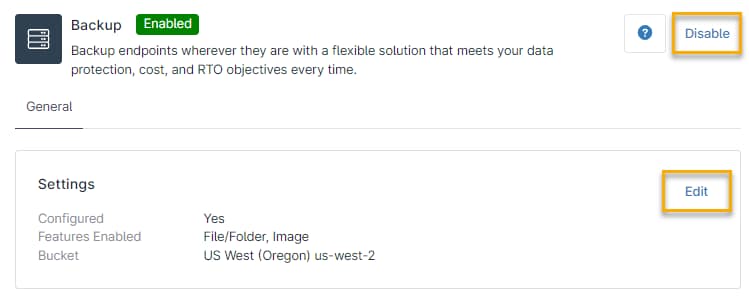
- Once NinjaOne Device Backup is activated, the Apps section indicates this. You can use the Disable option to deactivate NinjaOne Device Backup. Use the Edit button to modify which features you want to activate (file/folder and image).
Deploying NinjaOne Device Backup to Machines
Complete the following workflow to deploy the backup solution to your endpoints.
- In NinjaOne, navigate to Administration → Organizations.
- Click the organization you would like to update.
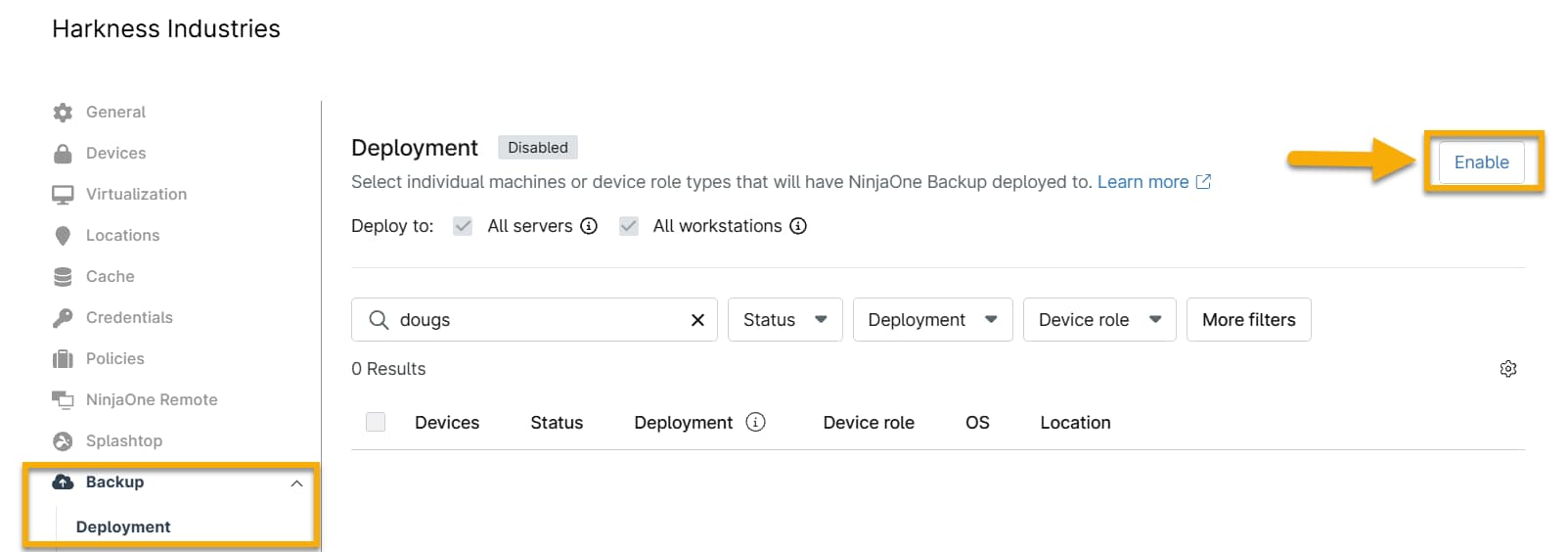
- In the side navigation menu, navigate to Backups → Deployment.
- If Disabled appears on the Deployment pane next to the header, click Enable to activate the management options for deploying the backup solution to your instance's endpoints.
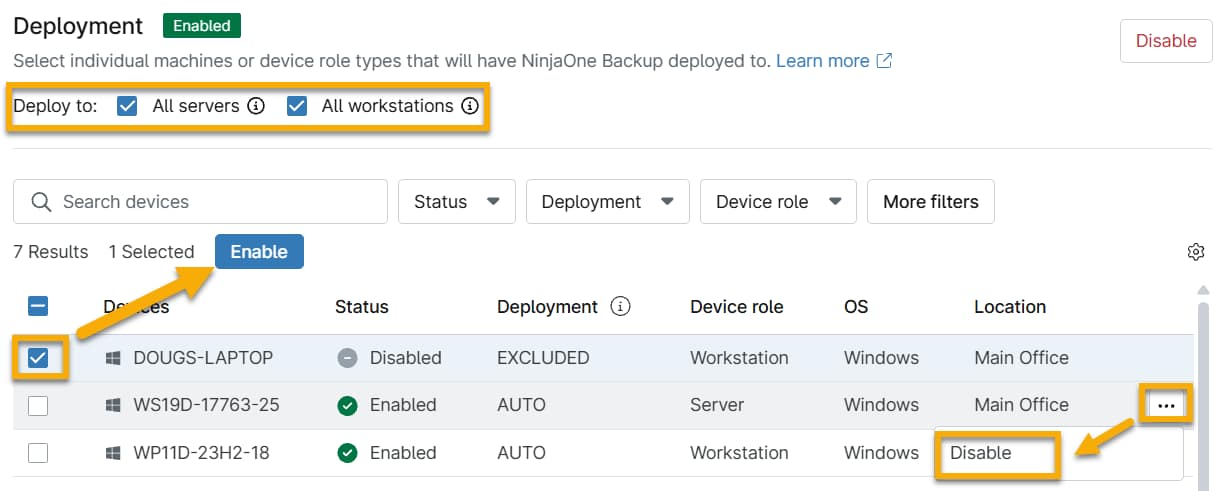
- After you have activated the feature, a table listing all eligible devices for protection will appear in the pane. From this location, you can enable NinjaOne Device Backup for all servers, all workstations, and any individual devices you designate by selecting the check boxes next to the corresponding roles and device names you want to protect.
You can quickly find a particular device by typing its name in the search box, or use the filter drop-down menus next to the Search box to narrow your device list to a specific subset. You can filter using any of the following parameters:
- Status
- Deployment
- Device Role
- OS
- Location
You can reverse the sort order of your device list by placing your cursor over a column heading and clicking the arrow that appears.
- To manually manage deployment for specific endpoints, move your cursor over the device's name in the table. Then, click the ellipsis button to select the Enable or Disable option.
You can also perform these actions by selecting the check boxes next to the devices you wish to manage. Enable or Disable buttons will appear below the Search box.
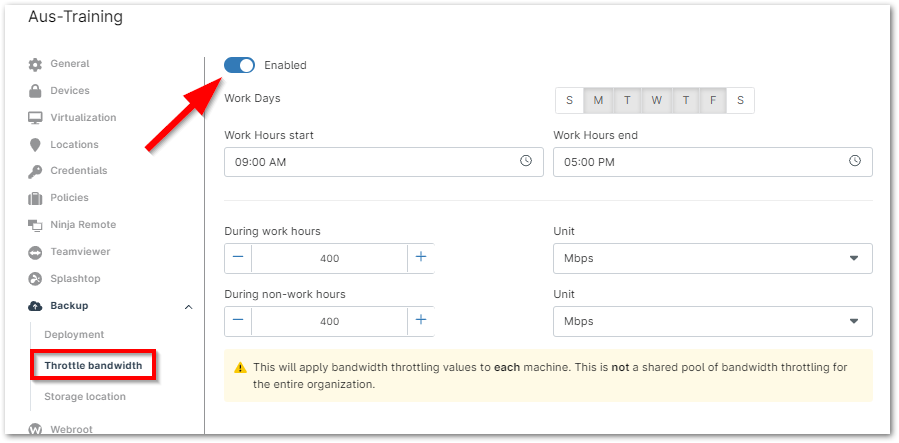
- To configure bandwidth throttling, in the side navigation menu, select Backup → Throttle Bandwidth.
- Activate the Enabled toggle to manage the throttling settings.
- Define the schedule during which bandwidth throttling should apply and the units of bandwidth to throttle.
- When you have completed the configuration, click Save.
- Finally, save the changes to your organization by clicking Save in the navigation bar.
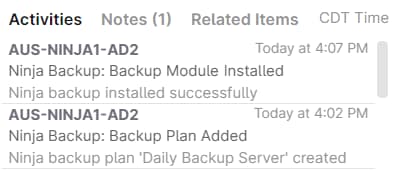
- If you navigate to a device with NinjaOne Device Backup activated, you will see an entry in its activity feed indicating the installation.
Applying Bandwidth Throttling to Individual Devices
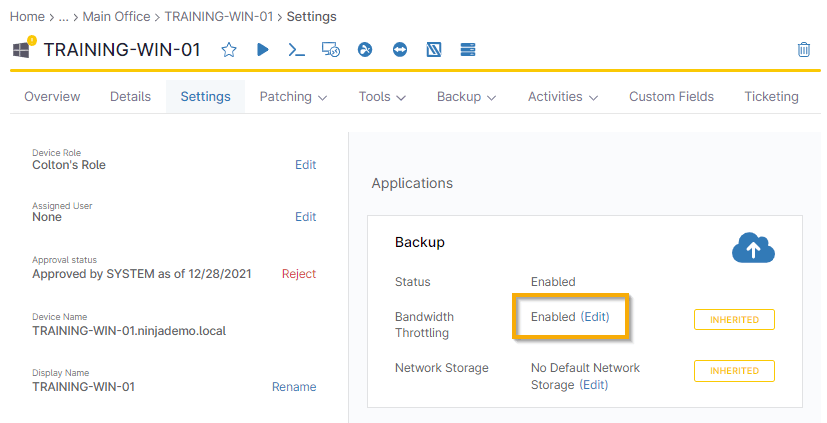
You can also configure device-level overrides for bandwidth throttling settings. To do so:
- Navigate to the detail page for the device in question.
- Select the Settings tab.
- Click Edit in the Bandwidth Throttling row.
If you'd like to use network storage for local backup use, refer to NinjaOne Device Backup: Network Storage Setup.
After deploying NinjaOne Device Backup to your machines, we recommend configuring backup plans and notifications. Refer to the following articles to learn more.
- Device and System Activity Notification Feed
- NinjaOne Device Backup: File/Folder Backup Plans
- NinjaOne Device Backup: Image Backup Plans
Granting Custom User Access to NinjaOne Device Backup
NinjaOne system administrators have access to NinjaOne Device Backup by default. Only they can activate or deactivate NinjaOne Device Backup at the system level. You can also grant backup levels to custom users. To do so, perform the following steps:
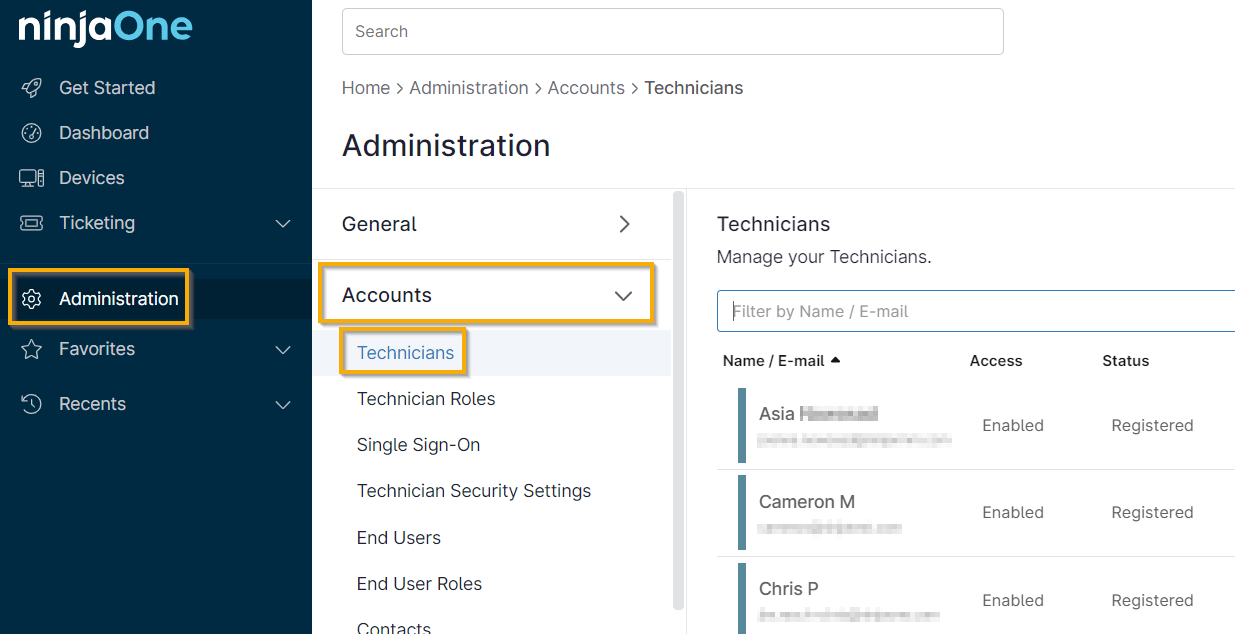
- Navigate to Administration → Accounts → Technicians. Select a technician whose permissions you want to edit.
- In the user's profile, navigate to Permissions → System.
- Ensure that the Enable toggle is active.
- Click the drop-down menu in the Backup permissions field.
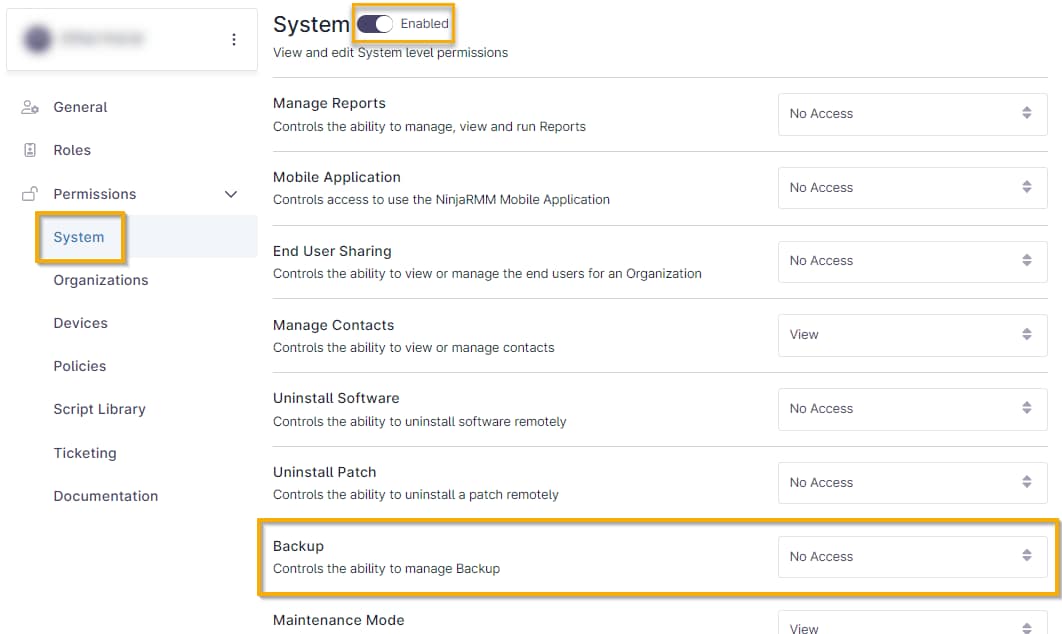
- Select the level of privilege you want the user to have. Refer to the following table for permission definitions.
| System-Level Permission | Description |
|---|---|
| View | Users can see the Backup dashboard for the organizations and devices to which they have access. |
| View and Manage | Users can see the Backup dashboard for the organizations and devices to which they have access and can delete backup data or run backup plans on demand for those devices. |
| View and Restore | Users can see the Backup dashboard for the organizations and devices to which they have access and initiate a restore for those devices. |
| View, Restore, and Manage | Users can view the Backup dashboard for the organizations and devices to which they have access, run a backup on demand, and delete backup data. |
Access to the organization's backup settings and backup plans depends on the organization and policy permissions granted to the user. Users who do not have backup access can see when an active backup or restore job runs on a device they can access.
Activating Backup From the Devices Search Grid
From the device search grid, you can multi-select devices and activate backup via the following workflow.
- In the NinjaOne navigation menu, select the Devices tab.
- Click the check boxes to select two or more devices.
- Navigate to Configure → Backup → Enable.
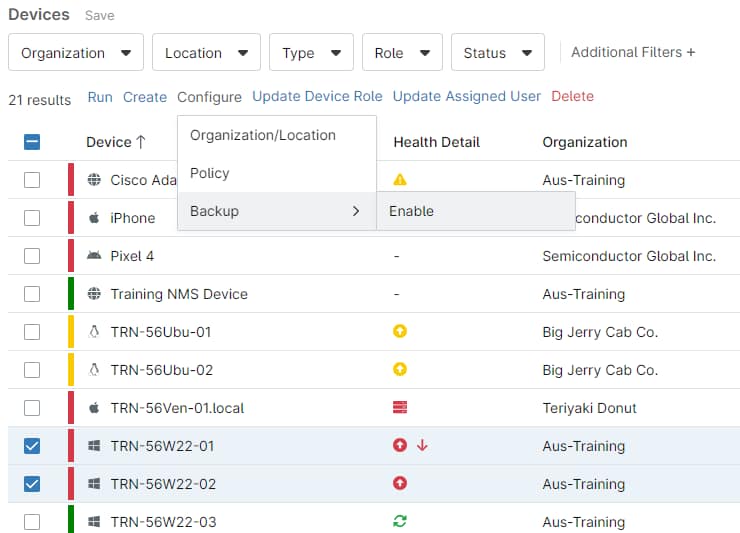
- A confirmation window will appear with a list of the devices you selected. Click Enable to activate backups.
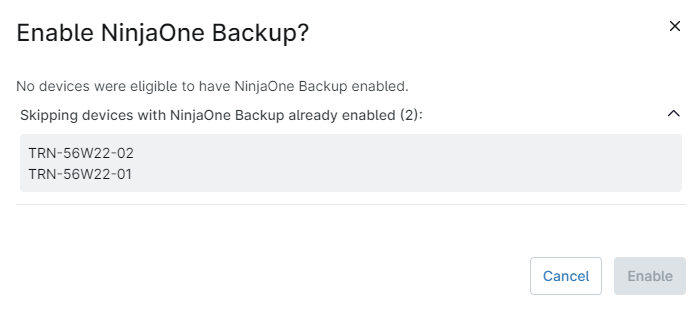
If you selected any devices that can't be activated, either because they are already activated or because NinjaOne Device Backup is not active for their organizations, they won't appear in the confirmation window.
Additional Resources
For further information about managing your backups, refer to the following articles: